How to Group Echo Speakers for Seamless Multi-Room Audio
To learn how to group Echo speakers, simply open the Alexa app, navigate to the Devices tab, tap the plus (+) icon in the top-right corner, and select Combine Speakers. From there, choose Multi-Room Music to create a group that plays synchronized audio across all selected Amazon Echo devices in your home.
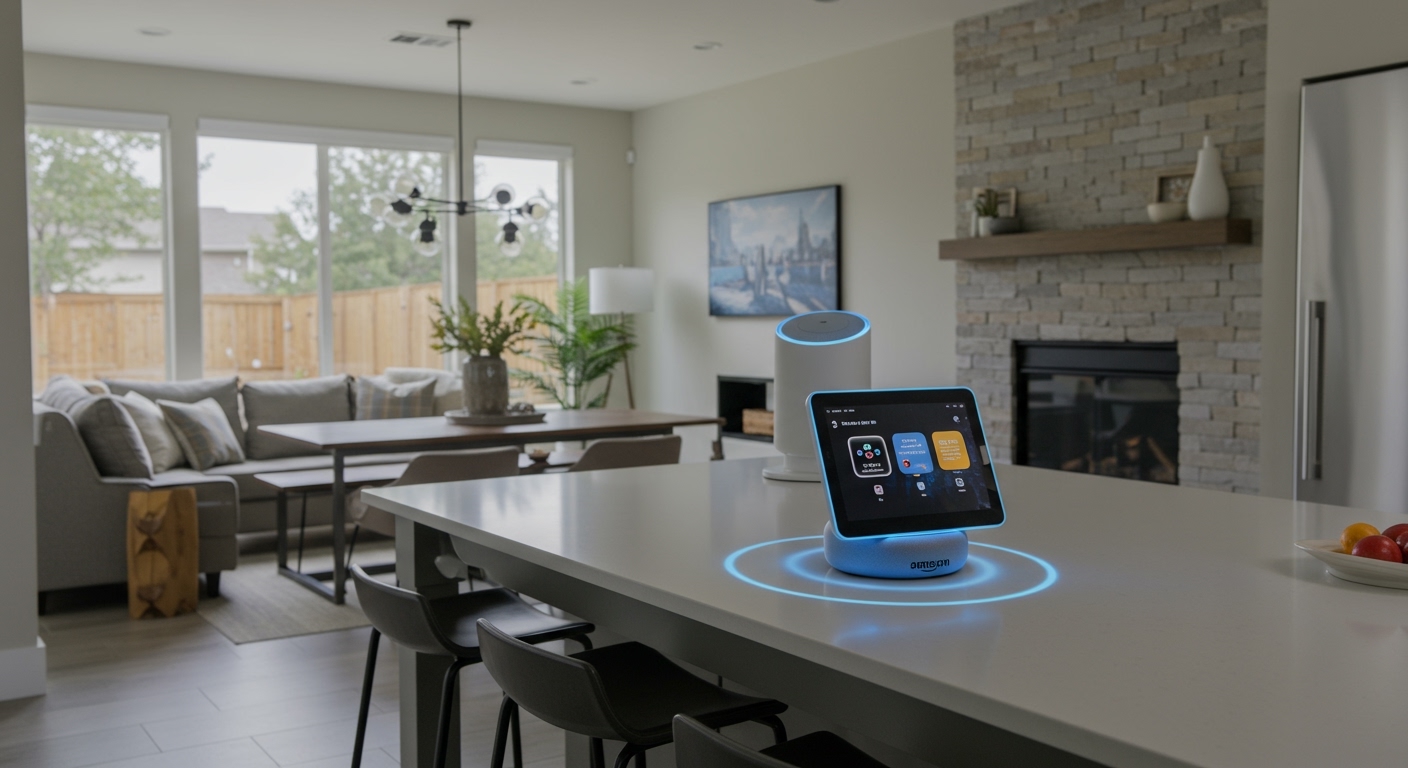
Setting up a whole-home audio system used to require thousands of dollars in professional wiring and high-end receivers. Today, I use Amazon Echo devices to achieve the same effect for a fraction of the cost. Whether you are hosting a party or just want your morning podcast to follow you from the kitchen to the bathroom, mastering speaker groups is the key to a truly “smart” home.
💡 Key Takeaways: Echo Speaker Grouping
- Primary Tool: You must use the Alexa app (iOS or Android) to create and manage groups.
- Network Requirement: All Echo devices must be on the same Wi-Fi network and registered to the same Amazon account.
- Three Group Types: You can create Multi-Room Music groups, Stereo Pairs, or Home Theater systems.
- Voice Control: Once grouped, you can use commands like “Alexa, play music on the Downstairs group.”
- Compatibility: Most Echo generations work together for music, but Stereo Pairs usually require two identical speaker models.
The Different Types of Echo Speaker Groups
Before we dive into the “how-to,” it is crucial to understand that Amazon offers three distinct ways to link speakers. I have tested all three in my own home office and living room setups, and each serves a different purpose.
Multi-Room Music Groups
This is the most common setup. It allows you to play the same song across different rooms. For example, I have an Echo Studio in the living room and an Echo Dot in the kitchen. When they are in a “Main Floor” group, the music stays perfectly in sync as I move between rooms.
Stereo Pairs (Subwoofer Pairing)
This is for audiophiles who want a wider soundstage. You take two identical speakers (like two Echo Pop units) and designate one as the “Left” channel and the other as the “Right” channel. You can also add an Echo Sub to this configuration for deeper bass.
Home Theater Systems
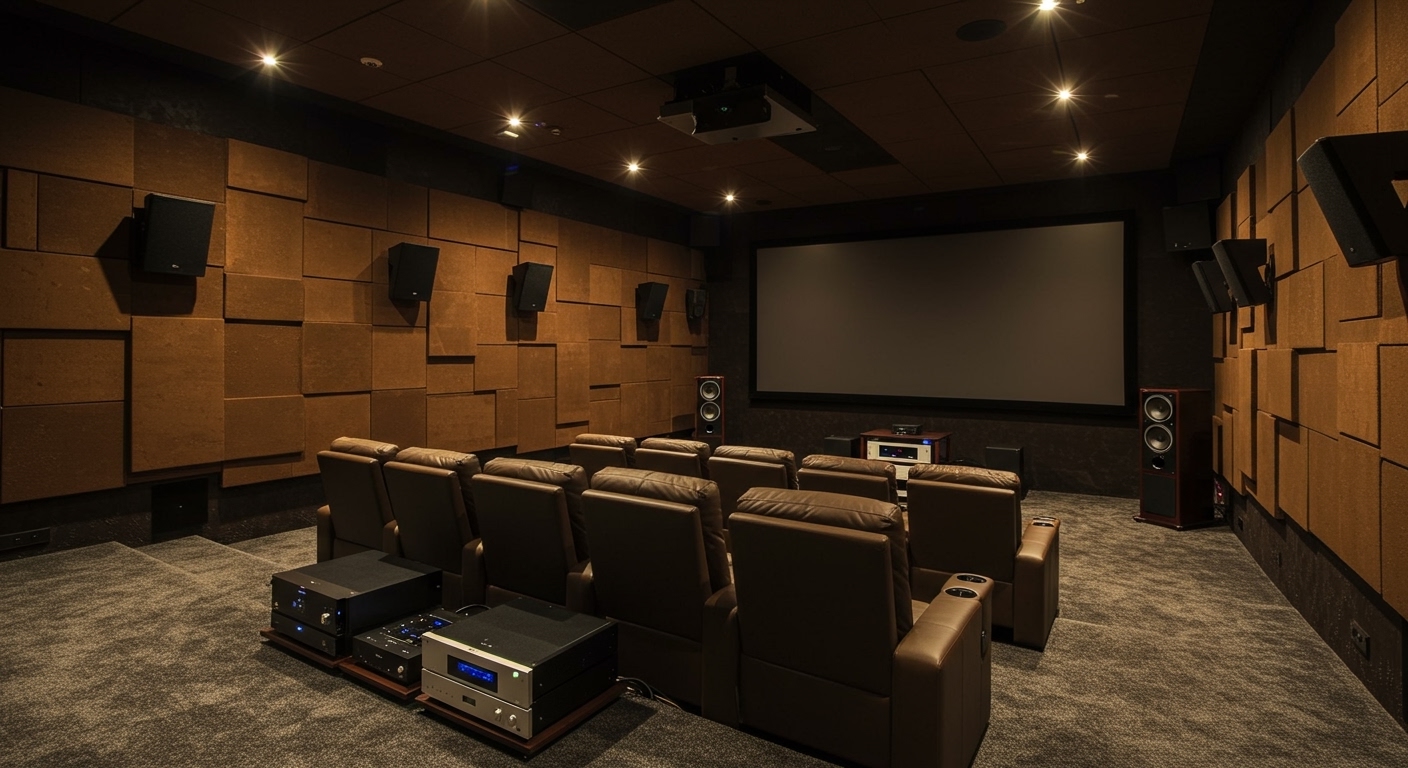
If you own a Fire TV Stick or Fire TV Cube, you can link your Echo speakers to act as external soundbars. In my experience, pairing two Echo Studios with a Fire TV 4K Max provides a surprisingly robust Dolby Atmos experience without the clutter of a traditional wired system.
| Group Type | Best Use Case | Required Equipment |
|---|---|---|
| Multi-Room Music | Whole-home parties or background music | Any mix of Echo devices |
| Stereo Pair | Dedicated music listening in one room | Two identical Echo speakers |
| Home Theater | Watching movies/TV with better audio | Fire TV + 1-2 Echo speakers |
| Speaker Sets | Adding a Subwoofer to existing Echoes | 1-2 Echoes + Echo Sub |
Step-by-Step: How to Group Echo Speakers for Multi-Room Music
This is the standard process for most users. Follow these steps to get your Multi-Room Music (MRM) group running in under five minutes.
Step 1: Prepare Your Devices
Ensure all your Echo devices are plugged in and showing a “Ready” status in your app. I recommend naming your devices clearly (e.g., “Kitchen Echo” instead of “Echo Dot 4th Gen”) before you start grouping them.
Step 2: Access the Combination Menu
- Open the Alexa app on your smartphone.
- Tap the Devices icon at the bottom of the screen.
- Look for the plus (+) icon in the top-right corner.
- Select Combine Speakers from the pop-up menu.
Step 3: Select Multi-Room Music
You will see several options. Choose Multi-Room Music. The app will now scan your network for compatible speakers.
Step 4: Choose Your Speakers
Tap each device you want to include in the group. A checkmark will appear next to the selected devices.
Note: If a device is grayed out, it is likely on a different Wi-Fi frequency (2.4GHz vs 5GHz) or is currently offline.
Step 5: Name Your Group
You can choose a preset name like “Everywhere,” “Downstairs,” or “Upstairs,” or create a Custom Name. I suggest using simple, easy-to-pronounce names to ensure Alexa understands your voice commands every time.
Step 6: Finalize and Sync
Tap Save. The app will take a few moments to sync the devices. Once finished, try saying, “Alexa, play music on [Group Name].”
Creating a Stereo Pair for Enhanced Audio
If you want a traditional Hi-Fi experience, grouping two speakers as a Stereo Pair is the way to go. Through my testing, I’ve found that even two small Echo Dots sound significantly better when separated by about six feet and paired in stereo.
Requirements for Stereo Pairing
- Identical Models: Generally, you cannot pair an Echo Dot with a full-sized Echo. They must be the same generation and model.
- Single Room: These should be placed in the same room for the best acoustic effect.
How to Set It Up
- In the Alexa app, go to Devices > Plus (+) > Combine Speakers.
- Select Stereo Pair / Subwoofer.
- Select the two speakers you want to pair.
- Follow the prompts to identify which speaker is on your Left and which is on your Right.
- Test the audio to ensure the channels are correctly assigned.
Setting Up an Echo Home Theater Group
Using Echo speakers as your TV’s audio output is a game-changer for movie night. This setup uses a wireless protocol that minimizes “lip-sync” lag.
Equipment Needed
- A compatible Fire TV device (Fire Stick Lite, 4K, 4K Max, or Cube).
- One or two Echo speakers.
- The Echo Sub (Optional, but highly recommended for movies).
The Setup Process
- Go to the Devices tab in the Alexa app.
- Tap the plus (+) and select Combine Speakers.
- Select Home Theater.
- Select your Fire TV device.
- Select the Echo speakers you want to use as your cinema system.
- Follow the on-screen calibration steps to ensure the audio matches the video on your screen.
Expert Tips for Managing Speaker Groups
As someone who manages over 15 smart devices, I have learned a few “pro tips” to keep your Echo Grouping running smoothly.
Optimize Your Wi-Fi
Multi-Room Music is bandwidth-intensive. If your music is stuttering, your router might be struggling. I moved to a Mesh Wi-Fi system (like the eero 6+) specifically to handle the data load of six synchronized Echo speakers. If you are using a standard ISP router, try to keep your “Music Group” limited to 3-4 devices.
The “Everywhere” Group
Amazon often creates an “Everywhere” group by default. If it isn’t working, delete it and recreate it manually. This group is perfect for cleaning the house or when you have guests moving between the patio and the living room.
Adjusting Audio Sync
Occasionally, one speaker might be slightly out of sync (an “echo” effect). To fix this:
- Go to the Devices tab.
- Select your Speaker Group.
- Tap Audio Sync Problems.
- Follow the instructions to apply a small delay to the offending speaker.
Voice Commands for Your Echo Groups
Once you have successfully learned how to group Echo speakers, you need to know how to control them. Here are the most effective commands:
- To Play: “Alexa, play [Artist/Genre] on the [Group Name] group.”
- Volume Control: “Alexa, set volume to 5 on the [Group Name] group.” (Note: This adjusts all speakers in that group simultaneously).
- Pause/Resume: “Alexa, stop the music on the [Group Name] group.”
- Switching: “Alexa, move my music to the [New Group Name] group.”
Troubleshooting Common Grouping Issues
Even for experts, Alexa can be finicky. Here is how to solve the most common “Echo Grouping” headaches.
“Device Unreachable” Error
This usually means the speaker has dropped its Wi-Fi connection. Unplug the speaker for 30 seconds, plug it back in, and wait for the blue ring to stop spinning before checking the app again.
Group Doesn’t Appear in Spotify/Apple Music
If you use third-party apps, you might not see your Alexa Group immediately. Open the Alexa app first, start the music there, and then your streaming service should recognize the group as an active playback destination.
Bluetooth Limitations
Important Note: You cannot use Bluetooth speakers as part of an Alexa Multi-Room Music group. The grouping only works with the internal speakers of Amazon Echo devices or speakers connected via the 3.5mm Aux Out port on older Echos.
Frequently Asked Questions
Can I group Echo speakers with different models?
Yes, for Multi-Room Music groups, you can mix and match any Echo devices (e.g., an Echo Show 15 with an Echo Pop). However, for Stereo Pairs, the models usually must be identical.
How many Echo speakers can I have in one group?
While Amazon doesn’t set a hard limit, performance depends on your Wi-Fi network. Most standard routers can handle 10-12 speakers before experiencing “dropouts” or synchronization lag.
Does grouping Echo speakers work with Spotify?
Yes. You can say, “Alexa, play Spotify on the [Group Name]” or select the group name directly from the Connect to a device menu within the Spotify app.
Why can’t I find my Echo speaker when trying to create a group?
Ensure the device is not currently part of another incompatible group (like a Home Theater setup) and verify that it is connected to the same Amazon account as your other speakers.
Can I include a 3rd-party Alexa-enabled speaker (like Sonos) in an Echo group?
Generally, no. Amazon’s Multi-Room Music feature is restricted to first-party Echo devices. If you have a Sonos system, you must use the Sonos app to group those specific speakers.