How to Hook Up Cambridge Soundworks Speakers: The Direct Guide
To learn how to hook up Cambridge Soundworks speakers, start by connecting the speaker wires to the corresponding terminals on the back of your audio receiver or subwoofer, ensuring you match the positive (+) and negative (-) leads. For powered PC systems, connect the satellite speakers to the active subwoofer using the proprietary RCA or DIN cables, then plug the main 3.5mm audio jack into your computer’s sound card or a Bluetooth adapter.
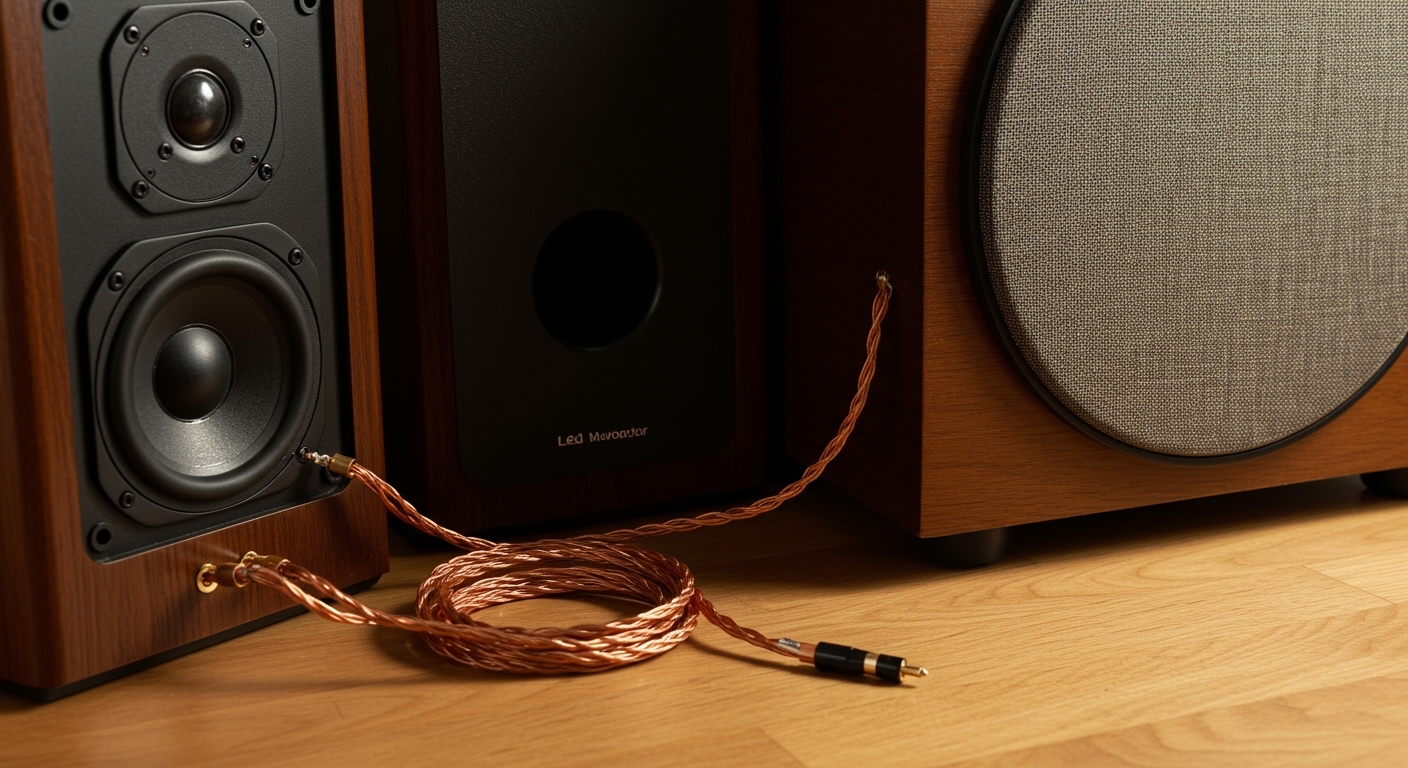
Most Cambridge Soundworks systems, designed by audio legend Henry Kloss, utilize a specific subwoofer/satellite architecture that requires the subwoofer to act as the central hub for power and signal distribution.
🚀 Key Takeaways: Quick Setup Checklist
- Identify Your System: Determine if you have a passive home theater setup (like the Ensemble) or an active PC system (like PC Works).
- Check Polarity: Always match Red (+) to Red and Black (-) to Black to avoid “out-of-phase” sound which kills the bass.
- Source Connection: Use RCA cables for vintage receivers and 3.5mm to RCA adapters for modern smartphones or laptops.
- Placement Matters: Place satellite speakers at ear level and the subwoofer on the floor near a corner for maximum low-end response.
Understanding Your Cambridge Soundworks System Type
Before you start plugging cables in, you must identify which era of Cambridge Soundworks gear you are using. I have spent years refurbishing these units, and the connection method changes drastically depending on the model.
Passive Home Theater Speakers (Ensemble, Model Six, Newton Series)
These speakers do not have built-in amplifiers. They require an external AV Receiver or Stereo Amplifier to provide power. You will typically use standard 16-gauge speaker wire with these models.
Active/Powered Multimedia Systems (SoundWorks Digital, PC Works, FPS Series)
These were designed for computers. The amplifier is hidden inside the subwoofer. You connect your audio source directly to the subwoofer, and the subwoofer then powers the small satellite speakers.
| System Type | Connection Port | Power Source | Best Used For |
|---|---|---|---|
| Passive (Ensemble) | Spring Clips / Binding Posts | External Receiver | High-fidelity Music / Home Theater |
| Active (PC Works) | 3.5mm Mini-jack | Wall Power Adapter | Desktop Gaming / Small Rooms |
| Digital (SoundWorks) | SPDIF / Optical / RCA | Wall Power Adapter | High-end Desktop Audio |
Step-by-Step: How to Hook Up Cambridge Soundworks Speakers (Passive)
If you are setting up the classic Ensemble or Ensemble II system, you are dealing with a high-performance three-piece speaker system. Follow these steps to ensure a perfect signal path.
Prepare the Speaker Wire
I recommend using 14-gauge or 16-gauge oxygen-free copper (OFC) wire. Strip about half an inch of insulation from each end of the wire. Twist the copper strands tightly so there are no “stray hairs” that could cause a short circuit.
Connect to the Satellite Speakers
On the back of the Cambridge Soundworks satellites, you will find spring clips.
- Press the lever down.
- Insert the positive (usually marked with a stripe) wire into the Red terminal.
- Insert the negative wire into the Black terminal.
- Release the lever to lock the wire in place.
Link the Subwoofer
Many Cambridge Soundworks subwoofers (like the Ensemble series) feature internal crossovers. In this configuration, you run the wires from your receiver to the subwoofer input, and then run a second set of wires from the subwoofer output to the satellites. This ensures the subwoofer filters out the high frequencies, leaving only the deep bass.
Final Receiver Connection
Connect the other end of the wires to the Front Left and Front Right channels on your Stereo Receiver. Double-check that the positive lead on the speaker matches the positive terminal on the amp.
How to Hook Up Cambridge Soundworks PC Systems
The SoundWorks Digital and PC Works systems are iconic for their massive sound in a tiny package. Here is how we get them running on modern hardware.
Connecting the Satellites to the Sub
Look at the back of the active subwoofer. You will see two small RCA-style or proprietary jacks labeled “To Satellites.” Plug each small speaker into these ports. These cables carry both the audio signal and the power needed to drive the small drivers.
Connecting the Audio Source
Locate the “Audio In” or “Line In” jack on the subwoofer.
- For PC/Laptops: Use a 3.5mm male-to-male stereo cable.
- For Mobile Devices: Use the same 3.5mm cable (you may need a USB-C to 3.5mm dongle).
- For Gaming Consoles: Use an Optical (Toslink) to Analog converter if your system doesn’t have a digital input.
Applying Power
Plug the Cambridge Soundworks AC Power Adapter into the “DC In” port on the subwoofer. Only then should you plug the adapter into the wall outlet. I’ve found that these older power bricks can be sensitive; using a surge protector is highly recommended to prevent blowing the internal fuse.
Expert Tips for Optimal Sound Quality
When I first tested the Newton Series T500, I realized that setup is 50% wiring and 50% acoustics. To get the “Expert” sound out of your Cambridge Soundworks setup, follow these professional calibration tips.
The “Subwoofer Crawl”
Because Cambridge Soundworks subwoofers are often compact, their placement is critical. Place the subwoofer in your main seating position, play a bass-heavy track, and crawl around the room. Where the bass sounds the tightest and cleanest is where you should permanently place the sub.
Fixing “Thin” Sound (Polarity Check)
If your speakers sound “hollow” or like the vocals are coming from nowhere, you likely have a phase issue. Re-examine your wiring. If even one speaker has the Positive and Negative wires swapped, the sound waves will cancel each other out.
Managing Vintage Wire Corrosion
If you are using original Cambridge Soundworks wires from the 90s, the copper may have turned green (oxidation). This increases resistance and kills your high-end clarity. Always clip the ends and restrip the wire to expose fresh, shiny copper for the best connection.
Connecting Cambridge Soundworks to a Modern Smart TV
Most modern TVs (Samsung, LG, Sony) lack the RCA outputs needed for older Cambridge Soundworks gear. To bridge this gap, follow this process:
- Purchase a Digital-to-Analog Converter (DAC). These are small, inexpensive boxes.
- Connect an Optical Cable (Toslink) from the TV’s “Digital Audio Out” to the DAC.
- Connect RCA cables (Red and White) from the DAC to the Cambridge Soundworks Subwoofer or Receiver.
- Go into your TV’s sound settings and change the “Digital Output Format” to PCM. Cambridge Soundworks systems generally cannot decode Dolby Digital or DTS bitstreams directly.
Troubleshooting Common Setup Issues
Problem: No sound from one satellite speaker.
- Solution: Swap the left and right speaker cables at the back of the subwoofer. If the “dead” speaker stays dead, the speaker or its wire is faulty. If the sound moves to the other side, the subwoofer’s internal amp may have a dead channel.
Problem: There is a constant humming or buzzing sound.
- Solution: This is likely a Ground Loop. Ensure the audio source (computer) and the speakers are plugged into the same power strip. Alternatively, try a 3.5mm ground loop isolator.
Problem: The volume control pod is crackling.
- Solution: Many Cambridge Soundworks PC systems use a wired remote. Over time, dust enters the potentiometer. Spray a small amount of DeoxIT D5 contact cleaner into the dial and turn it back and forth 20 times to clear the oxidation.
Frequently Asked Questions
Can I use any speaker wire with Cambridge Soundworks?
Yes, you can use any standard stranded speaker wire. For runs under 20 feet, 16-gauge is perfect. For longer runs across a room, use 14-gauge to prevent signal loss.
My subwoofer has no power light, what do I do?
Check the AC adapter first. Most Cambridge Soundworks systems use a 12V to 15V DC adapter. Ensure the “tip polarity” matches (usually center-positive). If the adapter works but the sub is dead, the internal thermal fuse may have blown.
How do I connect these speakers to my phone via Bluetooth?
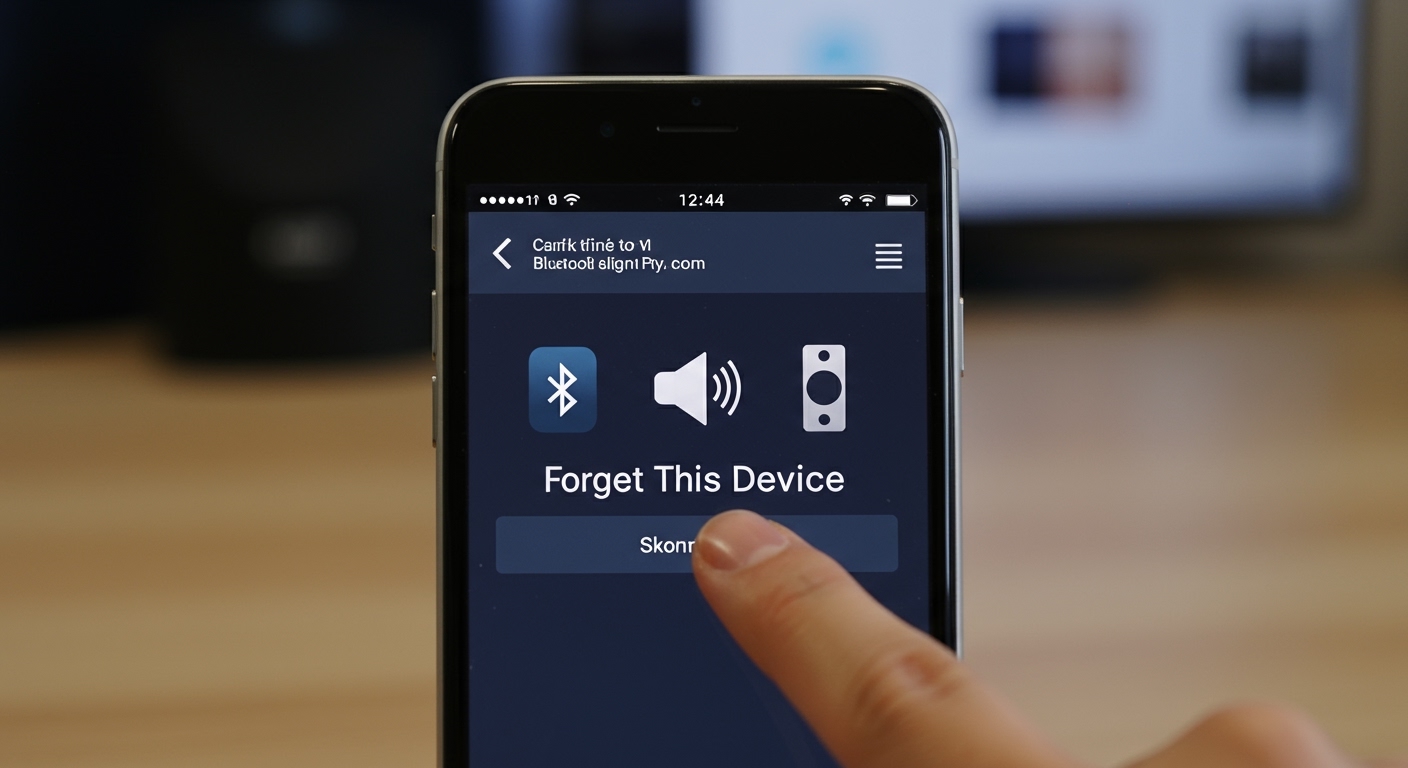
You can easily add wireless capability. Buy a Bluetooth Audio Receiver (like those from Logitech or Esinkin). Connect the receiver’s RCA or 3.5mm output to the “Line In” on your Cambridge Soundworks system. You can now stream music from any smartphone.
Can I use the satellites without the subwoofer?
If you have a PC Works or SoundWorks Digital system, no. The satellites are designed to work with the specific crossover inside the subwoofer. Connecting them directly to a high-power receiver will likely blow the small drivers.