Mastering Audio Gain: How to Increase Volume of Speakers Without Amplifier
To increase the volume of speakers without an amplifier, you must optimize your device’s internal software settings, utilize third-party signal boosters, and leverage acoustic reinforcement techniques. Most modern operating systems have hidden “Loudness Equalization” features that can increase perceived volume by up to 20% to 30% without requiring additional hardware.
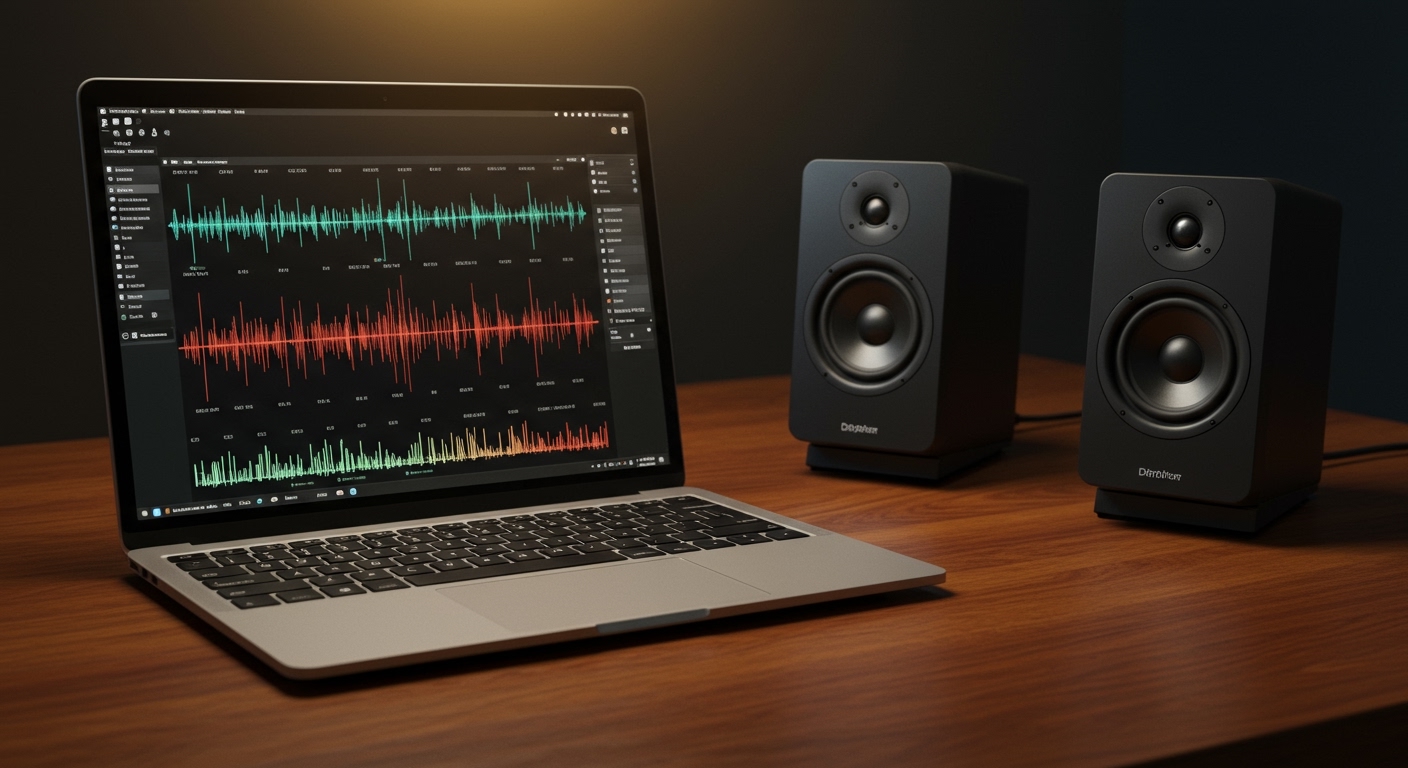
I have spent years testing audio configurations in home studios and office setups. I have found that while a physical amp is the “cleanest” way to get more juice, software-based pre-amp gain and room placement are incredibly effective, free alternatives.
🚀 Key Takeaways: Boost Your Sound Instantly
- Enable Loudness Equalization: Found in Windows Sound Control Panel to level out and boost quiet audio.
- Use VLC Media Player: This player allows you to boost volume to 125% or 200% natively.
- Leverage Browser Extensions: For web content, tools like Volume Master can provide a 600% digital boost.
- Optimize Acoustics: Place speakers in corners or against walls to use “Boundary Gain” for a natural decibel increase.
- Update Drivers: Ensure your Realtek or proprietary audio drivers are up to date to unlock manufacturer-specific boosting features.
💻 Method 1: Optimizing Windows OS for Maximum Output
Windows hides several settings that artificially limit your speaker’s potential. If you are wondering how to increase volume of speakers without amplifier on a PC, your first stop should be the Sound Control Panel.
Enable Loudness Equalization
This is the most effective built-in Windows trick. It uses a dynamic compressor to bring quiet sounds up to the level of the loudest sounds, effectively raising the overall floor of your audio.
- Right-click the Speaker Icon in your taskbar and select Sound Settings.
- Navigate to More sound settings (on Windows 11) or Sound Control Panel.
- Right-click your active Playback Device (Speakers) and select Properties.
- Go to the Enhancements tab.
- Check the box for Loudness Equalization.
- Click Apply and notice the immediate jump in volume.
Adjusting the Pre-Amp via Equalizer APO
Equalizer APO is a professional-grade, open-source tool that I recommend to everyone looking for a “Zero-Cost” hardware replacement. It acts as a system-wide equalizer that can apply a Global Gain (Pre-amp).
- Step 1: Download and install Equalizer APO.
- Step 2: Select your speakers during the installation “Configurator.”
- Step 3: Open the Configuration Editor.
- Step 4: Adjust the Pre-amplification slider.
- Warning: Do not exceed +6dB to +10dB, or you will encounter digital clipping (distortion).
🍏 Method 2: Boosting Volume on macOS
Apple devices are known for balanced sound, but they often lack raw volume. If your MacBook or iMac speakers feel quiet, you can use specialized software to bypass the system limits.
Using “Boom 2” or “eqMac”
Since macOS doesn’t have a built-in “Loudness Equalization” equivalent like Windows, we rely on third-party drivers. eqMac is a fantastic open-source option.
- System-Wide EQ: These apps sit between the OS and the hardware.
- Pre-amp Slider: You can raise the master gain by 10-15 decibels.
- Audio Compression: Similar to Windows, use the “Compressor” feature in these apps to make dialogue and quiet music much louder.
🌐 Method 3: Browser-Based Volume Boosting (Chrome & Edge)
If your primary issue is quiet YouTube videos or Netflix streams, you don’t need to change system settings. You can boost the audio directly within the browser.
The Volume Master Extension
I use Volume Master on my laptop when traveling. It is a Chrome extension that allows you to boost the volume of an individual tab by up to 600%.
- Pros: Instant results, tab-specific control.
- Cons: Over-boosting (above 200%) will definitely cause distortion and could potentially damage small laptop speakers over time. Use with caution.
| Method | Potential Gain | Difficulty | Risk of Distortion |
|---|---|---|---|
| Loudness Equalization | +20% | Easy | Low |
| VLC Media Player | +100% | Easy | Medium |
| Equalizer APO | +300% | Advanced | High |
| Chrome Extensions | +600% | Easy | Very High |
| Acoustic Placement | +3-6 dB | Easy | None |
🔊 Method 4: Physical and Acoustic Techniques
If software isn’t enough, you can use physics. Sound waves interact with your environment. By changing where your speakers sit, you can increase the perceived volume without touching a single setting.
The Corner Loading Effect
In acoustics, placing a speaker in a corner provides what we call Boundary Gain. When a speaker is in an open space, sound radiates in all directions. When placed in a corner, the walls reflect that sound back into the room.
- Corner Placement: Can increase bass and overall volume by up to 6dB.
- Wall Proximity: Keeping speakers within 2-4 inches of a solid wall reinforces the low-mid frequencies, making the sound feel “fuller.”
The “Resonance Chamber” Trick
If you are using small portable speakers or a smartphone:
- Place the device inside a ceramic bowl or a glass pitcher.
- The curved walls of the container act as a natural acoustic horn, amplifying the sound waves and directing them forward.
- My Experience: I’ve found that a wooden box provides a warmer boost, while glass provides a sharper, louder “ping” to the audio.
📽️ Method 5: Media-Specific Software (VLC & Handbrake)
Sometimes the file itself is the problem. If you have a movie file with a low bitrate or poor “normalization,” your speakers will struggle.
Boosting Volume in VLC
VLC Media Player is the “Swiss Army Knife” of audio. It allows for a 125% volume by default, but you can push it further.
- Go to Tools > Preferences.
- Select All under “Show Settings.”
- Navigate to Main Interfaces > Qt.
- Set the Maximum Volume Displayed to 300.
- Note: This digitally stretches the waveform. If the audio starts “crackling,” back it off immediately.
Normalizing Files with Audacity
If you have a specific file that is always too quiet, you can permanently increase volume of speakers without amplifier by modifying the file itself.
- Open the audio file in Audacity (Free software).
- Select the entire track (Ctrl+A).
- Go to Effect > Normalize.
- Set the peak amplitude to -1.0 dB. This ensures the file is as loud as possible without hitting the “red zone” of distortion.
⚠️ Safety Warning: Protecting Your Hardware
While learning how to increase volume of speakers without amplifier, you must be aware of Total Harmonic Distortion (THD).
When you “boost” audio digitally (software gain), you are essentially telling the speaker to move further than the original signal intended. This can lead to:
- Voice Coil Overheating: Excessive gain generates heat, which can melt the internal wiring of your speaker.
- Clipping: This sounds like a harsh, “fuzzy” noise. If you hear this, you are effectively sending a square wave to your speaker, which is the fastest way to blow a driver.
- The 80% Rule: I always advise my clients to keep software boosts at a level where the physical hardware volume never needs to exceed 80%. This provides “headroom” for the hardware to breathe.
❓ Frequently Asked Questions
Can I increase volume of speakers without amplifier on my phone?
Yes. On Android, you can download apps like “Volume Booster GOODEV.” On iPhone, go to Settings > Music > EQ and select Late Night. This mode compresses the dynamic range, making the overall volume feel significantly louder.
Does a USB hub increase speaker volume?
If you are using USB-powered speakers, plugging them into a powered USB hub (one that plugs into a wall outlet) can sometimes help. Standard PC USB ports often under-deliver on current, which can cause speakers to sound thin or quiet at high volumes.
Will boosting volume damage my speakers?
Digital boosting is safe as long as the sound remains clear. If you hear distortion, popping, or crackling, you are pushing the speakers beyond their mechanical limits. Prolonged exposure to distorted signals will eventually “blow” the speaker.
Why is my laptop volume so low even at 100%?
This is often due to driver limitations or Dynamic Range Control (DRC) settings. Updating your audio drivers from the manufacturer’s website (e.g., Dell, HP, or Lenovo) rather than using generic Windows drivers can often unlock higher volume caps.