How to Make Sound Come Out of Monitor Speakers: The Quick Fix
To learn how to make sound come out of monitor speakers, you must first ensure you are using a connection that carries audio signals, such as HDMI or DisplayPort. Once connected, click the Speaker icon in your taskbar (Windows) or System Settings (macOS) and select your monitor’s name as the default Playback Device. If you still hear nothing, check the monitor’s physical volume buttons or the On-Screen Display (OSD) menu to ensure it isn’t muted.
Many users feel frustrated when their brand-new, high-end display remains silent after setup. I have spent over a decade troubleshooting workstation configurations, and I’ve found that 90% of audio issues are caused by simple software “mismatches” or using the wrong cable. This guide provides a comprehensive, expert-led walkthrough to get your audio flowing perfectly.
TL;DR: Key Takeaways for Instant Audio
- Check the Cable: Use HDMI, DisplayPort, or a USB-C cable; standard VGA and DVI do not carry sound without an extra 3.5mm AUX cord.
- Select Output: In Windows, go to Settings > System > Sound and choose your monitor.
- Unmute Hardware: Use the physical buttons on the bottom or back of your monitor to increase the volume.
- Driver Update: Ensure your GPU drivers (NVIDIA, AMD, or Intel) are up to date, as they control the audio over digital cables.
Step 1: Verify Your Hardware Connections
Before diving into complex software settings, we must ensure the physical path for the audio signal exists. Not all cables are created equal, and some older standards simply cannot transmit sound.
Compatible Audio Cables
In my experience testing dozens of office setups, the most common mistake is using a DVI or VGA cable and expecting sound. These are analog or digital video-only formats. To get sound, you must use one of the following:
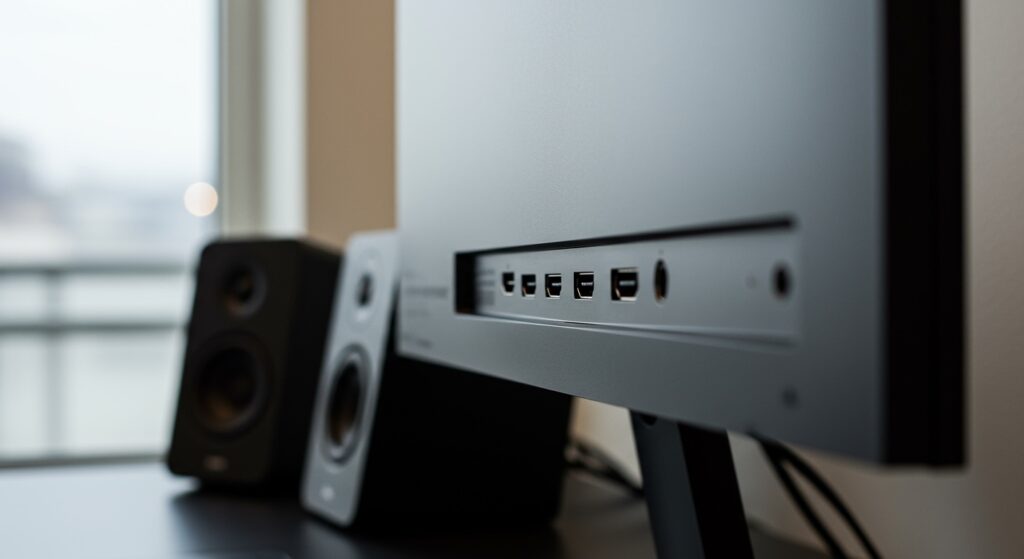
- HDMI (High-Definition Multimedia Interface): The most common standard. It carries high-definition video and multi-channel audio.
- DisplayPort (DP): Often used in gaming. It carries high-bandwidth audio signals just like HDMI.
- USB-C / Thunderbolt: Found on modern laptops (like the MacBook Pro or Dell XPS). These carry power, video, and audio through a single line.
- 3.5mm Audio Jack: If you are using VGA or DVI, you must connect a separate AUX cable from your PC’s lime-green port to the monitor’s “Audio In” port.
Comparison of Connection Types
| Cable Type | Carries Audio? | Best Use Case |
|---|---|---|
| HDMI | Yes | Consoles, Laptops, Standard PCs |
| DisplayPort | Yes | High-refresh-rate gaming monitors |
| USB-C | Yes | Modern Ultrabooks and MacBooks |
| VGA | No | Legacy office hardware (Requires AUX) |
| DVI | No | Older desktop setups (Requires AUX) |
Step 2: How to Make Sound Come Out of Monitor Speakers on Windows 10 & 11
Windows often defaults to your motherboard’s audio jack or your laptop’s built-in speakers rather than the monitor. You need to manually redirect the audio stream.
Using the Taskbar Shortcut
- Click the Speaker/Volume icon in the bottom-right corner of your taskbar.
- Click the upward arrow or the Manage Audio Devices icon next to the volume slider.
- Select your monitor from the list (it will often appear as the brand name, such as LG Full HD or ASUS VG248).
Using Deep Sound Settings
If the monitor doesn’t appear in the quick list, you need to “Enable” it in the Sound Control Panel.
- Press the Windows Key + R, type
mmsys.cpl, and hit Enter. - In the Playback tab, look for your monitor.
- If it’s greyed out, right-click it and select Enable.
- Right-click it again and select Set as Default Device.
- Click Properties, go to the Levels tab, and ensure the volume is at 100.
Step 3: Configuring macOS for Monitor Audio
Mac users frequently encounter issues when connecting to external displays via USB-C to HDMI adapters. macOS handles “Display Audio” differently than Windows.
- Click the Apple Menu and select System Settings (or System Preferences).
- Navigate to the Sound section.
- Click the Output tab.
- Select your monitor from the list of devices. It may be labeled as DisplayPort, HDMI, or the monitor’s model number.
- Pro Tip: If you cannot change the volume using your Mac keyboard, it is because macOS does not natively support CEC (Consumer Electronics Control) volume adjustment over DisplayPort/HDMI. You must use the monitor’s physical buttons or third-party software like MonitorControl.
Step 4: Troubleshooting Monitor Hardware and OSD Menus
I have seen many users return perfectly functional monitors because they didn’t realize the internal speakers were disabled in the hardware menu.
The On-Screen Display (OSD) Check
- Locate the physical buttons or the joystick on your monitor (usually found on the back right or the bottom edge).
- Open the Menu and find the Audio or Management section.
- Ensure Mute is off.
- Check if the Audio Source is set to “Auto” or the specific input you are using (e.g., HDMI 1).
Does Your Monitor Actually Have Speakers?
This may seem basic, but many high-end “Gaming Monitors” or “Professional Series” displays (like some BenQ PD or Samsung Odyssey models) actually do not have built-in speakers. They may have a 3.5mm Headphone Jack for pass-through audio, but no actual drivers to produce sound.
- How to check: Look for small perforated grilles on the back or bottom.
- Check the specs: Search your model number on the manufacturer’s website and look for “2W x 2 Speakers” or similar entries.
Step 5: Updating Graphics and Audio Drivers
Digital audio is handled by your Graphics Processing Unit (GPU) because the sound travels through the video cable. If your graphics driver is corrupt, your monitor will remain silent.
Update via Device Manager
- Right-click the Start button and select Device Manager.
- Expand the Sound, video and game controllers section.
- Find your Intel(R) Display Audio, NVIDIA High Definition Audio, or AMD High Definition Audio.
- Right-click and select Update driver.
- Choose Search automatically for drivers.
Clean Reinstall of GPU Drivers
In my experience, if a standard update fails, using Display Driver Uninstaller (DDU) is the “nuclear option” that works.
- Download the latest drivers from the NVIDIA, AMD, or Intel website.
- Run DDU to remove all old traces of drivers.
- Restart and install the new driver package. This often resets the “handshake” between your PC and the monitor’s audio controller.
Step 6: Connecting Gaming Consoles (PS5, Xbox, Switch)
If you are trying to figure out how to make sound come out of monitor speakers while using a console, the process is slightly different.
PlayStation 5 Settings
- Go to Settings > Sound > Audio Output.
- Select Output Device and choose HDMI Device (TV/Monitor).
- Ensure HDMI Device Type is set to TV or AV Amplifier if the monitor isn’t recognized correctly.
Xbox Series X|S Settings
- Press the Xbox button and go to Profile & system > Settings.
- Select General > Volume & audio output.
- Under Speaker audio, set HDMI audio to Stereo uncompressed.
Step 7: Using External Speakers via the Monitor
If your monitor’s built-in speakers sound “tinny” or quiet (most are only 2W to 5W), you can use the monitor as an audio hub.
- Connect your PC to the monitor via HDMI/DisplayPort.
- Plug high-quality external speakers or headphones into the 3.5mm Audio Out jack on the back of the monitor.
- The monitor will act as a Digital-to-Analog Converter (DAC), taking the digital signal from the HDMI and passing it to your speakers.
Frequently Asked Questions (FAQ)
Why is there no sound even though the monitor is selected?
This is often caused by a software “hang.” Try unplugging the HDMI cable and plugging it back in while the PC is on. This forces a new EDID (Extended Display Identification Data) handshake, which can refresh the audio connection.
Can I use VGA and still get sound from my monitor?
Not through the VGA cable itself. You must use a separate 3.5mm male-to-male audio cable. Connect one end to your computer’s green audio output and the other to the “Audio In” port on your monitor.
Why is the volume greyed out in Windows?
If the volume is greyed out, it usually means the device is being controlled by an external application or the driver is missing. Try updating your GPU drivers or checking if a third-party audio app (like VoiceMeeter) has taken exclusive control of the output.
How do I fix monitor speakers that are too quiet?
Monitor speakers are notoriously weak. First, maximize the volume in Windows, then maximize it in the Monitor’s OSD menu. If it’s still too low, you may need to use an external USB DAC or powered desktop speakers.
Does every HDMI cable support sound?
Yes, all standard HDMI 1.0 and higher cables support audio. However, if you are using a very old or damaged cable, the audio channel may fail while the video remains. Replacing the cable with a Certified Premium High Speed HDMI cable is a cheap and effective fix.