Why Your Windows 11 Volume is Low and How to Fix It
Tired of straining to hear your favorite Netflix show or a critical Zoom meeting? Knowing how to make speakers louder Windows 11 is essential when standard volume levels fall flat. This guide provides 7+ proven methods to boost your audio output safely without distorting sound quality.
Quick Expert Summary (TL;DR)
Best Built-in Fix: Enable Loudness Equalization in the Sound Control Panel for an immediate 20-30% volume jump.
Software Boost: Use FxSound (free/open-source) to bypass hardware limitations through digital signal processing.
Hardware Expansion: Learn how to use multiple speakers on Windows 11 to create a louder, room-filling soundstage.
Critical Tip: Always update your Realtek Audio Drivers to unlock “Enhancement” tabs that may be hidden.
Key Tools & Requirements for Audio Boosting
Before diving into the technical steps, ensure you have the following tools ready. These will help you maximize your hardware potential and software capabilities.
| Tool/Requirement | Purpose | Cost |
|---|---|---|
| Windows 11 OS | The base platform for all settings. | Free (Included) |
| Realtek Audio Drivers | Essential for accessing “Enhancement” tabs. | Free |
| FxSound / Boom 3D | Third-party digital amplifiers for extra gain. | Free/Paid |
| Volume Master (Chrome) | Boosts volume specifically for browser tabs. | Free |
| External Speakers | Hardware solution for physical volume limits. | Varies |
Step 1: Maximize Windows 11 System Settings
Before using third-party apps, you must ensure the operating system isn’t artificially limiting your output. Windows 11 has deep-layer settings that often default to “balanced” rather than “maximum.”
Check the Volume Mixer
Sometimes, individual apps are throttled even if your master volume is at 100%.
- Right-click the speaker icon in the Taskbar.
- Select Open Volume Mixer.
- Ensure the Master Volume and the specific App Volume are both slid to 100.
- Verify the Output Device is set to your primary speakers.
Enable Loudness Equalization
This is the single most effective way to learn how to make speakers louder Windows 11. It uses psychoacoustic principles to normalize sound, making quiet parts much louder.
- Press
Win + R, typemmsys.cpl, and hit Enter. - In the Playback tab, right-click your active speakers and select Properties.
- Navigate to the Enhancements tab. (If missing, see Step 3 regarding drivers).
- Check the box for Loudness Equalization.
- Click Apply and test your audio. You will notice an immediate increase in perceived volume.
Step 2: Use Sound Enhancements and Spatial Audio
Windows 11 includes built-in processing designed to improve clarity, which often results in a higher decibel output.
Activate “Enhance Audio”
- Open Settings > System > Sound.
- Click on your active output device (Speakers).
- Under Output Settings, toggle the switch for Enhance Audio to On.
- This allows Windows to use specific driver-level features like Bass Boost and Virtual Surround.
Configure Spatial Audio
While Windows Sonic for Headphones is designed for headsets, it can sometimes increase the “breadth” and perceived volume of laptop speakers.
- In the same Sound Settings menu, find Spatial Sound.
- Select Windows Sonic for Headphones.
- Pro Tip: If you have high-end speakers, investing in Dolby Access (Dolby Atmos) provides a much cleaner volume boost than the native Windows tool.
Step 3: Update and Reinstall Audio Drivers
If you don’t see the “Enhancements” tab, your drivers are likely generic Microsoft versions. To truly master how to make speakers louder Windows 11, you need the manufacturer-specific drivers.
Update via Device Manager
- Right-click the Start button and select Device Manager.
- Expand Sound, video and game controllers.
- Right-click Realtek(R) Audio (or your specific hardware) and select Update driver.
- Choose Search automatically for drivers.
Manual Driver Reinstallation (Expert Method)
As an audio tech enthusiast, I’ve found that Windows often overwrites good drivers with “stable” but limited ones.
- Visit your laptop manufacturer’s website (Dell, HP, ASUS, etc.).
- Download the latest Realtek High Definition Audio Driver.
- Uninstall the current driver in Device Manager, then install the downloaded version.
- Result: This usually restores the missing Enhancements tab and the Equalizer settings.
Step 4: How to Use Multiple Speakers on Windows 11
If one set of speakers isn’t enough, you can increase total decibel output by using multiple devices simultaneously. Many users ask how to use multiple speakers on Windows 11 to create a “wall of sound.”
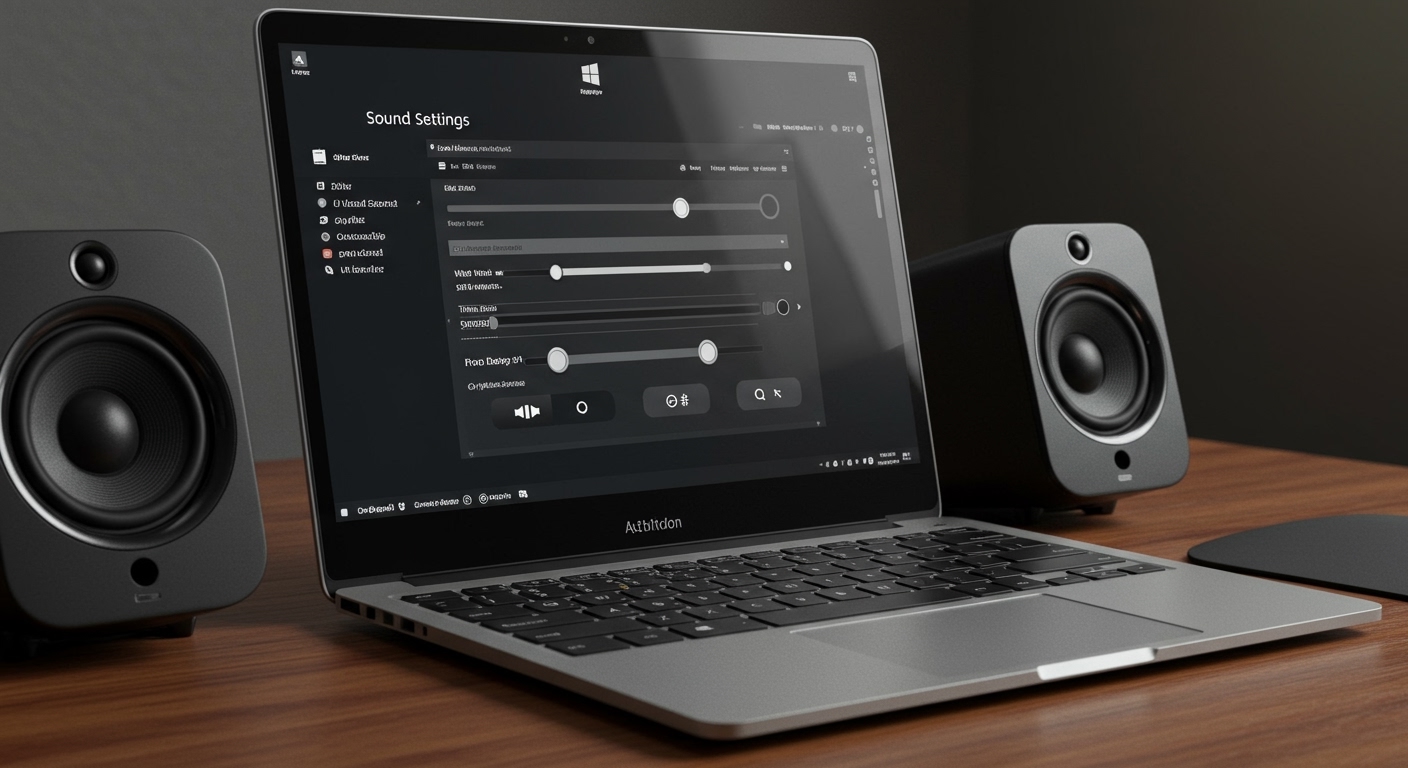
Use the “Listen to This Device” Trick
This allows you to play audio through your laptop speakers and an external Bluetooth speaker at the same time.
- Open the Sound Control Panel (
mmsys.cpl). - Go to the Recording tab.
- Right-click Stereo Mix (if disabled, right-click empty space and select Show Disabled Devices).
- Enable Stereo Mix, then right-click it and go to Properties.
- In the Listen tab, check Listen to this device.
- Under Playback through this device, select your second set of speakers.
- Click Apply. Now, audio will stream to both devices.
Using Third-Party Audio Routers
For a more professional setup, use VoiceMeeter Banana. This free software acts as a virtual mixer, allowing you to route Windows audio to up to three different hardware outputs simultaneously with zero latency.
Step 5: Third-Party Software Boosters (The “Nuclear” Option)
When Windows settings aren’t enough, digital signal processing (DSP) software can push your speakers beyond their 100% factory limit.
FxSound (Highly Recommended)
FxSound is now completely free and open-source. It is arguably the best tool for how to make speakers louder Windows 11.
How it works: It processes audio in real-time, applying compression and equalization to boost the signal before it reaches your speakers.
Setup: Simply install it, select the “Boost” preset, and adjust the Dynamic Boost slider.
VLC Media Player (For Local Files)
If you are only struggling with quiet movie files:
- Open VLC Media Player.
- Go to Tools > Preferences.
- Under All settings (bottom left), go to Main interfaces > Qt.
- Set Maximum Volume displayed to 300.
- Warning: Pushing speakers to 300% can cause hardware clipping and permanent damage if done for long periods.
Expert Tips to Avoid Hardware Damage
Boosting volume digitally can lead to “clipping,” where the audio wave is cut off, causing distortion and potential speaker blowouts. Follow these expert guidelines:
Listen for Distortion: If you hear crackling or buzzing, lower the volume by 5-10%. This is a sign your speaker’s diaphragm is overextending.
Prioritize Mid-Range: When using an equalizer, don’t just push all sliders up. Boost the Pre-amp slider slightly and focus on the 1kHz to 4kHz range for vocal clarity.
Cooling Matters: Laptop speakers generate heat. If you are running them at boosted levels, ensure your laptop is on a hard surface to allow for heat dissipation.
Use High-Quality Sources: Low-bitrate YouTube videos will sound terrible when boosted. Use lossless audio or high-quality streaming settings to maintain clarity at high volumes.
Common Mistakes to Avoid
- Ignoring the Browser Volume: Many users forget that Chrome or Edge has its own internal volume handling. Use the Volume Master extension to boost browser audio by up to 600%.
- Double Equalization: Running Loudness Equalization and FxSound simultaneously can create a “muddy” sound. Pick one method and stick to it.
- Dusty Speaker Grills: On laptops, dust buildup can physically muffle sound. Use a can of compressed air to clean the speaker vents.
Frequently Asked Questions
(FAQs)
Why is my Windows 11 volume so low even at 100%?
This usually happens because of Audio Ducking (Windows lowering volume for communications) or limited driver settings. Enabling Loudness Equalization in the Sound Control Panel typically fixes this by normalizing the audio range.
Will boosting my volume damage my laptop speakers?
If you use software to boost volume beyond 100% (like VLC or FxSound), there is a risk of hardware damage. Always back off the volume if you hear audible distortion or “popping” sounds.
How to use multiple speakers on Windows 11 for a louder experience?
You can enable the Stereo Mix feature in the Recording settings and set it to “Listen to this device,” directing the output to a second speaker. Alternatively, use VoiceMeeter to sync multiple audio devices.
Does Windows 11 have a built-in equalizer?
Yes, but it is often hidden. You can find it by going to Sound Control Panel > Speaker Properties > Enhancements. If it’s not there, you need to install the official Realtek Audio Console from the Microsoft Store.
Conclusion
Learning how to make speakers louder Windows 11 doesn’t require buying new hardware. By combining built-in features like Loudness Equalization, updating to manufacturer-specific drivers, and utilizing free tools like FxSound, you can significantly improve your auditory experience.
If software fixes aren’t enough, remember that you can always expand your setup by learning how to use multiple speakers on Windows 11 to create a more immersive environment. Start by enabling the enhancements today and stop straining to hear your media!
Ready to upgrade your sound? Try enabling Loudness Equalization now and feel the difference immediately!