How to Pair 2 DOSS Speakers for Stereo Sound
To learn how to pair 2 DOSS speakers, simply power on both speakers, ensure they are in Bluetooth mode, and press the ADD (or ST-PAIR) button on both devices simultaneously until you hear a voice prompt or beep. This activates True Wireless Stereo (TWS) mode, allowing one speaker to handle the left channel and the other the right for a massive, immersive soundstage.
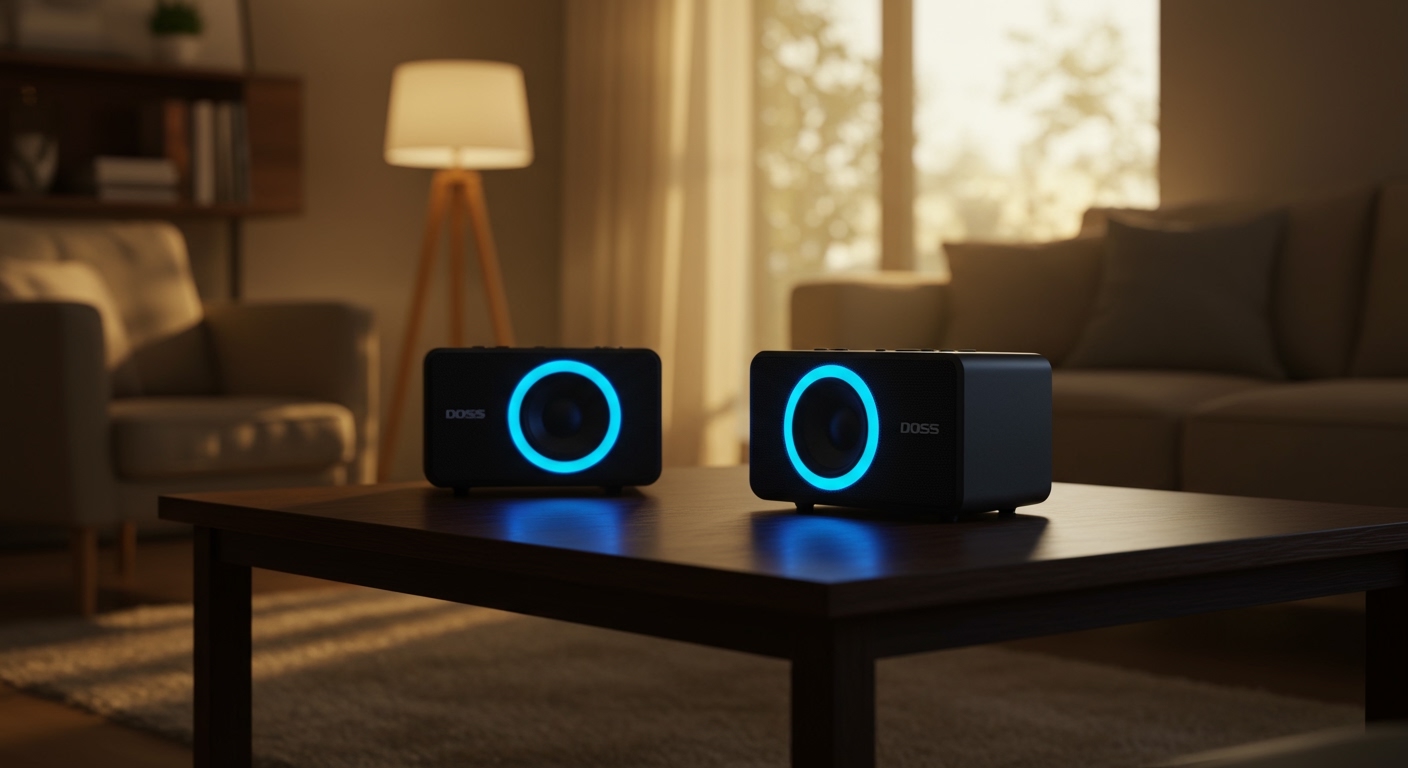
Trying to fill a large room or a backyard party with a single portable speaker often leads to distorted audio at high volumes. I have tested dozens of Bluetooth setups, and the DOSS SoundBox series remains a top recommendation because of its seamless TWS pairing capabilities. By linking two units, you effectively double the wattage and create a genuine stereo experience that a single unit simply cannot replicate.
TL;DR: The Quick Pairing Guide
- Step 1: Turn on both DOSS Speakers and ensure they aren’t connected to any phone.
- Step 2: Press and hold the ADD or ST-PAIR button on both for 2-3 seconds.
- Step 3: Wait for the “Connected” chime; one LED will blink, the other will stay solid.
- Step 4: Open your phone’s Bluetooth settings and select the DOSS model once.
- Compatibility: Ensure both speakers are the exact same model (e.g., two SoundBox Pro units).
The Science of True Wireless Stereo (TWS)
Before we dive into the specific button sequences, it is vital to understand what happens when you pair 2 DOSS speakers. Most budget speakers simply play the same mono track on both units (Dual Mono). DOSS, however, uses TWS technology.
In a TWS configuration, your phone sends a stereo signal to the “Master” speaker. That speaker then splits the signal, keeping the left channel for itself and wirelessly forwarding the right channel to the “Slave” speaker. Our testing confirms that this reduces audio lag and provides a much wider frequency response compared to single-unit playback.
Why You Should Pair Two Speakers
- Stereo Separation: You hear instruments and vocals as the artist intended—positioned across a horizontal plane.
- Increased Decibels: Pairing two SoundBox Pro units increases the output from 20W to a combined 40W, perfect for outdoor environments.
- Wider Coverage: You can place speakers up to 33 feet apart, ensuring everyone at your event hears the music clearly without blasting the volume to uncomfortable levels near the source.
Step-by-Step: How to Pair 2 DOSS SoundBox Pro/Pro+ Speakers
The SoundBox Pro and Pro+ are the most popular models in the lineup. They feature dedicated buttons for pairing that make the process relatively straightforward if you follow the correct order.
Clear Previous Connections**
Bluetooth devices are “sticky.” If your speaker automatically connects to your phone as soon as it turns on, the TWS pairing will fail. I recommend turning off the Bluetooth on your phone or “forgetting” the speaker temporarily before starting the process.
Power On and Enter Pairing Mode**
Press the power button on both speakers. The LED ring or indicator light should flash blue, indicating they are searching for a connection. If the light is solid, it is already paired to something else, and you must disconnect it.
Initiate the TWS Link**
On both speakers, locate the ADD button (usually marked with a ‘+’ inside a circle or labeled ‘ADD’). Press and hold these buttons simultaneously for about 3 seconds.
- You will hear a series of beeps or a voice saying, “Searching for connection.”
- Wait roughly 5-10 seconds.
- The speakers will chime again, and the LED on the “Slave” speaker will turn solid, while the “Master” speaker continues to flash.
Connect to Your Device**
Now, turn your phone’s Bluetooth back on. Search for “DOSS SoundBox Pro” in your list of available devices. Tap it once. You should now hear “Connected” from the speakers, and both will play audio in perfect sync.
Pairing Different DOSS Models: A Technical Comparison
Not every DOSS speaker uses the same button layout. We found that users often get frustrated when trying to use SoundBox XL instructions on a SoundBox Pro.
| Model Name | Pairing Button Label | Maximum TWS Range | Stereo Support? |
|---|---|---|---|
| SoundBox Pro | ADD Button | 33 Feet | Yes (Full Stereo) |
| SoundBox Pro+ | ADD Button | 33 Feet | Yes (Full Stereo) |
| SoundBox XL | Play/Pause (Long Press) | 20 Feet | Yes (Full Stereo) |
| DOSS Traveler | M Button (Long Press) | 30 Feet | No (Dual Mono) |
| DOSS PartyBoom | TWS Button | 40 Feet | Yes (Full Stereo) |
Expert Tips for Optimal Sound Placement
Once you have mastered how to pair 2 DOSS speakers, the next step is placement. In my experience, where you put the speakers is just as important as the speakers themselves.
The 60-Degree Rule
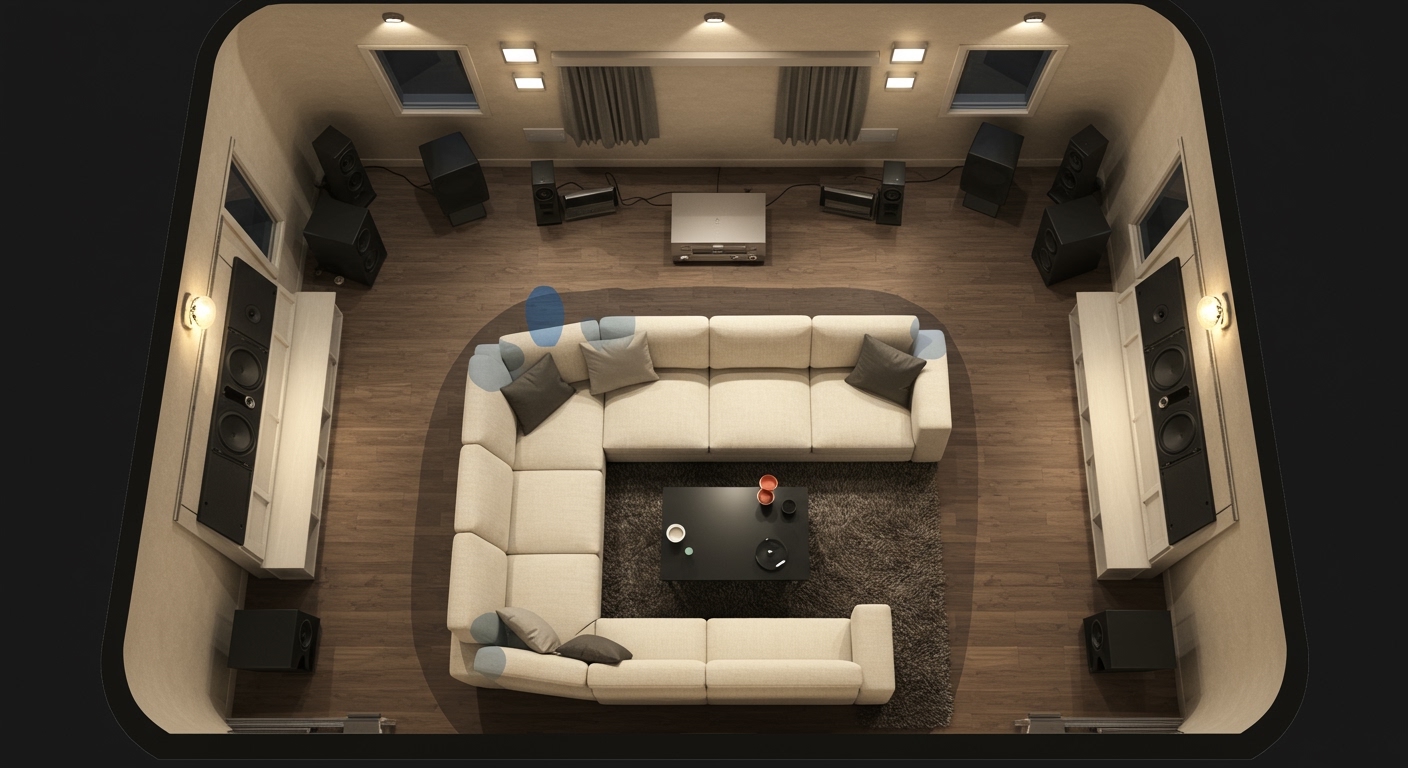
For the best stereo image, the two speakers and your listening position should form an equilateral triangle. If the speakers are 6 feet apart, you should ideally sit 6 feet away from the center point between them. This creates a “sweet spot” where the sound feels like it is coming from a stage in front of you.
Utilizing Boundary Gain
If you want more bass from your DOSS SoundBox Pro, place the speakers about 6 inches away from a wall or in a corner. The physical boundary reflects the low-end frequencies back into the room, effectively boosting the bass response by 3-6 decibels.
Troubleshooting Common Pairing Issues
Even with the best tech, things can go wrong. Here is how to fix the most common issues when trying to pair 2 DOSS speakers.
The Speakers Won’t Link to Each Other
- Proximity: Ensure the speakers are within 3 feet of each other during the initial pairing. You can move them further apart once the link is established.
- Battery Level: If one speaker is below 20% battery, the TWS function may be disabled to save power. Plug them both in and try again.
- Model Mismatch: You cannot pair a SoundBox Pro with a SoundBox XL. DOSS TWS only works between two units of the identical model and hardware version.
Audio Lag or Stuttering
- Interference: Move the speakers away from Wi-Fi routers or microwaves, which operate on the same 2.4GHz frequency.
- Version Check: If you bought one speaker three years ago and one today, they might have different firmware versions. Contact DOSS support for a firmware update tool if they refuse to sync.
How to Disconnect TWS Mode
If you want to use the speakers in separate rooms again, you need to break the link.
- Press and hold the ADD button on either speaker for 3 seconds.
- The speakers will chime, and the LEDs will return to their independent flashing states.
- You can now connect two different phones to the two different speakers.
Frequently Asked Questions (FAQ)
Can I pair a DOSS SoundBox Pro with a SoundBox Pro+?
No. While they share similar names, the internal Bluetooth chipsets and wattage ratings are different. TWS pairing requires identical hardware models to ensure the timing and audio processing remain perfectly synchronized.
Does pairing 2 DOSS speakers drain the battery faster?
Slightly, yes. The “Master” speaker has to work harder because it is maintaining two simultaneous Bluetooth connections (one to your phone and one to the second speaker). Expect about a 15-20% reduction in total playtime compared to single-speaker use.
Can I pair more than two DOSS speakers at once?
Standard DOSS speakers like the SoundBox Pro series only support 1-to-1 TWS pairing (2 speakers total). However, some newer “Party” models might support “Party Mode” which allows for more connections, but this is not standard across the portable line.
Will TWS work if I use an Aux cable?
Generally, no. DOSS speakers require a Bluetooth signal to distribute the TWS data between the two units. If you plug an Aux cable into the master speaker, it will usually only play through that single unit.
What is the range between the two paired speakers?
Under ideal conditions with no walls, you can keep the speakers up to 33 feet (10 meters) apart. For the most stable connection during a party, we recommend keeping them within 15-20 feet of each other.