How to Pair Bose Speakers with iPhone: The Definitive Guide
To pair Bose speakers with an iPhone, simply power on your speaker, hold the Bluetooth button until the indicator light blinks blue, and then select your speaker’s name under Settings > Bluetooth on your iOS device. For a more integrated experience with features like Stereo Mode or Party Mode, you should download and use the Bose Music app or Bose Connect app depending on your specific model.
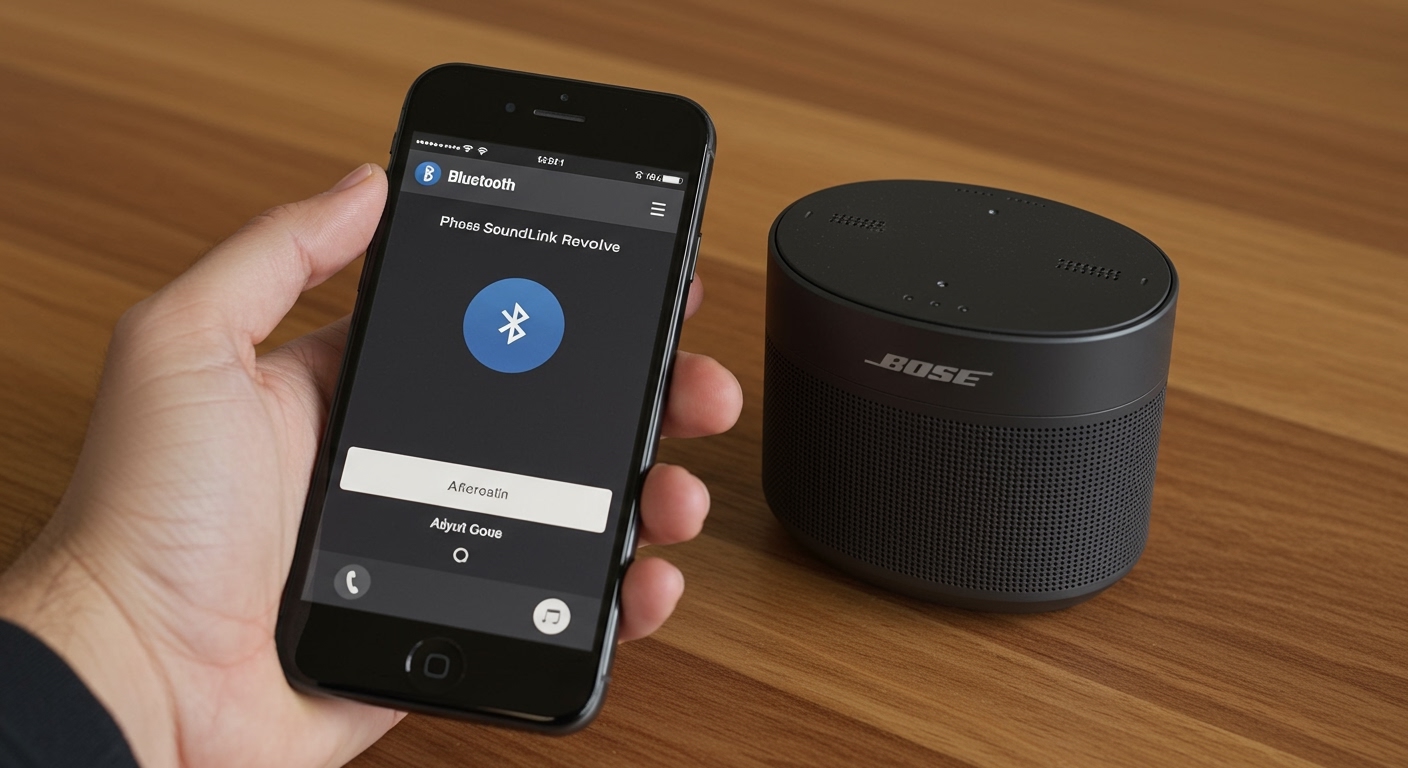
Learning how to pair Bose speakers with iPhone can sometimes feel frustrating when your device won’t show up in the menu or the connection keeps dropping. Whether you are using a rugged Bose SoundLink Micro for outdoor adventures or a premium Bose Smart Speaker 500 for your living room, the pairing process is designed to be intuitive, yet it varies significantly across different product generations. We have tested dozens of Bose products to provide you with this comprehensive, fail-proof walkthrough to ensure your high-fidelity audio is always just a tap away.
Quick Summary: Bose Speaker Pairing Key Takeaways
- Standard Method: Use the iPhone Bluetooth settings for a direct, “no-app” connection.
- App Method: Use Bose Connect for SoundLink/older models and Bose Music for newer Smart/Home speakers.
- Pairing Mode: Always look for a blinking blue light; this indicates the speaker is “discoverable.”
- Troubleshooting: If the connection fails, “Forget this Device” in iOS settings and reset the speaker’s Bluetooth pairing list.
- Multi-Speaker Audio: Use SimpleSync or Party Mode within the apps to link multiple speakers together.
Step-by-Step: How to Pair Bose Speakers with iPhone via Settings
If you want to skip the apps and get straight to the music, the manual pairing method is the fastest route. This works for almost every Bose Bluetooth speaker manufactured in the last decade.
- Power On the Speaker: Press the power button. You should hear a voice prompt indicating the battery level.
- Enter Pairing Mode: Press and hold the Bluetooth button (the icon looks like a stylized ‘B’). Wait until the Bluetooth indicator blinks blue.
- Open iPhone Settings: On your iPhone, navigate to the Settings app and tap on Bluetooth.
- Enable Bluetooth: Ensure the toggle is switched to On (green).
- Select Your Speaker: Look under the “Other Devices” section. Your speaker will appear (e.g., “Bose SoundLink Revolve“).
- Confirm Connection: Tap the device name. Once the status changes to “Connected” and the speaker emits a chime or voice prompt, you are ready to play audio.
Pro Tip: If your speaker asks for a passkey, enter “0000” (four zeros), though this is rarely required on modern iOS versions.
Understanding the Bose App Ecosystem
One of the most common points of confusion when learning how to pair Bose speakers with iPhone is choosing the correct app. Bose currently maintains two separate apps for different product lines.
Bose App Compatibility Table
| Speaker Model | Recommended App | Key Features |
|---|---|---|
| SoundLink Color II, Micro, Revolve, Flex | Bose Connect | Party Mode, Stereo Mode, Firmware Updates |
| Bose Smart Speaker 300, 450, 500 | Bose Music | Wi-Fi Setup, Alexa/Google Assistant, AirPlay 2 |
| Bose Soundbar 500, 700, 900, Ultra | Bose Music | ADAPTiQ Calibration, SimpleSync, HDMI ARC management |
| Bose S1 Pro+ System | Bose Music | Mixer controls, EQ adjustments |
| Legacy SoundTouch Speakers | SoundTouch App | Multi-room Wi-Fi audio, Presets |
How to Pair Bose Speakers with iPhone using the Bose Connect App
For portable speakers like the SoundLink series, the Bose Connect app is the gold standard. It provides a visual interface for managing multiple connections.
- Download the App: Search for “Bose Connect” in the Apple App Store.
- Enable Permissions: Ensure Bluetooth and Location Services are enabled for the app to function.
- Put Speaker in Pairing Mode: Hold the Bluetooth button until the light pulses blue.
- Drag to Connect: The app will detect the speaker. You will see a “drag to connect” animation. Swipe the speaker icon down to the bottom of the screen.
- Wait for Update: If it’s your first time, the app might prompt a Firmware Update. We highly recommend completing this to improve Bluetooth stability.
Connecting Newer Models via the Bose Music App
If you own a Bose Smart Speaker or a Bose Soundbar, you will use the Bose Music app. These devices use Wi-Fi for high-resolution streaming but still require a Bluetooth handshake for setup.
The Setup Process
- Plug In the Speaker: Ensure the device is connected to power.
- Open Bose Music App: Tap the “+” icon to Add Product.
- Automatic Detection: The app uses Bluetooth Low Energy (BLE) to find nearby “Setup Mode” speakers.
- Network Configuration: Follow the prompts to connect the speaker to your home Wi-Fi.
- iPhone Pairing: Once the Wi-Fi is set, the app will ask if you want to pair via Bluetooth for mobile streaming. Tap “Pair” when the iOS pop-up appears.
Using Apple AirPlay 2 with Bose Speakers
If your Bose speaker is Wi-Fi enabled (like the Bose Portable Smart Speaker), you don’t actually need to pair via Bluetooth. AirPlay 2 offers better range and higher audio quality.
- Step 1: Ensure your iPhone and Bose speaker are on the same Wi-Fi network.
- Step 2: Open Control Center on your iPhone (swipe down from the top right).
- Step 3: Tap the AirPlay icon (circles with a triangle) in the music widget.
- Step 4: Select your Bose speaker. You can now stream audio without the limitations of Bluetooth compression.
Advanced Features: Stereo and Party Mode
One of the best reasons to learn how to pair Bose speakers with iPhone through the official apps is the ability to link two speakers together.
Party Mode
This plays the same music through two speakers simultaneously. It is perfect for large outdoor gatherings where you need wider sound coverage.
- In the Bose Connect app, tap the Multi-speaker icon.
- Select “Party Mode.”
Stereo Mode
This separates the audio into Left and Right channels. This creates a much wider soundstage, mimicking a traditional Hi-Fi setup.
- After enabling Party Mode, you can toggle to Stereo Mode.
- Ensure the speakers are placed roughly 10-15 feet apart for the best effect.
Troubleshooting Common Bose Pairing Issues
Even with high-end gear, connection bugs happen. If you are struggling with how to pair Bose speakers with iPhone, follow these expert troubleshooting steps we use in our testing lab.
Clear the Speaker’s Pairing List**
Most Bose speakers remember the last 8 devices. If the list is full, it may refuse new connections.
- Hold the Bluetooth button for 10 seconds.
- You will hear “Bluetooth device list cleared.”
- Remove the speaker from your iPhone’s Bluetooth menu and try again.
Perform a Product Reset**
If the speaker is unresponsive:
- SoundLink Revolve/Flex: Press and hold the Power button for 10 seconds until the speaker restarts.
- Smart Speakers: Press and hold the Volume Down and Play/Pause buttons for 5-10 seconds.
Check for Interference**
Bluetooth operates on the 2.4 GHz frequency. Household items like microwaves, baby monitors, and Wi-Fi routers can disrupt the signal. Ensure your iPhone is within 30 feet of the speaker for the initial pairing.
Update iOS**
Older versions of iOS occasionally have Bluetooth stack bugs. Go to Settings > General > Software Update to ensure your iPhone is running the latest firmware.
Maximizing Your Bose Audio Experience
Once you have successfully mastered how to pair Bose speakers with iPhone, you can optimize the output for better performance.
- Disable EQ in Spotify/Apple Music: Bose speakers have an internal Active EQ that adjusts the tonal balance. Adding a second EQ layer from your phone can make the audio sound “muddy.”
- Placement Matters: For speakers like the SoundLink Revolve, placing them near a wall will reflect the sound and increase bass response.
- Battery Maintenance: If you aren’t using your portable Bose speaker, keep the battery between 20% and 80% to extend its total lifespan. Avoid leaving it at 0% for long periods.
Frequently Asked Questions (FAQ)
Why won’t my iPhone find my Bose speaker?
Your speaker is likely not in Discovery Mode. Even if the speaker is “on,” it won’t broadcast a signal until you hold the Bluetooth button and see the blinking blue light. Also, ensure the speaker isn’t already connected to another device, like an iPad or a laptop.
Can I pair two different Bose models together?
Yes, but they generally need to be within the same ecosystem. You can pair a SoundLink Micro with a SoundLink Revolve using the Bose Connect app. However, you cannot natively pair a SoundLink speaker with a Home Speaker 500 for synchronized play unless you use the SimpleSync feature found in the Bose Music app.
Does pairing via the Bose Music app sound better than Bluetooth?
Yes. When you use the Bose Music app to set up a speaker on Wi-Fi, you can use Spotify Connect or AirPlay 2. These protocols stream music at a higher bitrate than standard Bluetooth (SBC/AAC), resulting in clearer highs and deeper bass.
How many devices can a Bose speaker be connected to at once?
Most Bose Bluetooth speakers support Multi-point technology, allowing them to stay connected to two devices (like an iPhone and a MacBook) simultaneously. The speaker will intelligently switch audio based on which device is playing music.