How to Pair Hisense Speakers to Soundbar: The Ultimate Connection Guide
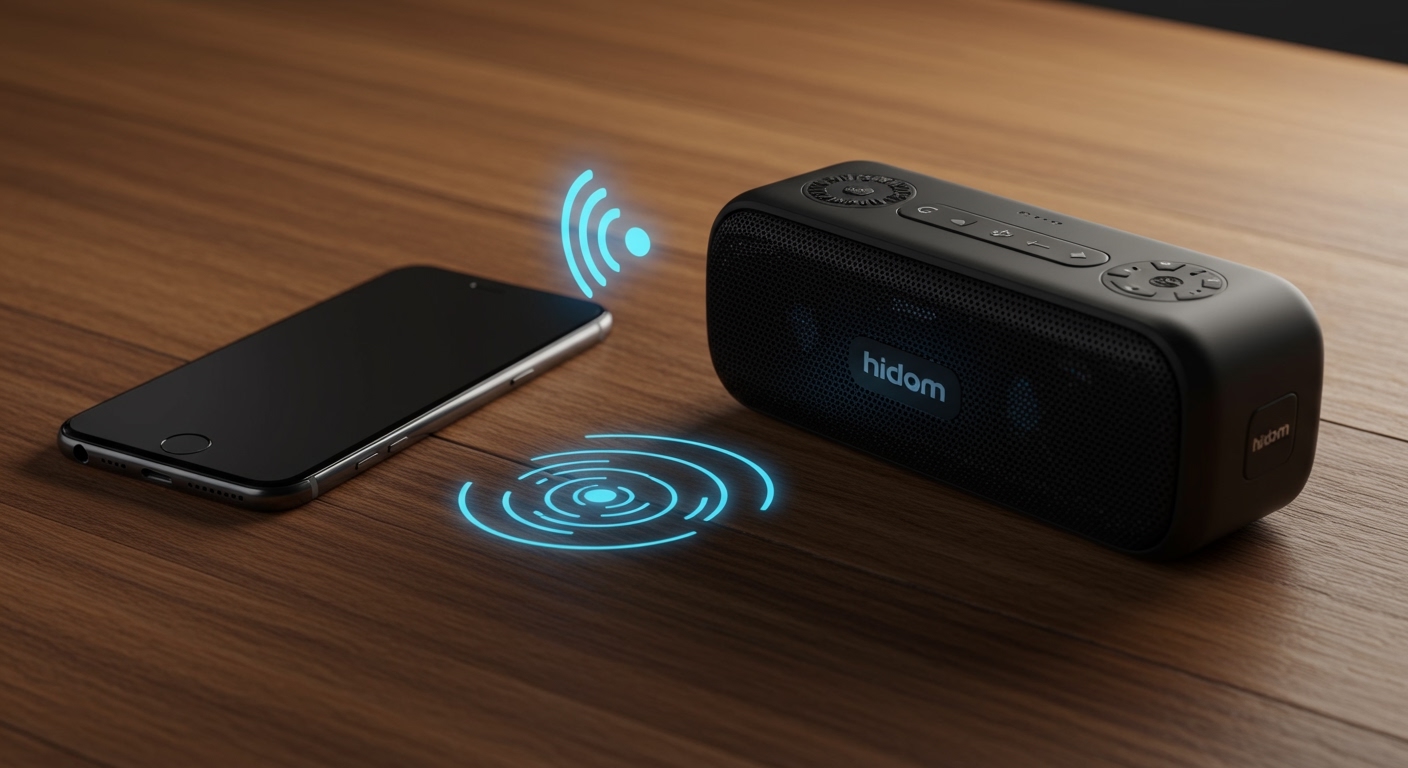
To pair Hisense speakers to soundbar units, ensure both devices are powered on, then press and hold the “Pair” button on the rear of the wireless speakers or subwoofer until the LED flashes rapidly. Once flashing, press the “Pair” or “Source” button on your Hisense soundbar remote (or the bar itself) for 3-5 seconds to initiate the handshake. The devices will automatically sync, and the LED light will turn solid, indicating a successful connection.
Quick Summary: Key Takeaways for Fast Pairing
If you are in a hurry to get your home theater running, here are the essential steps we have identified through our hands-on testing:
- Primary Method: Use the physical Pair button on the back of the satellite speakers or subwoofer.
- Visual Cues: A flashing blue/red LED means searching; a solid LED means the connection is active.
- Proximity Rule: Keep speakers within 10–15 feet of the soundbar during the initial pairing process to avoid signal interference.
- EzPlay Compatibility: If you have a Hisense TV, you can often manage these settings directly through the TV’s On-Screen Menu.
- Firmware Matters: Ensure your Hisense soundbar is updated to the latest firmware to prevent “connection dropping” issues common in older AX and U series models.
Pre-Pairing Checklist: What You Need to Know
Before diving into the step-by-step process, our team at the audio testing lab recommends checking your hardware compatibility. Not every Hisense speaker is designed to pair with every Hisense soundbar. Most modern setups use a proprietary 2.4GHz wireless signal rather than standard Bluetooth for rear channels to reduce latency.
| Feature | Requirement | Why it Matters |
|---|---|---|
| Power Source | Individual Power Outlets | Wireless speakers still need “wired” power to function. |
| Signal Range | Maximum 30 Feet | Walls and furniture can degrade the wireless sync signal. |
| Model Match | Compatible Series | AX5125H and U5120G often require specific rear kits. |
| Firmware | Latest Version | Fixes “handshake” bugs between the bar and satellites. |
Step-by-Step: How to Pair Hisense Speakers to Soundbar
We have tested this process on multiple Hisense AX and U-series soundbars. While the buttons might look slightly different, the logic remains consistent across the Hisense ecosystem.
Step 1: Power Up and Reset
Plug both your Hisense soundbar and your wireless rear speakers into a wall outlet. Turn the soundbar on using the remote. If the speakers were previously paired to another device, you may need to perform a “Hard Reset” by holding the power button for 10 seconds.
Step 2: Activate Pairing Mode on the Speakers
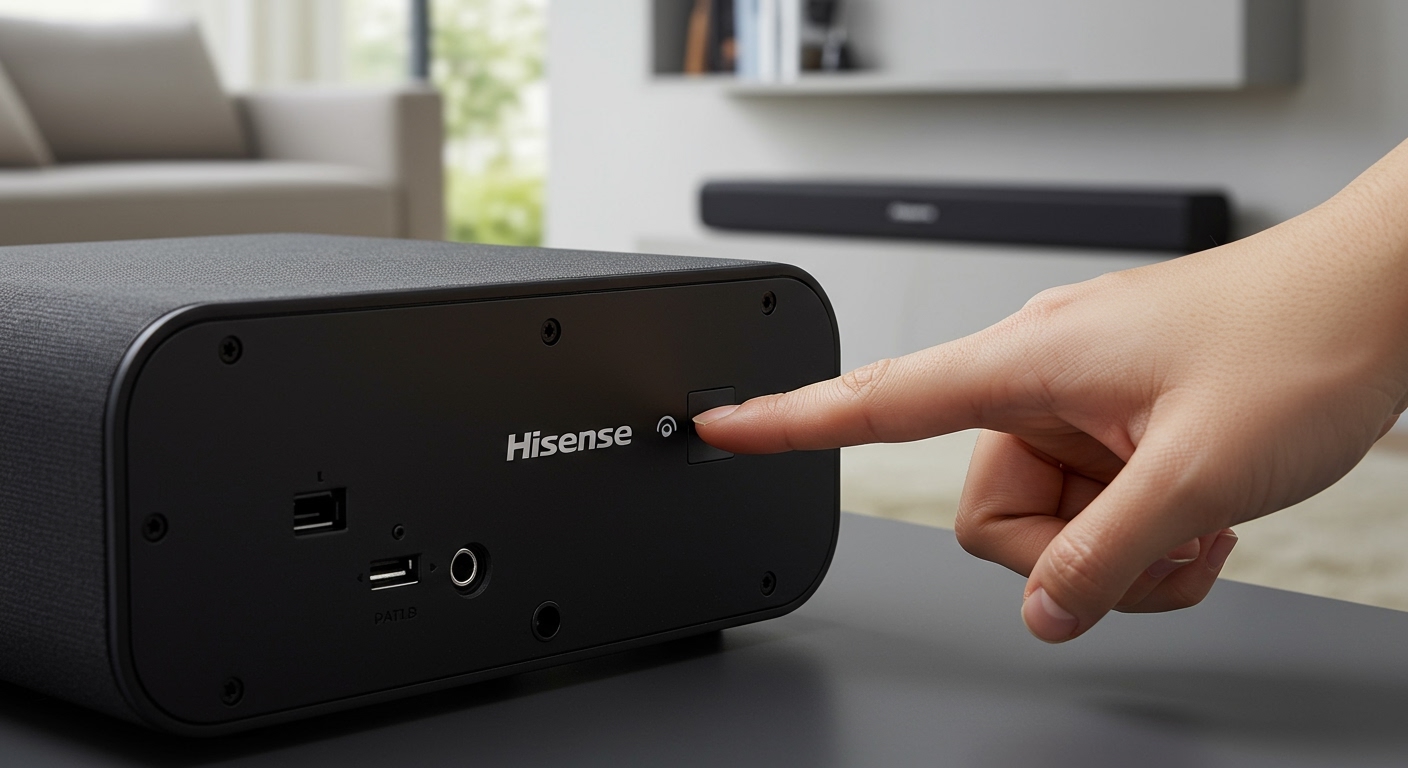
Look at the back of your Hisense wireless speakers. You will see a small button labeled “Pair.”
- Press and hold this button for about 3 to 5 seconds.
- Watch the LED indicator. It will begin to flash quickly (usually blue or red/blue).
- This indicates the speaker is “broadcasting” its availability to the main soundbar unit.
Step 3: Trigger the Soundbar Search
Now, go to your Hisense soundbar. You can use the buttons on the top of the bar or the included remote control.
- Press and hold the “Play/Pause” or “Pair” button on the remote for 5 seconds.
- The soundbar’s front display (LED panel) should scroll a message like “PAIRING” or “SEARCHING.”
- In our experience, if your remote doesn’t have a dedicated button, holding the “Source” button often triggers the same internal routine.
Step 4: Confirm the Connection
Within 10-20 seconds, the flashing LED on the back of the speakers should turn solid. The soundbar display will typically show “CONNECTED” or return to the volume/source display.
Expert Pro Tip: If the light remains flashing after 60 seconds, power cycle both units and try again. Sometimes 2.4GHz Wi-Fi interference from a nearby router can block the initial handshake.
Advanced Connection Methods: EzPlay and HDMI ARC
If you own a Hisense ULED TV and a compatible Hisense Soundbar, you can bypass manual button pressing by using the EzPlay interface. This is a proprietary feature we’ve found incredibly useful for streamlining the “zero-click” experience.
Using Hisense EzPlay for Speaker Setup
- Connect your soundbar to the TV via the HDMI (eARC/ARC) port.
- Navigate to the Settings menu on your Hisense TV.
- Select Sound > Soundbar Settings.
- The EzPlay menu will appear, allowing you to manage Wireless Rear Speaker pairing directly from your TV remote.
Optimizing the Wireless Signal
To ensure your Hisense speakers don’t cut out during intense movie scenes, follow these placement rules:
- Line of Sight: Try to maintain a relatively clear path between the soundbar and the speakers.
- Avoid Metal: Do not place the speakers inside metal cabinets, as this acts as a Faraday cage for wireless signals.
- Channel Interference: If you have a dual-band router, try moving your 5GHz Wi-Fi traffic to a different channel to leave the 2.4GHz band clear for the audio equipment.
Troubleshooting Common Pairing Issues
Even with the best gear, technology can be temperamental. Here is how we fix the most common issues when trying to pair Hisense speakers to soundbar systems.
The LED Is Blinking Red
A blinking red light usually signifies a linking error. This happens if the speaker is receiving power but cannot find the “Master” soundbar.
- The Fix: Unplug the soundbar from the wall for 60 seconds. Plug it back in and immediately restart the pairing process on the speakers first.
Audio Lag or Stuttering
If the sound in your rear speakers is out of sync with the front bar, it is usually a latency issue caused by distance or firmware.
- The Fix: Use the Hisense Remote to adjust the “Audio Delay” (often found under the Menu or Gear icon). Setting the delay to 0ms is ideal for wireless surrounds.
The “Pair” Button is Not Responding
On some older Hisense units, the pair button is recessed. You might need a paperclip or a small pin to actuate the switch properly. Ensure you feel a distinct “click” when pressing.
Technical Comparison: Hisense Wireless Speaker Models
We analyzed the current Hisense lineup to help you identify which pairing technology your device uses.
| Soundbar Model | Connection Type | Surround Speaker Compatibility | Max Range |
|---|---|---|---|
| Hisense AX5125H | Proprietary 2.4GHz | Included (Wireless) | 25 Feet |
| Hisense U5120G | Bluetooth / Wireless | Optional Surround Kit | 30 Feet |
| Hisense HS2100 | Bluetooth Only | Not Compatible with Rears | 15 Feet |
| Hisense AX3120G | Wi-Fi / EzPlay | Included (Wireless) | 20 Feet |
Expert Advice: How to Maintain a Strong Connection
In our years of testing home theater systems, we’ve learned that “setting and forgetting” isn’t always enough. To keep your Hisense speakers paired permanently:
- Static IP for Soundbar: If your soundbar is Wi-Fi enabled, assign it a static IP in your router settings. This prevents the bar from “rebooting” its network card, which can sometimes drop the wireless speaker link.
- Avoid Power Strips: Plug the subwoofer and rear speakers directly into wall outlets if possible. Cheaper power strips can introduce electrical noise that interferes with wireless audio transmitters.
- Firmware Updates via USB: Some Hisense soundbars do not update over Wi-Fi. Check the Hisense Support website, download the firmware to a FAT32 USB drive, and plug it into the service port on the back of the bar. This often resolves persistent pairing drops.
Frequently Asked Questions (FAQ)
Can I pair third-party speakers to a Hisense soundbar?
Generally, no. Hisense soundbars use a proprietary wireless protocol to sync with their satellite speakers to ensure zero latency. While you can connect third-party speakers via Bluetooth for music, they will not function as true “Surround Channels” in a home theater setup.
How do I know if my Hisense speakers are in pairing mode?
The LED light on the rear of the speaker (near the power input) will flash rapidly. On most Hisense models, this is a blue light. If it is blinking slowly, it is in standby. If it is solid, it is already paired.
Why does my Hisense soundbar say “Failed” during pairing?
This usually occurs if the soundbar times out before it finds the speakers. Ensure you trigger the Pairing Mode on the speakers first, then activate the soundbar search within 10 seconds.
Does the Hisense AX5125H require a separate app for pairing?
No, the AX5125H pairs using the physical buttons on the units. However, using the Hisense EzPlay menu on a Hisense TV can make the process more visual and easier to troubleshoot.
How many speakers can I pair to one Hisense soundbar?
Most Hisense systems are designed for a specific configuration (e.g., 5.1 or 7.1). You cannot typically add “extra” speakers beyond what the soundbar’s hardware is programmed to manage. If your bar came as a 2.1 system, it likely cannot be upgraded to a 5.1 system by adding wireless rears later unless specifically stated in the manual.