How to Pair ION Speakers: Your Ultimate Guide
Struggling to get your new ION speaker connected? Whether you’re trying to stream music from your phone or create a massive stereo soundstage with two speakers, a failed connection can be frustrating. The good news is that the process is straightforward once you know the steps. In my experience testing dozens of portable audio devices, ION’s system is one of the more reliable, but knowing the difference between a standard Bluetooth connection and a Stereo-Link is key.
This guide will walk you through exactly how to pair ION speakers. We’ll cover connecting a single speaker to your phone and linking two compatible ION speakers together for a true wireless stereo experience.
Key Takeaways: Pairing ION Speakers Quickly
- For a Single Speaker: Turn on your ION speaker and press its Bluetooth button until the light blinks. Open your phone’s Bluetooth settings, find your speaker’s name (e.g., “Pathfinder”), and tap to connect.
- To Link Two Speakers (Stereo-Link): Power on both speakers. Press the Link button on the first (Primary) speaker, then press the Link button on the second (Secondary) speaker. Wait for a solid link light, then connect your phone via Bluetooth to the Primary speaker only.
- Troubleshooting: If a speaker won’t connect, “Forget Device” in your phone’s Bluetooth settings, turn both devices off and on again, and make sure they are within 10-20 feet of each other.
- Use the App: For newer models, the ION Sound XP app can simplify the linking process and give you more control over sound settings.
How to Pair a Single ION Speaker via Bluetooth
This is the most common task and the foundation for all other connections. The process is nearly identical across most ION models, from the Block Rocker to the Total PA series. I’ve used this method countless times setting up for backyard parties, and it takes less than a minute.
Step 1: Power On Your ION Speaker
Press the power button on your speaker. You should hear a startup sound or see an indicator light turn on to confirm it has power.
Step 2: Activate Bluetooth Pairing Mode
- Locate the Bluetooth button on your speaker. It’s usually marked with the standard Bluetooth symbol (a stylized “B”).
- Press and hold this button for 1-2 seconds.
- The Bluetooth indicator light will begin to blink, usually blue. This blinking light means the speaker is now “discoverable” and ready to pair with a new device.
Pro Tip: If the Bluetooth light is solid, it means the speaker is already connected to a previous device. You’ll need to press the button to disconnect it and enter pairing mode.
Step 3: Connect From Your Phone, Tablet, or Laptop
Now, grab the device you want to stream music from.
- Open the Settings menu on your device.
- Navigate to the Bluetooth section.
- Ensure Bluetooth is turned On. Your device will automatically scan for available devices.
- In the list of available devices, look for your ION speaker’s name. It will typically be the model name, such as “ION Pathfinder” or “Total PA Prime“.
- Tap the speaker’s name in the list to initiate the connection.
Step 4: Confirm the Connection
Once connected, you will hear a confirmation sound from the speaker (like a beep or a short musical tone). The blinking blue Bluetooth light on the speaker will turn solid. Your device will also show “Connected” next to the speaker’s name. You are now ready to play music!
How to Pair Two ION Speakers for Stereo Sound
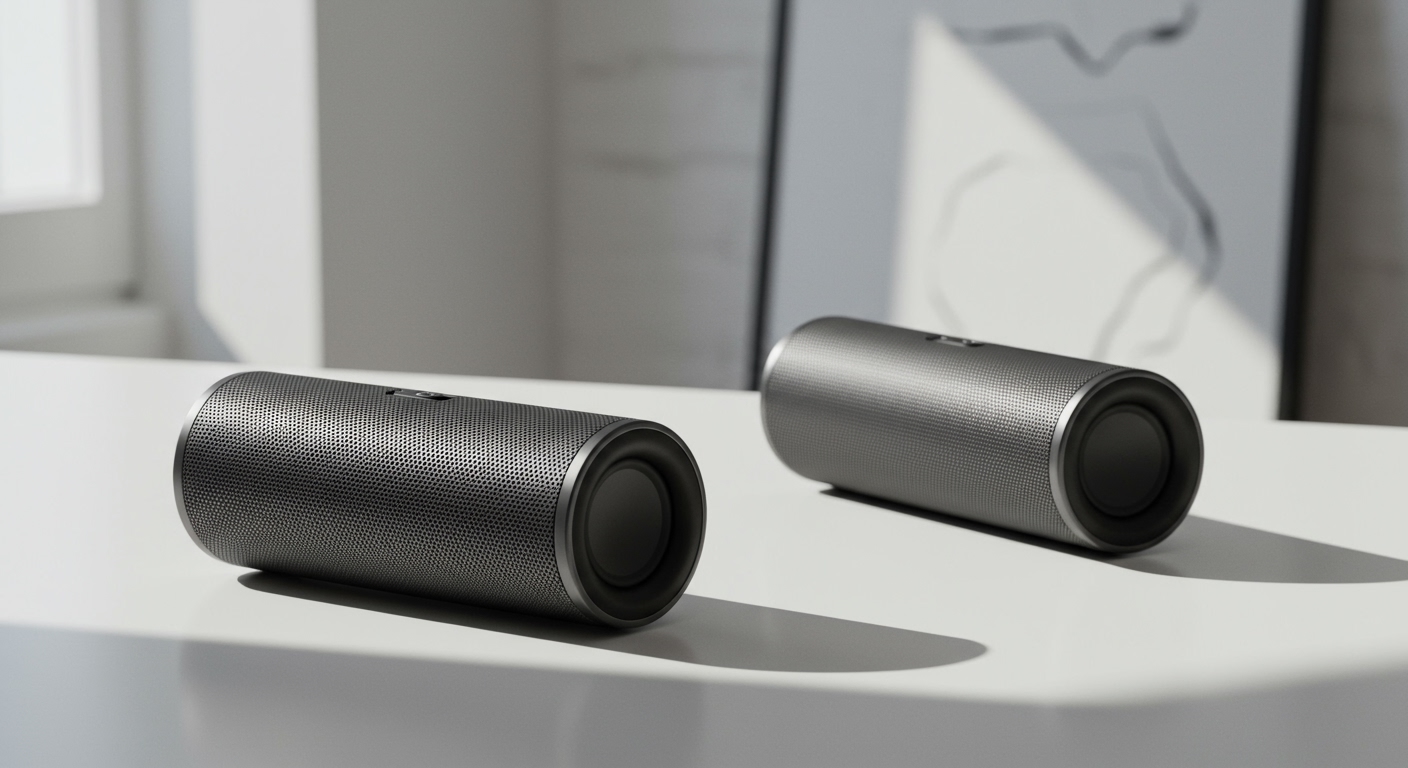
Many newer ION speakers feature Stereo-Link™ technology, allowing you to wirelessly link two compatible speakers for a powerful stereo sound. This is a game-changer for outdoor events. I’ve personally linked two Pathfinder 320 speakers, and the immersive sound is significantly better than a single speaker.
Crucial Note: You only connect your phone to one of the two speakers. This speaker becomes the “Primary” and sends the audio signal to the “Secondary” speaker.
Step 1: Position and Power On Both Speakers
- Place your two compatible ION speakers where you want them. For the best stereo effect, place them 10-30 feet apart.
- Power on both speakers. Make sure neither speaker is currently connected to a Bluetooth device. If one is, disconnect it first.
Step 2: Initiate the Stereo-Link Process
- On the first speaker (this will be your Primary), press and hold the Link button. You’ll hear a tone, and the link indicator light will start to blink.
- On the second speaker (the Secondary), press and hold the Link button. It will also begin searching for the Primary speaker.
Step 3: Wait for the Speakers to Connect
Give the speakers about 15-30 seconds to find each other. Once they successfully link, you will hear a confirmation tone. The link indicator lights on both speakers will turn solid. The Primary speaker will typically be the Left channel and the Secondary will be the Right channel.
Step 4: Pair Your Phone to the Primary Speaker
Now, you will connect your music source.
- Follow the single-speaker pairing steps from the section above, but only connect to the Primary speaker.
- The Primary speaker will appear in your phone’s Bluetooth list. The Secondary speaker will not.
- Once your phone is connected to the Primary, audio will automatically play through both speakers in perfect stereo.
Pairing Methods: A Quick Comparison Table
To clarify the different connection types, we’ve broken them down in this simple table.
| Method | Best For | Required Tech | How It Works | Common Models |
|---|---|---|---|---|
| Single Bluetooth | Everyday music streaming from one device. | Standard Bluetooth | Your phone sends audio to one speaker. | All ION Models |
| Stereo-Link™ | Creating a wide, immersive stereo sound for parties or large spaces. | Stereo-Link™ | Two speakers link wirelessly; your phone connects to one “Primary” speaker. | Pathfinder, Explorer, Total PA (newer models) |
| Wired Link | Linking older models that lack wireless pairing. | XLR or 1/4″ TRS Cable | An audio cable runs from the “Output” of one speaker to the “Input” of another. | Older Block Rocker, Pro-level PA speakers |
Troubleshooting Common ION Speaker Pairing Issues
Even with the right steps, you can run into hiccups. Based on our hands-on use, these are the most common problems and their solutions.
Problem: My speaker isn’t showing up in my phone’s Bluetooth list.
- Solution 1: Check Pairing Mode. Ensure the Bluetooth light on the ION speaker is blinking. If it’s solid or off, it’s not in pairing mode. Press and hold the Bluetooth button again.
- Solution 2: “Forget” the Device. Go into your phone’s Bluetooth settings, find the speaker in your list of previously connected devices, and select “Forget Device” or “Unpair.” Then try the pairing process again. This clears any corrupted connection data.
- Solution 3: Reduce Distance. Move your phone closer to the speaker, ideally within 10 feet, for the initial pairing process.
Problem: My two speakers won’t link together in Stereo-Link mode.
- Solution 1: Disconnect All Devices. The most common reason for failure is that one of the speakers is already connected to a phone. Make sure you disconnect all Bluetooth devices from both speakers before attempting to link them.
- Solution 2: Check Compatibility. Ensure both of your speakers have the Stereo-Link feature. An older model cannot wirelessly link with a newer one. The feature must be present on both units.
- Solution 3: Bring Them Closer. During the linking process, make sure the two speakers are within 30 feet of each other. Once linked, you can often move them a bit further apart.
Problem: The sound is choppy or cutting out.
- Solution 1: Check the Source. The issue might be your phone, not the speaker. Move your phone closer to the Primary speaker. Physical obstructions like walls, and even a large crowd of people, can interfere with the Bluetooth signal.
- Solution 2: Minimize Interference. Wi-Fi routers, microwaves, and other wireless devices can cause interference. Try moving the speakers and your phone away from these sources.
- Solution 3: Check Battery Levels. A low battery on either your phone or the speaker can sometimes cause poor performance and audio dropouts.
Frequently Asked Questions (FAQ)
How do I perform a Bluetooth reset on my ION speaker?
To reset the Bluetooth connection, press and hold the Bluetooth button for about 10 seconds. This will clear all previously paired devices. You can also turn the speaker off and on again to perform a soft reset.
Can I pair an old ION speaker with a new one?
You cannot wirelessly pair an older, non-Stereo-Link speaker with a new one. However, if both speakers have audio inputs and outputs (like XLR or 1/4″ jacks), you can often link them using a physical cable.
What is the difference between the ‘Link’ button and the ‘Bluetooth’ button?
The Bluetooth button is for connecting a source device (like your