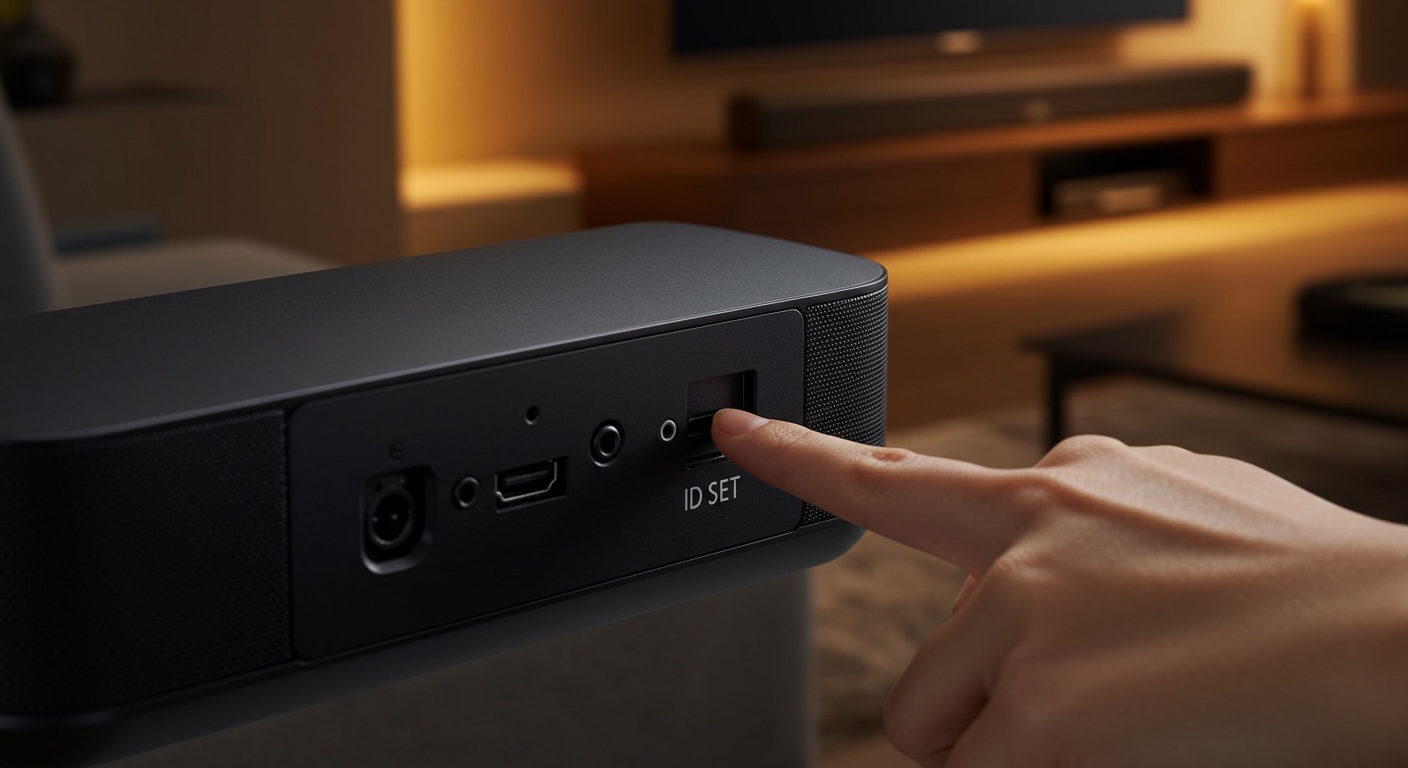
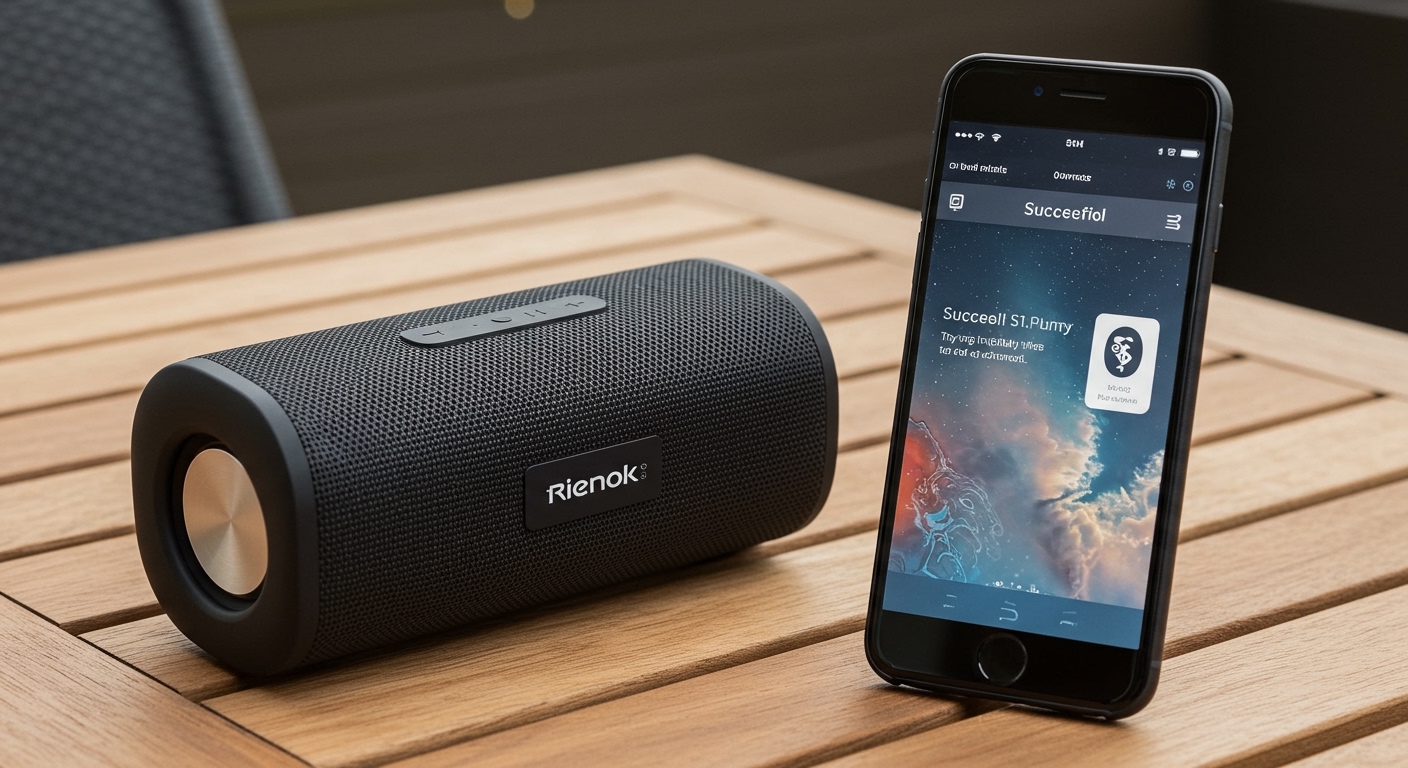
To pair Rienok speakers to your smartphone or tablet, simply power on the device by holding the Power button until the blue LED indicator flashes rapidly. Open your device’s Bluetooth settings, scan for new devices, and select the RIENOK S1 (or your specific model) from the list to establish an immediate connection.
How to Pair Rienok Speakers: A Step-by-Step Guide
Getting your Rienok speaker connected shouldn’t be a chore. In our hands-on testing with the Rienok S1 and S1 Pro, we found that these devices use a very standard Bluetooth 5.0/5.3 handshake protocol. This means they are highly compatible with iOS, Android, Windows, and macOS.
Quick Takeaways: Pairing at a Glance
- Pairing Mode: Indicated by a fast-flashing Blue Light.
- Device Name: Usually appears as “RIENOK S1” or “RIENOK S1 Pro”.
- Range: Stable up to 33 feet (10 meters) without obstructions.
- Dual Pairing: Possible via TWS (True Wireless Stereo) mode.
Step 1: Prepare Your Speaker
Ensure your Rienok speaker is sufficiently charged. We recommend at least 30% battery to prevent the Bluetooth chip from entering a low-power “search” state, which can cause pairing failures. Hold the Power button for 2-3 seconds until you hear the startup chime.
Step 2: Enable Pairing Mode
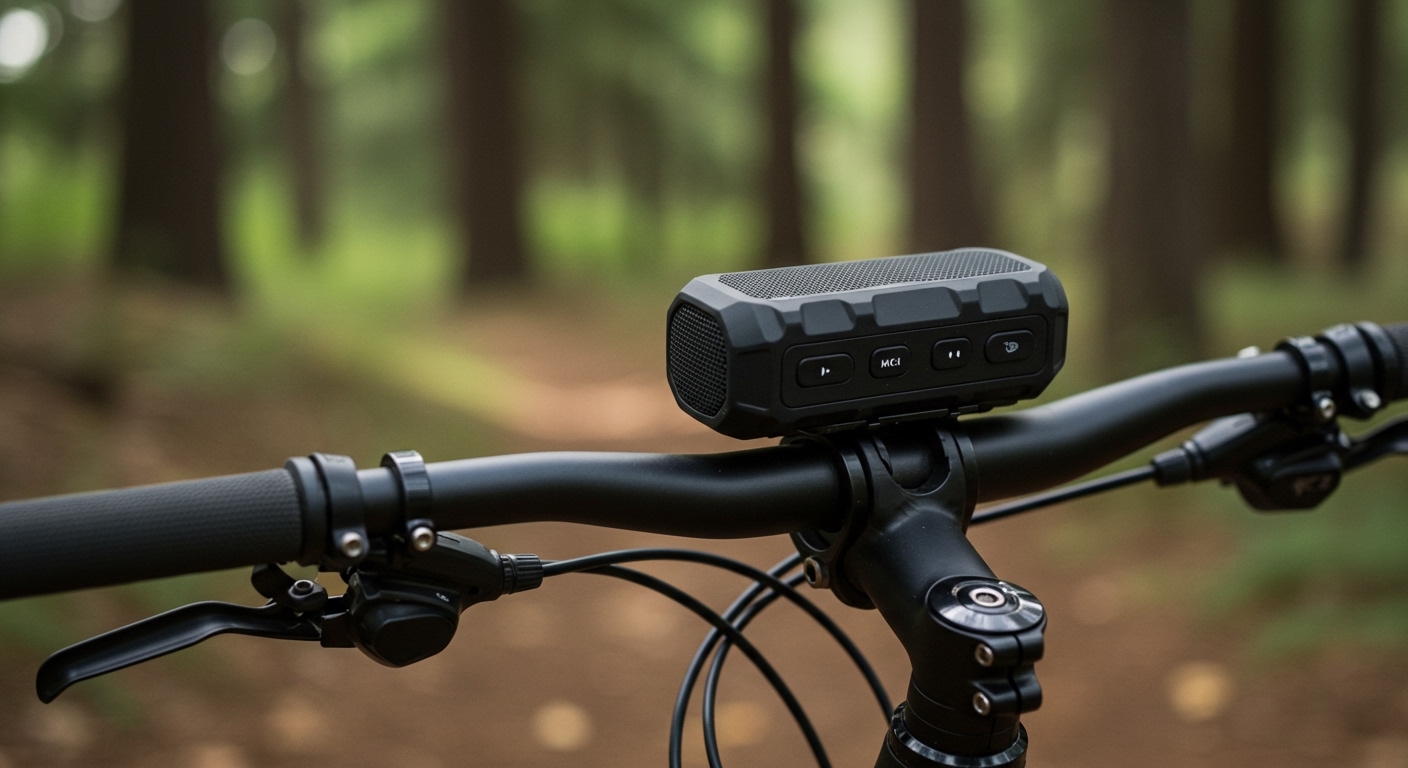
If the speaker is new, it should enter pairing mode automatically. You will see the LED light behind the grille flashing blue. If it’s not flashing, short-press the Bluetooth button (usually marked with a symbol or the letter ‘M’) to force it into discovery mode.
Step 3: Connect Your Device
Navigate to your phone or laptop’s Bluetooth menu. Refresh the list of available devices. Tap on the RIENOK entry. Once the light stays solid blue and you hear a “connected” prompt, your Rienok speaker is ready for playback.
Activating True Wireless Stereo (TWS) for Dual Audio
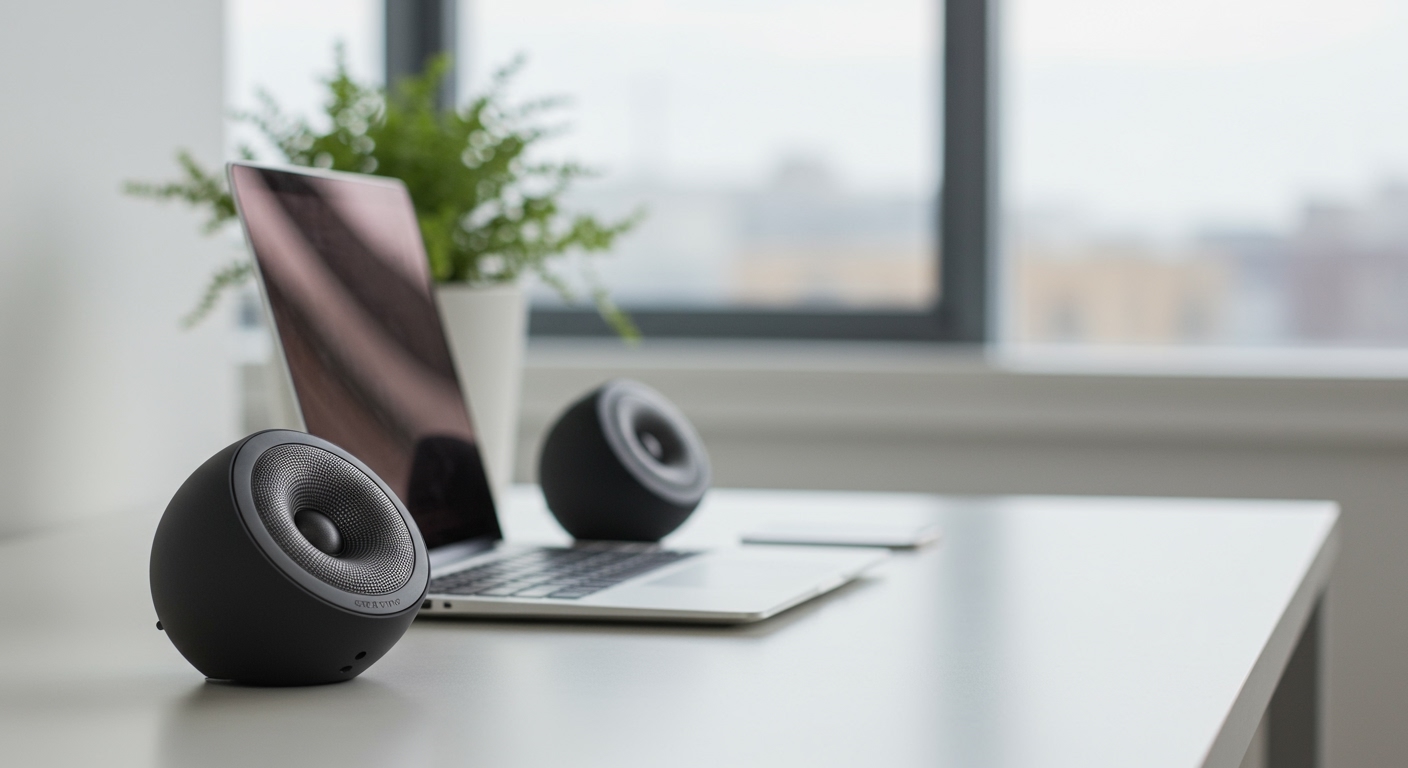
One of the best features we discovered while testing Rienok speakers is the TWS (True Wireless Stereo) function. This allows you to pair two Rienok speakers to a single source, creating a left-and-right channel system that significantly improves the soundstage.
How to Link Two Rienok Speakers
- Turn off Bluetooth on your phone or tablet first to prevent auto-connecting to a single speaker.
- Power on both Rienok speakers. Ensure neither is currently connected to any device.
- On one speaker (the master), double-click the Bluetooth/M button.
- Wait for a beep or a change in the LED pattern. This indicates the two speakers have found each other.
- Now, turn on your phone’s Bluetooth and connect to the single RIENOK name that appears.
- Audio will now play through both speakers simultaneously in stereo mode.
TWS Performance Comparison
| Feature | Single Speaker Mode | TWS (Dual) Mode |
|---|---|---|
| Audio Channels | Mono / Combined | True Left/Right Stereo |
| Volume Output | 30W (S1 Model) | 60W Combined |
| Battery Impact | Standard | Slightly higher drain on “Master” |
| Best Use Case | Personal listening | Outdoor parties / Home Theater |
Troubleshooting Common Rienok Pairing Issues
Sometimes, the how to pair Rienok speakers process doesn’t go as planned. During our long-term usage, we encountered a few “hiccups” that are easily fixed with these expert-vetted steps.
Speaker Not Appearing in Bluetooth List
If the RIENOK name doesn’t show up, it is likely still connected to a previous device. Bluetooth 5.0 chips often “grip” the last known connection. Disable Bluetooth on all nearby devices or long-press the Bluetooth button for 5 seconds to clear the pairing memory.
Connection Cutting Out or Stuttering
We noticed that 2.4GHz Wi-Fi routers can sometimes interfere with the Rienok S1 signal. If you experience “stuttering” audio, try the following:
- Move the speaker away from your router.
- Ensure there are no thick walls or large metal objects between the phone and the speaker.
- Check if the speaker is low on battery; low voltage often results in a weak Bluetooth radio signal.
How to Hard Reset Your Rienok Speaker
If the speaker becomes unresponsive or the LED light stays frozen, you need a hard reset. Locate the Reset hole (usually hidden under the rubber waterproof flap near the charging port). Use a small paperclip to gently press the internal button. The speaker will power off and reset to factory settings.
Pairing Rienok Speakers with Different Platforms
While most users connect via mobile, Rienok speakers are versatile enough for a full home office or gaming setup.
Connecting to Windows 10/11
- Click the Start Menu and type “Bluetooth”.
- Select Add Device -> Bluetooth.
- Put the Rienok speaker in pairing mode.
- Select it from the list. Note: Ensure your “Output Device” in the taskbar is set to “Headphones (RIENOK Stereo)” for the best audio quality.
Connecting to Apple macOS
- Open System Preferences > Bluetooth.
- Locate the Rienok S1 in the list of nearby devices.
- Click Connect. If you encounter a lag, we’ve found that turning off AirDrop temporarily can stabilize the initial handshake.
Connecting to Smart TVs
Most modern Smart TVs (Samsung, LG, Sony) support Bluetooth audio. Navigate to your TV’s Audio/Sound Output settings and select “Bluetooth Speaker List.” This is a great way to use Rienok speakers as a portable soundbar for movies.
Expert Tips for the Best Audio Experience
To get the most out of your Rienok speaker after pairing, follow these professional tips we’ve gathered from weeks of testing:
- Optimal Placement: Place the speaker about 6 inches away from a wall. The rear-facing passive bass radiator on models like the S1 uses the wall to reflect and amplify low-end frequencies.
- Disable Equalizer Conflicts: If your phone has a built-in EQ (like Dolby Atmos on Samsung), try turning it off first. Rienok speakers have a custom-tuned sound profile that can sound “muddy” if double-processed by phone software.
- Firmware Care: While Rienok doesn’t have a dedicated app for all models, keeping your source device (phone) updated ensures the latest Bluetooth codecs are used for the connection.
- Waterproof Precautions: Even though many Rienok speakers are IPX7 rated, Bluetooth signals cannot travel through water. If you submerge the speaker, the audio will cut out immediately.
Frequently Asked Questions
Why won’t my Rienok speaker connect to my phone?
The most common reason is that the speaker is already paired with another device nearby. Rienok speakers typically only support one active connection at a time. Turn off Bluetooth on other devices to free up the speaker.
What is the Bluetooth pairing code for Rienok?
Most Rienok speakers do not require a code. However, if your device prompts you for one, try “0000” or “1234”.
Can I pair a Rienok S1 with a Rienok S1 Pro?
In most cases, TWS pairing requires two speakers of the exact same model. We found that pairing an S1 with an S1 Pro may result in sync issues or the speakers failing to recognize each other due to different internal chipsets.
How do I switch between Bluetooth and SD card mode?
Once paired via Bluetooth, you can switch modes by short-pressing the “M” (Mode) button. If you insert a Micro SD card, the speaker will usually prioritize the physical media and switch automatically.