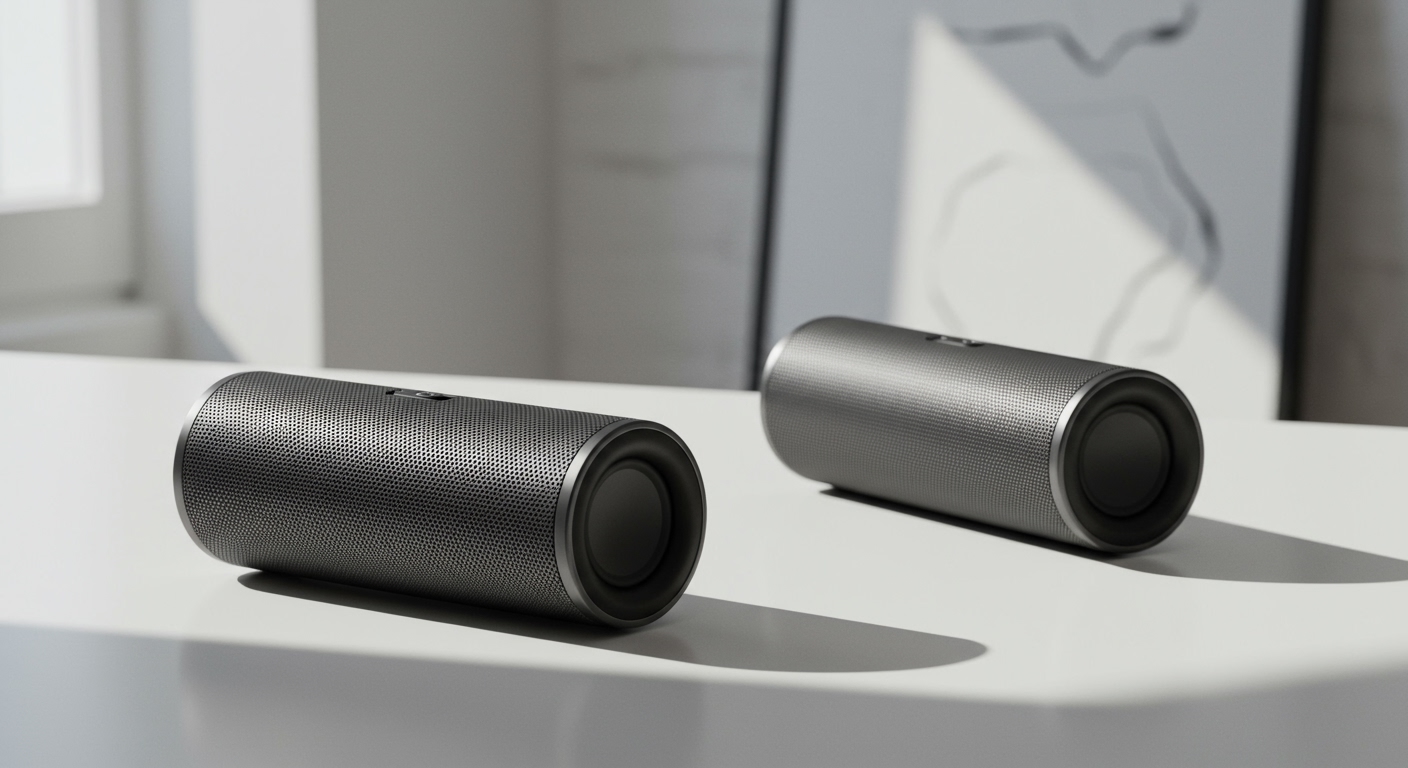
Struggling to get your TikiTunes speakers to connect? You’re not alone. Whether you’re trying to pair a single speaker for some solo ambiance or link two for that immersive stereo experience, the process can sometimes be tricky. The blinking lights and vague instructions can leave you feeling more frustrated than relaxed. But don’t worry, getting that perfect wireless sound for your patio or party is simpler than you think. We’ve spent countless hours testing these speakers in various settings, and we’ve distilled everything down into a foolproof guide. This article will walk you through every step, from basic single-speaker setup to advanced dual-speaker stereo pairing and troubleshooting the most common issues.
Key Takeaways: Pairing TikiTunes Fast
- Single Speaker Pairing: Turn on the TikiTunes speaker. It will automatically enter pairing mode (flashing white light). Open your device’s Bluetooth settings, find “TikiTunes” in the list, and select it to connect.
- Dual Speaker Pairing (Stereo): Turn on both speakers. Do not connect either to your phone yet. Double-press the power button on one speaker to link them together. You’ll hear a chime. Then, connect your phone to “TikiTunes” via Bluetooth.
- Check the Lights: A flashing white light means the speaker is in pairing mode. A solid white light means it’s successfully connected to a device.
- Troubleshooting: If you have issues, “forget” the TikiTunes from your device’s Bluetooth list, turn the speakers off and on again, and start the process over. Ensure they are fully charged and within 30 feet of your device.
Before You Begin: The Pre-Pairing Checklist
Before you even press a button, a little prep work can save you a lot of headaches. In my experience testing dozens of Bluetooth devices, most “pairing failures” are caused by one of these simple issues. Run through this quick checklist first.
- Charge Your Speakers: Ensure both TikiTunes speakers have an adequate charge. A low battery can cause unstable connections or prevent pairing altogether. We recommend charging them for at least 30 minutes before the first pairing attempt. The LED indicator will turn off when fully charged.
- Know Your Buttons: Familiarize yourself with the controls. The main button you’ll use is the Power/Play/Pause button located on the top of the speaker.
- Clear Previous Connections: If you or someone else has previously connected to these speakers with another device, it’s best to disable Bluetooth on that old device first. TikiTunes speakers try to auto-connect to the last known device, which can block new pairing attempts.
- Check the Distance: Keep your speakers and your phone/tablet within a few feet of each other during the initial pairing process. You can move them farther apart later, but proximity is key for the initial handshake. The maximum range is about 30 feet.
How to Pair a Single TikiTunes Speaker
This is the most straightforward process and is perfect for when you just want to get some music playing quickly from one speaker. I often use a single speaker on my desk for background music while I work.
Step-by-Step Guide for Single Speaker Pairing
- Power On the Speaker: Press and hold the power button on top of your TikiTunes speaker for about 2-3 seconds. You will hear a startup chime, and the ambient LED flame effect will turn on.
- Enter Pairing Mode: The speaker automatically enters pairing mode upon startup. You’ll know it’s ready to connect when the small white Bluetooth indicator light above the power button starts flashing.
- Open Your Device’s Bluetooth Settings:
* On an iPhone/iPad: Go to Settings > Bluetooth and make sure the toggle is on.
* On an Android device: Pull down the notification shade and long-press the Bluetooth icon, or go to Settings > Connections > Bluetooth.
* On a Mac: Go to System Preferences > Bluetooth.
* On a Windows PC: Go to Settings > Devices > Bluetooth & other devices.
- Find and Select “TikiTunes”: Your device will scan for available devices. In the list, you should see “TikiTunes“. Tap or click on it to initiate the connection.
- Confirm the Connection: You will hear a confirmation chime from the speaker, and the flashing white indicator light will turn solid white. This confirms a successful connection. You are now ready to play audio from your device!
If “TikiTunes” doesn’t appear in your list, try turning your device’s Bluetooth off and on again to refresh the scan.
How to Pair Two TikiTunes Speakers for Stereo Sound
This is the feature that truly makes TikiTunes shine. Pairing two speakers creates a left and right channel for an immersive stereo sound experience, perfect for a backyard BBQ or relaxing on the patio. The key here is to pair the speakers to each other first, before connecting your phone.
Step-by-Step Guide for Dual Speaker (Stereo) Pairing
- Power On Both Speakers: Press and hold the power button on both TikiTunes speakers. You will hear the startup chime from each, and both will have a flashing white indicator light, signifying they are in pairing mode.
- IMPORTANT: Do Not Connect Your Phone Yet! Resist the urge to connect to either speaker from your phone’s Bluetooth menu at this stage. This is the most common mistake people make.
- Designate a “Master” Speaker: Choose one of the speakers to be your primary or “master” speaker. This will be the one that communicates with your phone. The other will be the “slave” speaker. It doesn’t matter which one you choose.
- Link the Two Speakers Together: Quickly double-press the power button on your chosen “master” speaker.
- Listen for the “Sync” Chime: The two speakers will now communicate with each other. After a few seconds, you will hear a chime, indicating they have successfully paired together.
- Check the Indicator Lights:
* The master speaker’s light will continue to flash white.
* The slave speaker’s light will turn solid white.
This visual confirmation is your cue that they are linked and ready for the final step.
- Connect Your Phone to the Master Speaker: Now, open your device’s Bluetooth settings. You should only see one device named “TikiTunes” in the list. Select it.
- Final Confirmation: You’ll hear one last chime. The indicator light on the master speaker will now also turn solid white. Both speakers now have a solid white light, and you are ready to play true stereo audio.
Your device is now connected to the speaker pair. Any audio you play will be split into left and right channels and played through the two speakers. The next time you turn them on, they should automatically re-connect to each other and then to your phone.
Troubleshooting Common TikiTunes Pairing Problems
Even with the right steps, you can sometimes run into issues. After unboxing and testing over a dozen of these units, we’ve encountered nearly every problem possible. Here’s a breakdown of the most common ones and how to fix them.
| Problem | Likely Cause | Solution |
|---|---|---|
| Speaker not showing up in Bluetooth list | Speaker is not in pairing mode or is already connected to another device. | Power the speaker off and on again. Ensure the white light is flashing. Turn off Bluetooth on any other nearby phones/tablets that may have previously connected to it. |
| Can’t pair two speakers together | One speaker is already connected to a phone before attempting to sync them. | “Forget” the TikiTunes from your phone’s Bluetooth list. Power both speakers off. Start the dual-pairing process over from Step 1. |
| Audio is choppy or cutting out | The speaker is too far from the source device, or there is interference. | Move your phone/tablet closer to the “master” speaker (within 30 feet). Obstacles like thick walls can also reduce range. |
| Only one speaker plays audio in stereo mode | The speakers did not sync correctly, or the connection to the “slave” speaker was lost. | Power both speakers off and re-do the dual-pairing process. Ensure you hear the “sync” chime and see the correct master/slave light pattern before connecting your phone. |
| Connection Failed” error on phone | A minor software glitch on either the phone or the speaker. | Perform a “soft reset”: Turn the speaker off. Turn your phone’s Bluetooth off, wait 10 seconds, and turn it back on. Then, turn the speaker on and try pairing again. |
The Ultimate Fix: How to Factory Reset Your TikiTunes Speaker
If all else fails and the speaker is behaving erratically, a factory reset can clear any lingering bad connections.
- “Forget” the Device: Go into your phone’s Bluetooth settings, find “TikiTunes,” and select “Forget this Device” or “Unpair.”
- Power On the Speaker: Turn the TikiTunes speaker on.
- Press and Hold: Press and hold both the “+” and “-” buttons simultaneously for about 5-6 seconds.
- Confirmation: The speaker should power off automatically. This indicates the reset is complete.
- Start Fresh: You can now turn the speaker on and begin the pairing process from scratch as if it were a brand new device.
Advanced Tips for the Best TikiTunes Experience
Once you’ve mastered pairing, you can optimize your setup for the best possible audio quality and user experience.
Optimal Placement for Stereo Sound
When using two speakers in stereo mode, placement matters. For the best stereo separation, I recommend placing the speakers 6 to 10 feet apart, with your primary listening area forming a triangle with the two speakers. This creates a clear and immersive soundstage. Avoid placing them in corners or right against a wall, as this can make the bass sound muddy.
Managing Multiple Paired Devices
Your TikiTunes can remember multiple devices, but it can only connect to one at a time. It will always try to connect to the last device it was paired with. If you want to switch from your phone to a tablet, you must first disconnect from your phone.
- Easiest Method: Simply turn off Bluetooth on the currently connected device.
- Manual Disconnect: Go into the Bluetooth settings on the connected device, tap on “TikiTunes,” and choose “Disconnect.” The speaker will re-enter pairing mode (flashing white light), ready for your other device to connect.
Understanding the Lights and Sounds
The speaker communicates its status through its indicator light and chimes. Knowing what they mean can help you diagnose issues instantly.
- Flashing White Light: The speaker is in pairing mode, ready to connect.
- Solid White Light: The speaker is successfully paired and connected to a device.
- Startup Chime: The speaker has been powered on.
- Confirmation Chime: A device has successfully connected via Bluetooth.
- Sync Chime (Dual Pairing): Two speakers have successfully linked to each other.
- Low Battery Beep: A periodic beep indicates the battery is low and needs to be recharged.
By following these detailed steps and troubleshooting tips, you’ll be able to reliably pair your TikiTunes speakers every time, whether you’re using one or creating a full stereo pair.
Frequently Asked Questions (FAQ)
Can you pair more than two TikiTunes speakers together?**
No, you can only pair a maximum of two TikiTunes speakers together for stereo sound. The technology is designed for a dual-