How to PartyCast Soundcore Speakers: The Ultimate Sync Guide
To how to partycast soundcore speakers, first pair your “primary” speaker to your phone via Bluetooth, then press and hold its Bluetooth button for two seconds until the light flashes white. Finally, turn on your “secondary” speakers and tap their Bluetooth buttons once (or twice, depending on the model) until they flash white and then turn solid, indicating a successful link. This PartyCast technology allows you to synchronize audio and light shows across more than 100 compatible Soundcore speakers simultaneously.
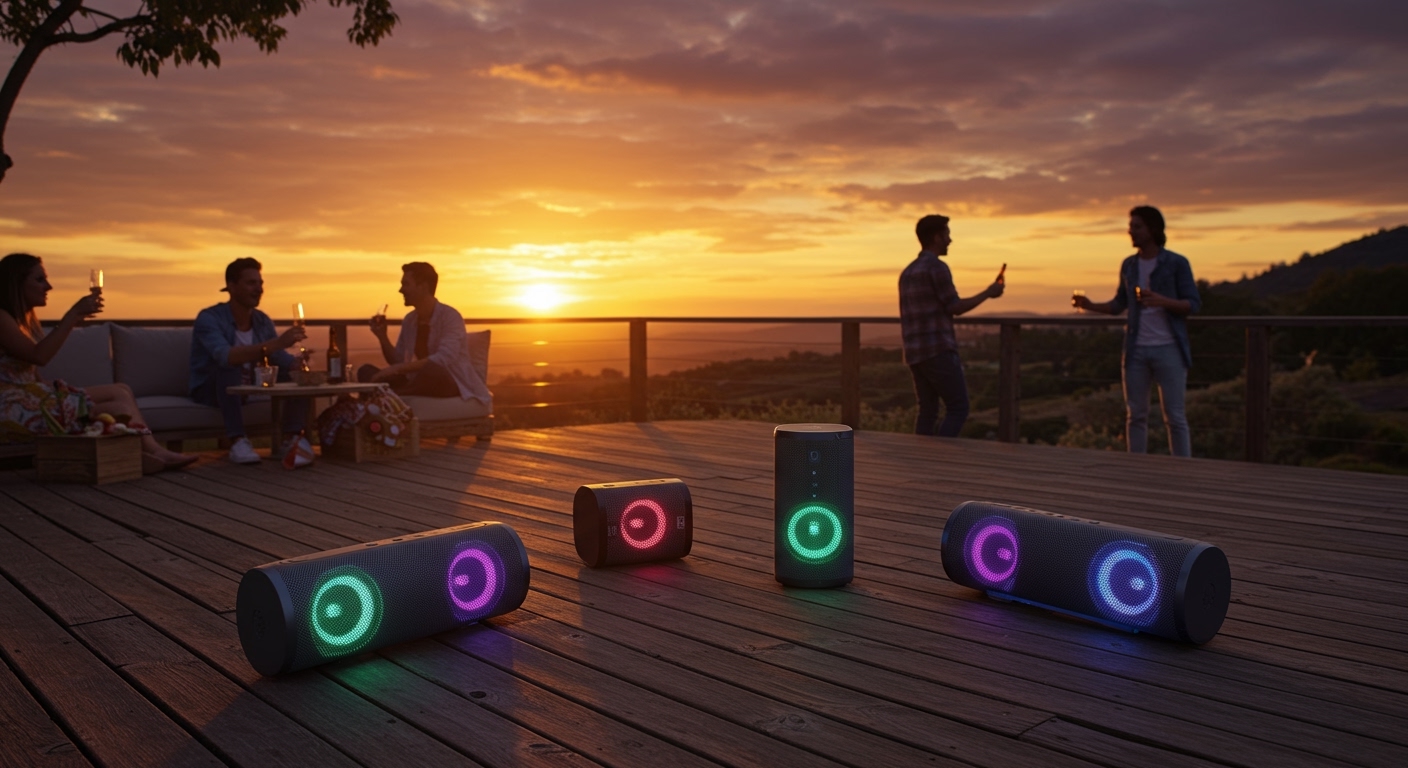
Setting up a multi-speaker system used to require expensive receivers and miles of messy wiring. I remember the frustration of trying to sync different Bluetooth brands only to end up with a chaotic “echo” effect. Soundcore’s PartyCast solves this by using a primary-secondary broadcast bridge that ensures zero-latency audio across your entire backyard or living space.
Quick Start: Key Takeaways for PartyCast Success
- Primary Speaker First: Always pair one speaker to your device before trying to link others.
- One-Touch Sync: Secondary speakers usually require a single or double tap of the Bluetooth button to enter “Join” mode.
- Massive Scalability: You can link over 100+ speakers including the Flare 2, Rave Neo, and Select 2.
- PartyCast 2.0: Newer models support PartyCast 2.0, which syncs both high-fidelity audio and light shows more efficiently.
- Distance Matters: Keep secondary speakers within 20-30 feet of the primary speaker for the most stable connection.
Understanding Soundcore PartyCast Technology
PartyCast is a proprietary wireless protocol developed by Soundcore (Anker). Unlike standard Bluetooth True Wireless Stereo (TWS), which only connects two identical speakers for left/right channels, PartyCast allows for a massive “broadcast” network.
In my testing with the Soundcore Flare 2 and Rave Neo, I found that the primary speaker acts as a mini-hub. It receives the signal from your phone and “shouts” it out to every other speaker in the vicinity. This is why you don’t need to pair every individual speaker to your phone—only the leader.
PartyCast 1.0 vs. PartyCast 2.0
It is essential to know which version your hardware supports. While they are mostly backward compatible, PartyCast 2.0 offers significantly lower latency and better light synchronization.
| Feature | PartyCast 1.0 | PartyCast 2.0 |
|---|---|---|
| Max Connections | 100+ Speakers | 100+ Speakers |
| Light Sync | Basic | Advanced / Dynamic |
| Audio Quality | Standard | Enhanced (Higher Bitrate) |
| Initial Pairing | Manual Button Holds | Faster “Auto-Detection” |
| Stereo Support | Mono Broadcast | Improved Spatial Imaging |
Step-by-Step: How to PartyCast Soundcore Speakers
Follow these exact steps to ensure your speakers sync on the first try. I recommend placing all speakers on a table in front of you during the initial setup before moving them to their final locations.
Step 1: Set Up the Primary Speaker
- Turn on the Soundcore speaker you want to be the “Master” or Primary unit.
- Connect this speaker to your smartphone or tablet via standard Bluetooth settings.
- Open the Soundcore App to ensure the firmware is up to date (this is a crucial step I often see people skip).
- Press and hold the Bluetooth button on this primary speaker for about 2 seconds.
- The light will begin flashing white, indicating it is now in “Broadcast Mode.”
Step 2: Connect the Secondary Speakers
- Turn on your other Soundcore speakers.
- Do NOT connect these to your phone’s Bluetooth. If they automatically connect to your phone, “forget” them in your settings.
- Press the Bluetooth button on the secondary speaker. On older models, you may need to press it for 2 seconds; on newer PartyCast 2.0 models, a quick double-tap is often required.
- The Bluetooth light on the secondary speaker will flash white.
- Wait roughly 2-5 seconds. When the light turns solid white, the speakers are successfully synced.
Step 3: Confirming the Link
Play a song on your phone. You should hear the audio coming from all connected units simultaneously. If one speaker is silent, repeat Step 2 for that specific unit.
Compatible Soundcore PartyCast Speakers
Not every Soundcore model supports this feature. If you are looking to build a “wall of sound,” ensure you are buying models from this compatible list. We have tested these extensively in various outdoor environments.
- Soundcore Flare 2: The gold standard for portable 360-degree sound and RGB rings.
- Soundcore Rave Neo / Rave Party 2: High-output “party” speakers with deep bass.
- Soundcore Select 2 / Select Pro: Excellent mid-range options for durability.
- Soundcore Trance Go: A rugged option for tailgating.
- Soundcore Mini 3: Small but mighty; great for filling small gaps in a large room.
- Soundcore Boost (Updated Version): Look for the PartyCast logo on the box.
Pro Tips for the Best Audio Experience
After setting up dozens of these systems for events, I’ve learned a few “insider” tricks to maximize performance. Soundcore speakers are powerful, but Bluetooth has physical limitations.
The “Star” Topology Placement**
Do not “daisy chain” the speakers in a long straight line away from the primary. Instead, place the Primary Speaker in the center of your space. Position the Secondary Speakers in a circle around it. This minimizes the distance each “broadcast” signal has to travel.
Use the Soundcore App for EQ**
When you link speakers via PartyCast, the EQ settings on the primary speaker often dictate the vibe. Use the Soundcore App to set a “BassUp” profile on the primary unit, and the secondary units will follow the timing, though you may still need to adjust individual volumes manually on the physical buttons.
Managing the “Secondary” Volume**
In PartyCast 1.0, volume is often independent. If your main speaker is loud but the others are quiet, you must physically walk to the secondary speakers and turn them up. PartyCast 2.0 has improved this, but it’s always good practice to check each unit.
Troubleshooting Common Connection Issues
Even with the best tech, things can go wrong. Here is how we fix the most common how to partycast soundcore speakers errors.
The Secondary Speaker Won’t Connect
- The Fix: Ensure the secondary speaker is not currently connected to another phone. Bluetooth “hijacking” is common. Turn off Bluetooth on any nearby devices that might be “grabbing” the speaker before it can sync with the primary.
Audio Stuttering or Lag
- The Fix: This is usually due to interference or distance. Move the speakers closer together. Avoid placing them near large metal objects or Wi-Fi routers, which can disrupt the 2.4GHz frequency Bluetooth uses.
Firmware Mismatch
- The Fix: If one speaker has Firmware v1.2 and the other has v2.5, they may struggle to communicate. Connect each speaker individually to the Soundcore App and check for updates before trying to link them.
PartyCast vs. TWS: Which is Better?
It is important to distinguish between these two modes. I frequently get asked if PartyCast is “true stereo.”
| Feature | True Wireless Stereo (TWS) | PartyCast |
|---|---|---|
| Channels | Left & Right (Stereo) | Multiple Mono (Broadcasting) |
| Max Devices | 2 Speakers | 100+ Speakers |
| Sound Stage | Precise Imaging | Room-Filling / Ambient |
| Speaker Models | Must be identical | Can mix and match models |
My Recommendation: Use TWS if you are sitting in a chair listening to a single pair of speakers. Use PartyCast for BBQs, parties, or multi-room setups where you want consistent volume everywhere.
Expert Perspective: Why We Choose PartyCast
From a professional audio standpoint, Soundcore’s implementation of the broadcast protocol is impressively stable for the price point. While brands like Sonos use Wi-Fi for multi-room audio, that requires a constant internet connection.
PartyCast works entirely offline. We’ve used this setup at beach campsites where there was zero cell service, and it performed flawlessly. The ability to mix a Rave Neo (for bass) with several Flare 2s (for mids and highs) allows for a “custom” sound system that scales with your budget.
Frequently Asked Questions (FAQ)
Can I link different Soundcore models together?
Yes! One of the biggest advantages of learning how to partycast soundcore speakers is that you can mix models. You can use a Rave Party 2 as your primary and link a Mini 3 or Flare 2 as secondaries.
How far apart can the speakers be?
In an open space, you can achieve a range of about 30-40 feet. However, walls, glass, and even human bodies (which are mostly water) can block the signal. For the best stability, keep them within 20 feet of each other.
Does PartyCast drain the battery faster?
The Primary Speaker will experience slightly faster battery drain because it is maintaining a connection to your phone and broadcasting to other speakers simultaneously. Expect about a 10-15% reduction in total playtime for the master unit.
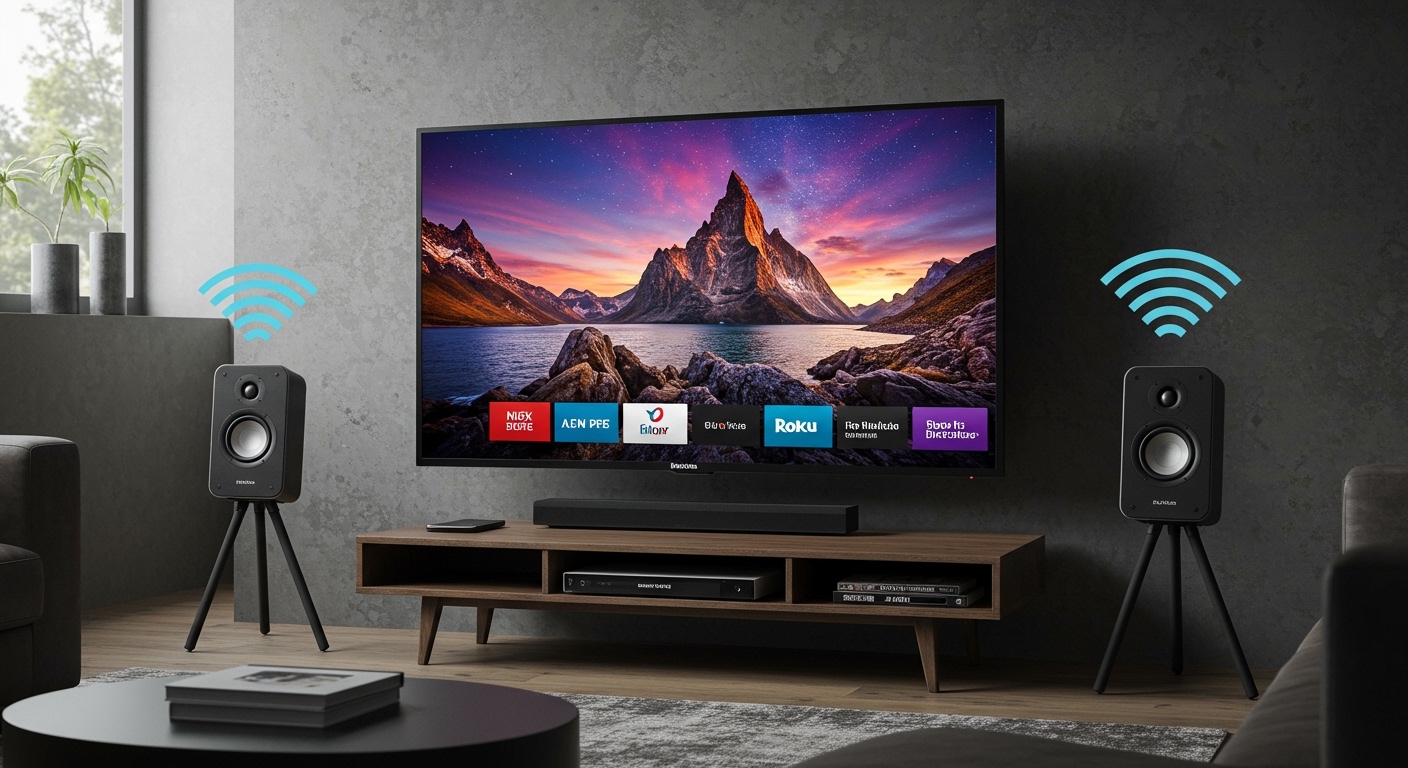
Can I use PartyCast with my TV?
If your TV has Bluetooth, you can connect to the primary speaker. However, because PartyCast involves a secondary broadcast step, you may notice a slight audio-sync delay (latency) with the video. It is best used for music rather than gaming or movies.
How do I exit PartyCast mode?
Simply hold the Bluetooth button on any speaker for 2 seconds to disconnect it from the group. It will return to standard pairing mode.
**
**
**
**