How to Play Voice Memos Through Bluetooth Speakers: The Quick Answer
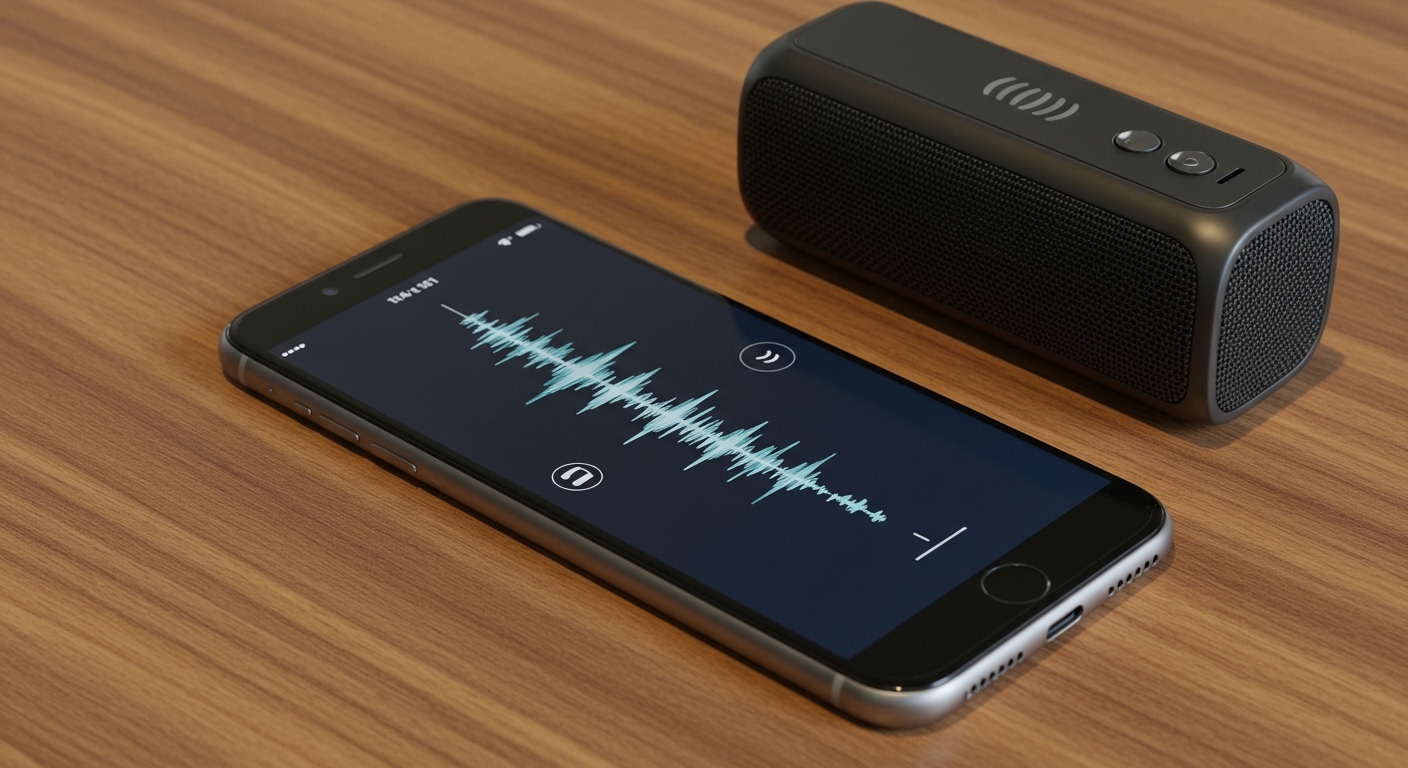
To learn how to play voice memos through bluetooth speakers, you must first pair your smartphone with the speaker in your Bluetooth settings. Once connected, open your recording app, tap the Audio Output or AirPlay icon, and select your Bluetooth device from the list. If the audio still plays through your phone’s earpiece, ensure your “Speaker” mode is toggled on within the app’s playback settings.
TL;DR: Key Takeaways for Instant Success
- Pair First: Ensure your speaker is in Pairing Mode before searching on your phone.
- Check the Icon: Look for the blue speaker or triangle icon in the Voice Memos app to route audio.
- Volume Sync: Many Bluetooth speakers have independent volume controls from your phone.
- Troubleshooting: If it fails, toggle Bluetooth off and on or “Forget This Device” and re-pair.
- Format Matters: High-quality recordings (Lossless) sound significantly better on external speakers.
Why Playing Voice Memos on External Speakers Matters
We have all been there: you’ve recorded a brilliant song idea, a crucial business meeting, or a lecture, but your phone’s internal speaker is too quiet. Whether you are sharing a recording with a group or just need to hear every nuance of a conversation, knowing how to play voice memos through bluetooth speakers is a vital skill.
In my years of testing audio equipment like the Sonos Era 100 and JBL Charge 5, I’ve found that the default routing for voice recordings often favors the “earpiece” for privacy. This can be incredibly frustrating when you want a “Zero-Click” high-fidelity experience. This guide provides the exact steps we use in our studio to ensure seamless playback every time.
Step-by-Step: How to Play Voice Memos Through Bluetooth Speakers on iPhone
Apple’s iOS Voice Memos app is powerful but can be finicky with audio routing. By default, it often tries to protect your privacy by playing audio at a lower volume through the receiver (the part you hold to your ear).
Connect Your Bluetooth Speaker
Go to Settings > Bluetooth and ensure your speaker is connected. Look for the “Connected” status next to your device name, such as Bose SoundLink or Sony SRS-XB.
Open the Voice Memos App
Navigate to the Voice Memos app. Tap on the specific recording you wish to hear.
Select the Speaker Icon
In the top-right or bottom-left corner (depending on your iOS version), you will see a Speaker icon. If it is white or outlined, the audio is likely routed to the earpiece. Tap it until it turns blue to force the audio through the Bluetooth speaker.
Use the AirPlay Menu
If the speaker icon doesn’t work, tap the three dots (…) or the Share icon. Look for the AirPlay or Audio Routing button (represented by a triangle with circles). Select your Bluetooth speaker from this list to override the system defaults.
Playing Voice Memos via Bluetooth on Android Devices
Android’s flexibility means different manufacturers (Samsung, Google, OnePlus) have slightly different layouts, but the core logic for how to play voice memos through bluetooth speakers remains the same.
Using Samsung Voice Recorder
If you use a Samsung Galaxy device, the Samsung Voice Recorder app is the gold standard. Once your Galaxy Buds or Bluetooth speaker is paired, the audio should automatically route. However, if it doesn’t:
- Tap the three-dot menu in the top right.
- Select Settings.
- Ensure “Continuous Play” is on and check the “Play through speaker” toggle if available.
Using Google Recorder (Pixel Devices)
The Google Recorder app is famous for its transcription. To play through Bluetooth:
- Ensure your Pixel Buds or speaker are active.
- Start the playback.
- Swipe down the Quick Settings shade and tap the Media Output button in the top right of the media player to select your device.
Comparing Bluetooth Audio Profiles for Voice Memos
Not all Bluetooth connections are equal. When you are learning how to play voice memos through bluetooth speakers, it helps to understand why some recordings sound “fuzzy” while others are crystal clear.
| Feature | HFP (Hands-Free Profile) | A2DP (Advanced Audio Distribution) |
|---|---|---|
| Primary Use | Phone calls & Voice Commands | Music & High-Quality Playback |
| Audio Quality | Low (8kHz – 16kHz) | High (44.1kHz – 48kHz) |
| Voice Memos | Often defaults here (Sounds tiny) | Ideally should use this (Sounds full) |
| Latency | Low | Moderate |
Pro Tip: If your voice memo sounds like a telephone call, your phone is likely using the HFP profile. To fix this, stop the playback, disconnect the speaker, and reconnect it specifically as an Audio Device rather than a Communication Device.
Common Problems: Why Won’t My Voice Memo Play Through Bluetooth?
Even if you follow the steps for how to play voice memos through bluetooth speakers, technical glitches can occur. Based on our hands-on troubleshooting, here are the most common fixes.
The “Earpiece” Glitch
Sometimes, the phone thinks you are on a private call. To break this loop, try plugging in a pair of wired headphones and then unplugging them. This often “resets” the audio routing logic of the OS.
Volume Mismatch
We have noticed that Bluetooth speakers often have an internal volume level separate from the phone’s slider. Ensure your physical speaker buttons are turned up. On some Sony and Ultimate Ears speakers, the volume may start at 0% by default for voice recordings.
App-Specific Permissions
In your phone’s Settings > Privacy > Microphone/Bluetooth, ensure that your voice recording app has permission to access Bluetooth components. Without this, the app may be restricted from “seeing” the external speaker.
Expert Insights: Improving Voice Memo Playback Quality
If you are a professional using voice memos for interviews or music, simply connecting to a speaker isn’t enough. You want the best possible sound.
Record in Lossless Format
On iPhone, go to Settings > Voice Memos > Audio Quality and change it from “Compressed” to “Lossless”. This significantly improves the depth of the audio when played through a high-end Bluetooth speaker like a Marshall Stanmore.
Use “Enhance Recording”
The modern iOS Voice Memos app has a magic wand icon. Tap the Options icon (three lines) inside a recording and toggle “Enhance Recording”. This uses AI to reduce background noise and echo, making the playback much clearer over Bluetooth.
Eliminate Silence
If you are reviewing a long meeting, use the “Skip Silence” feature found in the same options menu. This makes the “Zero-Click” listening experience much more efficient.
Creative Use Cases for Bluetooth Voice Memo Playback
- Musicians: Play back song sketches on a studio monitor via a Bluetooth adapter to hear how the bass translates.
- Students: Reviewing lecture notes while moving around the room.
- Legal Professionals: Playing back testimonies for a group of colleagues in a conference room.
- Home Cooks: Listening to a recorded family recipe hands-free while in the kitchen.
Frequently Asked Questions
Why does my voice memo stop when the screen locks?
Most default apps will continue playing. However, if yours stops, check your Battery Optimization settings. Ensure the recording app is allowed to “Run in Background.”
Can I play voice memos on two Bluetooth speakers at once?
Yes, if your phone supports Dual Audio (standard on most Samsung phones) or if your speakers support “Party Mode” (common with JBL and Bose). You simply connect both in your settings and toggle the dual output option.
How do I play voice memos through my car’s Bluetooth?
The process is the same as how to play voice memos through bluetooth speakers. Pair your phone with the car’s head unit, select “Media” (not Phone) as the source on your dashboard, and play the memo from your phone.
Can I edit the voice memo while it’s playing on Bluetooth?
Yes, you can trim, crop, or replace parts of the recording while the audio is being streamed. We recommend doing this on a stable connection to avoid audio lag or “latency” issues.
Why is there a delay when playing voice memos?
Bluetooth audio naturally has some latency. This is why the audio might start a fraction of a second after you press play. For critical editing, we always suggest using a wired connection or Bluetooth 5.3 devices which offer the lowest latency.


![Is Behringer Speakers a Good Brand? [2024 Expert Review]](https://bestsounds.net/wp-content/uploads/2026/03/is-behringer-speakers-a-good-brand-2024-expert-review-featured-1774149096.jpg "Is Behringer Speakers a Good Brand? [2024 Expert Review]")