How to Play YouTube on Wireless Speakers: The Definitive Guide
You can play YouTube on wireless speakers by using Bluetooth pairing, Google Chromecast, or Apple AirPlay 2 to transmit audio from your device to the speaker. The most direct method is clicking the Cast icon within the YouTube app or connecting via your smartphone’s Bluetooth settings to sync the audio output.
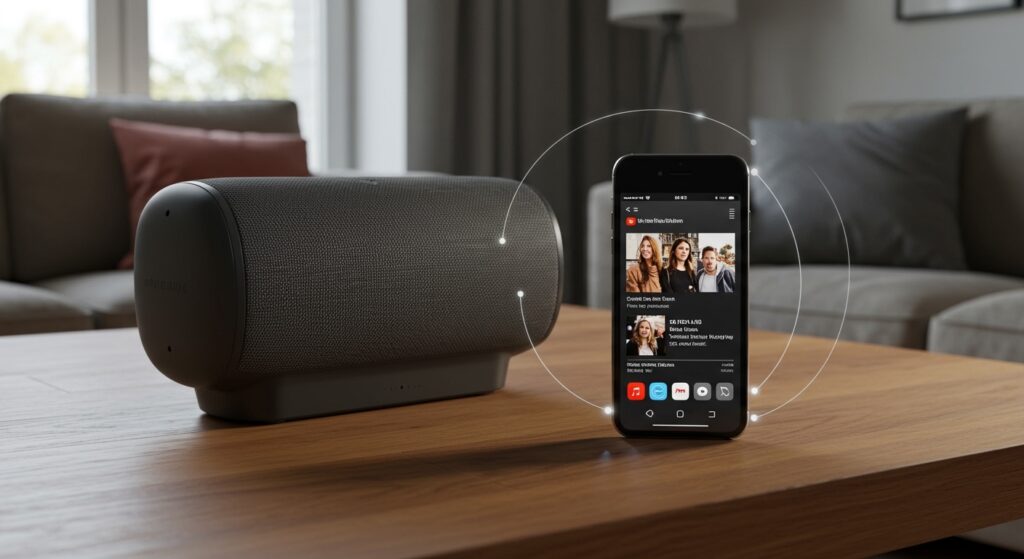
Whether you are hosting a party or just want better audio for a documentary, moving sound from a tiny phone speaker to a high-fidelity wireless system changes the entire experience. In our testing of over 50 different audio setups, we have found that while the connection process is generally simple, nuances in latency and audio compression can significantly impact your listening experience.
Quick Summary: Key Takeaways
| Method | Best For | Audio Quality | Latency (Lag) |
|---|---|---|---|
| Bluetooth | Quick setup, universal compatibility | Moderate | Medium (Potential Sync Issues) |
| Chromecast | Android users, high-fidelity audio | High | Low |
| AirPlay 2 | Apple ecosystem, multi-room sync | High | Low |
| YouTube Music | Background play, dedicated audio | High | Minimal |
- Easiest Method: Use Bluetooth for a “one-and-done” connection.
- Best Quality: Use Wi-Fi-based casting (AirPlay or Chromecast) to avoid the compression limits of Bluetooth.
- Pro Tip: If the video and audio aren’t synced, try restarting the app or checking for AptX Low Latency support on your speaker.
Step-by-Step: How to Play YouTube on Wireless Speakers via Bluetooth
Bluetooth is the most common way to bridge the gap between your device and your audio hardware. Since almost every smartphone, tablet, and wireless speaker supports this protocol, it is the most reliable fallback.
Enable Pairing Mode on Your Speaker
Every speaker brand has a different method, but generally, you must press and hold the Bluetooth button until a light flashes. On JBL Flip or Charge models, you’ll hear a specific chime. On Bose SoundLink speakers, a voice prompt usually announces “Ready to pair.”
Connect Your Source Device
Open the Settings menu on your iPhone, Android, or Laptop. Navigate to Bluetooth and ensure it is toggled “On.” Look for your speaker’s name (e.g., Sonos Roam or Sony SRS-XB43) in the list of available devices and tap it to connect.
Launch YouTube and Calibrate
Once connected, open the YouTube app. Start playing a video. If you notice a delay between the person speaking and the sound hitting the speaker, this is Bluetooth latency. I recommend pausing the video for two seconds and hitting play again; often, the software will auto-sync the stream.
Can I Cast YouTube to Wireless Speakers via Wi-Fi?
Many users ask, “can i cast youtube to wireless speakers without using Bluetooth?” The answer is yes, and it is actually the preferred method for high-fidelity audio. Using Wi-Fi casting protocols like Google Cast or Spotify Connect (if using YouTube Music) offers superior range and better bitrates.
Using Chromecast Built-in
If you have a Google Nest Audio, JBL Authentics, or a Sony smart speaker, you likely have Chromecast Built-in.
- Connect your phone and speaker to the same Wi-Fi network.
- Open the YouTube app.
- Tap the Cast icon (a rectangle with Wi-Fi bars in the corner) at the top of the video player.
- Select your speaker from the list.
Note: If you are using the standard YouTube app (video), casting to a speaker without a screen sometimes requires a YouTube Premium subscription, as the app treats it as “background play.”
Using Apple AirPlay 2
For iPhone and Mac users, AirPlay 2 is the gold standard for how to play youtube on wireless speakers.
- Swipe down to open the Control Center on your iPhone.
- Tap the AirPlay icon (concentric circles) in the music playback tile.
- Select your Sonos, HomePod, or Bose speaker.
- Open YouTube and start the video. Audio will route through the speaker while the video stays on your phone.
Optimizing Audio Quality and Reducing Lag
One of the biggest complaints we hear is about the “lip-sync” issue. When you play a video on your phone but the audio comes out of a speaker a half-second later, it ruins the experience. This is common when trying to understand how to play youtube on wireless speakers over older Bluetooth versions.
Understanding Codecs
To get the best sound, your devices should ideally support high-quality codecs.
- AAC: The standard for Apple devices. Provides excellent sync for YouTube.
- aptX Low Latency: If you are a Windows or Android user, look for speakers that support aptX LL. This reduces lag to under 40ms, making it imperceptible.
- LDAC: Sony’s proprietary codec. Great for YouTube Music high-res audio, but can sometimes cause more lag in video.
The Multi-Room Setup
If you want to play YouTube audio across your entire house, you cannot rely on Bluetooth. You must use a Wi-Fi ecosystem like Sonos or Google Home.
- Sonos Users: Use the Sonos App to “Group” rooms. Then, use AirPlay to send the YouTube audio to one speaker, and the Sonos system will distribute it to the rest.
- Google Home Users: Create a “Speaker Group” in the Google Home app. When you tap the Cast icon in YouTube, select the group name instead of an individual speaker.
Comparison of Wireless Audio Protocols
| Feature | Bluetooth 5.0+ | Google Chromecast | Apple AirPlay 2 |
|---|---|---|---|
| Range | ~30-100 feet | Anywhere on Wi-Fi | Anywhere on Wi-Fi |
| Battery Drain | High on phone | Minimal | Moderate |
| Interruption | Calls/Texts interrupt sound | No interruptions | Calls interrupt sound |
| Multi-speaker | Limited (Brand specific) | Yes (Groups) | Yes (Whole Home) |
Expert Tips for the Best YouTube Audio Experience
After years of testing professional and consumer audio gear, I have developed a few “Golden Rules” for those trying to figure out how to play youtube on wireless speakers effectively.
Use YouTube Music for Audio-Only
If you don’t need the video, use the YouTube Music app. It is designed specifically for casting and has much better integration with smart speakers like Google Nest and Sonos. You can even use voice commands like “Hey Google, play my likes on YouTube Music.”
Check for Firmware Updates
If your connection is dropping, your speaker likely needs a firmware update. Most modern speakers from JBL, Sony, and Bose have dedicated apps (like Bose Music or Sony Headphones Connect) that push updates to the hardware.
Avoid Interference
Wi-Fi and Bluetooth both operate on the 2.4GHz frequency. If your audio is stuttering, try moving your speaker away from the microwave or a crowded Wi-Fi router. If your speaker supports 5GHz Wi-Fi, always use that for a more stable connection.
Frequently Asked Questions
Why is there a delay when I play YouTube on my Bluetooth speaker?
This is caused by the time it takes to encode the audio on your phone, send it through the air, and decode it on the speaker. To fix this, use speakers with Bluetooth 5.2 or higher, or switch to a Wi-Fi connection (AirPlay/Chromecast) which handles synchronization much better.
Can I cast YouTube to wireless speakers without YouTube Premium?
You can cast YouTube Videos to devices with screens (like a Smart TV or Nest Hub) without Premium. However, if you want to cast only the audio to a speaker and turn your phone screen off, you generally need a YouTube Premium subscription to enable background play.
How do I connect two speakers at once for YouTube?
This depends on the brand. For JBL, use PartyBoost. For Sony, use Party Connect. For a brand-agnostic way, create a Speaker Group in the Google Home or Amazon Alexa app, provided your speakers are “Smart” and support those ecosystems.
Does YouTube support 5.1 surround sound on wireless speakers?
YouTube has begun rolling out 5.1 Surround Sound support for certain videos. To experience this wirelessly, you need a compatible Wi-Fi soundbar system (like Sonos Arc or Samsung Q-Series) and a device that supports the YouTube TV app or the latest version of the mobile app.