Why Learning How to Record Audio from Computer Speakers is Essential
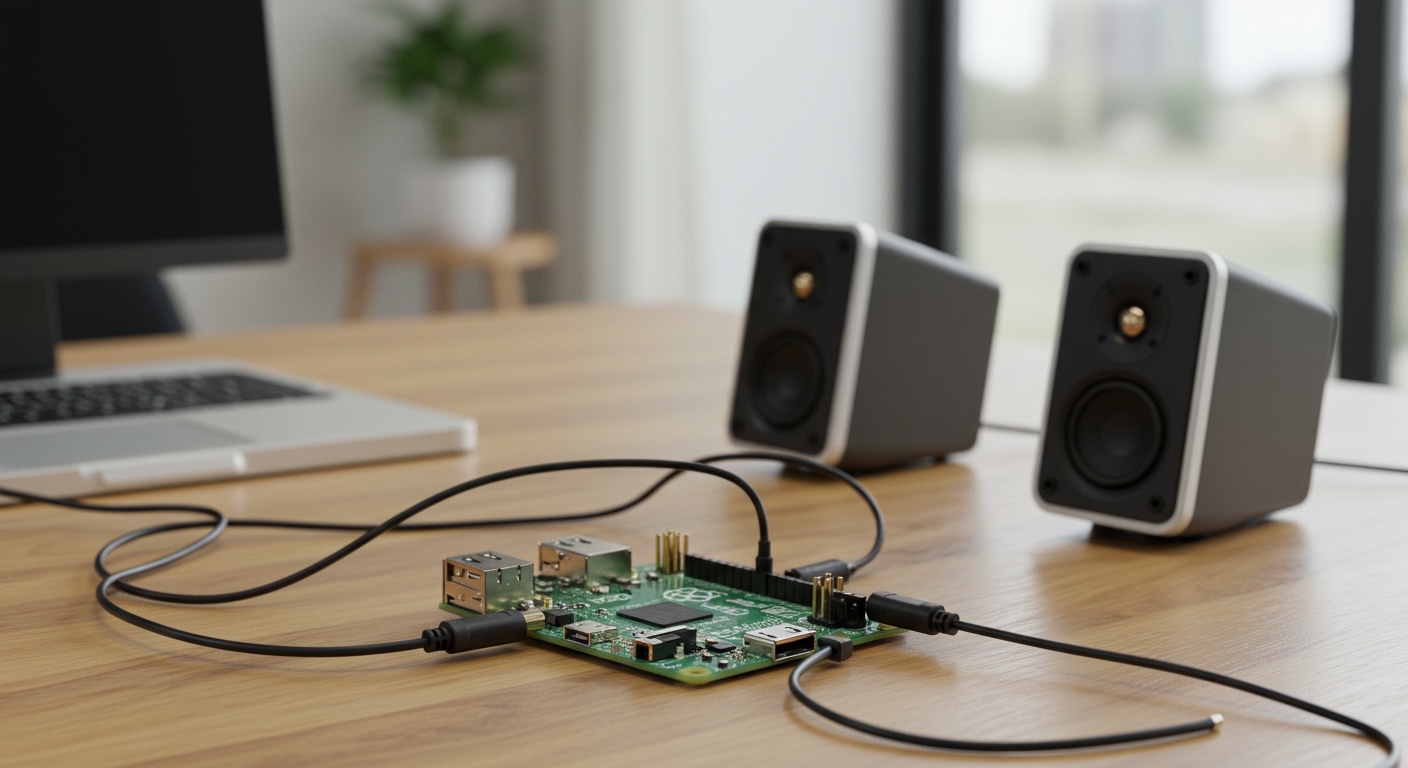
Capturing internal sound directly from your system is a vital skill for content creators, students, and professionals. Whether you are archiving a live webinar, sampling audio for a music project, or saving a digital meeting, knowing how to record audio from computer speakers ensures you get crisp, high-quality sound without the background noise of a physical microphone.
In this guide, you will learn the exact steps to capture high-fidelity internal audio across various platforms. We will cover built-in tools like Windows Stereo Mix, professional free software like Audacity, and specialized solutions for macOS.
Key Takeaways: Expert Summary for Quick Results
If you are in a hurry, here is the fastest way to get started:
Best for Windows Users: Enable Stereo Mix in your Sound Settings to allow apps to “hear” what your speakers are playing.
Highest Quality (Free): Use Audacity with the Windows WASAPI host setting for lossless digital recording.
Best for Mac Users: Use a virtual audio cable like BlackHole or Soundflower, as macOS does not support internal recording natively.
Pro Tip: Always disable system sounds (notifications, pings) before you record audio from speakers to avoid ruining your take.
Essential Tools for Recording Computer Audio
Before we dive into the step-by-step instructions, you need to ensure your system is prepared. Depending on your operating system, the requirements will vary.
| Tool/Software | Platform | Best For | Cost |
|---|---|---|---|
| Windows Stereo Mix | Windows 10/11 | Basic, quick recordings | Free (Built-in) |
| Audacity | Windows/Mac/Linux | Professional editing and high-fidelity capture | Free (Open Source) |
| OBS Studio | Windows/Mac | Recording audio and video simultaneously | Free (Open Source) |
| BlackHole | macOS | Routing internal audio on Mac | Free (Open Source) |
| Audio Hijack | macOS | Advanced routing and professional workflows | Paid |
Method 1: How to Record Audio from PC Speakers Using Windows Stereo Mix
For most Windows users, the simplest way to record from computer speakers is by using a hidden feature called Stereo Mix. This feature acts as a virtual bridge, sending the output of your sound card back into an input stream.
Step 1: Enable the Stereo Mix Device
- Right-click the Speaker icon in your system tray (bottom right corner) and select Sound settings.
- Scroll down and click on More sound settings (on Windows 11) or Manage audio devices.
- Navigate to the Recording tab.
- Right-click anywhere in the list and ensure Show Disabled Devices is checked.
- Find Stereo Mix, right-click it, and select Enable.
- Click Set as Default Device.
Step 2: Configure Your Recording Software
Once Stereo Mix is active, any recording software can use it. Open your preferred app (like the built-in Voice Recorder or Windows Sound Recorder).
- Open the Sound Recorder app.
- Go to settings and ensure the Input Device is set to Stereo Mix.
- Play the audio you wish to capture from your web browser or media player.
- Press the Record button.
Step 3: Test and Save
Always perform a 10-second test run. If the waveform is flat, check if your volume is muted; Stereo Mix captures exactly what you hear, so if your speakers are at 0%, the recording will be silent.
Method 2: How to Record Speakers with Audacity (The Pro Way)
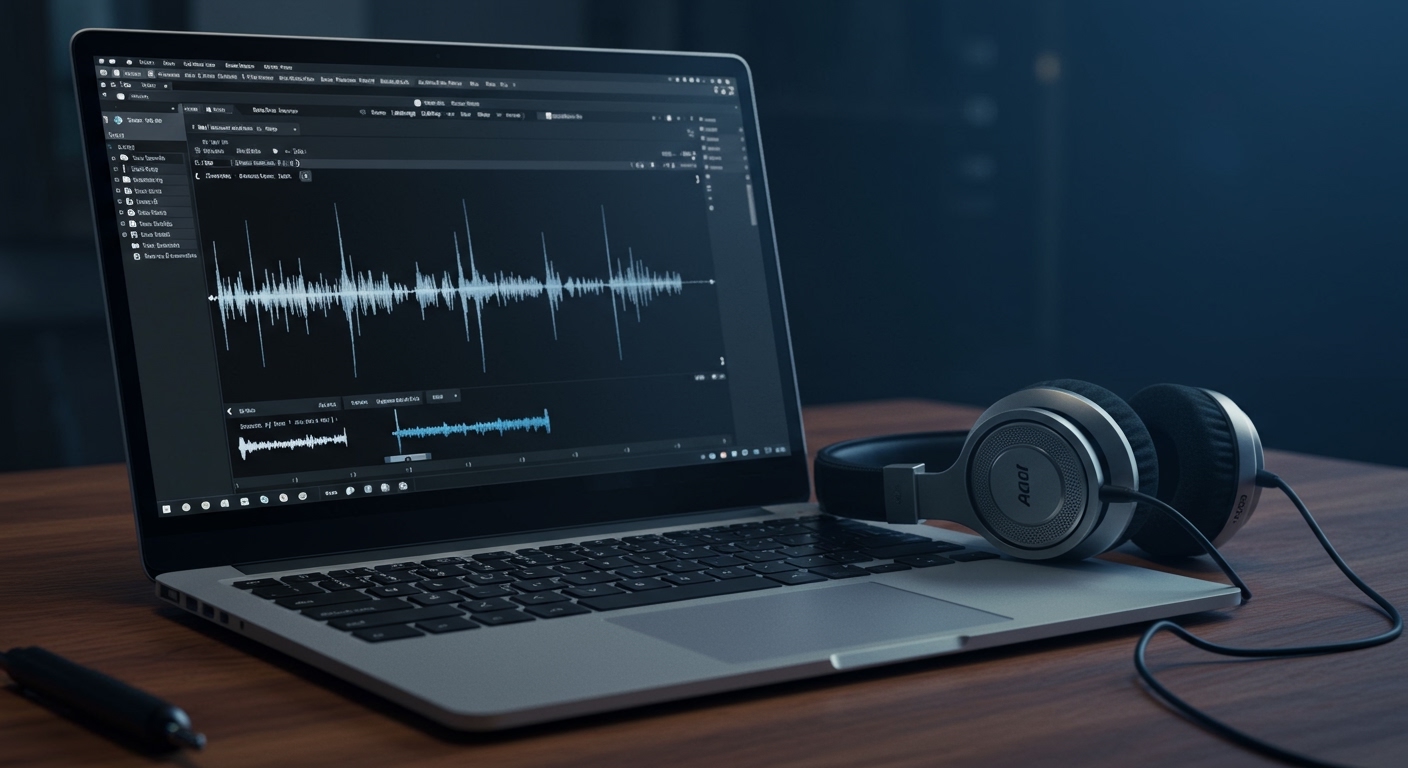
If you want the best possible quality, I highly recommend learning how to record speakers with audacity. Unlike Stereo Mix, Audacity can use a protocol called Windows WASAPI, which captures the audio digitally without converting it to analog and back.
Step 1: Set Up the Audio Host
- Download and install Audacity from their official site.
- Open Audacity and locate the Audio Setup button (or the device toolbar).
- Change the Audio Host to Windows WASAPI.
Step 2: Select the Loopback Device
- In the Recording Device dropdown, look for your primary output device followed by the word (loopback).
- Example: Speakers (Realtek High Definition Audio) (loopback).
- This setting tells Audacity to “loop” the sound going to your speakers back into the software.
Step 3: Adjust Levels and Record
- Ensure the Recording Channels are set to 2 (Stereo).
- Click the Record (Red circle) button.
- Start the audio on your computer.
- Expert Tip: You will notice that Audacity doesn’t start moving the playhead until the computer actually starts making sound. This is a unique feature of the WASAPI loopback method.
Step 4: Export Your File
- Once finished, click Stop.
- Go to File > Export > Export as WAV for the highest quality, or Export as MP3 for a smaller file size.
Method 3: How to Record Sound from Computer Speakers on macOS
Apple restricts internal audio recording for privacy and copyright reasons. Therefore, learning how to record from speakers on a Mac requires a third-party driver to “bridge” the audio.
Step 1: Install a Virtual Driver
I suggest using BlackHole (2ch). It is open-source and much more stable than the older Soundflower.
- Download and install BlackHole.
- Restart your Mac to ensure the driver is recognized.
Step 2: Create a Multi-Output Device
To hear the audio while you record it, you must create a “Multi-Output Device.”
- Open Audio MIDI Setup (found in Applications > Utilities).
- Click the + icon in the bottom left and select Create Multi-Output Device.
- Check the boxes for both Built-in Output (or your headphones) and BlackHole 2ch.
Step 3: Set the Output
- Go to System Settings > Sound.
- Set your Output to the Multi-Output Device you just created.
Step 4: Record in QuickTime or Audacity
- Open QuickTime Player.
- Go to File > New Audio Recording.
- Click the arrow next to the record button and select BlackHole 2ch as the input.
- Press record and play your audio.
Method 4: How to Record Microphone and Speakers Simultaneously
Sometimes you need to record a Skype call or a gaming session where you need to capture both the system sound and your own voice. This requires a slightly more complex setup to record speakers and microphone together.
Using OBS Studio (The Easiest Method)
OBS Studio is the industry standard for this because it handles multiple “Audio Sources” natively.
- Add Desktop Audio: In the “Sources” box, click + and select Audio Output Capture. Choose your speakers.
- Add Microphone: Click + again and select Audio Input Capture. Choose your physical microphone.
- Mix the Levels: Use the Audio Mixer panel to balance the volume. Usually, you want the desktop audio slightly lower than your voice.
- Record: Click Start Recording. OBS will save this as a video file (MP4/MKV), but you can easily extract the audio later or set OBS to export as an audio-only format in the advanced settings.
Using Audacity (Advanced)
To record microphone and speakers in Audacity, you generally need to use a “Virtual Mixer” like Voicemeeter Banana.
- Route your Mic and System sound into Voicemeeter.
- Set Voicemeeter Output as the recording device in Audacity.
- This allows for a single, combined stereo track of all sounds.
Expert Tips for High-Quality Audio Capture
I have spent hundreds of hours mastering how to record audio from pc speakers for various podcasts. Here are the professional “secrets” that most guides miss:
Turn Off Notifications: There is nothing worse than a loud “Ding” from a Windows update or a Slack message in the middle of a perfect recording. Use Focus Assist (Windows) or Do Not Disturb (Mac).
Set Sample Rates: Ensure your playback device and your recording software are both set to the same sample rate (usually 44.1 kHz or 48 kHz). Mismatched rates can cause “pops” or “clicks.”
Use Lossless Formats: Always record and export in WAV or FLAC first. You can always convert to MP3 later, but you can’t “add back” the quality lost in a low-bitrate MP3 recording.
Watch the Clipping: If the green bars in your software turn red, your volume is too high. This causes digital distortion (clipping) which is impossible to fix in post-production. Aim for a peak of -6dB.
Common Mistakes to Avoid
- Recording via Microphone: Never try to record from speakers by placing a microphone next to them. This results in terrible echo, background noise, and loss of frequency range.
- Leaving Enhancement On: Many laptops have “Dolby” or “MaxxAudio” enhancements enabled. These process the sound for the physical speakers but can distort a digital recording. Turn them off in the Sound Control Panel.
- Low System Volume: If you are using Stereo Mix, your system volume affects the recording level. Keep your system volume at 100% and use the software’s “Input Gain” to adjust if necessary.
Frequently Asked Questions
(FAQs)
Why can’t I see Stereo Mix in my Windows settings?
In many modern laptops, manufacturers disable Stereo Mix in favor of their own audio drivers. If it’s missing, try updating your Realtek drivers from the manufacturer’s website rather than relying on Windows Update. Alternatively, use the Audacity WASAPI method, which doesn’t require Stereo Mix.
Is it legal to record audio from computer speakers?
Generally, recording for personal use (like taking notes from a lecture) is fine. However, recording copyrighted music, movies, or private conversations without consent may violate terms of service or local laws. Always ensure you have the right to record the content.
Can I record audio from a specific tab only?
Yes, if you use a browser extension like Chrome Audio Capturer. This is useful if you want to record sound from computer speakers while listening to something else in another tab or playing a game.
How do I record speakers and microphone on a Mac for free?
The best free way is to use BlackHole combined with a Multi-Output Device as detailed in Method 3. You then use OBS Studio to pick up both the BlackHole stream (system sound) and your Built-in Mic.
Why is my recorded audio echoing?
Echo usually happens when you are monitoring the recording through the same speakers you are recording from. If “Listen to this device” is checked in your recording settings, it creates a feedback loop. Always use headphones when recording to prevent this.
Conclusion: Start Capturing Crystal Clear Audio Today
Mastering how to record audio from computer speakers opens up a world of possibilities for digital archiving and content creation. Whether you choose the simplicity of Windows Stereo Mix, the power of Audacity, or the routing capabilities of BlackHole on Mac, the key is to stay digital. By avoiding physical microphones for internal sounds, you ensure the highest possible fidelity.
Next Steps:
- Download Audacity and try the WASAPI Loopback method—it is the most reliable “Expert” choice.
- Perform a test recording of a 30-second YouTube clip to check your levels.
- Check your “Recording Devices” right now to see if Stereo Mix is available on your machine!