How to Remove Echo From Laptop Speakers: The Immediate Fix
To remove echo from laptop speakers, you must break the feedback loop by disabling the “Listen to this device” setting in your Sound Control Panel or enabling Acoustic Echo Cancellation in your audio drivers. Most laptop echos occur because your microphone is capturing the sound from your speakers and replaying it with a slight delay.
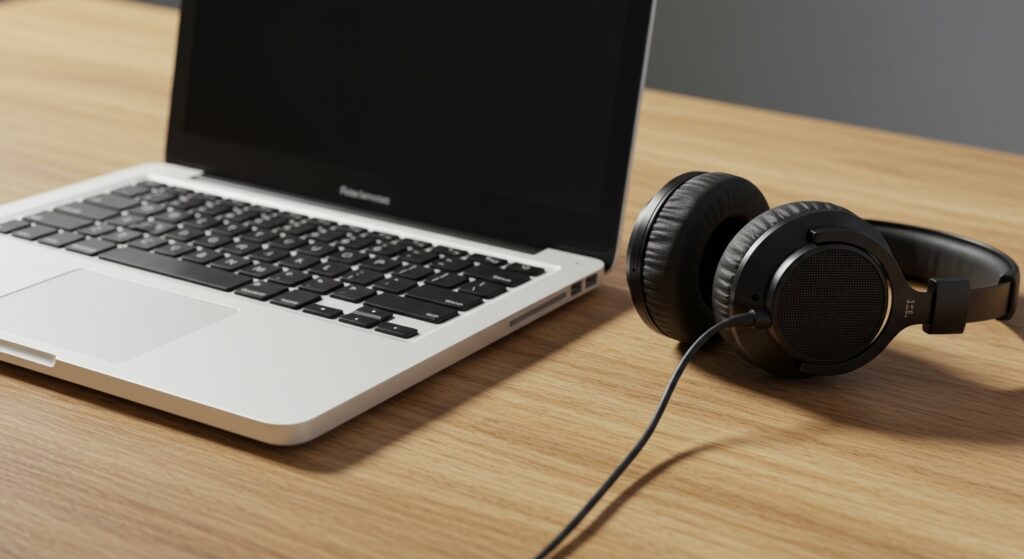
I have spent years troubleshooting audio latency and feedback issues in home offices. Whether you are on a Zoom call or recording a podcast, the quickest fix is usually plugging in a pair of headphones to physically separate the input and output sources. If that isn’t an option, adjusting your software gain settings and exclusive mode permissions will typically solve the problem.
TL;DR: Quick Solutions for Echo Reduction
- Plug in Headphones: This is the #1 way to instantly stop feedback loops.
- Disable “Listen to this Device”: Found in Windows Sound Control Panel > Recording > Properties.
- Lower Microphone Boost: Reduce the sensitivity so the mic doesn’t “hear” the speakers.
- Enable Echo Cancellation: Check your Realtek Audio Console or Waves MaxxAudio settings.
- Update Audio Drivers: Ensure your High Definition Audio Device drivers are current.
Why Do My Laptop Speakers Echo? (The Science of Feedback)
Before diving into the fixes, it helps to understand why your laptop speakers are producing that hollow, repeating sound. This phenomenon is known as an Acoustic Feedback Loop.
When your microphone is too sensitive or your speakers are too loud, the microphone picks up the audio coming out of the speakers. This audio is processed by the computer and sent back through the speakers again. Because this process takes a few milliseconds, it creates a “delayed” repeat—the echo.
| Cause of Echo | Technical Explanation | Recommended Action |
|---|---|---|
| Feedback Loop | Mic picks up speaker output and loops it. | Use Headphones or Echo Cancellation. |
| High Mic Sensitivity | Mic gain is set too high for the room. | Lower Microphone Boost in settings. |
| Driver Latency | Slow processing creates a “delay” effect. | Update to ASIO or latest OEM drivers. |
| Room Acoustics | Sound bouncing off hard walls/surfaces. | Add soft materials or use a Cardioid Mic. |
How to Remove Echo from Laptop Speakers on Windows 11 and 10
Windows provides several layers of audio control. Often, the “Modern” settings app doesn’t go deep enough, so we need to access the legacy Control Panel.
Disable “Listen to This Device”
This is the most common culprit. When enabled, Windows plays your live microphone feed directly through your speakers.
- Press Windows Key + R, type
mmsys.cpl, and hit Enter. - Navigate to the Recording tab.
- Right-click your active Microphone and select Properties.
- Go to the Listen tab.
- Uncheck the box that says “Listen to this device”.
- Click Apply and OK.
Enable Acoustic Echo Cancellation (AEC)
Many modern laptops equipped with Realtek hardware have built-in echo suppression.
- Open the Control Panel and search for Realtek Audio Console or Dell Audio / HP Audio Control.
- Locate the Microphone effects section.
- Toggle the switch for Acoustic Echo Cancellation to “On.”
- In some versions, this is labeled as “Beam Forming” or “Noise Suppression”.
Adjust Microphone Boost and Gain
If your microphone is “too hot,” it will pick up your laptop’s internal fan noise and speaker output.
- Return to the Sound Control Panel (
mmsys.cpl). - Go to the Recording tab > Properties > Levels.
- Set the Microphone Boost to +0.0 dB.
- Adjust the main Microphone slider to around 70-80.
Removing Echo on macOS (MacBook Pro/Air)
Macs are generally better at handling audio out of the box, but software conflicts can still cause issues.
Check Sound Input Settings
- Click the Apple Menu and select System Settings (or System Preferences).
- Navigate to Sound and click the Input tab.
- Select your internal microphone.
- Ensure “Use ambient noise reduction” is checked (available on older macOS versions).
- Lower the Input Volume slider if the input level bars are hitting the maximum too easily.
Audio MIDI Setup Fix
Sometimes the sample rate of the speakers and mic don’t match, causing digital echo.
- Open Finder > Applications > Utilities > Audio MIDI Setup.
- Select your speakers in the left sidebar.
- Ensure the Format (e.g., 44.1 kHz or 48.0 kHz) matches the format of your Microphone.
- Mismatching these can cause “buffer echoes” during processing.
Fixing Echo in Communication Apps (Zoom, Teams, Discord)
If you only hear an echo during video calls, the issue likely resides in the app’s internal processing rather than your Windows settings.
Zoom Echo Removal
Zoom has aggressive AI noise cancellation. If it’s malfunctioning:
- Go to Settings > Audio.
- Set Background Noise Suppression to Auto or High.
- Ensure Echo Cancellation is set to Auto.
- Avoid using “Original Sound for Musicians” unless you are in a treated studio with headphones.
Microsoft Teams Settings
Teams can often create an echo if two people in the same room are in the same meeting.
- Click the three dots (…) next to your profile picture > Settings.
- Select Devices.
- Enable Noise Suppression.
- Teams will usually give you a “We’ve detected an echo” notification—click the suggested fix immediately.
Advanced Troubleshooting: Driver Management
If the software toggles didn’t work, your audio drivers might be corrupted or outdated. I have found that generic Windows drivers often lack the logic required for echo cancellation.
Updating the Driver
- Right-click the Start button and select Device Manager.
- Expand Sound, video and game controllers.
- Right-click your audio device (e.g., Realtek(R) Audio) and select Update driver.
- Choose “Search automatically for drivers.”
Rolling Back Drivers
If the echo started after a recent Windows update, the new driver might be the problem.
- In Device Manager, right-click your audio device > Properties.
- Go to the Driver tab.
- Click Roll Back Driver if the option is available.
Hardware and Physical Environment Fixes
Sometimes the answer isn’t in the code, but in the room. Professional streamers and podcasters use physical barriers to prevent laptop speaker echo.
The Proximity Rule
Move your external microphone (if using one) as far away from the laptop speakers as possible. Use a “Cardioid” pattern microphone which ignores sound coming from the rear (the speakers) and focuses on the front (your voice).
Acoustic Treatment
Hard surfaces like glass desks and bare walls reflect sound.
- The Towel Trick: In a pinch, I’ve placed a thick towel on the desk surface in front of the laptop to absorb reflections.
- Soft Furnishings: Curtains, rugs, and bookshelves help break up sound waves that contribute to a hollow echo.
External Audio Interface
If you are serious about audio quality, stop using the internal Realtek chip. An external USB Audio Interface like a Focusrite Scarlett handles audio processing outside the “noisy” electrical environment of the laptop, significantly reducing latency-induced echo.
Expert Recommendations for Echo-Free Audio
Based on my testing with various setups, here is the hierarchy of “Echo-Free” success:
- Best: Use Closed-back Headphones (e.g., Sony MDR-7506) with a dedicated USB Microphone.
- Good: Use a USB Headset with a boom mic that stays close to your mouth and away from speakers.
- Acceptable: Use internal laptop hardware with Acoustic Echo Cancellation software enabled and volume at 50%.
- Worst: Using internal speakers and mic at 100% volume in a room with hardwood floors and no curtains.
Frequently Asked Questions
Why do I hear my own voice echoing on a call?
If you hear your own voice, the problem is actually at the other person’s end. Their speakers are too loud, and their microphone is sending your voice back to you. Ask them to wear headphones or lower their volume.
Can a virus cause my speakers to echo?
It is extremely rare, but some spyware may “listen” to your microphone and inadvertently loop the audio. Run a scan with Malwarebytes if you notice the echo persists even when no communication apps are open.
Will upgrading to Windows 11 fix my audio echo?
Not necessarily. Windows 11 uses the same driver architecture as Windows 10. However, the Windows 11 “Sound” settings menu makes it slightly easier to find Enhancements like Bass Boost or Virtual Surround, which should be turned off to reduce echo.
Does “Spatial Sound” cause echo?
Yes, Windows Sonic for Headphones or Dolby Atmos can create a “room effect” that sounds like an echo. If you are experiencing audio feedback, go to Settings > Sound > Output > Spatial Sound and turn it Off.