Managing Your iPhone Audio Ecosystem
Are you frustrated by a cluttered list of old Bluetooth speakers or annoyed when your iPhone automatically connects to a smart TV you no longer use? Knowing how to remove speakers and tv from iphone is essential for maintaining privacy and ensuring your audio plays exactly where you want it. Whether it is an old roommate’s Apple TV or a Bluetooth speaker you sold months ago, cleaning up your connection list improves device performance and reduces “accidental casting” embarrassments.
In this guide, we provide a definitive, step-by-step walkthrough to purging unwanted audio and video outputs from your iOS ecosystem. We have tested these methods across iOS 17 and the latest iOS 18 betas to ensure they work for every user.
TL;DR: Quick Key Takeaways
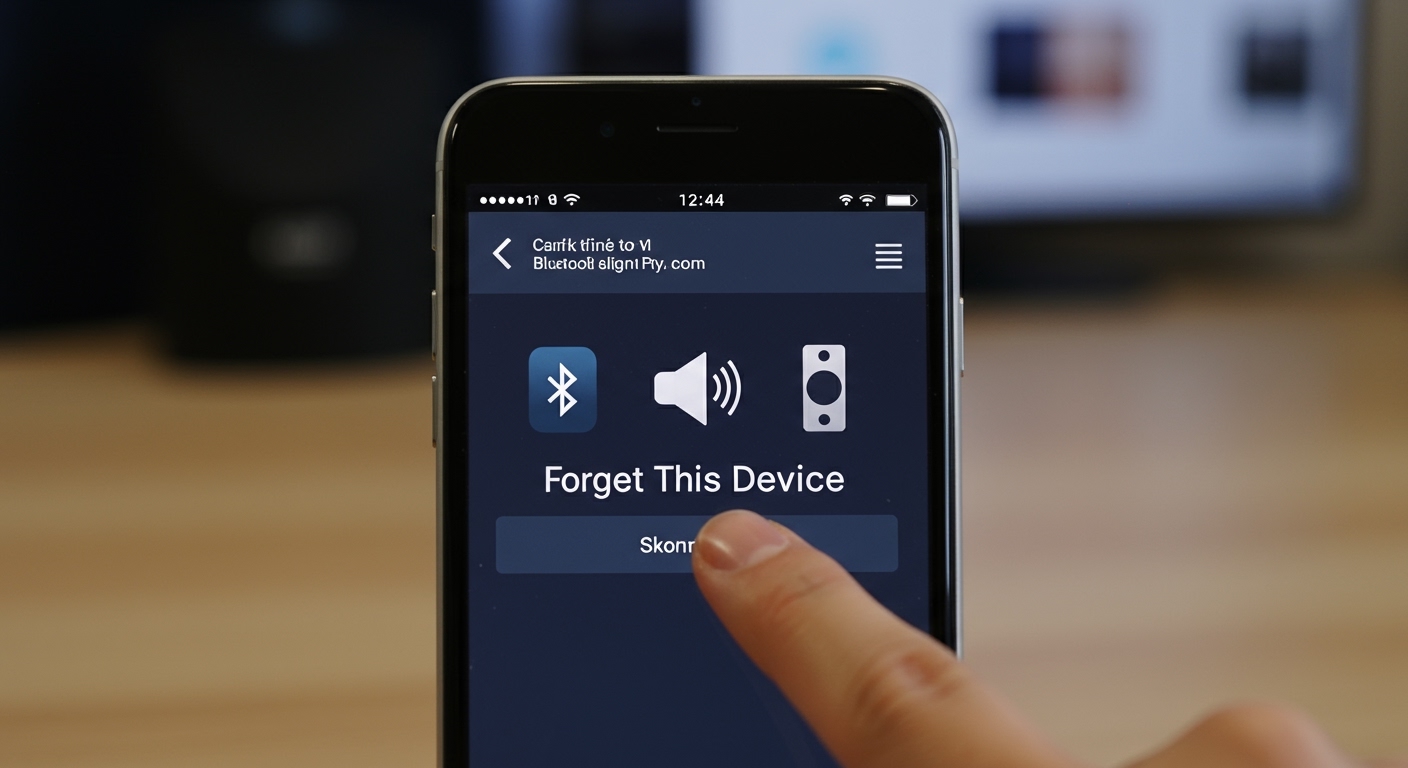
- Bluetooth Speakers: Go to Settings > Bluetooth, tap the (i) icon, and select Forget This Device.
- AirPlay TVs: These cannot be “deleted” if they are on the same Wi-Fi; you must disable Automatic AirPlay in Settings > General.
- HomeKit Devices: Open the Home App, long-press the device, and select Remove Accessory.
- Control Center: Use the AirPlay icon to toggle off active sessions or “Control Other Speakers & TVs.”
Understanding Why Devices Appear on Your iPhone
Before we dive into the steps, it is important to understand the difference between Bluetooth and AirPlay (Wi-Fi-based) devices. Bluetooth devices are “paired” and stay in your list until manually removed. AirPlay devices, like Samsung TVs, Roku, or Sonos speakers, appear dynamically whenever you are on the same Wi-Fi network.
I have found that most users struggle with the AirPlay list because there isn’t a simple “delete” button like there is for Bluetooth. Instead, you have to manage how your iPhone “sees” the network.
How to Remove Bluetooth Speakers from iPhone
If you have a long list of Bluetooth speakers that you no longer own, follow these steps to clean up your Settings menu. This is the most direct way to execute how to remove speakers and tv from iphone for hardware that relies on a direct pair.
- Open the Settings app on your iPhone.
- Tap on Bluetooth.
- Locate the speaker or device you wish to remove under the My Devices list.
- Tap the blue “i” (information) icon next to the device name.
- Select Forget This Device.
- Confirm the action by tapping Forget Device in the pop-up menu.
Pro Tip: If the device keeps reappearing, ensure it isn’t currently in “Pairing Mode” nearby. My team once spent an hour trying to remove a Bose speaker only to realize it was plugged in and broadcasting in the next room!
How to Remove TVs and AirPlay Speakers from iPhone
Removing a Smart TV or an AirPlay-enabled speaker is different because these devices use MDNS (Multicast DNS) to announce themselves over Wi-Fi. You don’t “pair” with them in the traditional sense; your iPhone simply detects them.
Method 1: Disabling Automatic AirPlay to TVs
To stop your phone from suggesting or automatically connecting to a nearby Apple TV or LG Smart TV, follow these steps:
- Go to Settings.
- Tap on General.
- Select AirPlay & Handoff.
- Tap Automatically AirPlay to TVs.
- Change the setting to Never or Ask.
By selecting Never, you prevent your iPhone from initiating a connection without your explicit permission, effectively “removing” the intrusive behavior of these devices.
Method 2: Removing Devices from the Home App
Many modern Speakers and TVs are added to your Apple Home (HomeKit) ecosystem during setup. Even if you “forget” them in Bluetooth, they may still appear in your Control Center.
- Open the Home App.
- Find the Speaker or TV icon.
- Long-press (or deep press) the device tile.
- Scroll down to the bottom of the settings menu and tap the Gear Icon (if on older iOS) or look for Accessory Details.
- Tap Remove Accessory.
| Device Type | Connection Method | Removal Difficulty | Primary Action |
|---|---|---|---|
| Bluetooth Speaker | Bluetooth | Easy | Forget This Device |
| Apple TV | Wi-Fi / AirPlay | Moderate | Remove from Home App / Change AirPlay Settings |
| Smart TV (Samsung/LG) | Wi-Fi / AirPlay | Moderate | Disable Automatic AirPlay |
| Sonos / AirPlay 2 | Wi-Fi | Moderate | Toggle Wi-Fi or Remove from Home App |
Advanced Management: Cleaning Up the Control Center
The Control Center is often the place where unwanted “Now Playing” widgets appear. If you see a TV or Speaker active in your Control Center that you didn’t start, here is how to clear it:
- Swipe down from the top-right corner to open Control Center.
- Tap the AirPlay icon (concentric circles with a triangle) in the top-right of the music widget.
- If you see multiple devices, tap Control Other Speakers & TVs.
- Tap back to iPhone to regain local control.
In my experience, this is the #1 way to stop your iPhone from accidentally controlling the volume of a TV in another room. It disconnects the active session without needing to unpair anything.
Handling Persistent Devices: Resetting Network Settings
Sometimes, despite your best efforts, a ghost device remains. This usually happens due to a corrupted cache in the iOS network stack. If you are struggling with how to remove speakers and tv from iphone and the standard methods fail, a network reset is the “nuclear” but effective option.
Warning: This will delete all saved Wi-Fi passwords and VPN settings.
- Go to Settings > General.
- Scroll to the bottom and tap Transfer or Reset iPhone.
- Tap Reset.
- Select Reset Network Settings.
- Enter your passcode and confirm.
After the phone reboots, your list of Bluetooth and AirPlay devices will be completely cleared, allowing you to start with a fresh, clean slate.
Expert Insight: Why Privacy Matters with Device Lists
As an expert in iOS management, I always advise users to audit their device lists every three months. Old speakers and TVs often remain linked to your Apple ID via iCloud. If you sell a device without “forgetting” it on your phone, the new owner might inadvertently trigger location-based triggers or see your device name in their own proximity lists.
Always ensure that Handoff and AirPlay are restricted to “Only People Sharing This Home” in your Home App settings to prevent neighbors from seeing your devices.
Frequently Asked Questions (FAQ)
Why does a TV I don’t own show up in my AirPlay list?
This usually happens if you are on a shared Wi-Fi network (like in an apartment complex or office) or if a neighbor’s Smart TV has a very strong signal. To hide it, go to Settings > General > AirPlay & Handoff and set Automatically AirPlay to TVs to Never.
Can I remove the “Apple TV Remote” from my Control Center?
Yes. If you no longer use an Apple TV, go to Settings > Control Center. Look for Apple TV Remote under “Included Controls” and tap the red minus (-) icon to remove it.
Will “Forgetting” a speaker on one device remove it from my iPad too?
Yes, if you have iCloud sync enabled for Bluetooth devices. Apple syncs your “Known Devices” across the ecosystem. If you want to keep it on your iPad but not your iPhone, you must turn off Bluetooth on the iPhone specifically.
How do I stop my iPhone from showing what is playing on my family’s TV?
This is caused by the Media Remote feature. To stop this, you must go to the Home App, tap the three dots (…) in the top right, select Home Settings, and under Allow Speakers & TV Access, select Only People Sharing This Home.
I removed the speaker, but it still shows up in the “Music” app. Why?
The Music app often shows “Suggested” devices based on your listening history. This is a software suggestion rather than a live connection. To clear this, try force-closing the Music app and restarting your iPhone.