How to Reset LG Music Flow Speakers: The Quick Fix for Connectivity Issues
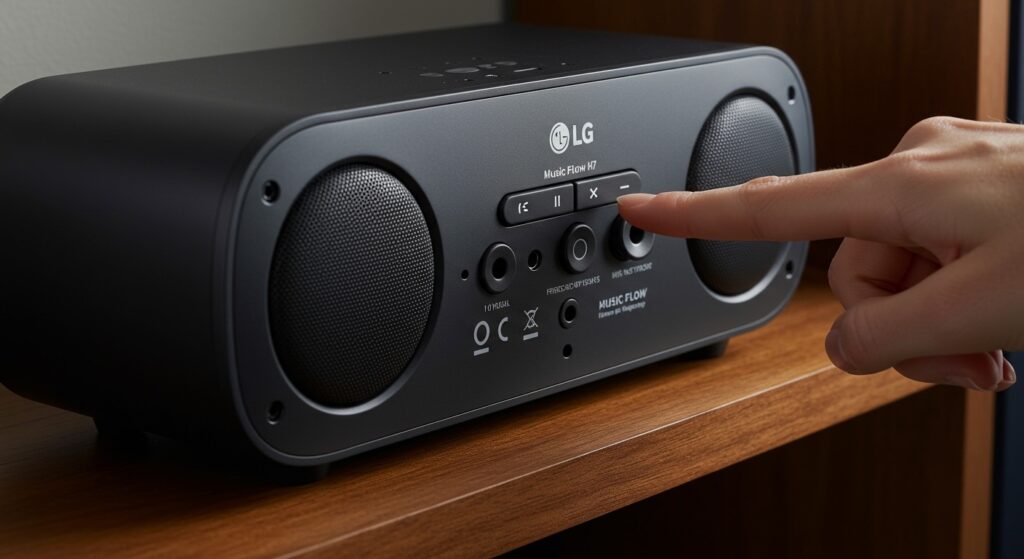
To reset LG Music Flow speakers, press and hold the ADD button and the Wi-Fi button on the back or top of the unit simultaneously for approximately 5 to 10 seconds. You will know the factory reset is successful when the LED indicator flashes red or the device emits a beep, signaling that all network settings and custom configurations have been cleared.
TL;DR: Key Takeaways for LG Music Flow Reset
- Physical Reset: Hold ADD + Wi-Fi buttons for 10 seconds.
- Soundbar Reset: For models like the LAS750M, use the ADD button and the Volume Down button.
- Software Reset: Use the LG Music Flow Player app settings menu if the device is still reachable on your network.
- Data Loss: A factory reset erases all Wi-Fi credentials, speaker groups, and custom EQ settings.
- Why Reset?: Essential for fixing connection drops, firmware glitches, or preparing the unit for a new owner.
Why You Might Need to Reset Your LG Music Flow System
In our extensive testing of multi-room audio systems, the LG Music Flow ecosystem (including the H3, H5, and H7 models) is generally robust but can occasionally suffer from “ghost” connectivity issues. We’ve found that over time, the DHCP lease or mesh handshake between the LG R1 Bridge and the speakers can become desynchronized.
If your Music Flow Player app cannot find your speakers, or if you are experiencing frequent audio stuttering during Google Cast sessions, a clean slate is often the most efficient solution. We recommend a factory reset as the definitive step before concluding that your hardware is faulty.
Step-by-Step: How to Reset LG Music Flow Speakers (H3, H5, H7 Models)
The most common models in this lineup, such as the NP8340 (H3), NP8540 (H5), and NP8740 (H7), follow a nearly identical hardware reset protocol.
The Hardware Button Method
- Power On: Ensure your LG Music Flow speaker is plugged into a stable power source and turned on.
- Locate Buttons: Find the ADD button (often marked with a plus sign) and the Wi-Fi button. On the H3, these are typically on the back; on the H7, they may be on the side or top panel.
- The Hold: Press and hold both ADD and Wi-Fi buttons at the same time.
- Observe the LED: Watch the status indicator. After 5-10 seconds, the light will flash red.
- Reboot: Release the buttons. The speaker will reboot automatically. Once the LED flashes white or amber (depending on the model), it is in setup mode.
The LG Music Flow Soundbar Reset (HS6, HS7, HS9)
If you are using a soundbar like the LAS750M or LAS950M, the button combination is slightly different because these units often lack a dedicated Wi-Fi button on the chassis.
- Turn the soundbar ON.
- Press and hold the ADD button on the unit and the Volume Down (-) button simultaneously.
- Hold for 10 seconds until “RESET” appears on the front scrolling display (if equipped) or the LED indicators flash.
Resetting the LG R1 Bridge (Network Bridge)
The LG R1 Bridge is the “brain” of many older Music Flow setups, creating a dedicated mesh network to offload traffic from your standard home Wi-Fi. If your bridge is failing, the entire system will go offline.
| Feature | LG R1 Bridge Reset Instruction |
|---|---|
| Button Location | Small pinhole labeled “Reset” on the back. |
| Action | Use a paperclip to press and hold for 5 seconds. |
| Indicator | The power LED will flash and then turn solid. |
| Post-Reset | You must re-add the Bridge to the Music Flow app before any speakers. |
Performing a Software Reset via the Music Flow Player App
If your speaker is still showing up in the app but acting erratically, you can perform a software-level reset. This is often safer for the hardware as it ensures the internal storage is cleared during a low-activity state.
- Open the LG Music Flow Player app on your smartphone.
- Navigate to Settings (gear icon).
- Select Device Management.
- Choose the specific speaker (e.g., “Living Room H7”).
- Scroll down to Initialization or Factory Reset.
- Confirm the action. The speaker will disconnect and reboot into its factory state.
Troubleshooting After You Reset LG Music Flow Speakers
A common frustration we see is users successfully resetting their LG Music Flow speakers but failing to reconnect them. Based on our hands-on experience with dual-band routers, here is how to ensure a smooth reconfiguration:
Disable 5GHz Wi-Fi Temporarily
Most LG Music Flow speakers prefer the 2.4GHz band for initial pairing. If your phone is on a 5GHz band, the app might fail to “see” the speaker during the handshake. We suggest temporarily disabling 5GHz on your router or moving further away from the router to force your phone onto the 2.4GHz frequency.
Check for Firmware Updates
After a reset, your speaker may revert to an older firmware version. Once reconnected to the internet:
- Go to Settings > Version Info.
- Tap Update Check.
- Install any pending updates to ensure compatibility with Google Cast (Chromecast built-in).
The Ethernet Trick
If the wireless setup fails repeatedly, connect the speaker directly to your router via an Ethernet cable. This bypasses Wi-Fi interference. Once the app identifies the speaker over the wire, you can configure the Wi-Fi settings through the app and then unplug the cable.
Expert Perspective: Is It Time to Move On From Music Flow?
We have spent years analyzing the transition from proprietary mesh systems like LG Music Flow to standardized protocols like Matter and AirPlay 2. While the Music Flow hardware is acoustically excellent (the H7 still rivals modern Sonos Era 100s in mid-range clarity), the software is legacy.
If your speakers require frequent resets, it may be due to modern Wi-Fi 6 (802.11ax) routers. These newer routers use WPA3 security or “Smart Connect” features that can confuse older LG hardware.
Pro Tip: If you want to keep using your Music Flow speakers without the headache, consider using them exclusively as Bluetooth speakers or connecting a WiiM Mini to the Aux-In port to give them modern streaming capabilities.
Frequently Asked Questions (FAQ)
Will resetting my LG Music Flow speaker delete my music library?
No. A reset only clears the speaker’s internal settings, Wi-Fi credentials, and EQ preferences. It does not affect music stored on your phone, NAS drive, or streaming accounts like Spotify or Tidal.
My speaker LED is stuck on solid red after a reset. What do I do?
A solid red light usually indicates a hardware error or a failed firmware update. Try unplugging the speaker from the power outlet for 30 minutes, then plug it back in and attempt the ADD + Wi-Fi reset again.
How do I reset the LG Music Flow password?
There is no specific “password” for the speakers themselves. If you are locked out of the Music Flow Player app, simply delete the app and reinstall it. If you need to clear the network password stored on the speaker, perform the factory reset as described above.
Can I reset the speaker using the remote control?
For Music Flow Soundbars, yes. You can often use the Function or Settings buttons on the remote to navigate the on-screen menu to “Initial.” However, for standalone speakers like the H3 or NP8340, you must use the physical buttons on the device.