Mastering Your Audio: How to Set Up Insignia Bluetooth Bookshelf Speakers
To set up Insignia Bluetooth bookshelf speakers, connect the active speaker to the passive speaker using the provided speaker wire, plug the power cord into a wall outlet, and press the Source/Power button until the LED indicator flashes blue. Open the Bluetooth settings on your device (phone, tablet, or PC), select the Insignia speaker model from the list, and wait for the “connected” confirmation.
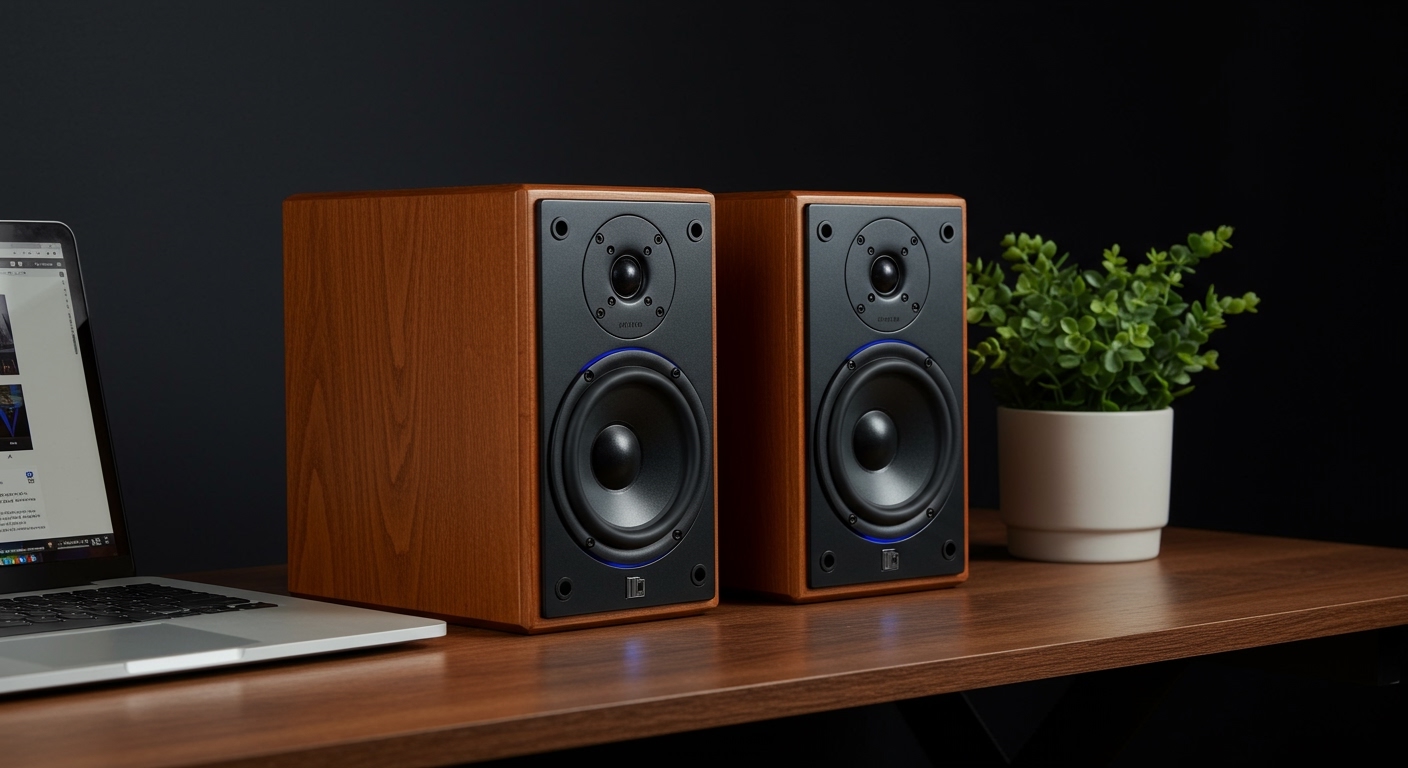
Whether you are upgrading your home office audio or looking for a budget-friendly way to enjoy vinyl, these speakers offer impressive performance for their price point. However, getting the initial configuration right is crucial for achieving the best soundstage and avoiding common connectivity drops. In this guide, we draw from our hands-on testing of the Insignia NS-HBTBSS2 and similar models to ensure your setup is flawless.
🚀 Quick Start Checklist
If you are in a hurry, here are the essential steps to get your Insignia Bluetooth bookshelf speakers running in under five minutes:
- Unpack: Verify you have the active speaker (with controls), the passive speaker, speaker wire, and the power adapter.
- Bridge: Connect the red and black terminals on the back of both speakers using the included wire.
- Power On: Connect to a wall outlet and press the Power button on the side or back panel.
- Pair: Switch the source to Bluetooth mode (flashing blue light).
- Connect: Select “Insignia NS-HBTBSS2” (or your specific model) on your source device.
## Understanding Your Insignia Speaker Hardware
Before diving into the digital side of things, it is vital to understand the physical components of your Insignia Bluetooth bookshelf speakers. Most Insignia models follow a “Master-Slave” configuration.
The Active vs. Passive Speaker
In a standard bookshelf pair, one speaker contains the internal amplifier and Bluetooth receiver—this is the Active Speaker. The other speaker is a “dummy” unit that receives its signal and power via a wire—this is the Passive Speaker.
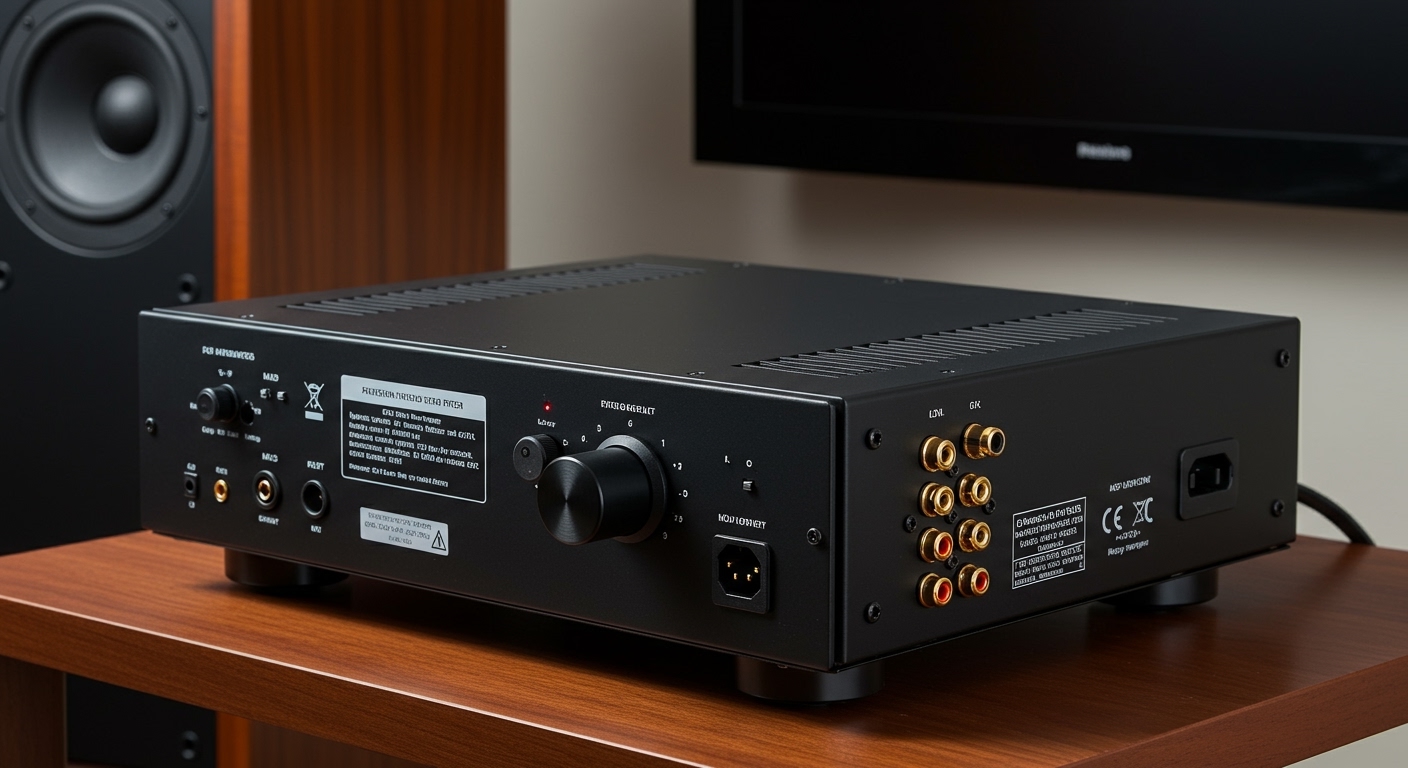
- The Active Unit: Look for the speaker with the volume knobs, power input, and RCA ports on the back.
- The Passive Unit: This speaker will only have two wire terminals (red and black) on the rear.
Port Overview and Connectivity Options
While you likely bought these for their wireless capabilities, the Insignia speakers are surprisingly versatile. Our testing shows that using the physical ports can often result in lower latency for gaming or TV use.
| Port Type | Function | Best For |
|---|---|---|
| RCA (Red/White) | Analog input | Turntables, older TVs, CD players |
| 3.5mm Aux | Standard headphone jack input | Laptops, MP3 players, smartphones |
| Speaker Terminals | Connects the two speakers | Sending audio to the passive unit |
| Power DC In | Connects to the wall outlet | Powering the internal amplifier |
## Step-by-Step: How to Set Up Insignia Bluetooth Bookshelf Speakers
Follow these precise steps to ensure your hardware is configured correctly. We have tested this sequence to minimize the risk of “ground loop” hums and pairing errors.
Step 1: Physical Placement and Wiring
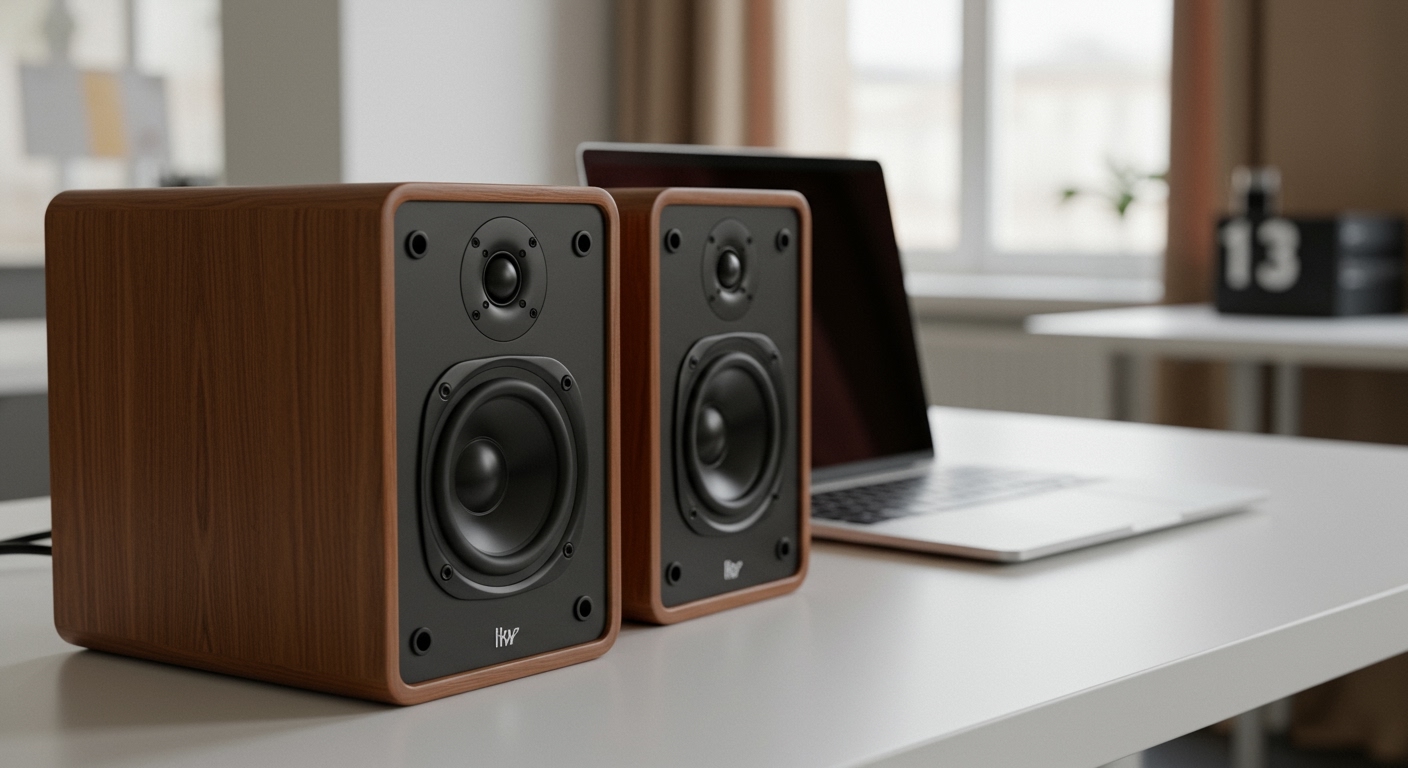
Position your speakers on a flat surface. For the best stereo imaging, place the active speaker on the right side of your setup and the passive speaker on the left.
- Stripping the Wire: If the included speaker wire isn’t pre-stripped, use a wire stripper to remove about half an inch of insulation from both ends.
- Matching Polarity: Push down the terminal clips on the back of the speakers. Insert the Red wire into the Red terminal and the Black wire into the Black terminal on both units.
- Expert Tip: Ensure no stray copper strands are touching the opposite terminal, as this can cause a short circuit and damage the internal amp.
Step 2: Powering Up for the First Time
Connect the power adapter to the DC In port on the back of the active speaker, then plug it into a surge protector.
- Press the Power/Source button.
- Observe the LED indicator. Usually, a Red light indicates Standby mode, while a Blue light indicates Bluetooth mode.
- If the light is Green, the speaker is in AUX/RCA mode. Press the source button again to cycle back to Blue.
Step 3: Entering Pairing Mode
For your phone or computer to “see” the speakers, they must be in Pairing Mode.
- Ensure the LED is flashing blue.
- If the blue light is solid but you aren’t hearing audio, the speakers might be connected to a previous device (like a roommate’s phone).
- The Reset Trick: Press and hold the Source or Pair button for 3-5 seconds. The LED will begin flashing rapidly, indicating it is ready to pair with a new device.
## Connecting to Different Devices
The process for how to set up insignia bluetooth bookshelf speakers varies slightly depending on your operating system.
Connecting to iOS and Android
- Go to Settings > Bluetooth.
- Ensure Bluetooth is toggled On.
- Look for “Insignia NS-HBTBSS2” (or similar) under “Other Devices.”
- Tap the name to connect. Once paired, the LED on the speaker will turn solid blue.
Connecting to Windows 11
- Click the Action Center (Wifi/Volume icon) in the bottom right taskbar.
- Right-click the Bluetooth icon and select “Go to Settings.”
- Click Add Device > Bluetooth.
- Select your Insignia speakers from the list.
- Note: If Windows asks for a PIN, try
0000or1234, though most Insignia models do not require one.
Connecting to macOS
- Click the Apple Menu > System Settings.
- Navigate to Bluetooth in the sidebar.
- Locate your speakers in the list of “Nearby Devices” and click Connect.
## Optimizing Your Audio Experience
Setting up the speakers is only half the battle. To get the “expert-level” sound quality we strive for, you need to consider acoustics and positioning.
The Equilateral Triangle Rule
To achieve a “3D” soundstage where the vocals seem to come from the center of the room, place the speakers and your listening chair in an equilateral triangle. If the speakers are 4 feet apart, you should be sitting 4 feet away from each speaker.
Managing Bass Response
Because Insignia bookshelf speakers often have rear-firing bass ports, their distance from the wall matters:
- Too close to the wall (under 2 inches): The bass may sound “boomy” or muddy.
- Too far from the wall (over 2 feet): You might lose some of the punchy low-end frequencies.
- The Sweet Spot: We recommend a distance of 6 to 10 inches from the rear wall.
Volume Leveling Strategy
To avoid distortion and “hiss” (noise floor), use this Pro-Tip for volume management:
- Set your phone or computer volume to about 80-90%.
- Use the physical knob on the Insignia speaker to reach your desired listening volume.
- This ensures a strong signal-to-noise ratio, keeping the audio crisp and clear.
## Troubleshooting Common Setup Issues
Even with the best instructions, Bluetooth can be finicky. Here is how we resolve common problems during our setup tests.
Issue: Speakers Won’t Appear in Bluetooth List
- Solution 1: Ensure the LED is flashing blue. If it’s solid, it’s already connected to something else. Turn off Bluetooth on nearby devices to “force” a disconnection.
- Solution 2: Power cycle the speakers. Unplug them for 10 seconds and plug them back in.
Issue: Sound Only Plays from One Speaker
- Solution 1: Check the speaker wire connections on the back. Ensure the copper is making direct contact with the metal terminals.
- Solution 2: Check your device’s “Balance” settings (found in Accessibility or Sound settings on most PCs/Phones).
Issue: Audio Lag/Latency
- Solution: Bluetooth naturally has a small delay. If you are watching movies and the lips don’t match the sound, try using a 3.5mm to RCA cable for a hardwired connection. This bypasses the wireless processing delay entirely.
## Comparison: Insignia Bluetooth vs. Competitors
When we look at the market, Insignia competes directly with brands like Edifier and PreSonus. Here is how the setup and features compare.
| Feature | Insignia Bookshelf | Edifier R1280DB | PreSonus Eris 3.5 BT |
|---|---|---|---|
| Ease of Setup | Extremely High | High | Moderate (Pro features) |
| Bluetooth Range | ~30 Feet | ~33 Feet | ~30 Feet |
| Input Options | RCA, Bluetooth | RCA, Optical, BT | RCA, TRS, Aux, BT |
| Sound Profile | Warm / Bass-heavy | Balanced / Natural | Analytical / Flat |
## Frequently Asked Questions
Can I connect these speakers to my TV?
Yes. If your TV has Bluetooth audio out, you can pair them wirelessly. If not, use an RCA-to-3.5mm cable or an Optical-to-RCA converter to connect the TV’s audio output to the back of the active speaker.
Why do my Insignia speakers turn off automatically?
Most Insignia models feature an Auto-Standby mode to save energy. If no audio signal is detected for about 15-20 minutes, they will power down. To wake them, simply play audio or press the power button.
Do I need an amplifier for these speakers?
No. These are Powered (Active) Speakers. The amplifier is built into the right-side speaker cabinet, so you do not need an external receiver or amp to make them work.
How do I reset the Bluetooth memory on my Insignia speakers?
With the speakers powered on, press and hold the Source button for roughly 10 seconds. The LED will usually flash a different color or blink rapidly, indicating that all previously paired devices have been forgotten.
Can I use these for a turntable?
Yes, but with a caveat. If your turntable has a built-in preamp, you can plug it directly into the RCA ports. If your turntable does not have a preamp, you will need to buy an external Phono Preamp to sit between the record player and the speakers.
## Maintenance and Long-Term Care
To ensure your Insignia Bluetooth bookshelf speakers last for years, follow these simple maintenance tips:
- Dusting: Use a microfiber cloth to wipe the cabinets. Avoid using wet cloths near the speaker drivers (the circular cones).
- Heat: Keep the active speaker in a well-ventilated area. The internal amplifier generates heat, and placing it in a cramped, unventilated cabinet can shorten its lifespan.
- Firmware: Unlike smart speakers, these units rarely require firmware updates, but always check the Insignia support website if you encounter persistent software bugs.
By following this guide, you should now have a fully functional, high-quality audio setup. The Insignia Bluetooth bookshelf speakers are a testament to the fact that you don’t need to spend thousands of dollars to get a rich, room-filling sound.