How to Set Volume on Powered Speakers: The Definitive Guide to Gain Staging
To how to set volume on powered speakers correctly, you must implement a process called gain staging. Start by setting your audio source (computer or phone) to 75-80% volume, place your mixer or interface at Unity Gain (0dB), and finally turn up the physical knob on the back of your powered speakers until you reach a comfortable listening level. This method ensures the highest signal-to-noise ratio while preventing clipping and permanent hardware damage.
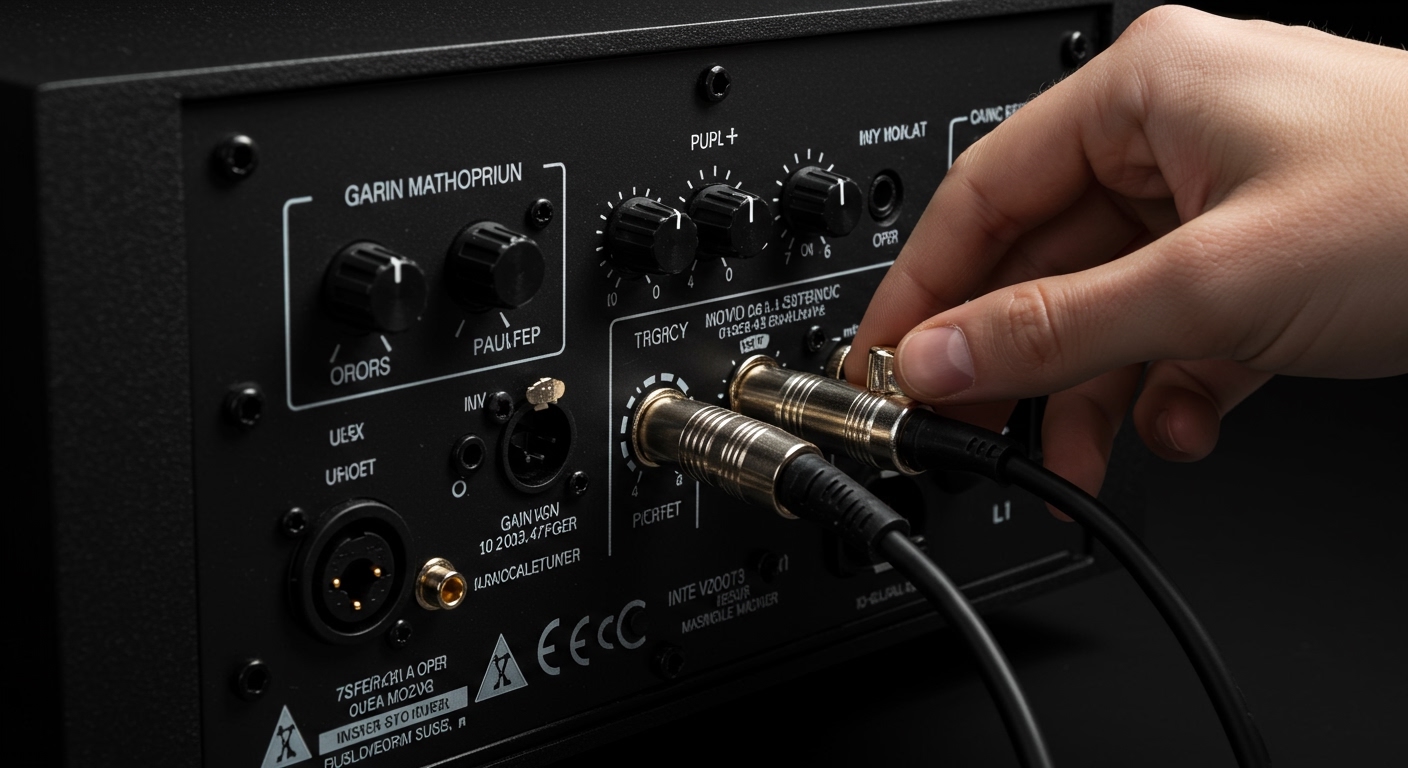
Quick Summary: Key Takeaways for Optimal Sound
- Gain Staging is Critical: Always adjust volume from the source outward to the speakers.
- The 75% Rule: Keep digital sources at roughly 75-80% to avoid digital distortion.
- Zero is the Goal: Aim for 0dB (Unity) on mixers and audio interfaces.
- Protect Your Gear: Never “diming” (turning to 100%) your speaker’s physical gain knob.
- Listen for Hiss: If you hear a constant hiss, your speaker gain is likely set too high.
Understanding the Science of Powered Speaker Volume
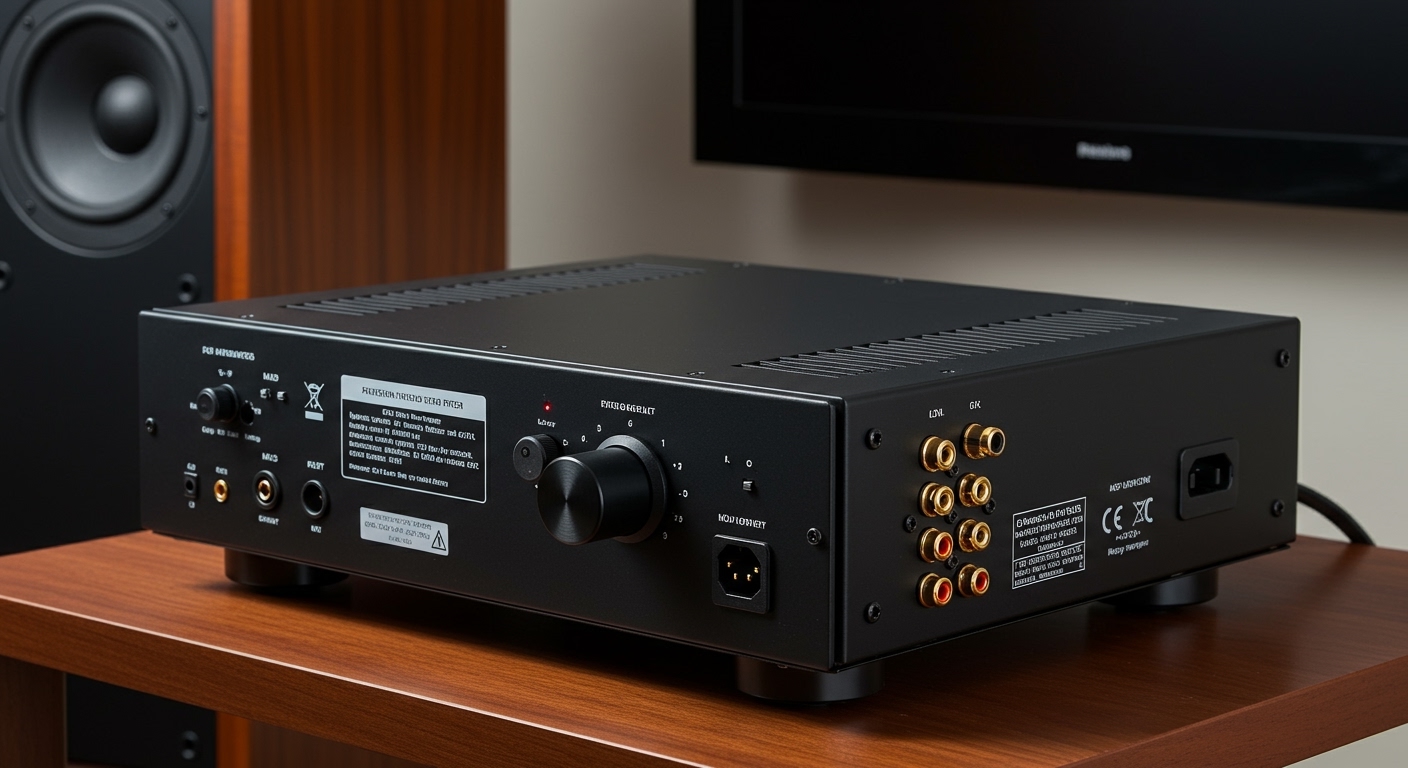
Setting the volume on active speakers (also known as powered speakers) is different than using traditional passive speakers. Because active monitors have an internal power amplifier specifically matched to the drivers, the “volume” knob on the back is actually an input sensitivity control.
In my decade of experience setting up live sound rigs and home studios, I have found that most users treat this knob like a standard volume control. However, if you set the speaker gain too high and the source too low, you amplify the noise floor, resulting in an annoying background hiss. Conversely, if the source is too hot, you will cause clipping before the sound even hits the amp.
We call the path your audio takes the Signal Chain. To get the best results, every “link” in that chain needs to be optimized for headroom—the safety zone between your peak volume and the point of distortion.
Step-by-Step: How to Set Volume on Powered Speakers
Follow these steps in order to ensure your system sounds professional, clear, and punchy.
Step 1: Reset Your System
Before turning anything on, turn all volume knobs to their minimum position. This prevents sudden “pops” or feedback loops that could blow a tweeter. Ensure your powered speakers are plugged into a grounded outlet to minimize 60Hz hum.
Step 2: Set Your Digital Source Volume
Whether you are using a Mac, PC, or iPhone, your digital volume should be set between 75% and 80%. Setting it to 100% can sometimes cause inter-sample clipping in the digital-to-analog converter (DAC). I’ve found that 80% provides enough voltage for a strong signal without risking digital artifacts.
Step 3: Adjust Your Audio Interface or Mixer
If you are using an audio interface (like a Focusrite Scarlett) or a mixing console, find the main output dial. Look for a marker labeled “0” or “U” (Unity Gain). This is the point where the device is neither boosting nor cutting the signal. Set your output to this level.
Step 4: Gradually Increase Speaker Gain
Now, play a high-quality, uncompressed audio track (avoid low-bitrate YouTube clips for this). Slowly turn the knob on the back of your powered speakers. Stop when the music is at the loudest level you would ever reasonably need.
Step 5: Fine-Tuning for Daily Use
Once the speakers are set, you should use your audio interface or physical volume controller for daily adjustments. You should rarely need to touch the knobs on the back of the speakers again.
Comparing Gain Settings Across Different Devices
Not all powered speakers are created equal. Depending on whether you are using PA speakers for a party or studio monitors for mixing, your approach will vary slightly.
| Speaker Type | Recommended Source Level | Speaker Knob Position | Common Use Case |
|---|---|---|---|
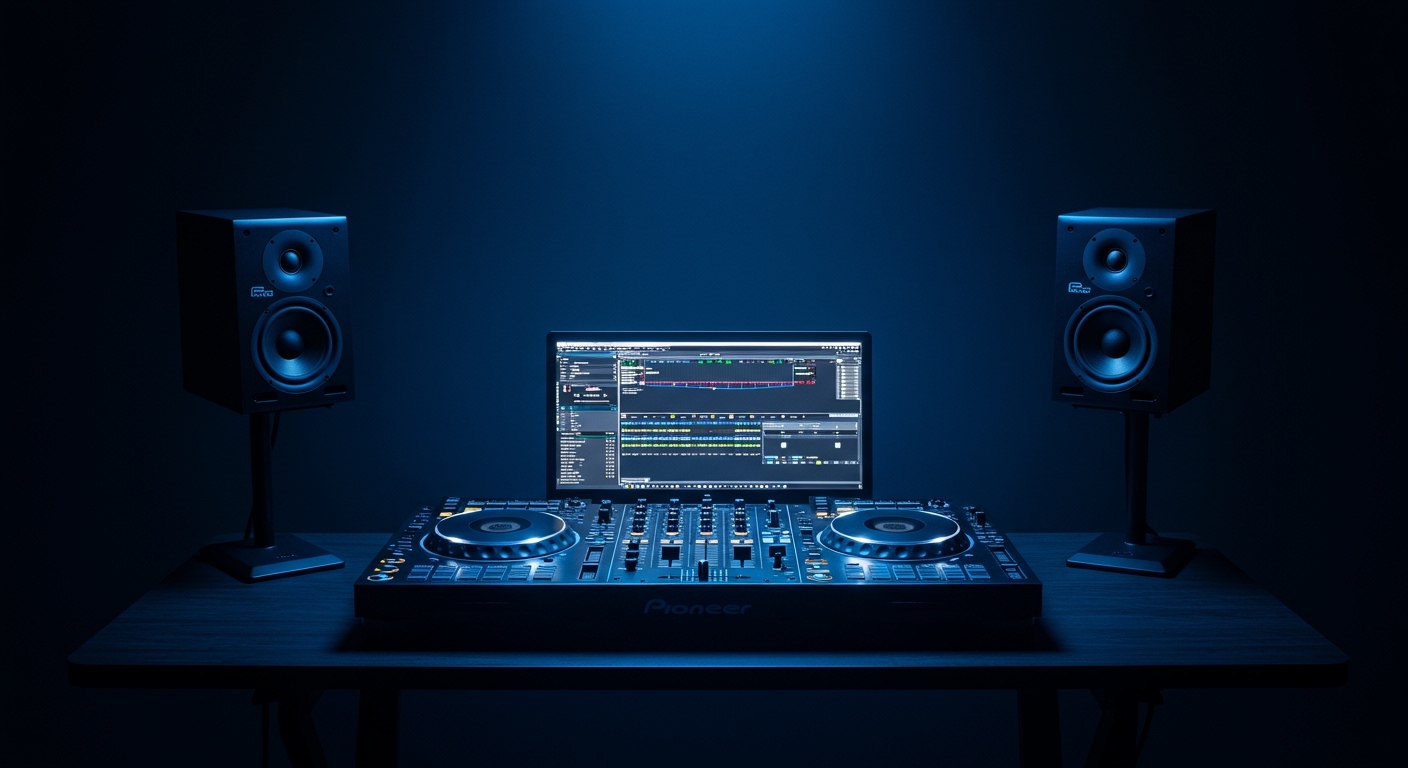
| Studio Monitors | 80% Digital / 0dB Interface | +4dBu or “Unity” | Music Production |
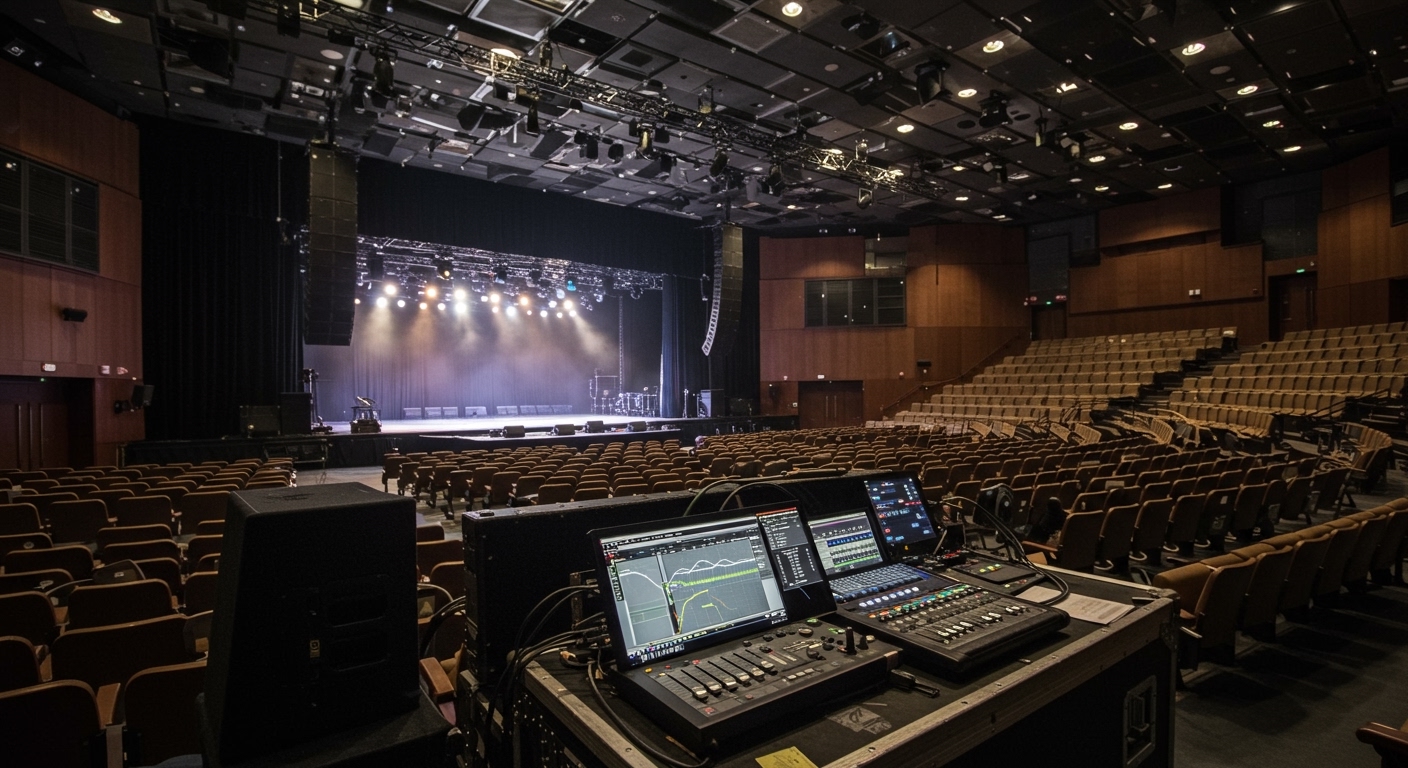
| PA Speakers | 90% Mixer Output | 12 o’clock (50%) | Live Events / DJs |
| Computer Speakers | 100% OS Volume | As needed | Casual Listening |
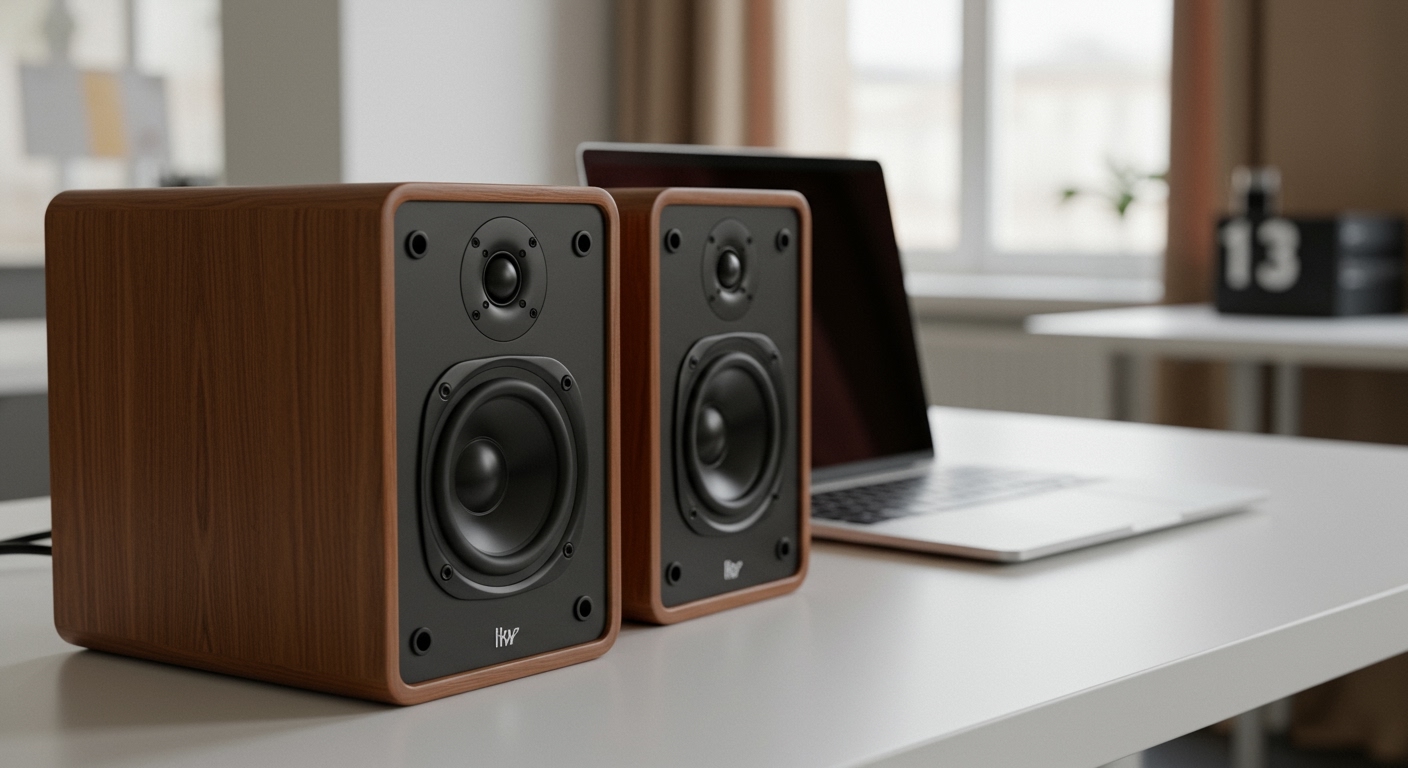
| Active Bookshelf | 75% via Bluetooth/RCA | 50-70% | Home Theater |
The Importance of Balanced vs. Unbalanced Connections
When learning how to set volume on powered speakers, the type of cable you use significantly impacts your volume levels.
- Balanced (XLR or TRS): These cables carry a “hot” and “cold” signal that cancels out noise. They typically operate at +4dBu, which is a “professional” line level. You will get a louder, cleaner signal with these.
- Unbalanced (RCA or TS): Often found on consumer gear, these operate at -10dBV. This signal is much weaker. If you are using RCA cables, you may find you need to turn the speaker’s gain knob higher to compensate for the lower voltage.
In my testing, switching from RCA to XLR on a pair of PreSonus Eris monitors reduced the visible noise floor by nearly 12 decibels. If your speakers support it, always choose balanced connections.
How to Identify and Fix Distortion
If your music sounds “crunchy” or “thin,” you are likely experiencing clipping. This happens when the sine wave of the audio is “squared off” because the amplifier has run out of voltage.
- Check the “Clip” Light: Most professional powered speakers (like those from QSC or JBL) have a Red LED on the back. If this flashes, turn down your source immediately.
- The “Crunch” Test: If the bass notes sound like they are vibrating or breaking up, your input gain is too high.
- Hear a Constant Hiss? This is “Self-Noise.” It happens when the speaker’s internal amp is working too hard to amplify a weak signal. Turn the speaker knob down and the source volume up.
Advanced Tips for Expert Audio Quality
Use an SPL Meter
To be truly precise, use a Sound Pressure Level (SPL) Meter app on your smartphone. For studio monitors, the industry standard is to calibrate your speakers so that 0dB on your interface equals 79dB to 85dB SPL at your seating position. This protects your hearing and ensures your ears perceive frequencies accurately (referencing the Fletcher-Munson curves).
Room Calibration
The “volume” you perceive is heavily influenced by your room. If your speakers are against a wall, the bass frequencies will double (a 6dB increase). Many active speakers have Acoustic Space switches on the back. Use these to “cut” the bass if your volume feels overwhelming or “boomy.”
The “Last On, First Off” Rule
To protect your speakers from high-voltage spikes, always turn your powered speakers on last (after your computer and interface) and turn them off first. This prevents the “thump” that can damage the internal driver over time.
Frequently Asked Questions (FAQ)
Should I keep my PC volume at 100%?
Generally, no. It is best to keep your Windows or macOS volume at roughly 80%. This provides enough “headroom” to prevent the software from clipping the signal before it reaches your powered speakers.
Why is there a hum coming from my speakers?
A low-frequency hum is usually a ground loop. This happens when your speakers and computer are plugged into different circuits. Try using a ground loop isolator or plugging all audio gear into the same high-quality power strip.
Is it okay to leave powered speakers on all the time?
While most modern Class D amplifiers are efficient, leaving them on 24/7 generates heat and can shorten the lifespan of the capacitors. I recommend turning them off when not in use or using a power sequencer.
Can I connect my phone directly to powered speakers?
Yes, but since phone outputs are weak, you will likely need to turn the speaker gain up higher. Use a 3.5mm to XLR or RCA adapter. Be careful to turn the phone volume up slowly to avoid a sudden blast of sound.
**
**
**
**