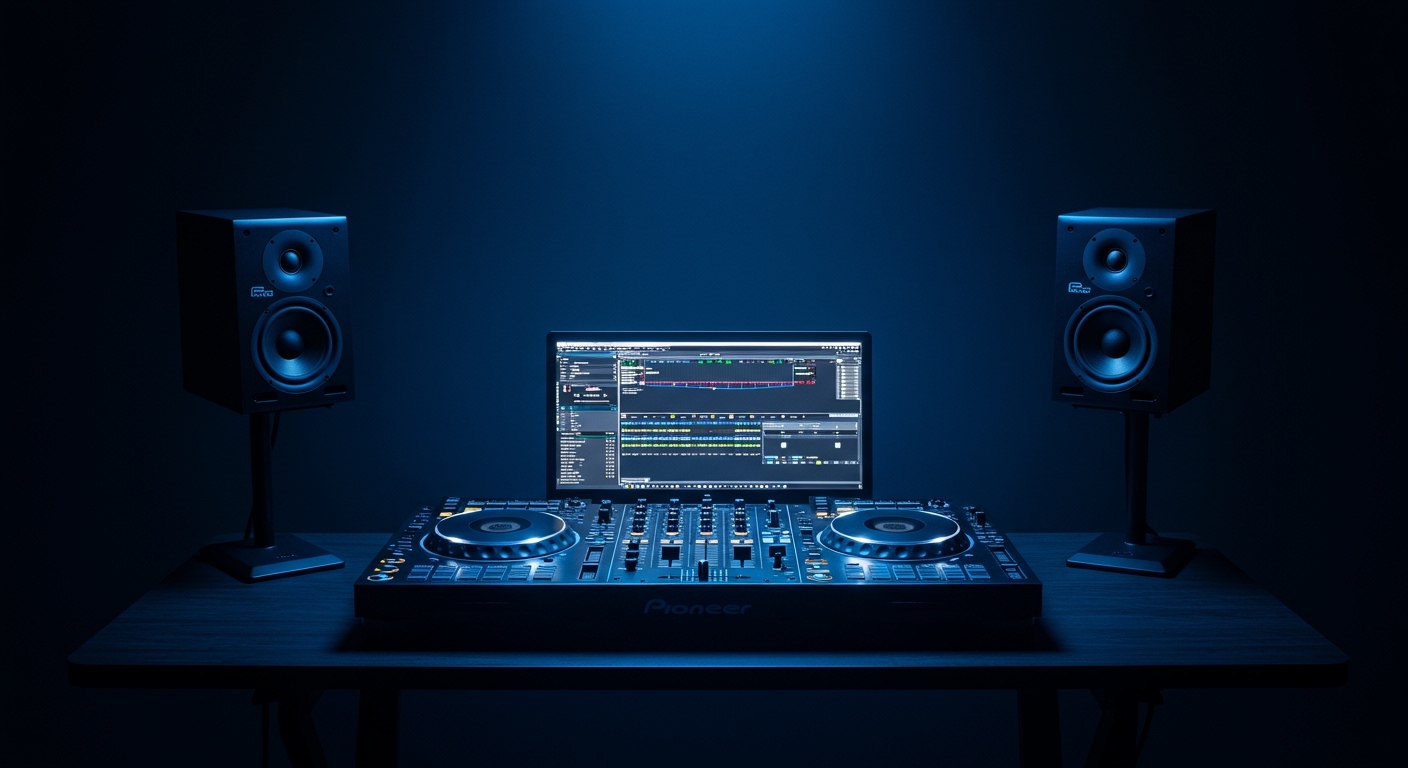
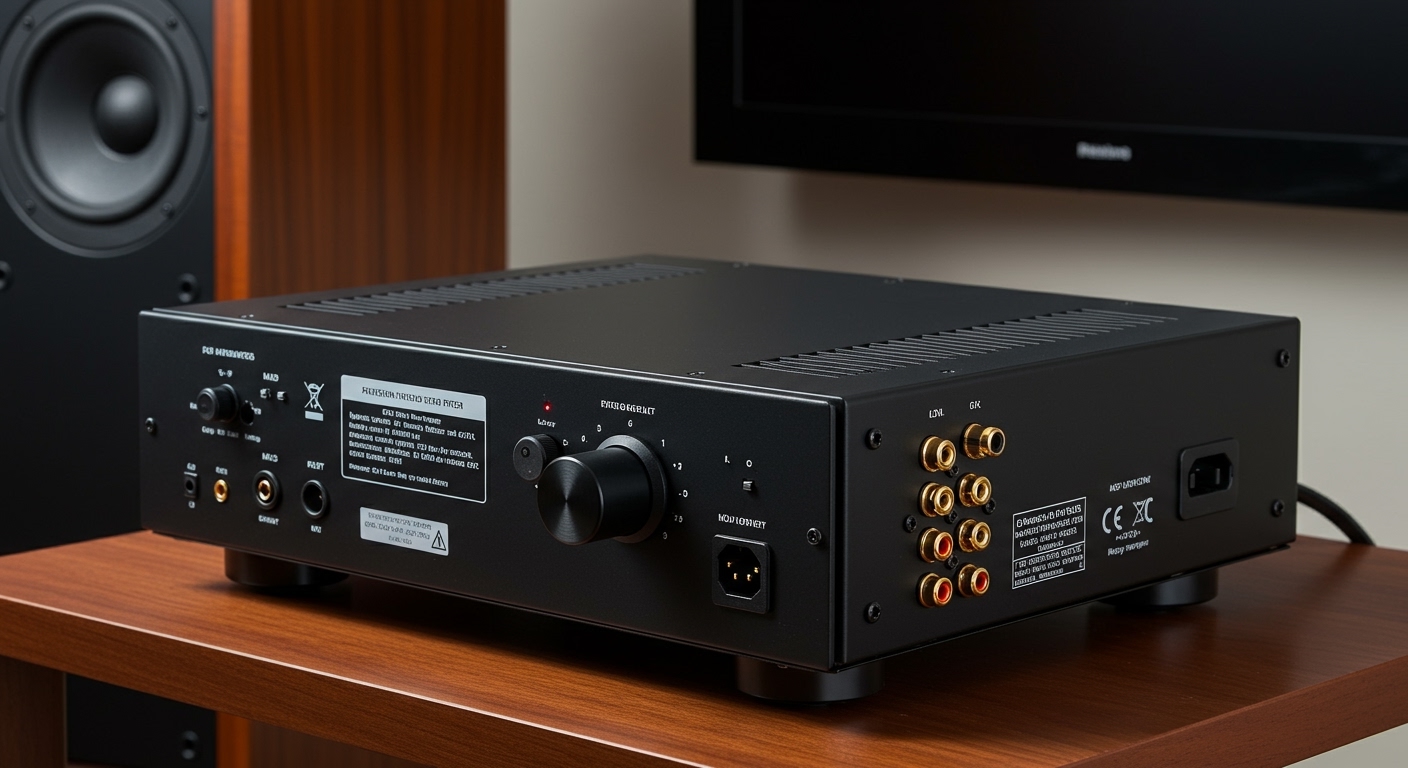
To learn how to setup Virtual DJ with headphones and speakers, you must navigate to the Settings > Audio menu and select the “Speakers + Headphones” output configuration. This allows you to route the Master Output to your main speakers while sending the Headphone (Pre-cue) signal to your secondary audio device, such as a DJ Controller’s built-in sound card or a USB audio interface.
Mastering Your Virtual DJ Audio Routing
Setting up your audio correctly is the most critical step in transitioning from a casual listener to a performing DJ. Without a proper “split” between your speakers and headphones, you cannot pre-cue tracks—the essential process of listening to the next song to match its beat and EQ before the audience hears it.
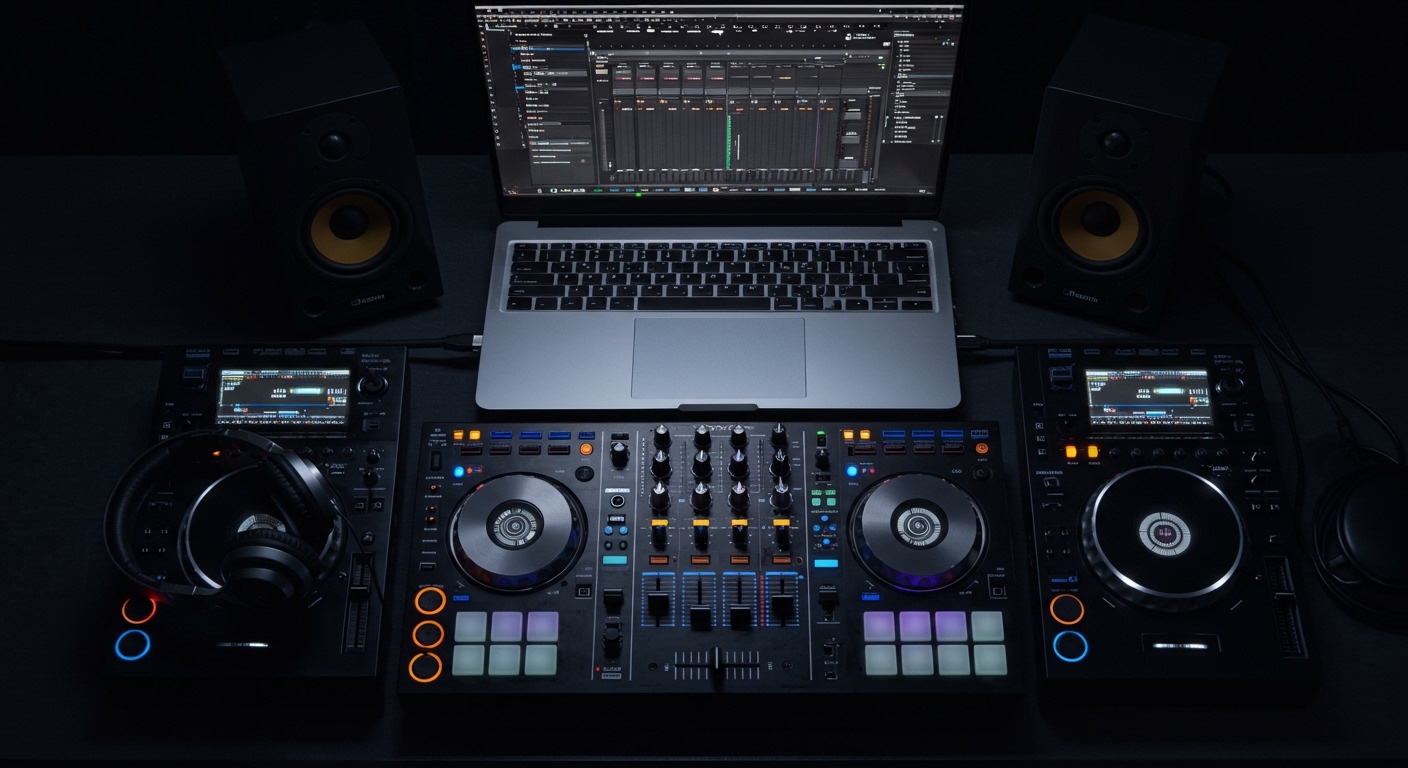
I have spent over a decade using Virtual DJ in various environments, from high-pressure wedding receptions to basement livestreams. I’ve found that while the software is incredibly “smart” at auto-detecting hardware, Windows and Mac system settings can often interfere with your signal path. This guide will ensure your latency is low and your audio routing is flawless.
Key Takeaways for Quick Setup
- The Goal: Master Output goes to your Main Speakers; Headphones receive the Cue Signal.
- Hardware Required: A DJ Controller with a built-in sound card is best, but a USB Splitter Cable or External Audio Interface works for budget setups.
- Essential Driver: Windows users should always use ASIO drivers (like ASIO4ALL) to minimize audio delay (latency).
- Software Toggle: Ensure the PFL (Pre-Fade Listen) button is active on the deck you want to hear in your headphones.
Hardware Configuration Options
Before opening the software, you need to decide how you are physically connecting your gear. In my experience, using a dedicated DJ Controller is the most stable method, but we will cover all three common scenarios.
The DJ Controller Method (Recommended)
Most modern controllers (like the Pioneer DDJ-FLX4 or Numark Mixtrack Platinum FX) have a built-in multi-channel sound card. This is the simplest “plug-and-play” experience.
The External Sound Card / Audio Interface Method
If you are using a professional analog mixer but want to control Virtual DJ via your laptop, you’ll need an interface like the Focusrite Scarlett 2i2 or a specialized DJ I/O box.
The DJ Splitter Cable Method (Ultra-Budget)
If you have no extra hardware, you can use a Stereo-to-Mono Splitter Cable. This splits your laptop’s single 3.5mm jack into two mono signals: one for the speakers and one for the headphones.
| Setup Method | Ease of Use | Audio Quality | Latency Level |
|---|---|---|---|
| DJ Controller | High | Excellent | Very Low (<10ms) |
| Audio Interface | Medium | Superior | Low |
| Splitter Cable | High | Low (Mono) | Variable |
Step-by-Step: How to Setup Virtual DJ with Headphones and Speakers
Follow these steps precisely to ensure Virtual DJ recognizes your hardware and routes the audio to the correct channels.
Step 1: Connect Your Hardware
Plugin your DJ Controller or Audio Interface via USB before launching the software. If you are using speakers, connect them to the RCA or XLR outputs on the back of your controller—not your laptop’s headphone jack.
Step 2: Open Audio Settings
Launch Virtual DJ. Click the Gear Icon in the top right corner to open Settings, then click on the Audio tab on the left sidebar.
Step 3: Select the “Speakers + Headphones” Card
Under the “Quick Config” section, you will see several large buttons. Click on “Speakers + Headphones”. This tells Virtual DJ that you intend to use two separate stereo outputs.
Step 4: Assign the Output Device
This is where most beginners get stuck. You must tell the software which hardware device handles which signal.
- Master Output: Set this to your Main Speakers. If using a controller, select the driver named after your controller (e.g., DDJ-FLX4 ASIO).
- Headphones: Set this to the same device, but ensure it is assigned to Channels 3 and 4 (or the “Headphones” sub-selection).
- Click Apply: The settings won’t take effect until you hit the apply button.
Step 5: Test the Pre-cueing
Load a track onto Deck 1 and play it through your speakers. Load a different track onto Deck 2. Press the Headphone/PFL button on Deck 2. You should now hear Deck 2 in your ears while Deck 1 continues playing for the “crowd.”
Optimization for Low Latency and High Performance
Nothing ruins a mix like audio latency—the delay between you touching a jog wheel and hearing the sound change. To get a “pro” feel, follow these expert tweaks I use on my touring rig.
Using ASIO Drivers
On Windows, the default WASAPI drivers can sometimes introduce a 20-40ms delay. I highly recommend installing the ASIO driver provided by your hardware manufacturer. If you don’t have one, download ASIO4ALL.
- In Virtual DJ Audio Settings, change the “Driver” dropdown to ASIO.
- Set your Buffer Size to 128 or 256 samples.
- Pro Tip: If you hear “crackling” or “popping,” your buffer is too low. Increase it to 512 samples.
Disable System Sounds
We’ve all been there: a loud Windows notification “ding” blasts through a 5,000-watt PA system.
- Go to your computer’s Sound Settings.
- Set your “Default Playback Device” to your laptop’s internal speakers, NOT your DJ controller.
- Keep Virtual DJ as the only software using your controller’s sound card.
Advanced Routing: Using Multiple Sound Cards
Sometimes you might want to use your Laptop Jack for headphones and a USB Speaker for the master out.
How to Aggregate Audio Devices
- In the Audio Settings, change the “Output” to Manual.
- For Master, select your USB Speaker from the device list.
- For Headphones, select your Computer’s Integrated Soundcard.
- Warning: This can cause “clock drift,” where the two devices fall out of sync. I generally advise against this for live performances, but it’s fine for home practice.
Troubleshooting Common Setup Issues
I hear the master music in my headphones and the speakers.
Check your Mixer knobs. You likely have the “Cue Mix” knob turned all the way to “Master.” Turn it to the left (toward “Cue”) to hear only the selected deck.
There is no sound coming out of the speakers at all.
Ensure your Crossfader is in the middle and your Channel Faders are up. Also, verify that the Gain (Trim) knobs are not set to zero.
The sound is distorted or “fuzzy.”
This usually means your Master Volume inside Virtual DJ is in the red. Keep your software master volume at around 0dB (12 o’clock) and use your physical speaker’s volume knob to increase the loudness.
Frequently Asked Questions
Can I use Bluetooth speakers with Virtual DJ?
I strongly advise against using Bluetooth speakers for DJing. Bluetooth technology introduces significant audio lag (often over 100ms), making it impossible to beatmatch or transition smoothly. If you must use one, connect it via an Aux cable.
Why can’t I see the “Speakers + Headphones” option?
If this option is missing, Virtual DJ may not be recognizing your secondary output device. Ensure your drivers are updated and the device is plugged in before you start the program.
Do I need Virtual DJ Pro to use headphones?
While the basic “Home” version allows for some audio routing, Virtual DJ Pro or a Home Plus license for your specific controller is often required to unlock full multi-channel support for professional DJ controllers.
How do I setup Virtual DJ with a simple USB splitter?
In Audio Settings, select “Mono Splitter” under the Output section. Connect your splitter to the laptop jack. The “Left” mono signal will go to your speakers, and the “Right” mono signal will go to your headphones. Note that your audio will no longer be in stereo.
What is the best buffer size for Virtual DJ?
For most modern laptops (i5 or i7 processors), a buffer size of 256 samples provides the perfect balance between low latency and system stability.