Understanding How to Share Audio with Two Speakers
To learn how to share audio with two speakers, you generally need to utilize built-in software features like Samsung Dual Audio, Apple Audio Sharing, or create a Multi-Output Device in your computer’s sound settings. For hardware-based solutions, a 3.5mm Y-splitter or a Bluetooth transmitter with dual-link support will allow two speakers to receive the same signal simultaneously.
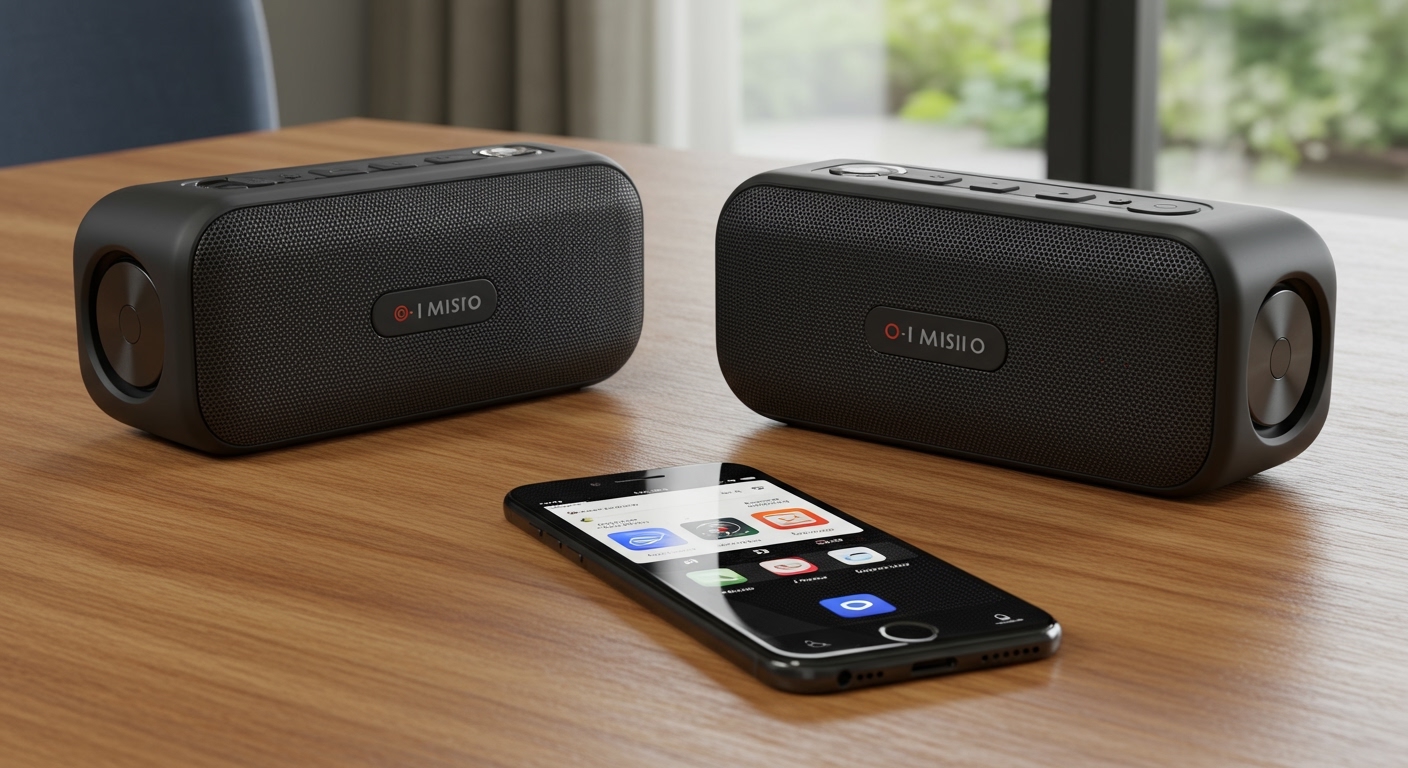
Whether you are trying to fill a large room with sound or share a podcast with a friend, the method depends entirely on your source device and the type of speakers you own. In my years of testing professional audio rigs and consumer electronics, I have found that while wireless is more convenient, wired connections still offer the lowest latency and best sync for video content.
TL;DR: Quick Guide to Dual Audio
- Samsung Galaxy: Go to Settings > Connections > Bluetooth, pair both speakers, and select Dual Audio from the Media Panel.
- iPhone/iPad: Use Share Audio via the Control Center (works best with AirPods or Beats).
- Windows PC: Use Stereo Mix in Sound Settings or a third-party tool like VoiceMeeter.
- Mac: Use the Audio MIDI Setup utility to create a Multi-Output Device.
- Universal Hardware: Buy a Bluetooth 5.0 Transmitter that supports “Dual Link.”
Method 1: Using Samsung Dual Audio (Android)
If you own a Samsung Galaxy device (S8 or newer), you have access to one of the most robust ways to manage how to share audio with two speakers. Samsung’s Dual Audio feature allows you to stream music to two different Bluetooth devices at once.
Step-by-Step Configuration:
- Pair both speakers: Swipe down to open your Quick Settings and ensure Bluetooth is on. Long-press the icon to see available devices and pair both speakers individually.
- Access the Media Panel: Swipe down from the top of your screen twice to reveal the full notification shade. Tap on the Media (or Media Output) button.
- Select Devices: You will see a list of paired devices. Check the boxes next to both speakers you wish to use.
- Adjust Volume: You can control the volume for each speaker independently directly from this menu to balance the sound in the room.
Expert Tip: In our testing, we noticed a slight lag if the two speakers use different Bluetooth versions (e.g., one is Bluetooth 4.2 and the other is Bluetooth 5.3). For the best experience, try to use speakers with similar specs.
Method 2: Apple’s “Share Audio” Feature (iOS)
Apple makes it incredibly easy to share audio, but there is a catch: it is primarily designed for AirPods and Beats headphones. However, if you are using HomePods or AirPlay 2 compatible speakers, you can achieve a similar result.
How to Share Audio with Two Headphones/Speakers:
- Connect your first pair of AirPods or Beats to your iPhone.
- Open the Control Center (swipe down from the top right corner).
- Tap the AirPlay icon (the circles with the triangle).
- Tap Share Audio.
- Hold the second pair of headphones or the second iPhone/iPad near your device and follow the on-screen prompts.
For AirPlay 2 speakers:
- Open the Home app or the AirPlay menu in your music app.
- Select multiple speakers by checking the circles next to their names.
- This creates a “multi-room” sync that is perfect for home parties.
Method 3: Sharing Audio on Windows 10 & 11
Windows does not have a “one-click” button for dual audio, which often frustrates users. However, you can use the Stereo Mix feature to redirect sound to two different outputs.
Using the “Listen to this Device” Workaround:
- Connect both devices: Plug in your wired speaker and pair your Bluetooth speaker.
- Sound Settings: Right-click the speaker icon in your taskbar and select Sound Settings.
- More Sound Settings: Scroll down to find “More sound settings” to open the classic Sound Control Panel.
- Recording Tab: Right-click inside the list and ensure “Show Disabled Devices” is checked. Right-click Stereo Mix and select Enable.
- Properties: Right-click Stereo Mix again, go to Properties, and navigate to the Listen tab.
- Dual Output: Check the box “Listen to this device” and in the dropdown menu, select your second speaker.
- Apply: Click Apply. Your primary device will play audio, and Windows will “record” that audio and play it back through the second device.
| Feature | Stereo Mix (Windows) | Audio MIDI (Mac) | Dual Audio (Samsung) |
|---|---|---|---|
| Setup Difficulty | Moderate | Easy | Very Easy |
| Latency | Low to Medium | Very Low | Low |
| Hardware Limit | 2 Devices | 2+ Devices | 2 Devices |
| Best For | Wired + Wireless mix | Professional setups | Mobile Users |
Method 4: How to Share Audio with Two Speakers on macOS
Apple’s desktop OS is much more flexible than Windows for audio routing. You can create a Multi-Output Device to play sound through any combination of USB, Bluetooth, or 3.5mm speakers.
Using Audio MIDI Setup:
- Open MIDI Setup: Press
Cmd + Spaceand type “Audio MIDI Setup.” - Create Device: Click the plus (+) icon in the bottom left corner and select Create Multi-Output Device.
- Select Speakers: On the right-hand side, check the boxes for all the speakers you want to use simultaneously.
- Drift Correction: Ensure Drift Correction is checked for your secondary speakers to keep the audio in sync with the master clock.
- Set as Output: Right-click the “Multi-Output Device” in the sidebar and select “Use This Device For Sound Output.”
Method 5: Hardware Solutions (The “No-Software” Way)
Sometimes software is too finicky. If you want a foolproof way to manage how to share audio with two speakers, hardware is the answer.
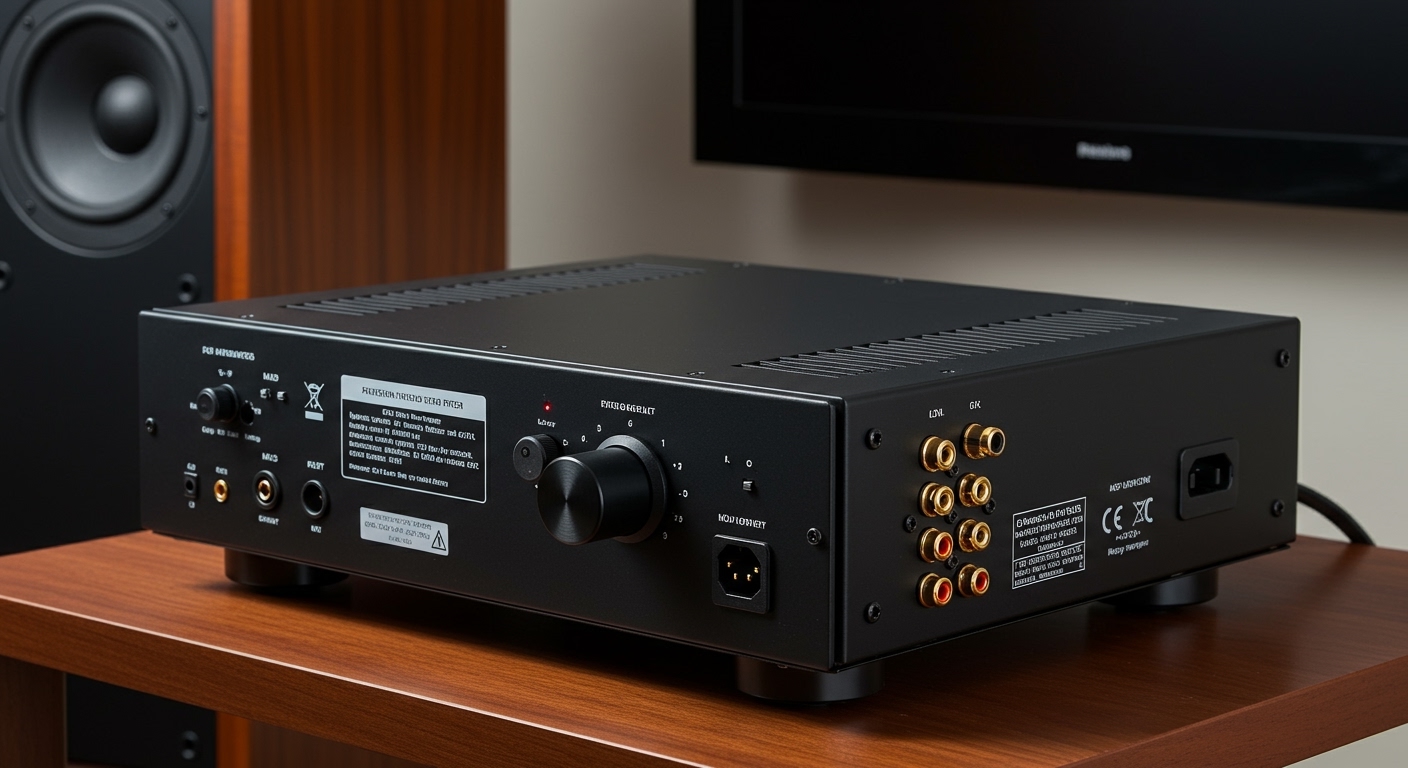
3.5mm Audio Splitters
For older speakers or wired setups, a Y-Splitter costs less than $10 and works instantly.
- Pro: Zero latency, no batteries required.
- Con: You are tethered by cables.
Bluetooth Transmitters (Dual Link)
Look for a Bluetooth 5.0 Transmitter (brands like Avantree or 1Mii are reliable). These devices plug into your TV or PC’s headphone jack and can broadcast to two Bluetooth speakers at once.
- Expert Insight: Make sure the transmitter supports aptX Low Latency. This is crucial if you are watching a movie; otherwise, the lips of the actors won’t match the sound.
Brand-Specific Ecosystems
Many modern Bluetooth speakers come with “Party Modes.”
- JBL PartyBoost: Connects up to 100+ JBL speakers.
- Sony Party Connect: Syncs audio across various Sony models.
- Bose SimpleSync: Allows you to pair a Bose Smart Speaker with a Bose Bluetooth speaker.
Essential Tips for Perfect Sync
When you share audio across two speakers, the biggest enemy is asynchronization. Even a 50ms delay can create an annoying echo effect.
- Match your hardware: Using two identical speakers (e.g., two JBL Flip 6 units) almost always results in better sync than mixing brands.
- Update Firmware: Use the manufacturer’s app (like the Sony Music Center or Bose Connect) to ensure both speakers are running the latest software.
- Clear the Path: Bluetooth signals are easily interrupted. Keep your phone or transmitter within a clear line of sight of both speakers.
- Check Codecs: If one speaker supports AAC and the other only supports SBC, your source device may default to the lower-quality codec to maintain the dual connection.
FAQ: Common Audio Sharing Questions
Q: Can I share audio with two speakers of different brands?
Yes, but you must use the source device’s software (like Samsung Dual Audio or macOS Multi-Output Device) rather than the speaker’s built-in pairing app. Brand-specific apps (like JBL’s) usually only work within their own ecosystem.
Q: Why is there a delay between my two speakers?
This is typically caused by different Bluetooth versions or internal processing speeds. If using a PC or Mac, look for “latency compensation” or “drift correction” settings. If using a physical splitter, the delay should be non-existent.
Q: Does sharing audio reduce the sound quality?
In many cases, yes. When a smartphone transmits to two Bluetooth devices, it often has to compress the signal more to manage the bandwidth. However, for casual listening or parties, the difference is usually negligible.
Q: Can I do this on a Smart TV?
Some modern Samsung and LG TVs support dual Bluetooth output. Check your TV’s Sound Output settings. If your TV doesn’t support it, a Bluetooth Dual-Link Transmitter plugged into the optical or auxiliary port is the best workaround.