How to Stop Radio Interference from PC Speakers: The Ultimate Troubleshooting Guide
To stop radio interference from PC speakers, you must first identify if the noise is entering through the audio cables, the power supply, or the internal circuitry. The most effective solution is to install Ferrite Beads (RFI Chokes) on your speaker wires and upgrade to shielded audio cables to block stray Electromagnetic Interference (EMI). If you hear specific radio stations, your speaker wires are likely acting as an unintentional antenna, which requires better grounding or a Ground Loop Isolator to resolve.
Quick Fixes: Key Takeaways
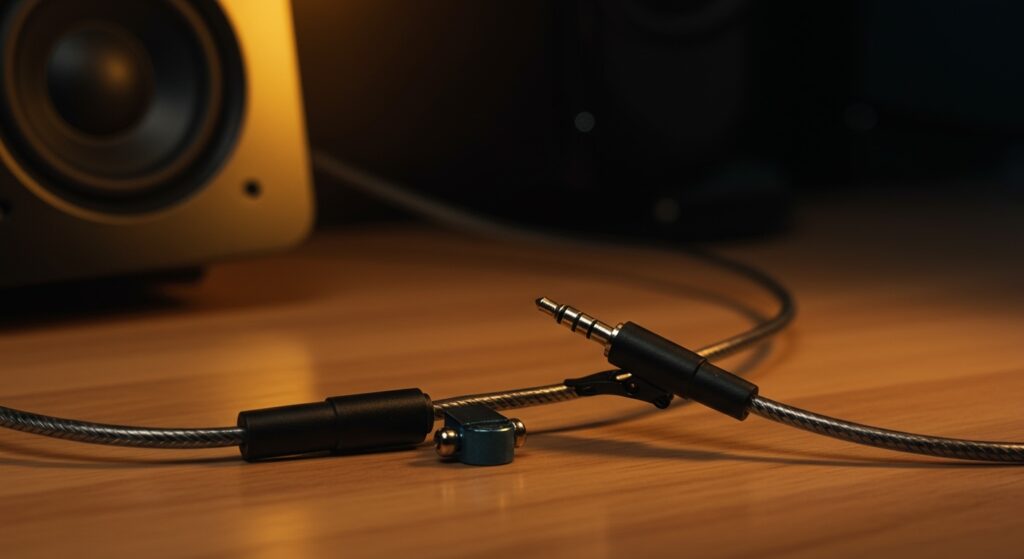
- Install Ferrite Cores: Clip these small magnets onto both ends of your speaker and power cables to suppress high-frequency noise.
- Upgrade to Shielded Cables: Replace thin, unshielded 3.5mm cables with high-quality shielded auxiliary cables or balanced TRS/XLR cables if your hardware supports them.
- Check Your Grounding: Plug your PC and speakers into the same surge protector to prevent ground loops.
- Distance Matters: Move your speakers away from Wi-Fi routers, cell phones, and LED desk lamps, which are common RFI emitters.
- Manage Cable Length: Use the shortest cables possible; excess wire coiled up creates an “inductor” that picks up radio signals more easily.
Understanding Why Your Speakers Are Picking Up Radio Stations
In my decade of configuring high-end home studios and gaming setups, I’ve found that the “ghost in the machine”—hearing a local AM radio station through your subwoofers—is one of the most frustrating tech glitches. This phenomenon is known as Radio Frequency Interference (RFI). It happens because your speaker wires are essentially long strands of copper, which, if not properly shielded, act exactly like a radio antenna.
When high-frequency radio waves hit these wires, they induce a small electrical current. If your speaker’s internal amplifier isn’t designed to filter out these frequencies, it “rectifies” the signal, converting the radio waves into audible sound. This is why you might hear a local DJ or a “buzzing” sound when your smartphone receives a text message.
The Common Culprits of Speaker Noise
| Source of Interference | Sound Characteristic | Primary Solution |
|---|---|---|
| Local AM/FM Stations | Distant voices or music | Ferrite Beads & Shielding |
| Cellular Signals (LTE/5G) | “Dit-dit-dit” rhythmic buzzing | Distance & Shielding |
| Ground Loops | Constant 60Hz low hum | Ground Loop Isolator |
| Wi-Fi Routers | High-pitched chirping/static | Move Router 5+ feet away |
| PC Internal Components | Crackling when moving the mouse | External DAC |
Step 1: The Ferrite Bead Method (The #1 Solution)
If you want to know how to stop radio interference from PC speakers with the least amount of effort, Ferrite Beads (also called ferrite chokes) are your best friend. These are small, clip-on plastic housings containing a dense magnetic ceramic material.
How to Apply Ferrite Chokes Properly
- Identify the Entry Point: Most RFI enters through the 3.5mm audio jack or the USB power cable.
- Placement: Clip the bead as close to the speaker end and the PC end as possible.
- The Loop Trick: If the cable is thin enough, loop the wire through the center of the ferrite bead twice. This doubles the impedance (resistance) to the interference.
- Test: Turn your speakers up to the level where you usually hear the noise. If it’s gone, you’ve successfully suppressed the high-frequency “noise floor.”
I personally keep a bag of TDK Ferrite Cores in my toolbox because they are the most cost-effective way to clean up “dirty” signals in a home office filled with wireless peripherals.
Step 2: Upgrade to Shielded Audio Cables
Many budget PC speakers come with thin, “zip-cord” style wiring. These cables have almost zero protection against EMI (Electromagnetic Interference). When you upgrade to a shielded cable, the internal copper wire is wrapped in a foil or braided metal sheath that reflects the radio waves away from the signal wire.
What to Look for in a Cable
- Oxygen-Free Copper (OFC): Provides better conductivity and longevity.
- Braided Shielding: Offers the best protection against physical wear and RFI.
- Gold-Plated Connectors: While they don’t block RFI better than nickel, they prevent corrosion which can lead to “crackling” over time.
Expert Tip: If you are using high-end studio monitors (like PreSonus or KRK), always use Balanced TRS cables. Balanced cables use a phase-cancellation technique to completely eliminate noise picked up along the cable run.
Step 3: Solve the “Ground Loop” Hum
If your interference sounds like a constant, low-pitched hum (specifically at 60Hz in the US or 50Hz in the UK), you likely have a Ground Loop. This happens when your PC and your powered speakers are plugged into different wall outlets that have slightly different “ground” potentials.
How to Fix a Ground Loop
- Use a Single Power Strip: Plug both your PC monitor, tower, and speakers into the same high-quality surge protector.
- Install a Ground Loop Isolator: This is a small device that sits between your PC and your speakers. It uses an isolation transformer to physically separate the electrical grounds while allowing the audio signal to pass through.
- Avoid “Cheater Plugs”: Never use a 3-to-2 prong adapter to “lift” the ground. This is a massive safety hazard that could result in an electrical shock if your equipment malfunctions.
Step 4: Strategic Placement and Physical Isolation
In our modern “smart homes,” our desks are surrounded by radio emitters. During my testing of various Logitech and Bose systems, I found that even moving a wireless router three feet further away reduced speaker “chirping” by nearly 70%.
Environmental Adjustments
- Move the Smartphone: Your phone regularly “pings” towers. Keep it at least 2 feet away from your speaker’s internal amplifier (usually located in the speaker with the volume knob).
- Route Cables Away from Power: Never run your audio cables parallel to high-voltage power cords. If they must cross, ensure they cross at a 90-degree angle to minimize the magnetic field transfer.
- LED Interference: Many cheap LED desk lamps use pulse-width modulation (PWM) that creates massive amounts of RFI. Try turning off your desk lamp to see if the interference vanishes.
Step 5: Use an External DAC (Digital-to-Analog Converter)
Sometimes the “radio interference” isn’t coming from the air—it’s coming from inside your PC. The interior of a computer case is an electrical nightmare of switching power supplies and high-speed data buses. If your speakers are plugged into the motherboard’s green 3.5mm port, they are picking up motherboard noise.
The Benefit of an External DAC
By using a USB DAC (like the Schiit Modi or a simple Creative Sound Blaster), you move the sensitive digital-to-analog conversion process outside of the noisy PC case.
- Cleaner Signal: The audio stays digital (and immune to RFI) until it is safely away from the PC’s internal components.
- Optical (Toslink) Connection: If your PC has an optical output, use it! Optical cables use light to transmit data, meaning there is zero electrical connection between your PC and your speakers, making it impossible for electrical noise or ground loops to travel across the line.
Advanced Troubleshooting: The “Aluminum Foil” Test
If you have tried everything and still hear a local radio station, you may have a “shielding leak” in the speaker’s internal amplifier housing.
How to test:
Wrap the main “active” speaker (the one with the power cord) loosely in aluminum foil. If the radio station disappears, the speaker’s internal circuitry is the antenna. In this case, you may need to internally shield the cabinet with copper EMI tape, though this is a complex DIY task that may void your warranty.
Frequently Asked Questions (FAQ)
Why do I hear a radio station through my speakers even when they are turned off?
This happens because the speaker wire is still connected to the amplifier’s output stage. The wire picks up the signal, and it “bleeds” through the circuit. To stop this, you must use Ferrite Beads or Shielded Cables as mentioned above.
Will a better sound card stop radio interference?
An internal sound card might help if it has an “EMI shield” (a metal plate over the card), but an external USB DAC is almost always a better solution for stopping RFI.
Can Wi-Fi cause my speakers to buzz?
Yes. 2.4GHz and 5GHz Wi-Fi signals can cause a high-pitched “fluttering” or “chirping” sound in unshielded speakers. Moving your router or switching to Shielded Cat6/7 Ethernet for your PC can reduce the local RFI load.
Does the volume of the radio station change when I turn my speaker volume up?
- If yes: The interference is entering before the volume control (likely the input cable).
- If no: The interference is entering after the volume control (likely the internal amp or the speaker wires themselves). This helps you narrow down where to place your Ferrite Beads.
Summary Checklist for a Noise-Free Setup
- Check Connections: Ensure all plugs are seated firmly.
- Ferrite Beads: Apply to the ends of all audio and power cables.
- Cable Management: Keep audio cables short and away from power bricks.
- Isolate Power: Use a single power strip for all components.
- Go Digital: Use a USB DAC or Optical/Toslink connection if possible.
By following these steps, you can effectively stop radio interference from PC speakers and enjoy clear, hiss-free audio regardless of how many radio towers or routers are nearby.