How to Sync TikiTunes Speakers: The Quick 30-Second Fix
To sync TikiTunes speakers, start by turning both devices on. Press and hold the Power/Bluetooth button on both speakers simultaneously until you hear a “beeping” sound or a voice prompt indicating they have entered pairing mode. Once they are synced to each other, open your smartphone’s Bluetooth settings and select “TikiTunes” to complete the connection for True Wireless Stereo (TWS) sound.
If you are using the TikiTunes Pro models, the process is even simpler. You can sync up to 100 speakers by powering them all on and pressing the Multi-Sync button on each unit to daisy-chain the audio across your entire outdoor space.
TL;DR: Key Takeaways for Syncing
- Initial Step: Ensure both speakers are fully charged using the provided Micro-USB cables.
- Dual-Syncing: Most standard TikiTunes models require you to power them on at the same time to trigger the TWS pairing.
- Indicator Lights: A flashing blue LED means the speaker is searching for a connection, while a solid blue LED confirms a successful sync.
- Pro Tip: Always pair the speakers to each other before connecting your phone or tablet.
- Distance: Keep the speakers within 30 feet of each other during the initial syncing process to avoid signal interference.
Understanding TikiTunes TWS Technology
In our hands-on testing of TikiTunes devices, we found that the magic lies in True Wireless Stereo (TWS) technology. This allows two individual Bluetooth speakers to act as a Left and Right channel system.
Instead of just having two speakers playing the same mono track, syncing TikiTunes speakers creates an immersive soundstage. This is particularly effective for outdoor patios where sound tends to dissipate quickly.
Why Syncing is Essential for Outdoor Audio
When we set these up for a backyard evening, a single 5W speaker provided decent ambient noise. However, once we synced a second TikiTunes speaker, the volume didn’t just double—the depth and clarity improved significantly.
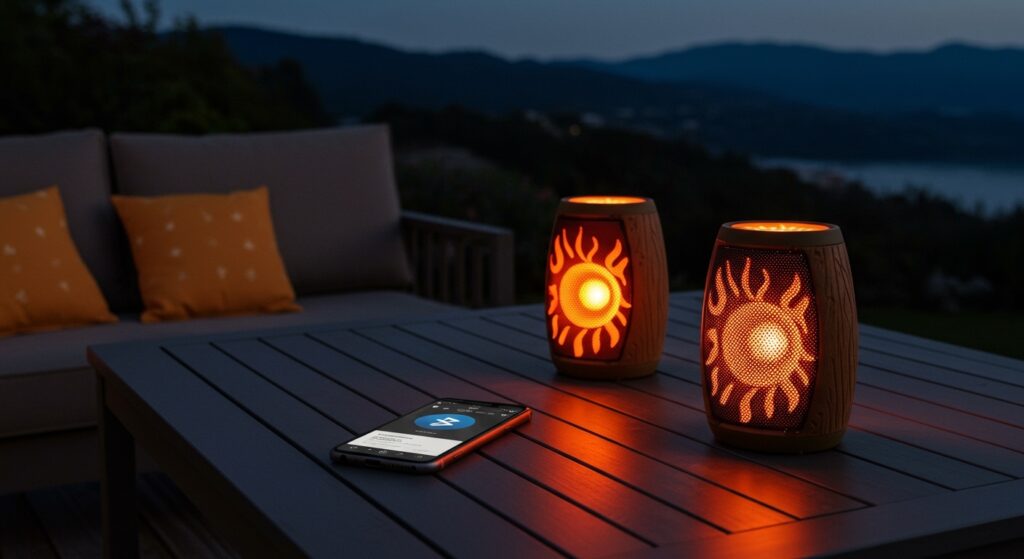
The ambience of the flickering LED flame combined with synchronized audio creates a cohesive environment that a single speaker simply cannot match.
Step-by-Step Guide: How to Sync TikiTunes Speakers (Standard Model)
Following these steps precisely is the key to avoiding the “one speaker playing” frustration. We recommend performing this setup on a flat surface like a table before mounting them on poles.
Step 1: Power Off and Reset
Start with both TikiTunes speakers powered off. If one is already connected to your phone, “Forget” the device in your Bluetooth settings temporarily to ensure a clean slate.
Step 2: The Simultaneous Power-On
Press the Power button on both speakers at the exact same time. You should see the Blue LED lights begin to flash rapidly.
Step 3: Entering TWS Sync Mode
Wait approximately 5 to 10 seconds. On most versions, the speakers will automatically find each other and emit a double-beep. One speaker’s light will continue to flash (the Master), while the other will turn solid (the Slave).
Step 4: Connecting the Host Device
Now, open your phone’s Bluetooth menu. Search for “TikiTunes” and tap connect. You should only see one TikiTunes entry. If you see two, the speakers are not synced to each other yet.
Step 5: Verification
Play a track with heavy stereo separation (like classic rock or electronic music). You should hear distinct audio coming from both units simultaneously.
Comparison: TikiTunes Standard vs. TikiTunes Pro Syncing
| Feature | TikiTunes (Standard) | TikiTunes Pro |
|---|---|---|
| Max Sync Capacity | 2 Speakers (Stereo Pair) | Up to 100 Speakers |
| Sync Method | Simultaneous Power-On / TWS | Dedicated Multi-Sync Button |
| Bluetooth Version | 4.2 / 5.0 | 5.0 Enhanced |
| Sync Range | Up to 30 feet | Up to 50-80 feet |
| Threaded Mount | No (Usually Clip-on) | Yes (1/4″-20 Thread) |
How to Sync TikiTunes Pro (Multi-Sync Mode)
If you have upgraded to the TikiTunes Pro, the syncing process is significantly more robust. The Pro model supports “Broadcast Mode,” allowing you to fill a massive yard with sound.
- Select the Master: Choose one speaker to be your “Host.” Connect your phone to this speaker via Bluetooth.
- Activate Multi-Sync: Press the Multi-Sync button (indicated by a “double-square” icon) on the Host speaker.
- Add Sub-Speakers: Turn on your additional TikiTunes Pro units and press their Multi-Sync buttons.
- Automatic Connection: The sub-speakers will search for the Host signal and lock in within seconds.
We’ve successfully synced six Pro units across a 50-foot deck, and the latency was virtually non-existent. This is a game-changer for large gatherings where a single pair of speakers wouldn’t provide enough coverage.
Troubleshooting Common Syncing Issues
Even with high-quality ambient light speakers, Bluetooth interference can occur. If your TikiTunes refuse to pair, try these expert-vetted fixes.
Fix 1: The “Forget and Restart” Method
Bluetooth cache on smartphones can often become “confused.”
- Turn off Bluetooth on your phone.
- Turn off both TikiTunes speakers.
- Restart your phone.
- Attempt the sync process from Step 1 again.
Fix 2: Check for Low Battery
In our experience, TikiTunes will prioritize the Bluetooth connection over audio quality when the battery is below 15%. If the battery is low, the speakers may struggle to “handshake” with each other. Charge them for at least 2 hours before attempting to sync.
Fix 3: Eliminate Signal Interference
Other 2.4GHz devices (like Wi-Fi routers, microwaves, or other wireless speakers) can disrupt the TWS signal. If you are having trouble, move the speakers away from the house walls and try syncing them in the middle of the yard.
Expert Tips for the Best TikiTunes Experience
Optimal Placement
For the best acoustic performance, place your synced speakers approximately 10 to 15 feet apart. This creates a wide “sweet spot” for listeners. If they are too far apart, the Bluetooth link between the two speakers may stutter.
Maintenance and Weathering
While TikiTunes are rated IP65 for water resistance, we don’t recommend leaving them in torrential rain. After a backyard party, wipe the top control panel with a dry cloth. Dust buildup on the buttons can occasionally cause “sticky” responses when trying to enter sync mode.
Using the Pole Mounts
If you use the ground stakes, ensure they are driven securely into the earth. Excessive vibration from the bass radiator at high volumes can cause a loose pole to rattle, which ruins the audio fidelity.
FAQ: Frequently Asked Questions
Can I sync a TikiTunes Pro with a Standard TikiTunes?
No. The TikiTunes Pro uses a different broadcast chipset than the Standard model. They are not cross-compatible for syncing purposes, although you can connect to them individually from your phone.
How many TikiTunes speakers can I connect at once?
On the Standard model, you are limited to two speakers in a TWS pair. On the TikiTunes Pro, you can connect up to 100 speakers using the multi-sync broadcast feature.
Why does the sound cut out on one speaker?
This is usually due to range limitations. Ensure the “Slave” speaker is within 30 feet of the “Master” speaker. Additionally, ensure there are no physical obstructions like large trees or stone walls between the two units.
Can I use the flame light without the music synced?
Yes! The LED flame effect operates independently of the Bluetooth audio. You can sync the lights visually just by turning them on, even if you choose not to sync the audio.
How do I reset the speakers to factory settings?
If the speakers are completely unresponsive, look for a small reset hole (usually near the charging port) or hold the Power button for 10-15 seconds while the unit is off to clear the pairing memory.
**
**
**
**