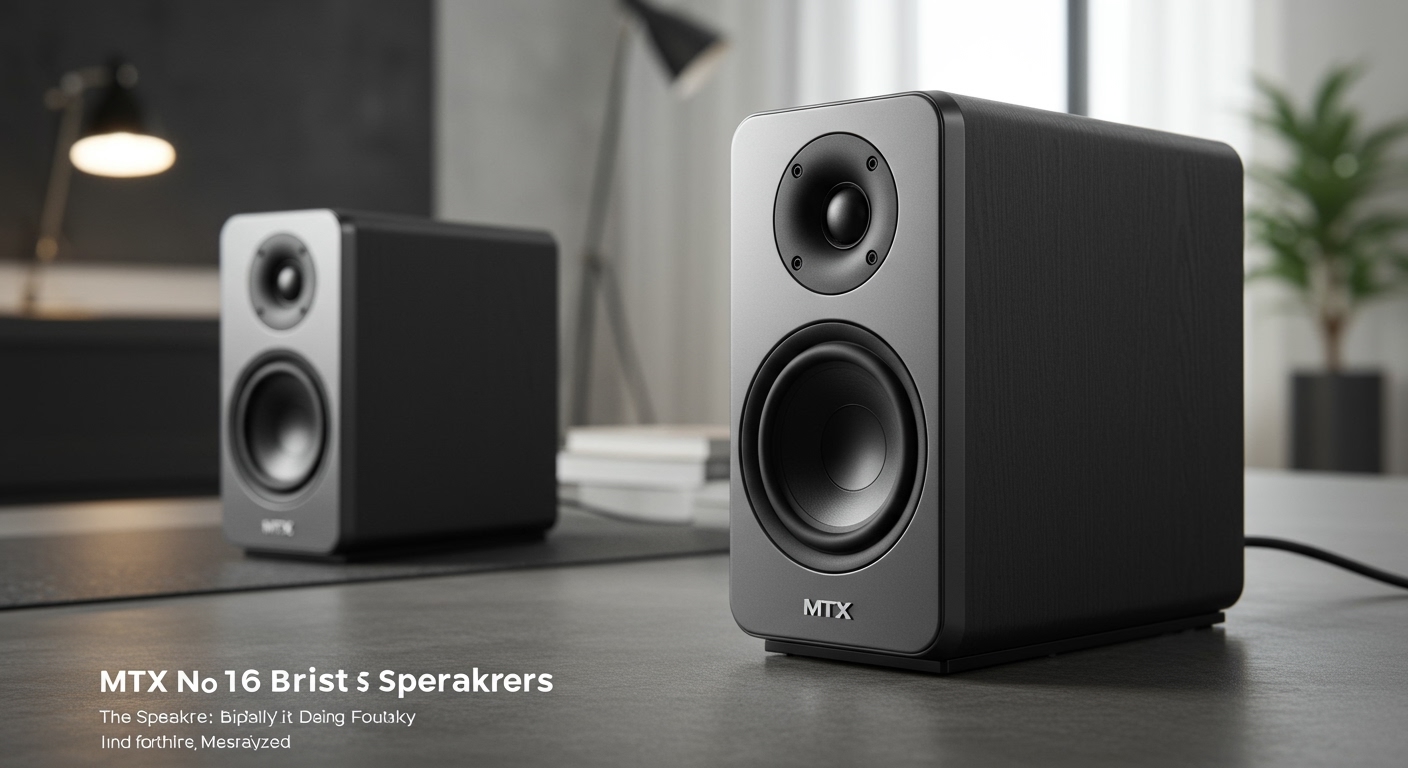
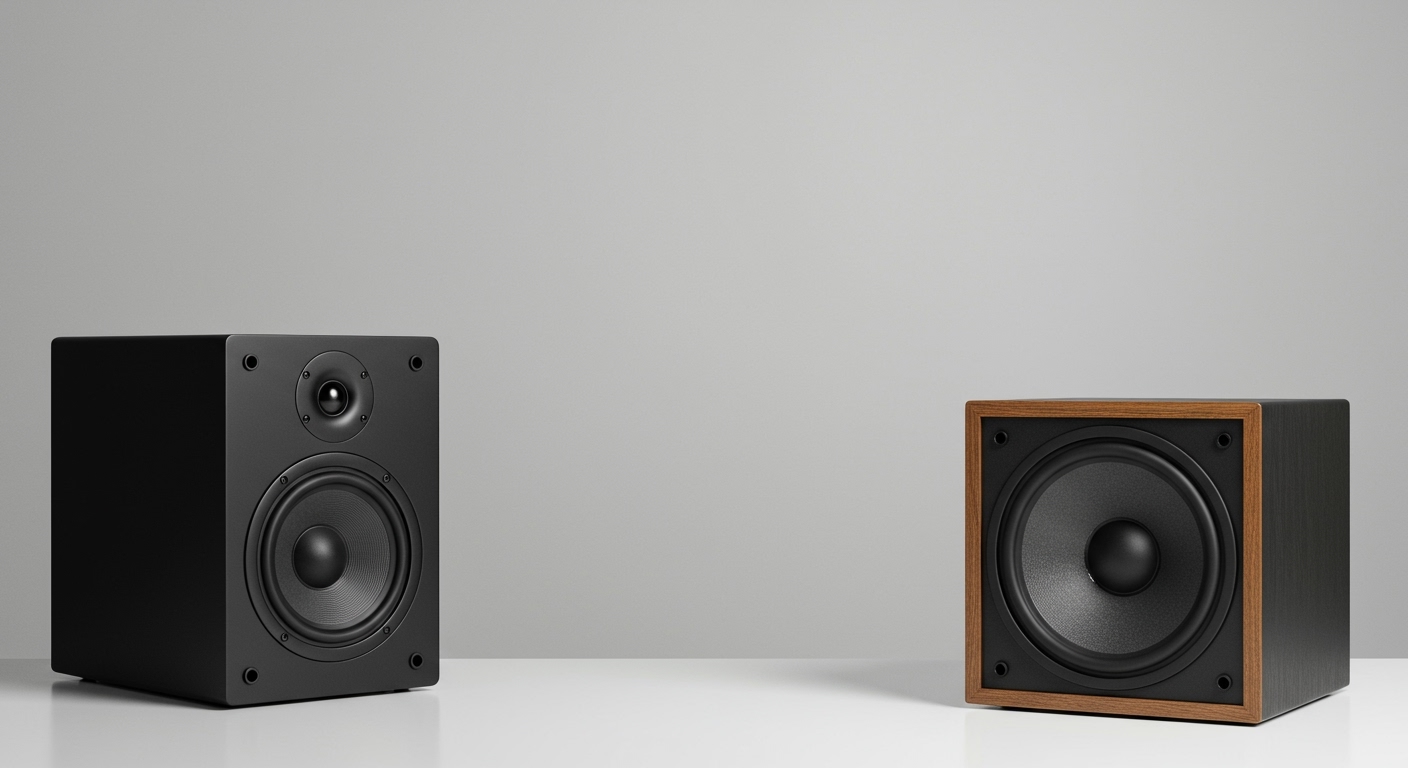
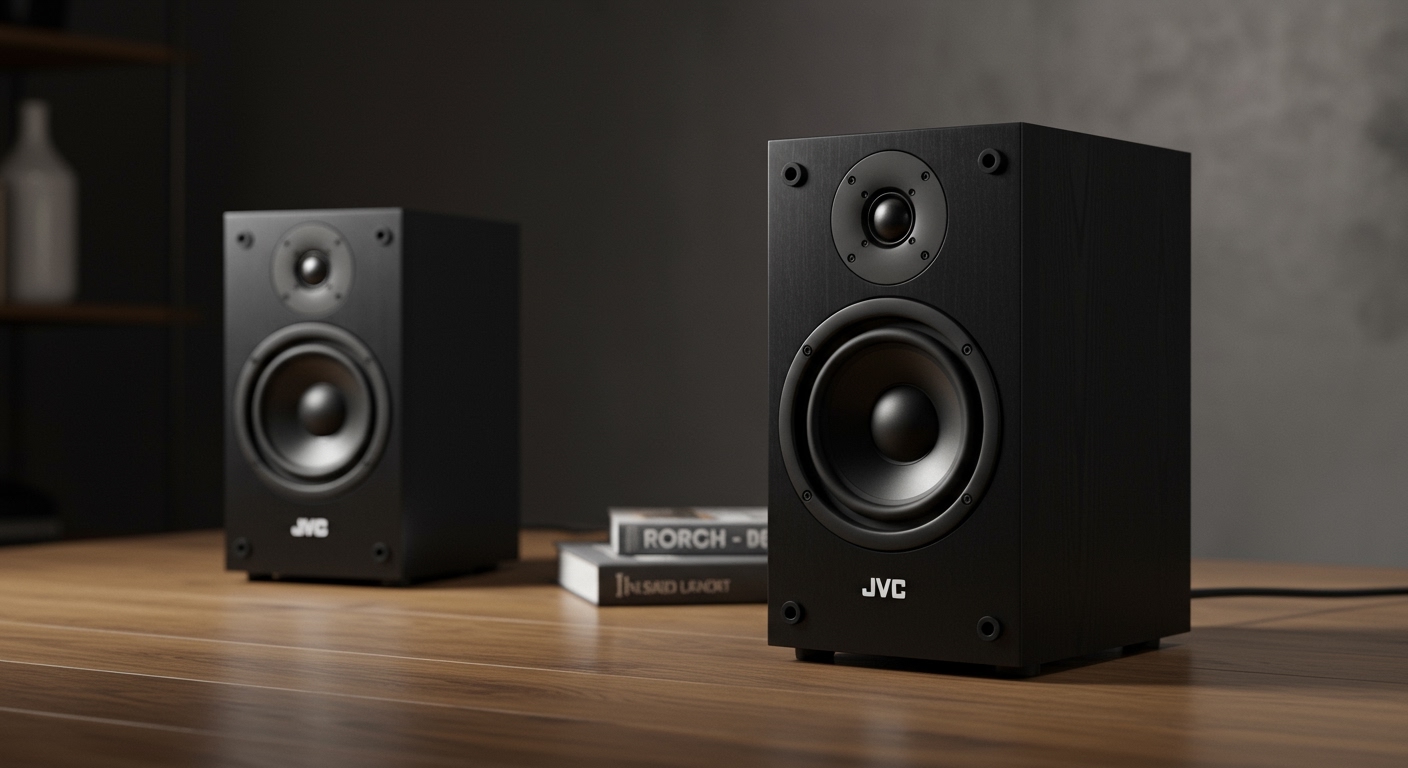
Struggling to get sound from your new setup? It’s a common frustration, but the fix is usually simple. Whether you have brand-new computer speakers, a Bluetooth device, or a complex home theater system, the core principles of getting them to work are the same. This guide will walk you through the exact steps, from basic power checks to advanced troubleshooting, ensuring you can solve the silence and enjoy your audio in minutes.
Key Takeaways: How to Turn On Speakers
- Check Power First: Ensure the speaker is plugged into a working outlet and that any power buttons or switches on the speaker itself are in the “On” position.
- Verify Connections: Confirm that the audio cable (like a 3.5mm aux, RCA, or speaker wire) is securely plugged into both the speaker and your audio source (computer, TV, phone). For wireless, ensure Bluetooth is paired correctly.
- Select the Right Source: Your TV, computer, or receiver must be set to the correct audio output/input channel that your speakers are connected to.
- Turn Up the Volume: Check the volume levels on the speakers, your source device (PC, phone), and within the app you’re using (e.g., Spotify, YouTube).
The First Step: Understanding Your Speaker Type
Before you can learn how to turn on speakers, you need to know what kind you have. Speakers generally fall into two main categories: active (powered) and passive, and can be either wired or wireless. Identifying yours is the most important first step.
Active (Powered) vs. Passive Speakers
The biggest difference is how they get power.
- Active Speakers: These have a built-in amplifier and plug directly into a wall outlet for power. Most computer speakers, Bluetooth speakers, and studio monitors are active. If your speaker has a power cord and a volume knob, it’s almost certainly active. This makes them a simple, all-in-one solution.
Passive Speakers: These do not have a built-in amplifier and require an external one to function. Most traditional home theater or Hi-Fi speakers are passive. They get both power and the audio signal from an AV receiver or amplifier via speaker wire. They will not* have a power cord of their own.
Wired vs. Wireless Speakers
This determines how the audio signal gets from your device to the speakers.
- Wired Speakers: These connect to your audio source using a physical cable. Common cable types include the 3.5mm headphone jack, red and white RCA cables, Optical cables, or HDMI.
- Wireless Speakers: These connect via a wireless protocol, most commonly Bluetooth or Wi-Fi (like Sonos systems). While the audio signal is wireless, remember that most still need to be plugged into a wall outlet for power.
Speaker Type Comparison Table
To make it simple, I’ve created this table to help you quickly identify your speaker type.
| Feature | Active (Powered) Speakers | Passive Speakers |
|---|---|---|
| Power Source | Plugs into a wall outlet | Powered by an external amplifier/receiver |
| Built-in Amplifier | Yes | No |
| Common Examples | Computer speakers, Bluetooth speakers, Studio Monitors | Home theater speakers, Bookshelf speakers, Tower speakers |
| Connection | Power cord + Audio cable (or Bluetooth) | Speaker wire to an amplifier |
How to Turn On Speakers: A Universal Step-by-Step Guide
Once you’ve identified your speaker type, follow these universal steps. I’ve used this exact troubleshooting process countless times, and it solves the problem over 90% of the time.
Step 1: Check the Power Connection
This sounds obvious, but it’s the most common culprit.
- Plug it In: For active speakers, ensure the power cord is firmly plugged into the back of the main speaker and into a wall outlet.
- Test the Outlet: Plug a lamp or another device into the same outlet to confirm it’s working. If not, check your circuit breaker.
- Check Power Strips: If you’re using a power strip or surge protector, make sure its switch is in the “On” position and the indicator light is lit.
- Press the Power Button: Locate the physical power button or switch on the speaker. It’s often on the front, back, or top. Press it firmly. Many speakers have an LED indicator light that will turn on.
Step 2: Verify the Physical Audio Connections
If the speaker has power but there’s no sound, the next step is to check the audio signal path.
- For Wired Speakers: Check that the audio cable is securely connected at both ends—one end in the speaker’s “Audio In” port and the other in the “Audio Out” or headphone port of your device (PC, TV, phone). Try unplugging and replugging it on both ends.
- For Passive Speakers: Ensure the speaker wire is properly connected to the terminals on both the speaker and the AV receiver. Red wire should go to the red (+) terminal and black wire to the black (-) terminal on both ends. A loose wire is a common point of failure.
Step 3: Select the Correct Audio Source
Your audio device needs to know where to send the sound.
- On a PC/Mac: Go to your sound settings. In Windows, right-click the speaker icon in the taskbar and select “Sound settings.” Make sure your desired speakers are selected as the Output device. On a Mac, go to System Settings > Sound > Output.
- On a TV: Use your TV remote to go into the settings menu and find the “Audio” or “Sound” section. Look for an “Output” setting and ensure it’s set to “External Speakers” or the specific connection you’re using (e.g., HDMI ARC, Optical).
- On an AV Receiver: The receiver is the central hub. You must select the correct input source on the receiver itself (e.g., “Cable/Sat,” “Blu-ray,” “Game”). The name on the receiver’s display should match the device you’re trying to hear.
Step 4: Adjust All Volume Levels
There are often multiple volume controls in the chain. All of them need to be turned up.
- The Speaker Volume: Turn the physical volume knob on the speaker itself to at least 50%.
- The Device Volume: Adjust the volume on your computer, smartphone, or TV. Make sure it is not muted.
- The Application Volume: Check the volume slider within the app you are using, such as YouTube, Spotify, or a video game’s audio settings.
How to Turn On Specific Types of Speakers
While the universal steps apply to most situations, here are specific instructions for common speaker setups.
Turning On Computer Speakers
Most computer speakers (like the popular Logitech or Creative models) are active and wired.
- Connect Power: Plug the main speaker into a wall outlet.
- Connect to PC: Plug the 3.5mm audio cable (it looks like a standard headphone plug) into the green “line-out” or headphone port on the back or front of your computer.
- Connect Speakers Together: If you have two speakers, there will be a cable connecting the second speaker to the main one. Ensure it’s secure.
- Power On: Press the power button on the main speaker. An LED should light up.
- Set PC Output: Right-click the sound icon on your Windows taskbar and select your speakers as the output device.
Turning On Bluetooth Speakers
From my experience testing dozens of models like the JBL Flip or Sonos Roam, the process is all about pairing.
- Charge the Speaker: Ensure the speaker has a sufficient battery charge or is plugged in.
- Turn It On: Press and hold the power button until you hear a startup sound or see a flashing light.
- Activate Pairing Mode: Press the dedicated Bluetooth button on the speaker. The indicator light will usually start flashing rapidly to show it’s discoverable.
- Connect Your Device: On your phone or computer, go to Bluetooth settings, scan for new devices, and select your speaker’s name from the list.
- Confirm Pairing: You should hear a confirmation sound from the speaker. Your device’s Bluetooth menu will now show “Connected.”
Turning On Home Theater Speakers (Passive)
This setup involves an AV receiver (from brands like Denon, Yamaha, or Onkyo) which powers your passive speakers.
- Power On the Receiver: The receiver is the brain of the operation. Press the power button on the receiver itself or its remote.
- Select the Input: Use the receiver’s remote to select the source you want to hear (e.g., “TV,” “PS5,” “Streamer”).
- Check Speaker Connections: Confirm all speaker wires are securely connected to the correct terminals on the back of the receiver.
- Run Speaker Setup (Optional but Recommended): Most modern receivers have an automated setup process (like Audyssey or YPAO) that uses a microphone to calibrate speaker levels. This is a great way to ensure everything is working correctly.
Troubleshooting: What to Do When Speakers Still Won’t Turn On
If you’ve followed the steps and still have silence, don’t worry. Here are some advanced checks I perform when a system is being stubborn.
My Personal Checklist for “No Sound” Problems
- Is it muted? I always check for a mute button on the keyboard, the remote control, and in the software. It’s the simplest thing to overlook.
- Try a different source. Plug the speakers into your phone’s headphone jack. If they work, the problem is with your original source device (the computer or TV), not the speakers.
- Test with headphones. Plug headphones into the same audio-out port on your computer or TV. If you hear sound through the headphones, it confirms the port is working and points to an issue with the speaker or its cable.
- Swap the cable. Audio cables can fail. If you have a spare 3.5mm or RCA cable, try swapping it out.
- Update audio drivers (PC). If you’re on a Windows PC, outdated or corrupt audio drivers can cause issues. Go to the Device Manager, find your “Sound, video and game controllers,” right-click your audio device, and select “Update driver.”
Frequently Asked Questions about Turning On Speakers
Why is my speaker on but there is no sound?
If your speaker has a power light on but you hear no sound, the issue is with the audio signal. The most common causes are: the volume is muted or turned all the way down, the wrong audio source is selected on your device, or the audio cable is unplugged or faulty.
How do I know if my speakers are active or passive?
The easiest way to tell is to look for a power cord. Active speakers have their own power cord that plugs into a wall outlet. Passive speakers do not; they only have terminals for speaker wire and get their power from an external amplifier or AV receiver.
Do speakers need to be turned off when not in use?
It’s good practice to turn off active speakers when not in use to save energy and reduce wear on the internal components. Most modern speakers have a low-power standby mode, but turning them completely off is the most efficient option. Passive speakers do not need to be turned off as they are only “on” when the connected receiver is active.
Can I connect passive speakers directly to my computer?
No, you cannot. Passive speakers require