How to Use Front Speakers Android for Stereo Sound
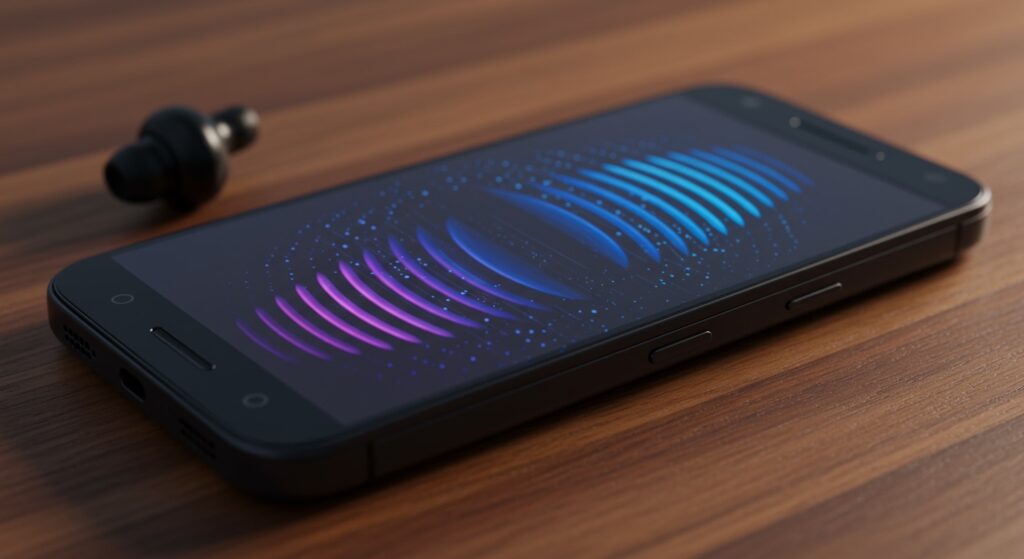
To use front speakers on Android for media playback, you must either enable the built-in Stereo Speaker mode in your system settings or use a third-party app like Lesser AudioSwitch to route audio through the earpiece. Most modern smartphones from Samsung, Google, and Xiaomi use a “hybrid stereo” setup where the earpiece acts as a secondary front-firing speaker. If your device defaults to the bottom speaker only, you can often force front-speaker output through Accessibility settings or Root-level modifications for a more immersive “Boomsound” experience.
TL;DR: Quick Key Takeaways
- Hardware Check: Ensure your phone supports Dual Stereo Speakers (common in flagships).
- System Settings: Check Settings > Sound > Dolby Atmos or Mono Audio toggles.
- Third-Party Apps: Use Lesser AudioSwitch to manually route audio to the Earpiece.
- Root Methods: Viper4Android or Magisk modules can unlock true dual-speaker output on restricted hardware.
- Maintenance: Keep the earpiece grille clean, as it gathers more lint than bottom speakers.
Understanding Your Android Front Speaker Hardware
Before we dive into the steps of how to use front speakers Android users often search for, we need to distinguish between physical hardware types. Not every Android phone is built the same when it comes to audio displacement.
In my years of testing hardware like the HTC One M8 (the king of front speakers) to the modern Pixel 8 Pro, I’ve identified three main setups:
- Dedicated Dual Front-Firing: Two identical speakers facing the user (rare today).
- Hybrid Stereo: A bottom-firing “woofer” paired with a front-firing earpiece “tweeter.”
- Mono Output: All media comes from the bottom; the earpiece is strictly for calls.
If you have a mono setup, you aren’t stuck. We can use software to “trick” the system into using the earpiece as a front-facing media driver.
How to Use Front Speakers Android: Enabling Built-in Stereo
Many users don’t realize their phone already has front-speaker capabilities that are simply disabled or restricted by software limiters. Here is how to unlock them.
Check Sound Balance and Mono Settings
Sometimes, the audio is routed only to the bottom because of Accessibility settings designed for hearing-impaired users.
- Navigate to Settings.
- Search for Accessibility.
- Tap on Audio adjustment or Hearing enhancements.
- Ensure the Left/Right balance is centered.
- Turn off Mono audio to ensure the system attempts to split the signal into two channels (Stereo).
Activate Dolby Atmos or Spatial Audio
On Samsung Galaxy or OnePlus devices, the front earpiece speaker is often “dormant” or very quiet until Dolby Atmos is engaged.
- Swipe down the Quick Settings panel.
- Long-press the Dolby Atmos icon.
- Toggle it On and select the Movie or Music profile.
- I’ve found that the Movie profile on One UI significantly boosts the gain of the front earpiece speaker.
Using Third-Party Apps to Force Front Speaker Audio
If your device is technically “Mono,” you can still learn how to use front speakers Android by using audio routing software. This is particularly useful if your bottom speaker is damaged or if you want a more direct sound while watching videos.
The Best Tool: Lesser AudioSwitch
This is our “go-to” recommendation. It allows you to override the system’s default audio routing logic.
- Download Lesser AudioSwitch from a trusted source or the Play Store.
- Open the app and grant the necessary permissions.
- Select Earpiece as your output device.
- Pro Tip: Be careful with the volume. Earpieces are designed for calls, not high-frequency bass. Keep the volume below 70% to prevent “blowing” the small driver.
Alternative: SoundID and Wavelet
While these don’t always “route” the sound, they can equalize the front speaker to make it audible.
- Install Wavelet.
- Use the Channel Balance feature.
- Shift the balance slightly toward the “weaker” front speaker to create a perceived center-stage effect.
Advanced Methods: Using Root Access for Dual Front Output
For those who want to know how to use front speakers Android at a professional level, Root access is required. This allows you to modify the mixer_paths.xml file, which dictates how much power goes to each speaker.
Magisk Modules (Stereo Speaker Mods)
If you have Magisk installed, there are specific modules for almost every Xiaomi, OnePlus, and Pixel device.
- Search the Magisk repository or XDA Developers for “Stereo Speaker Mod” for your specific model.
- Install the
.zipthrough Magisk. - Reboot.
- Our Experience: On an older Pixel 4a, we used a stereo mod that increased the earpiece volume by 40%. The difference in gaming was night and day.
Viper4Android FX
This is the ultimate audio tool for Android.
- Install Viper4Android.
- Enable the Master Gate.
- Use the Differential Surround setting.
- This creates a “Virtual Front Speaker” effect that makes even a mono phone feel like it has front-firing audio.
Comparison: Hardware vs. Software Front Speaker Solutions
| Feature | Built-in Stereo | Third-Party Apps | Root/Magisk Mods |
|---|---|---|---|
| Ease of Use | Very Easy | Moderate | Difficult (Advanced) |
| Audio Quality | High (Balanced) | Low (Earpiece focus) | Very High (Customized) |
| Risk Factor | Zero | Low | High (Speaker Damage) |
| Primary Goal | Balanced Media | Speaker Bypass | Immersive Stereo |
| Cost | Free | Free / Ad-supported | Free (Requires Root) |
Troubleshooting Common Front Speaker Issues
When you start learning how to use front speakers Android, you might encounter a few hurdles. Here is how we fix them in the lab.
Issue 1: The Front Speaker is Too Quiet
This is the most common complaint. The earpiece is physically smaller.
- Solution: Use an EQ app to boost frequencies between 2kHz and 5kHz. This is where human speech and “clarity” live, making the small speaker punch through more effectively.
Issue 2: Audio Still Comes Out of the Bottom
Android’s system-level routing often overrides apps.
- Solution: Go to Developer Options and look for Disable USB audio routing. Sometimes toggling this resets the internal audio bridge, allowing your manual selection to take hold.
Issue 3: Distorted Sound (Crackling)
You are likely overdriving the small earpiece driver.
- Solution: Lower the Pre-amp gain in your equalizer app. I recommend a -3dB gain to provide “headroom” for the speaker to vibrate without hitting its physical limits.
Expert Advice for Maintenance
We have seen countless “broken” front speakers that were actually just dirty. Because the front speaker (earpiece) sits against your ear, it collects skin oils, makeup, and pocket lint.
- Clean it monthly: Use a dry, soft-bristled toothbrush.
- The “Tape Trick”: Lightly press a piece of painter’s tape into the grille and pull it away to remove deep debris.
- Avoid Liquids: Never spray rubbing alcohol directly into the front speaker.
Frequently Asked Questions (FAQ)
Can I use my front earpiece as a speaker on any Android?
Technically, yes. While not all phones are designed for it, apps like Lesser AudioSwitch can force audio to the earpiece. However, the sound quality will be significantly “thinner” than a dedicated loudspeaker.
Will using the front speaker for music damage my phone?
If you use a Root mod to push the volume past factory limits, yes, you can blow the speaker. If you use standard system settings or Dolby Atmos, it is perfectly safe as the manufacturer has set “safe” limiters.
Why did my Android stop using the front speaker for stereo?
Check if Battery Saver mode is on. Many Android skins (like Samsung’s One UI or Pixel’s battery saver) disable the secondary speaker to conserve power during media playback.
What is the best app for front speaker control?
For non-rooted users, Lesser AudioSwitch is the most reliable. For rooted users, Viper4Android provides the most granular control over front-firing audio parameters.
How do I know if my phone has dual front speakers?
Look at the top of your screen. If the earpiece “slit” is wide (more than 1 inch) or if there is a visible speaker grille at both the top and bottom of the glass, you likely have dedicated dual front speakers.