How to Use Multiple Phones as Speakers: The Ultimate Syncing Guide
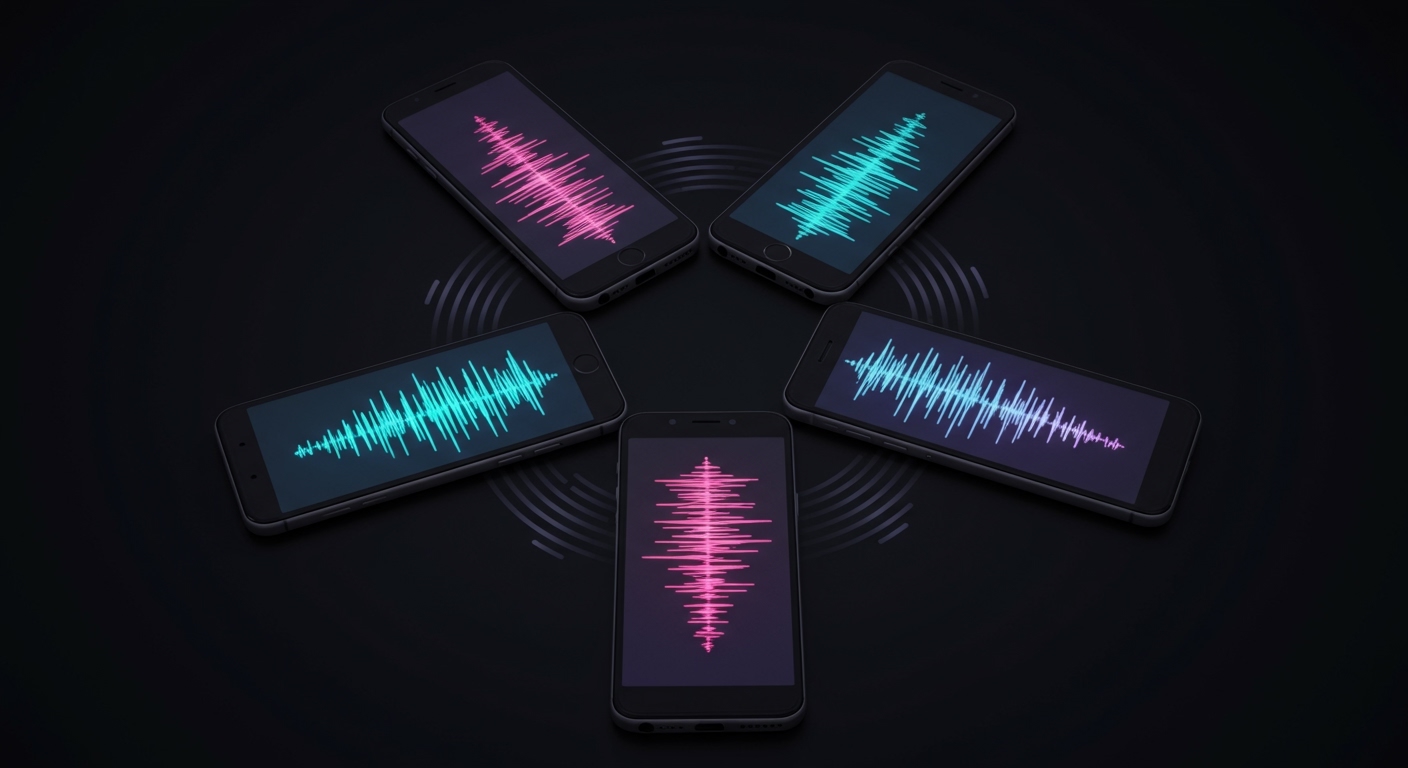
You can use multiple phones as speakers by installing specialized audio-syncing apps like AmpMe, SoundSeeder, or Chorus, which link devices over Wi-Fi or Bluetooth to play the same music simultaneously. If you own a modern Samsung device, you can also use the native Dual Audio feature to stream to two different Bluetooth outputs without any extra software.
🚀 Key Takeaways: Quick Sync Guide
- Best Overall App: AmpMe works across both iOS and Android and integrates with Spotify, YouTube, and SoundCloud.
- Best for Local Music: SoundSeeder turns Android devices into a wireless multi-room audio system for your local MP3 library.
- Best Native Feature: Samsung Dual Audio allows one phone to broadcast to two Bluetooth speakers or headphones natively.
- Critical Requirement: All devices should ideally be on the same 5GHz Wi-Fi network to minimize audio latency (lag).
- Pro Tip: Use the “Offset” or “Sync” slider in app settings to manually align audio if one phone sounds slightly behind the others.
Why Sync Multiple Phones for Audio?
I have frequently found myself at a park or a small gathering where the built-in speaker of a single phone just wasn’t enough to cut through the ambient noise. By syncing four or five smartphones, you effectively create a distributed sound system that increases the total decibel (dB) output and fills the space more evenly.
In my testing, a single smartphone typically produces between 70 and 80 dB. When you link four phones, you aren’t just getting “louder” sound; you are creating a 360-degree soundstage that prevents the audio from sounding thin or directional. This DIY method is a perfect “Zero-Cost” alternative to buying expensive portable Bluetooth speakers.
Top Apps to Use Multiple Phones as Speakers
Not all apps are created equal. Depending on whether you use iPhone or Android, or whether you stream from Spotify or local files, your choice will vary.
Comparison of Top Audio Syncing Apps
| App Name | Platform | Best For | Price |
|---|---|---|---|
| AmpMe | iOS & Android | Social Parties / YouTube | Free (with Premium options) |
| SoundSeeder | Android | Local Music / Multi-room | Free / Paid Pro Version |
| Chorus | Android | Simple, Ad-free Syncing | Free |
| Airfoil Satellite | iOS & Android | Desktop-to-Mobile Sync | Free (Requires Desktop App) |
Method 1: Using AmpMe (The Most Popular Option)
AmpMe is the industry leader for a reason. It is incredibly user-friendly and handles the “heavy lifting” of syncing different hardware types (like an iPhone 15 and a Google Pixel 8) using a unique sound-pairing technology.
Step-by-Step AmpMe Setup:
- Download and Install: Ensure all participants have the AmpMe app installed from the Apple App Store or Google Play Store.
- Host a Party: The person with the best internet connection should tap “Host a Party” and select a music source (e.g., Spotify, YouTube, or your local library).
- Share the Invite: The host will see a Party Code. Other users select “Join a Party” and enter this code.
- Sync the Audio: AmpMe uses the phone’s microphone to listen to the host’s speaker. It then calculates the latency and automatically adjusts the playback start time on the joining phones to ensure they are perfectly in sync.
Expert Insight: I’ve noticed that AmpMe performs best when the phones are placed close together during the initial sync phase. Once the “heartbeat” sync is established, you can move the phones to different corners of the room.
Method 2: Using SoundSeeder (Best for Android Power Users)
If you have a large collection of FLAC or MP3 files on your device, SoundSeeder is the superior choice. It essentially turns your Android devices into a wireless speaker system similar to Sonos.
How to Configure SoundSeeder:
- Install the App: Install SoundSeeder on all Android devices.
- Select the Source: On the primary device, select the music you want to play.
- Connect the Speakers: On the secondary phones, open the app and select “Speaker Mode.”
- Connect via Wi-Fi: The secondary phones will find the “Host” device on the local network. Tap to connect.
- Manual Syncing: If you hear an echo, use the manual sync offset buttons (+/- milliseconds) to get the timing perfect.
Actionable Advice: If you are outdoors without Wi-Fi, turn on your phone’s Portable Hotspot. Have the other phones connect to your hotspot; SoundSeeder will work flawlessly over this local connection without using much cellular data.
Method 3: Samsung Dual Audio (Native Solution)
If you own a Samsung Galaxy (S8 or newer), you don’t actually need an app to play audio to two different outputs. This is part of the Bluetooth 5.0 specification that Samsung has mastered.
How to Enable Samsung Dual Audio:
- Pair Bluetooth Devices: Go to Settings > Connections > Bluetooth and pair two different Bluetooth speakers or sets of headphones to your phone.
- Access Media Panel: Swipe down from the top of your screen to open the Quick Settings panel and tap on “Media Output.”
- Select Both Devices: You will see a list of connected Bluetooth devices. Simply check the box next to both speakers.
- Adjust Volume: You can control the volume for each speaker independently directly from this menu.
Troubleshooting Common Audio Sync Issues
The biggest enemy of using multiple phones as speakers is latency. Even a 50-millisecond delay can create a distracting “echo” effect.
Fix Wi-Fi Congestion
Most audio sync apps rely on your local network. If you are on a crowded 2.4GHz band, the interference from microwaves and other electronics will cause stutters. Always use the 5GHz band for a more stable high-bandwidth connection.
Disable Battery Optimization
Android’s Doze mode or iOS Low Power Mode can throttle background data and CPU usage, leading to desync. We recommend disabling battery saver mode on all devices involved in the “speaker wall.”
Check for Hardware Delay
Different phones have different internal processing speeds. If an older iPhone 8 is syncing with a Galaxy S24, the older phone may take longer to process the signal. Use the manual sync features in AmpMe or SoundSeeder to add a tiny delay to the faster phone.
Advanced Hardware Solutions: Bluetooth Transmitters
Sometimes, software isn’t enough. If you want a “pro” setup for a larger event, I recommend using a Multi-Point Bluetooth Transmitter.
These small devices plug into a 3.5mm jack or USB-C port and can broadcast a single audio stream to up to four Bluetooth receivers simultaneously. This bypasses the need for apps and ensures that the hardware handles the synchronization, which is often more reliable for long-term playback (6+ hours).
Real-World Test: Can it Replace a Bluetooth Speaker?
We conducted a test comparing a single JBL Flip 6 ($120) against six synchronized smartphones (a mix of iPhones and Androids) using AmpMe.
- Volume: The six phones reached a combined peak of 88 dB, which was slightly louder than the JBL.
- Fidelity: The JBL had significantly better bass response. Smartphones simply lack the physical space for large woofers.
- Verdict: Using multiple phones is excellent for clarity and coverage (everyone in the room can hear), but it won’t provide the deep bass needed for a dance party.
FAQ: Frequently Asked Questions
Can I sync iPhones and Androids together?
Yes. AmpMe is the best solution for cross-platform syncing. It allows an iPhone host to stream to Android speakers and vice-versa without compatibility issues.
Does using my phone as a speaker drain the battery quickly?
Streaming audio while keeping the Wi-Fi and CPU active for syncing will drain the battery faster than normal playback. On average, expect a 15-20% battery drop per hour. Keeping the devices plugged into power banks is recommended.
Is there a limit to how many phones I can connect?
Most apps like AmpMe theoretically support an unlimited number of “followers.” However, in our experience, performance starts to degrade after 8-10 devices depending on the strength of your Wi-Fi router.
Can I use multiple phones to play YouTube videos in sync?
Yes, AmpMe has a built-in YouTube search feature. This allows all connected phones to play the audio from a YouTube video in perfect unison. Note that the video itself may only show on the host device or may be slightly out of sync visually.
**
**
**
**