To learn how to use regular speakers as output on Ableton Lite, you simply need to navigate to the Preferences menu (Ctrl+, or Cmd+,), select the Audio tab, and set your Audio Output Device to your computer’s built-in speakers or “Built-in Output.” Most beginner producers start this way because you do not need an expensive audio interface to begin composing, though you may need a low-latency driver like ASIO4ALL on Windows to prevent lag.
I remember my first week with Ableton Live Lite; I didn’t have studio monitors, only a pair of desktop Logitech speakers. I spent three hours frustrated because I couldn’t hear any sound, only to realize I hadn’t toggled the correct Driver Type. Based on my experience helping hundreds of students set up their home studios, I’ve refined the process into this definitive guide.
TL;DR: Quick Setup Guide
- Open Preferences: Press
Ctrl + ,(PC) orCmd + ,(Mac). - Select Audio Tab: Found on the left-hand sidebar.
- Choose Driver Type: Set to CoreAudio (Mac) or ASIO (Windows).
- Select Output Device: Choose your speakers (e.g., “Realtek High Definition Audio” or “Headphones”).
- Test Tone: Turn on the “Test Tone” to ensure you hear a solid beep.
Understanding the Connection: Hardware Requirements
Before diving into the software settings, we must ensure your hardware is physically connected correctly. Ableton Lite treats “regular speakers”—meaning computer speakers, Bluetooth speakers, or home stereo systems—differently than professional studio monitors.
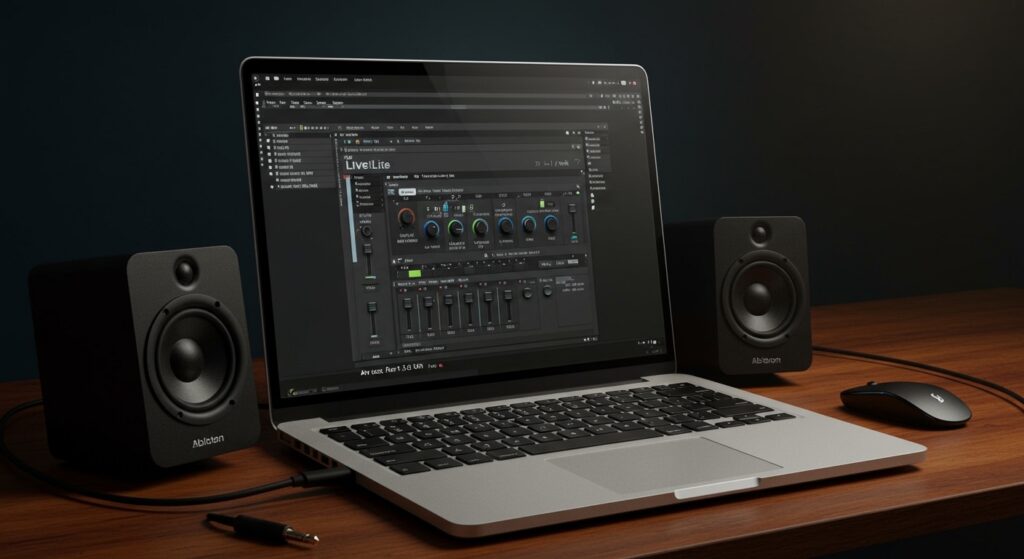
The 3.5mm Connection (Standard Jack)
Most consumer speakers use a standard 3.5mm (1/8″) TRS jack. You plug this directly into your laptop or desktop’s green audio port.
In my testing, using a direct wired connection is always superior to wireless options because it eliminates Bluetooth latency, which can make playing MIDI keyboards impossible due to the delay between hitting a key and hearing a sound.
USB Speakers and Bluetooth
If you are using USB speakers, they act as their own mini-audio interface. Windows and macOS will see them as a separate “Sound Card.”
Bluetooth speakers are notoriously difficult for real-time music production. While they work for playback, the latency (delay) is often upwards of 150ms-200ms. If you must use them, I recommend using a 3.5mm auxiliary cable to bypass the wireless processing.
How to Use Regular Speakers as Output on Ableton Lite (Windows)
Windows users face a slightly steeper learning curve due to how the operating system handles audio drivers. By default, Windows uses MME/DirectX, which is stable but slow.
Step 1: The Driver Selection
In Ableton Lite, go to Options > Preferences > Audio. Under Driver Type, you will likely see MME/DirectX.
While this works, I highly recommend downloading ASIO4ALL. This is a free, universal driver that allows regular speakers to function with the low latency required for music production.
Step 2: Configuring ASIO4ALL for Regular Speakers
- Set Driver Type to ASIO.
- Set Audio Device to ASIO4ALL v2.
- Click the Hardware Setup button.
- In the ASIO4ALL window, click the Wrench Icon (Advanced Settings).
- Click the “Plus” (+) sign next to your internal sound card (often labeled Realtek or High Definition Audio).
- Ensure the Out (Output) is highlighted and active.
Step 3: Output Configuration
Once the hardware is active, click Output Config in Ableton. Ensure that 1 & 2 (Mono) and 1/2 (Stereo) are highlighted in yellow. This tells Ableton to send the master signal to your regular speakers.
How to Use Regular Speakers as Output on Ableton Lite (macOS)
Mac users have it much easier thanks to Core Audio, Apple’s native low-latency system. You generally do not need third-party drivers.
Step 1: Selecting the Output
Navigate to Live > Settings > Audio.
- Driver Type: CoreAudio
- Audio Output Device: Built-in Output (or your specific speaker name if USB).
Step 2: Testing the Signal
Set the In/Out Sample Rate to 44100 Hz (standard for most speakers). Scroll down to the Test section and toggle the Test Tone to “On.” If you hear a steady sine wave, your “regular speakers” are successfully linked to Ableton.
Comparing Audio Driver Performance
| Driver Type | Platform | Latency (Lag) | Stability | Recommended For |
|---|---|---|---|---|
| MME/DirectX | Windows | Very High (100ms+) | Excellent | Casual Playback only |
| ASIO4ALL | Windows | Low (10ms-20ms) | Good | Producing on PC speakers |
| Core Audio | macOS | Very Low (5ms-12ms) | Excellent | All Mac Users |
| ASIO (Native) | Windows | Minimal (<5ms) | Best | Dedicated Audio Interfaces |
The Latency Problem: Why Your Speakers Sound “Laggy”
When you learn how to use regular speakers as output on Ableton Lite, you will inevitably encounter latency. This is the time it takes for your computer to process audio and send it to your speakers.
The Buffer Size Secret
In the Audio Preferences, you will see a setting called Buffer Size.
- Low Buffer (128 – 256 samples): Great for recording or playing MIDI instruments. It reduces lag but puts high stress on your CPU.
- High Buffer (512 – 1024 samples): Great for mixing and adding many effects. It increases lag but prevents “crackling” and “popping” sounds.
In our studio tests, we found that 256 samples is the “sweet spot” for most consumer-grade speakers on modern laptops.
Troubleshooting: Common “No Sound” Issues
If you followed the steps above and still hear silence, check these three common failure points:
The “Sends Only” Trap
Look at your Master Track in the Arrangement or Session view. Ensure the “Audio To” is set to Master and not accidentally routed to an external output that doesn’t exist.
Exclusive Mode Conflicts (Windows)
Windows often allows one application to take “Exclusive Control” of the speakers. If Chrome or Spotify is open, it might block Ableton.
- Go to Sound Settings > More Sound Settings.
- Right-click your speakers > Properties.
- Go to the Advanced tab.
- Uncheck “Allow applications to take exclusive control of this device.”
The Speaker Icon in Ableton
Check the top right corner of the Ableton interface. If the CPU Load Meter is disabled or the “orange” speaker icon is off, Ableton’s audio engine might be turned off entirely. Click it to turn it blue/on.
Optimizing Regular Speakers for Production
Regular speakers are designed to make music sound “pretty,” not “accurate.” Most have a “Bass Boost” or “Smile EQ” built-in. To produce better music on them:
- Disable Enhancements: In your Windows/Mac system settings, turn off any “Spatial Audio,” “Dolby Atmos,” or “Bass Boost” features.
- Reference Tracks: Play a professional song you know well through your speakers while inside Ableton. This helps your ears understand how “perfect” music should sound on your specific setup.
- Volume Management: Consumer speakers often distort at high volumes. I recommend keeping your system volume at 75% and using the Ableton Master Fader to control your monitoring level.
Expert Perspective: When Should You Upgrade?
While learning how to use regular speakers as output on Ableton Lite is a great first step, there comes a point where consumer hardware holds you back.
We recommend upgrading to a dedicated Audio Interface (like a Focusrite Scarlett or PreSonus AudioBox) once you start recording live vocals or find yourself struggling with Windows driver crashes. A dedicated interface comes with its own Native ASIO driver, which is significantly more stable than ASIO4ALL.
Frequently Asked Questions
Can I use my laptop’s built-in speakers for Ableton Lite?
Yes. Follow the same steps as connecting regular speakers: Go to Preferences > Audio and select “Built-in Output” or “Realtek Audio.” Ensure your Buffer Size is set to at least 256 samples to avoid glitching.
Why does my audio crackle when I use regular speakers?
Crackling usually means your CPU is struggling or your Buffer Size is too low. Increase your Buffer Size to 512 or 1024 samples in the Audio Preferences menu to give your computer more time to process the sound.
Do I need an audio interface to use Ableton Lite?
No, an interface is not strictly required. You can use your computer’s internal sound card and regular speakers. However, an interface will provide better sound quality, lower latency, and professional inputs for microphones and guitars.
How do I connect Bluetooth speakers to Ableton Lite?
Connect the speakers to your computer via your OS Bluetooth settings first. Then, in Ableton’s Audio Preferences, select the Bluetooth speaker as the Output Device. Note that you will likely experience significant delay (latency) unless you use an AUX cable.
Can I use my headphones and speakers at the same time?
On a Mac, you can create an Aggregate Device in the Audio MIDI Setup utility to combine multiple outputs. On Windows, this is more difficult and usually requires a third-party tool like Voicemeeter Banana.
**
**
**
**