Unlocking Better Sound: A Step-by-Step Guide on How to Connect iLive Speakers to TV
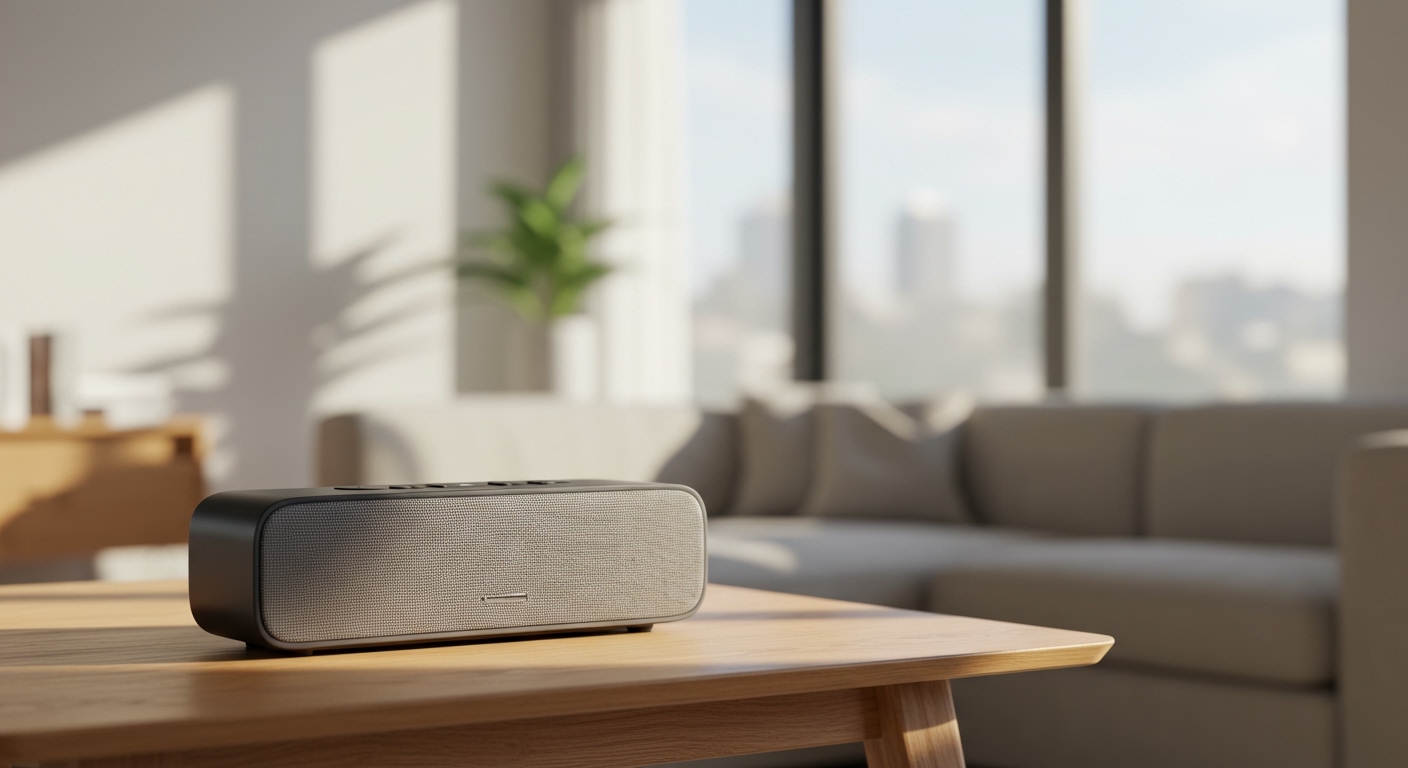
Tired of the tinny, underwhelming sound coming from your TV’s built-in speakers? You’re not alone. Upgrading your audio with an external speaker is one of the best improvements you can make to your home entertainment setup. The good news is that connecting your iLive speaker, whether it’s a soundbar or a portable unit, is a straightforward process.
As a home audio enthusiast, I’ve connected dozens of speaker systems, and I can tell you that the key is simply knowing your options. The primary methods are Bluetooth for a clean, wireless setup or a wired connection (like Optical, RCA, or AUX) for maximum reliability. We’ll walk through each method step-by-step to get you enjoying rich, immersive sound in minutes.
Key Takeaways: Connecting Your iLive Speaker
- Check Your Ports: Before starting, identify the audio output ports on your TV (e.g., Optical, RCA, Headphone Jack) and the input ports on your iLive speaker.
- Wireless is Easy: For TVs with Bluetooth, this is the quickest way to connect. Simply put your speaker in pairing mode and find it in your TV’s Bluetooth menu.
- Wired is Reliable: For the best audio quality and zero lag, a Digital Optical cable is the top choice. RCA and 3.5mm AUX cables are also excellent, reliable options.
- Change TV Settings: After connecting, you must go into your TV’s sound settings and change the Audio Output from “TV Speakers” to your chosen connection (e.g., “Bluetooth,” “Optical,” or “Audio Out”).
- Pairing Two Speakers: Some iLive models support True Wireless Stereo (TWS), allowing you to connect two iLive speakers together for a true stereo experience. This feature is model-specific.
Understanding the Primary Ways to Connect iLive Speakers to a TV
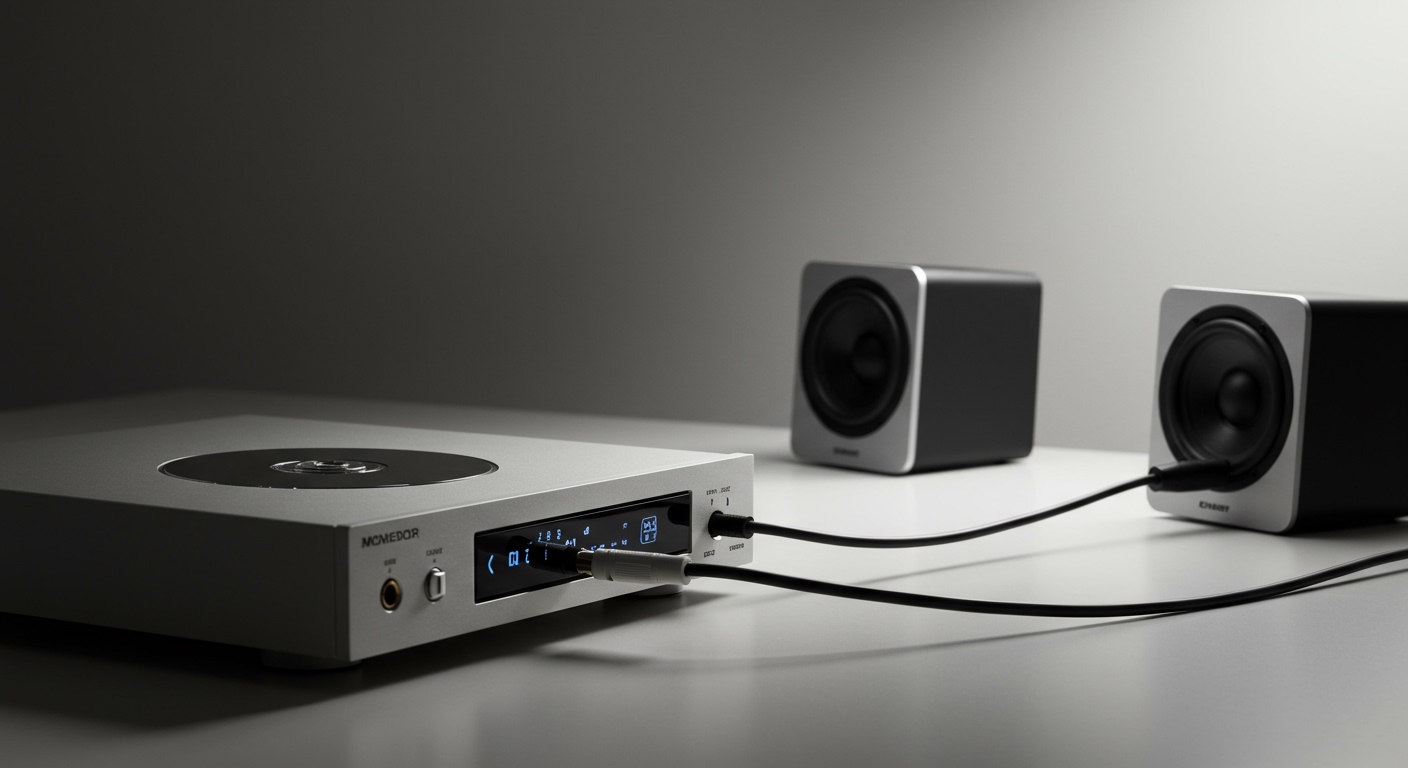
Before we dive into the “how-to,” it’s crucial to understand the different connection types. The method you choose will depend entirely on the ports available on both your television and your iLive speaker. Take a quick look at the back of both devices.
Here are the most common options you’ll encounter:
- Bluetooth: A wireless connection perfect for reducing cable clutter. Most modern smart TVs and nearly all iLive speakers have this feature.
- Digital Optical (Toslink): This is a high-quality wired digital connection that uses a fiber optic cable. It’s the preferred method for soundbars and home theater systems for its clear, interference-free signal.
- RCA (Red & White): These are classic analog connectors. Many TVs have an RCA audio output, and many iLive soundbars and speaker systems have a matching input.
- 3.5mm AUX (Headphone Jack): A simple and universal wired connection. If your TV has a headphone output port, you can use a standard AUX cable to connect to your speaker.
In my experience, a wired connection like Optical or RCA offers the most stable performance, completely eliminating any potential for audio lag or interference that can sometimes affect Bluetooth.
Step-by-Step: How to Connect iLive Speakers to TV via Bluetooth
A wireless Bluetooth connection is often the fastest and easiest way to get set up, with no extra cables required. It’s a fantastic option for a clean, minimalist entertainment center.
Step 1: Activate Pairing Mode on Your iLive Speaker
First, you need to make your speaker “discoverable.”
- Power on your iLive speaker.
- Press and hold the Bluetooth or Pairing button on the speaker or its remote. On many models I’ve tested, like the iLive ITB474B Soundbar, this button is often marked with the standard Bluetooth “B” symbol.
- You should see an indicator light begin to flash, usually blue. This blinking light signals that the speaker is actively searching for a device to connect to.
Pro Tip: If you’re unsure how to activate pairing mode, consult your speaker’s user manual. A quick search for your model number online will usually bring it up.
Step 2: Access Your TV’s Bluetooth Settings
Now, grab your TV remote and navigate to its settings menu. The exact path can vary by brand, but it’s generally similar.
- For Samsung TVs: Go to Settings > Sound > Sound Output > Bluetooth Speaker List.
- For LG TVs: Navigate to Settings > All Settings > Sound > Sound Out > Bluetooth.
- For Sony TVs (Android/Google TV): Go to Settings > Remotes & Accessories > Bluetooth settings > Add device.
- For Roku TVs: Go to Settings > Remotes & devices > Pair Bluetooth device.
Step 3: Search for and Select Your iLive Speaker
Once in the Bluetooth menu, your TV will automatically start searching for nearby devices.
- Wait a few moments for a list of discoverable devices to appear.
- Look for your iLive speaker’s model name in the list (e.g., “iLive Soundbar” or “ISB33B”).
- Select your speaker from the list to initiate the pairing process.
Step 4: Confirm the Connection and Test
Your TV may ask you to confirm the pairing. Once you accept, the connection should be established within seconds.
- The flashing blue light on your iLive speaker will turn solid, indicating a successful connection.
- A confirmation message will likely appear on your TV screen.
- Play a video or music on your TV. The sound should now come from your iLive speaker. You may need to turn up the volume on both the speaker and the TV to hear it properly at first.
The Wired Guide: Connecting iLive Speakers with Cables
For a rock-solid connection with the highest possible audio fidelity, a cable is the way to go. Here’s how to use the three most common wired methods.
Method 1: Using an RCA (Red and White) Cable
This is a reliable analog connection that has been a standard for decades.
- Identify the Ports: Locate the RCA “AUDIO OUT” ports on your TV—they will be colored red and white. Find the corresponding RCA “AUDIO IN” or “AUX IN” ports on your iLive speaker.
- Connect the Cable: Plug the red connector into the red port and the white connector into the white port on both the TV and the speaker. The connection must be OUT from the TV and IN to the speaker.
- Select the Input: Use the “Source” or “Input” button on your iLive speaker’s remote or body to switch it to “AUX” or “LINE IN.”
- Change TV Audio Settings: Go to your TV’s Settings > Sound > Audio Output and select “Audio Out (Fixed/Variable)” or a similar option. You’re telling the TV to send sound through the cables instead of its own speakers.
Method 2: Using a Digital Optical Cable (Toslink)
This is my personal recommendation for the best quality from most soundbars. It provides a pure digital signal that is immune to electrical interference.
- Remove the Caps: A brand new optical cable has tiny plastic caps on the ends to protect them. You must remove these before plugging them in! I’ve seen this simple mistake stump many people.
2.