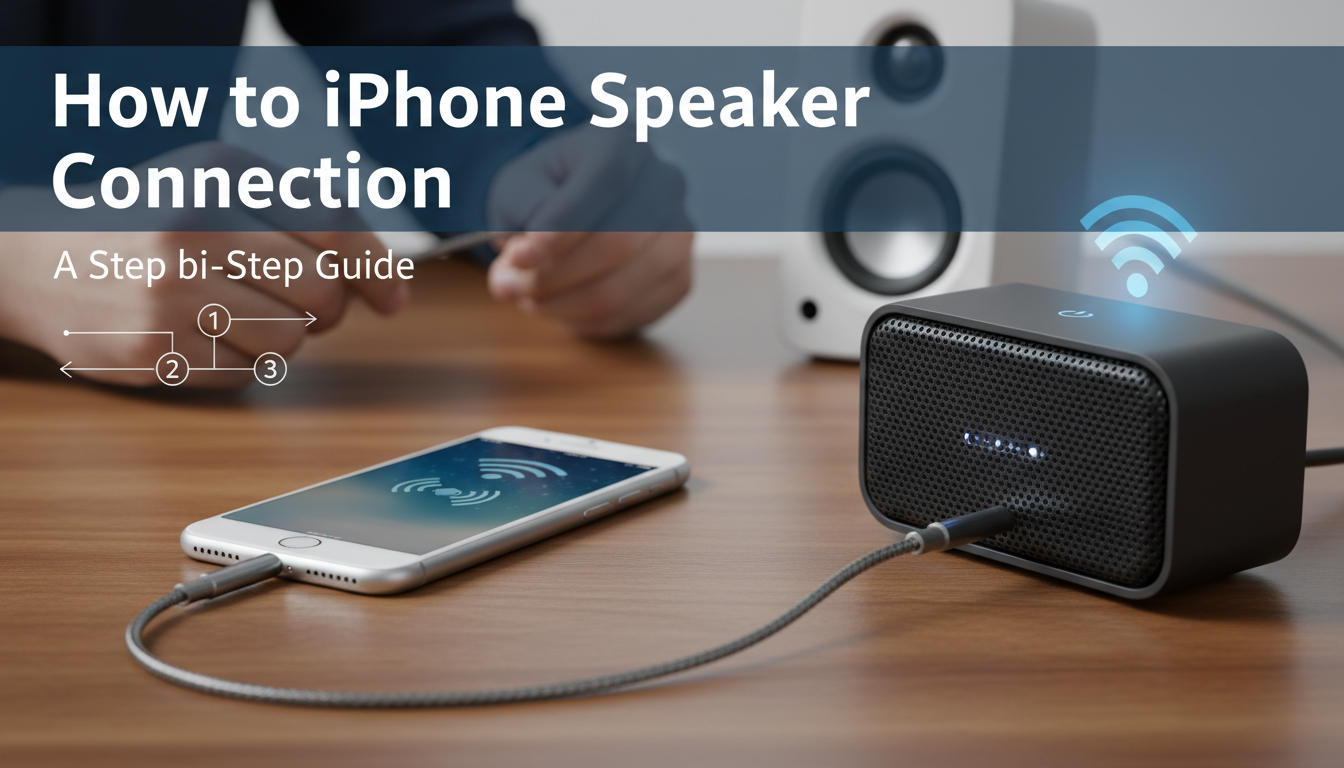
How to Connect iPhone to External Speakers: A Step-by-Step Guide
Struggling to get big sound from your iPhone? While the built-in speakers are fine for a quick video, they lack the power and quality for truly enjoying music or podcasts. The good news is that connecting your iPhone to virtually any external speaker is simple, whether you’re using a modern wireless device or a classic stereo system. The primary methods are Bluetooth for ultimate convenience, AirPlay for higher-quality wireless streaming within the Apple ecosystem, and a wired connection using an adapter for maximum reliability and compatibility with older gear.
This guide will walk you through every option step-by-step. I’ve spent years connecting iPhones to everything from portable JBL speakers for beach trips to vintage Hi-Fi systems, and I’ll share the practical tips I’ve learned to ensure you get the best possible audio experience, hassle-free.
Key Takeaways / TL;DR
- Bluetooth Pairing: The most common and easiest wireless method. Ideal for portable speakers, car stereos, and soundbars. Go to Settings > Bluetooth on your iPhone.
- AirPlay 2: Uses Wi-Fi for a longer range and higher-quality audio stream. It’s the best choice for Apple users with compatible speakers like a HomePod or systems from Sonos and Bose.
- Wired Connections: The most reliable method that guarantees zero lag. You’ll need an adapter, like a Lightning to 3.5mm for older iPhones or a USB-C to 3.5mm for iPhone 15 and newer.
- Check Your Speaker First: The connection method you choose depends entirely on the inputs your speaker offers (Bluetooth, Wi-Fi/AirPlay, 3.5mm AUX, or RCA).
Method 1: How to Connect My iPhone to Bluetooth Speakers
This is the go-to method for most people and nearly all modern portable speakers. Bluetooth is a wireless technology that allows devices to connect over short distances. It’s incredibly convenient and setup takes less than a minute.
Step-by-Step Bluetooth Pairing Guide
Connecting to a new speaker is straightforward. I use this process daily with my Bose SoundLink speaker.
- Activate Pairing Mode on Your Speaker: This is the most crucial step. Look for a Bluetooth button (it often has the “B” symbol). You may need to press it once or press and hold it for a few seconds. Most speakers will make a sound or have a flashing blue light to indicate they are in pairing mode.
- Open iPhone Settings: On your iPhone, tap the Settings app (the gear icon).
- Go to Bluetooth: Tap on the Bluetooth menu option near the top.
- Turn Bluetooth On: Make sure the toggle switch at the top of the screen is green. Your iPhone will automatically start searching for nearby devices.
- Select Your Speaker: After a few moments, you should see the name of your speaker appear under the “Other Devices” list. Tap on its name.
- Confirm Connection: Once connected, the speaker will move to the “My Devices” list and show “Connected.” Your speaker will likely play a confirmation sound. Now, any audio from your iPhone will play music from your iPhone to the speakers.
Troubleshooting Common Bluetooth Issues
Sometimes things don’t go as planned. If you’re having trouble, here are a few things I always check first:
- Speaker Isn’t in Pairing Mode: Your iPhone can’t find a speaker that isn’t actively looking for a connection. Double-check that the speaker’s light is flashing.
- Too Far Away: Bluetooth has a range of about 30 feet (10 meters). Make sure your iPhone and speaker are close to each other, especially during the initial pairing.
- Previous Connection: If the speaker was previously connected to another device (like an iPad or a roommate’s phone), it might be trying to reconnect to that device instead. Turn off Bluetooth on other nearby devices.
- “Forget This Device”: If you’ve connected before but it’s not working now, go to Settings > Bluetooth, tap the “(i)” icon next to the speaker name, and select “Forget This Device.” Then, start the pairing process over from scratch. This solves the problem 90% of the time for me.
Pro Tip: How to Connect iPhone to Sony Speakers Bluetooth
While the general steps above work for most brands, some, like Sony, have specific features. For many Sony speakers, you’ll need to press and hold the power button until you hear a voice prompt say “Bluetooth pairing.” Additionally, Sony offers the Sony | Music Center app, which can simplify managing connections and adjusting sound settings.
Method 2: Using AirPlay 2 for Higher Quality Wireless Audio
If you have a Wi-Fi-enabled speaker, like an Apple HomePod, Sonos One, or certain models from brands like Bose or B&W, AirPlay 2 is the superior wireless option. It uses your Wi-Fi network instead of Bluetooth, offering several key advantages.
Why Use AirPlay?
- Better Sound Quality: Wi-Fi has more bandwidth than Bluetooth, allowing for lossless audio streaming.
- Longer Range: Your range is limited by your Wi-Fi network, not the 30-foot limit of Bluetooth.
- Multi-Room Audio: With AirPlay 2, you can stream music to multiple speakers throughout your home simultaneously and control the volume for each one individually.
How to Use AirPlay to Connect to Speakers
- Connect to Wi-Fi: Ensure both your iPhone and your AirPlay-compatible speaker are connected to the same Wi-Fi network.
- Play Audio on Your iPhone: Start playing a song, podcast, or video in any app.
- Open Control Center:
- Tap the AirPlay Icon: In the top-right corner of the music playback box, you’ll see a small icon that looks like a circle with a triangle at the bottom. Tap it.
- Select Your Speaker(s): A list of available AirPlay devices will appear. Tap the circle next to the speaker you want to use. You can select multiple speakers for synchronized playback.
Method 3: How to Connect Old Speakers to iPhone (The Wired Way)
For the best possible audio fidelity or for connecting to speakers without any wireless capability, a wired connection is unbeatable. This is how you connect an iPhone to stereo speakers, AV receivers, or any speaker with an audio input jack. The key is having the right adapter.
Choosing the Right Adapter for Your iPhone
Your choice of adapter depends on your iPhone model and the speaker’s input.
| Adapter Type | Best For | iPhone Model | Key Feature |
|---|---|---|---|
| Lightning to 3.5mm Adapter | Speakers with a standard AUX input, car stereos, headphones | iPhone 7 – iPhone 14 | The classic “dongle” for most modern iPhones before the switch to USB-C. |
| USB-C to 3.5mm Adapter | Same as above | iPhone 15 and newer | The new standard for the latest iPhone models. |
| Lightning/USB-C to RCA Cable | Older stereo receivers, amplifiers, home theater systems | All models | Connects directly to the red and white RCA inputs for true stereo sound. |
Step-by-Step Guide for a Wired Connection
- Identify the Speaker’s Input: Look at the back of your speaker or stereo receiver. Is it a single 3.5mm AUX port (like a headphone jack) or the paired red and white RCA ports?
- Get the Correct Adapter: Purchase the adapter that matches both your iPhone’s port (Lightning or USB-C) and the speaker’s input.
- Plug Everything In:
- Select the Right Source: On your stereo or powered speakers, make sure you select the correct input source (e.g., “AUX,” “LINE IN,” “TAPE”).
- Play Your Music: Start playing audio on your iPhone. You may need to turn the volume up on both your iPhone and the speaker system to hear it.
From my own experience, I recently hooked up my iPhone 14 to my father’s 1980s Marantz stereo receiver. I used an official Apple Lightning to 3.5mm Adapter connected to a 3.5mm-to-RCA cable. The audio quality was phenomenal—far richer and more detailed than what I get from a