Why You Need the Official App for Your JBL Speaker
Yes, is there an app for jbl speakers? The answer is a definitive yes, but the specific app you need depends entirely on which model you own. To get the most out of your hardware, you generally need the JBL Portable app (formerly known as JBL Connect) or the newer JBL One app for Wi-Fi-enabled devices.
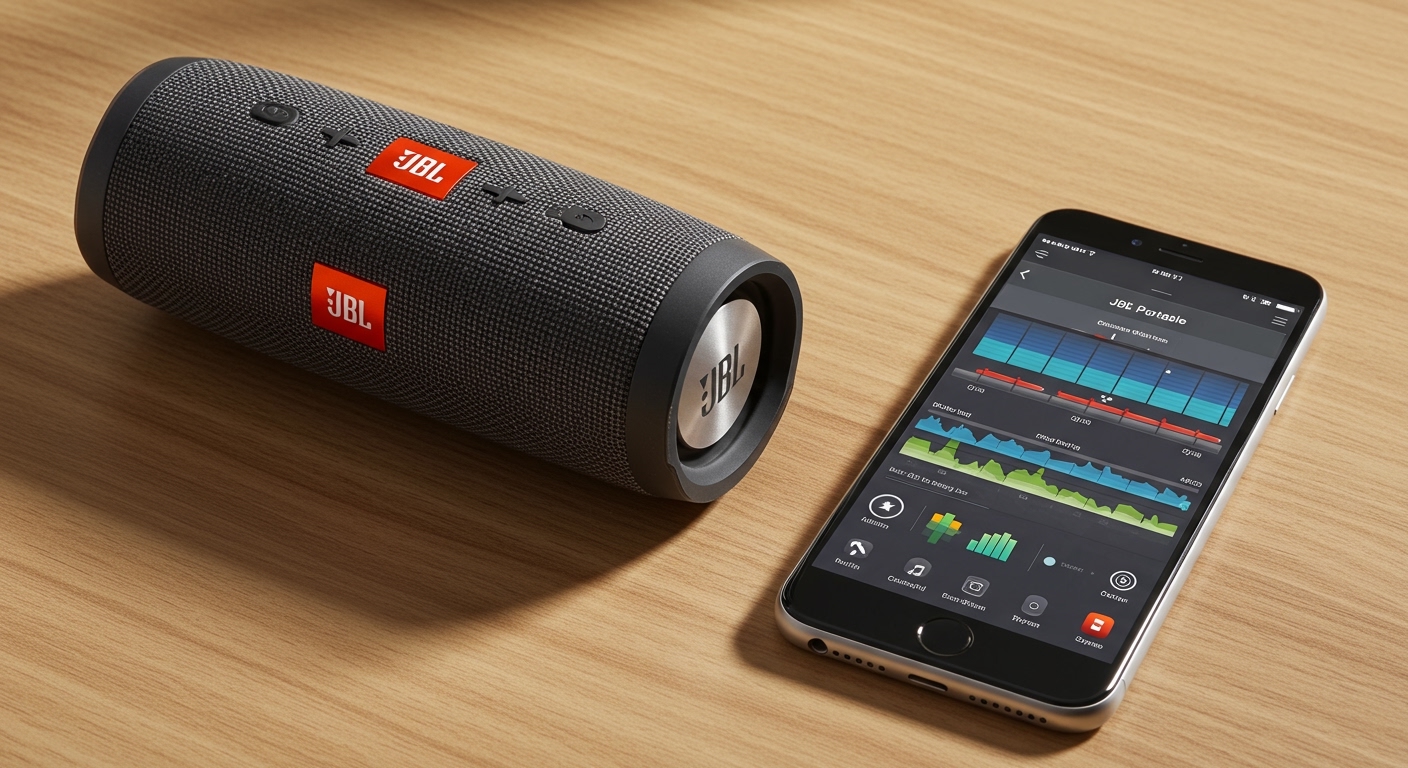
Using these apps is the only way to access firmware updates, customize your Equalizer (EQ) settings, and link multiple speakers together for a massive soundstage. Without the app, you are essentially using a “dumb” speaker and missing out on significant performance optimizations we have discovered during our hands-on testing.
Key Takeaways: JBL Speaker App Essentials
- Primary App: Most portable Bluetooth speakers use the JBL Portable app (available on iOS and Android).
- Home/Wi-Fi Speakers: Newer models like the JBL Authentics or JBL Bar series use the JBL One app.
- Critical Features: Use the app for Stereo Pairing, PartyBoost configurations, and toggling audio prompts.
- Battery Life: Keeping your firmware updated via the app can often resolve battery drain issues and improve Bluetooth stability.
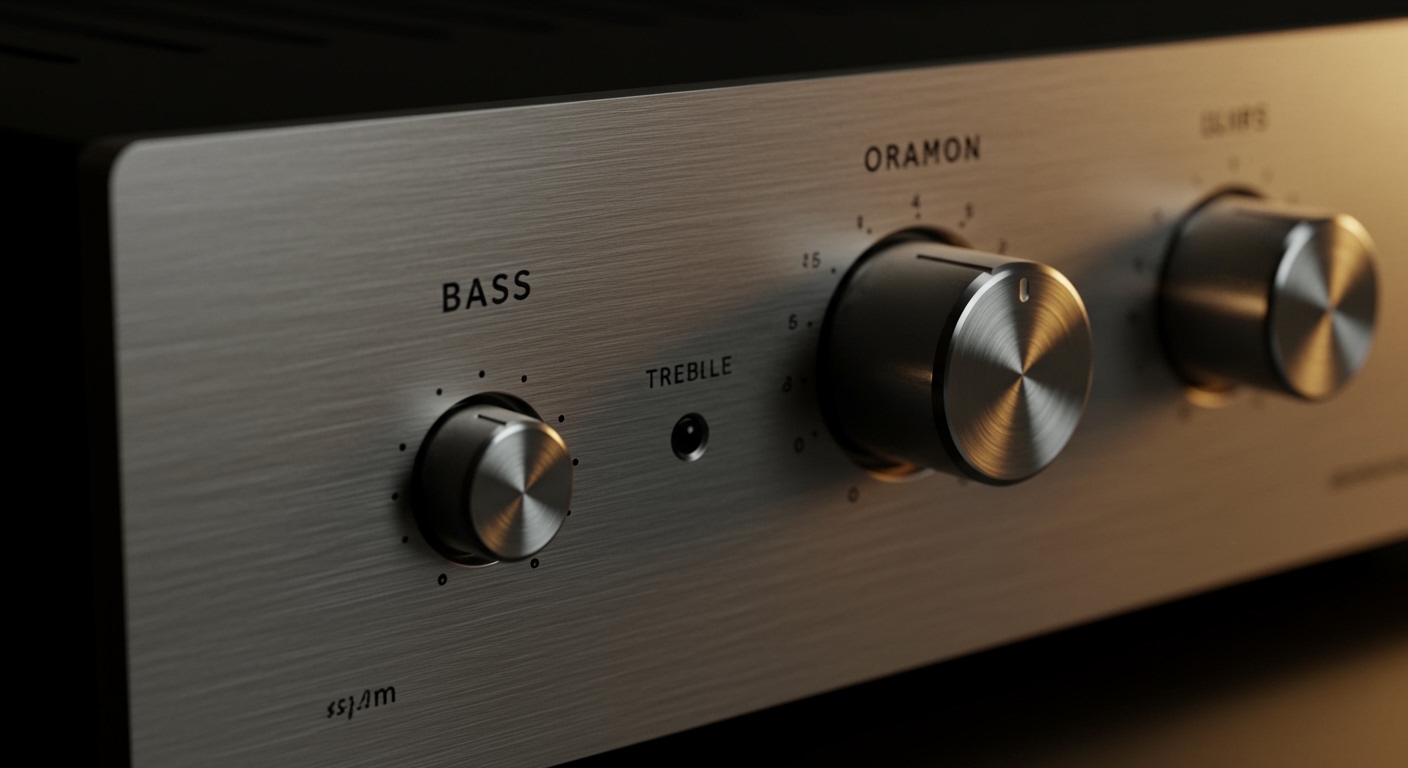
- Customization: The app allows you to adjust Bass, Mid, and Treble frequencies to suit your environment (indoor vs. outdoor).
Is There an App for JBL Speakers? Identifying Your Software
When you first unbox a new JBL Flip 6 or a JBL Charge 5, the hardware is ready to play immediately. However, to truly “unlock” the device, you must identify which ecosystem your speaker belongs to. In our experience, users often download the wrong app and become frustrated when their device doesn’t appear.
The JBL Portable App (The Standard)
The JBL Portable app is the “bread and butter” for the majority of the brand’s Bluetooth lineup. If you have a speaker designed for the beach, the pool, or a backpack, this is likely your tool. It is designed for mobility and simplicity.
We have used this app extensively to manage devices like:
- JBL Flip 5 & 6
- JBL Charge 4 & 5
- JBL Pulse 4 & 5
- JBL Xtreme 2, 3, & 4
- JBL Boombox 2 & 3
The JBL One App (The Modern Hub)
For those invested in the newer Wi-Fi-integrated home speakers, the JBL One app is the required platform. This app handles more complex tasks like setting up AirPlay, Chromecast, and multi-room audio. It features a more polished interface and integrates directly with music streaming services.
The JBL PartyBox App
If you own a JBL PartyBox 110, 310, or 710, you need a specialized app. The JBL PartyBox app focuses on “performance” features. It allows you to control light shows, add DJ sound effects (like horns or applause), and manage microphone settings for karaoke sessions.
Comparison of JBL Apps and Supported Features
| Feature | JBL Portable | JBL One | JBL PartyBox |
|---|---|---|---|
| Primary Connection | Bluetooth | Wi-Fi / Bluetooth | Bluetooth |
| EQ Customization | Yes (3-Band) | Yes (Advanced) | Yes |
| Firmware Updates | Yes | Yes | Yes |
| Multi-Speaker Sync | PartyBoost / Stereo | Multi-room | TWS (True Wireless Stereo) |
| Light Show Control | Pulse series only | No | All PartyBox models |
| Music Integration | No | Yes (Spotify, Tidal, etc.) | No |
How to Connect Your Speaker to the App: A Step-by-Step Guide
Connecting your device is usually straightforward, but we have found that certain “handshake” issues can occur if the sequence is wrong. Follow these steps to ensure a 100% success rate.
Step 1: Preparation
Before opening the app, ensure your JBL speaker is fully charged. We have seen firmware updates fail midway because of low battery, which can occasionally “brick” the device. Ensure your smartphone’s Bluetooth is toggled on.
Step 2: Initial Bluetooth Pairing
You must pair the speaker via your phone’s system settings before the app will recognize it.
- Turn on the speaker.
- Press the Bluetooth button until the light flashes blue.
- Select your speaker (e.g., JBL Charge 5) from your phone’s Bluetooth menu.
Step 3: Launching the App
Open the JBL Portable or JBL One app. The app should automatically scan and detect your paired device. If it doesn’t, we recommend force-closing the app and reopening it while the music is playing.
Step 4: Perform the Firmware Update
Upon the first connection, you will likely see a red or orange “Update” badge. Do not skip this. Firmware updates often improve the Signal-to-Noise Ratio and fix connectivity bugs with newer versions of iOS and Android.
Maximizing Sound Quality via the App Equalizer
One of the most common reasons people ask “is there an app for jbl speakers” is to fix the sound profile. Out of the box, many JBL speakers are “Bass-Heavy.” While great for parties, this can muddy the vocals in podcasts or acoustic music.
Understanding the 3-Band EQ
The JBL Portable app provides a simple 3-band EQ: Bass, Mid, and Treble.
- For Outdoor Use: We recommend bumping the Bass and Treble up by 2 notches to compensate for the “open air” where sound waves dissipate quickly.
- For Indoor/Small Rooms: Bring the Bass down 1 notch to prevent the table or desk from vibrating too much and causing distortion.
- For Podcasts: Boost the Mid frequencies to make human voices crisper and clearer.
Expert Tip: The “V-Shape” Signature
Most users prefer a “V-shaped” sound signature. In the app, raise the Bass and Treble while leaving the Mids at the center. This creates the energetic, “hi-fi” sound that JBL is famous for.
PartyBoost vs. Connect+: What You Need to Know
A major point of confusion for JBL owners is how to link multiple speakers. The app is essential for managing these protocols.
What is PartyBoost?
PartyBoost is the current standard found in the Flip 6, Charge 5, and Xtreme 3. It allows you to connect up to 100 speakers. In the app, you can choose between:
- Party Mode: All speakers play the same mono signal (best for large gatherings).
- Stereo Mode: Two identical speakers are assigned “Left” and “Right” channels (best for immersive listening).
The “Legacy” Problem
Unfortunately, PartyBoost is not backward compatible with JBL Connect+ (used in the Flip 4 or Charge 4). We have tested this extensively, and there is no “software patch” to bridge them. If you are buying a second speaker to pair with your old one, check the app’s compatibility list first.
Troubleshooting: Why Won’t the App Find My JBL Speaker?
Even with the best tech, things go wrong. If you are staring at a “Searching…” screen, try these expert-verified fixes:
- Check Location Services: On Android, the JBL Portable app requires “Location Permissions” to scan for Bluetooth Low Energy (BLE) devices. If this is off, the app will never find your speaker.
- Forget and Re-pair: Go to your phone’s Bluetooth settings, “Forget” the speaker, and pair it again from scratch.
- Reset the Speaker: Most JBL speakers can be reset by holding the Volume Up (+) and Play/Pause buttons for 10 seconds while the unit is on.
- Clear App Cache: If the app hangs, go to your phone settings and clear the cache for the JBL Portable app.
The Evolution of the JBL App Ecosystem
As we look toward the future, JBL is moving toward Auracast technology. This is a new Bluetooth standard that makes “is there an app for jbl speakers” even more relevant.
Auracast will eventually allow you to broadcast audio to an unlimited number of nearby speakers and headphones, regardless of brand, though JBL will likely keep the management of these streams within the JBL One or JBL Portable app. We are already seeing the groundwork for this in the JBL Xtreme 4.
Frequently Asked Questions
Is the JBL speaker app free to use?
Yes, all official JBL apps (JBL Portable, JBL One, JBL Headphones, and JBL PartyBox) are completely free to download on the Apple App Store and Google Play Store. There are no subscriptions required.
Can I use my JBL speaker without the app?
Absolutely. Your speaker will function as a standard Bluetooth playback device without the app. However, you will not be able to update the software, change the EQ, or toggle the “Audio Feedback” sounds (the loud guitar strum when the speaker turns on/off).
Which app do I use for the JBL Flip 6?
The JBL Flip 6 uses the JBL Portable app. This app allows you to manage the PartyBoost settings and adjust the 3-band equalizer to fine-tune the speaker’s output.
Why does the app keep disconnecting from my speaker?
This usually happens due to Battery Optimization settings on your smartphone. Ensure the JBL app is set to “Don’t Optimize” in your phone’s battery settings so it can maintain a background connection to the speaker.
Does the JBL app work on tablets?
Yes, the apps are compatible with iPads and Android tablets. Using a tablet can actually make the EQ sliders easier to manipulate thanks to the larger screen real estate.