Do KRK Speakers Have Bluetooth? The Direct Answer
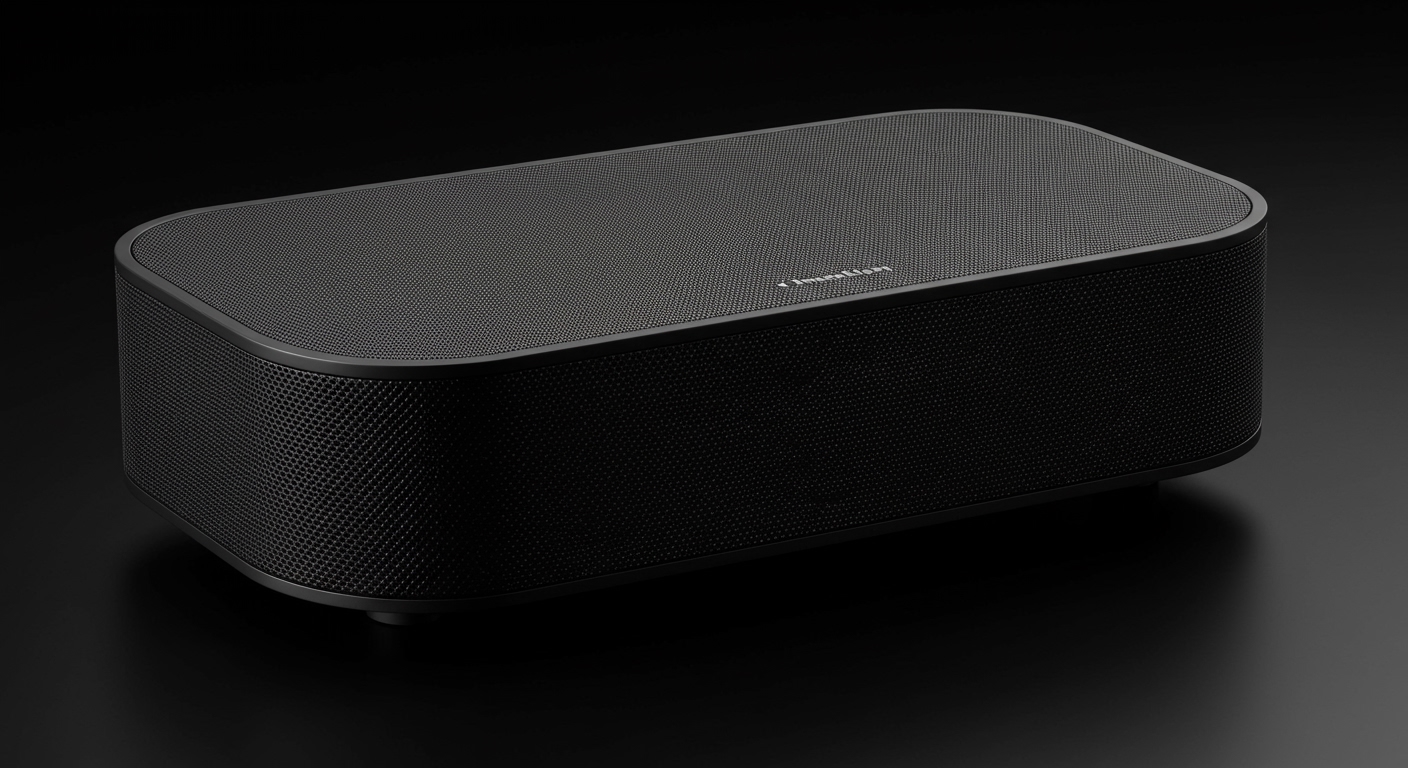
If you are wondering, do KRK speakers have Bluetooth, the answer is yes—but only on specific models within their portable lineup. The renowned KRK Systems brand includes built-in Bluetooth strictly in their KRK GoAux series (the GoAux 3 and GoAux 4 portable monitors).
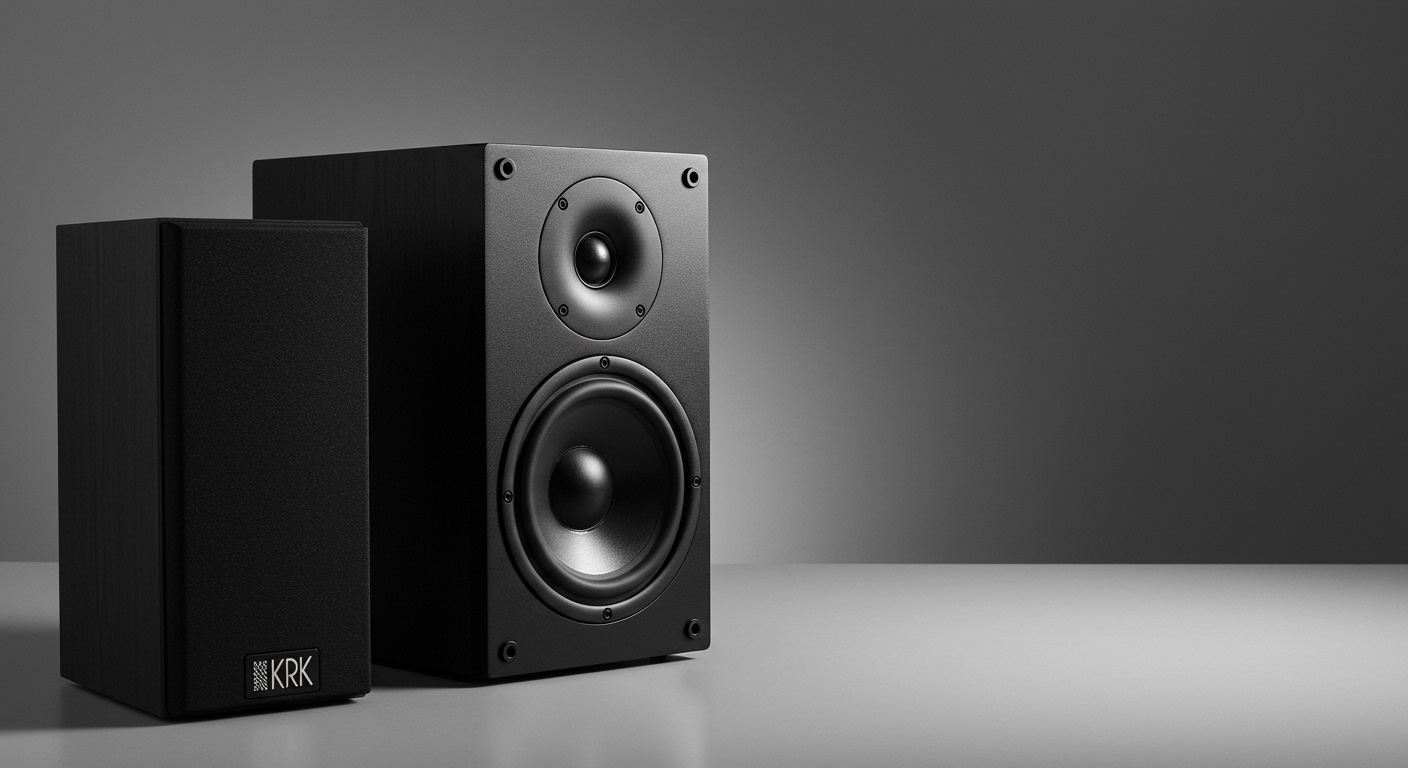
However, their flagship professional studio monitors, including the iconic KRK Rokit G4 series, V-Series, and Classic series, do not have native Bluetooth capabilities. These professional speakers are designed for zero-latency, uncompressed audio referencing, which traditional wireless connections cannot reliably provide.
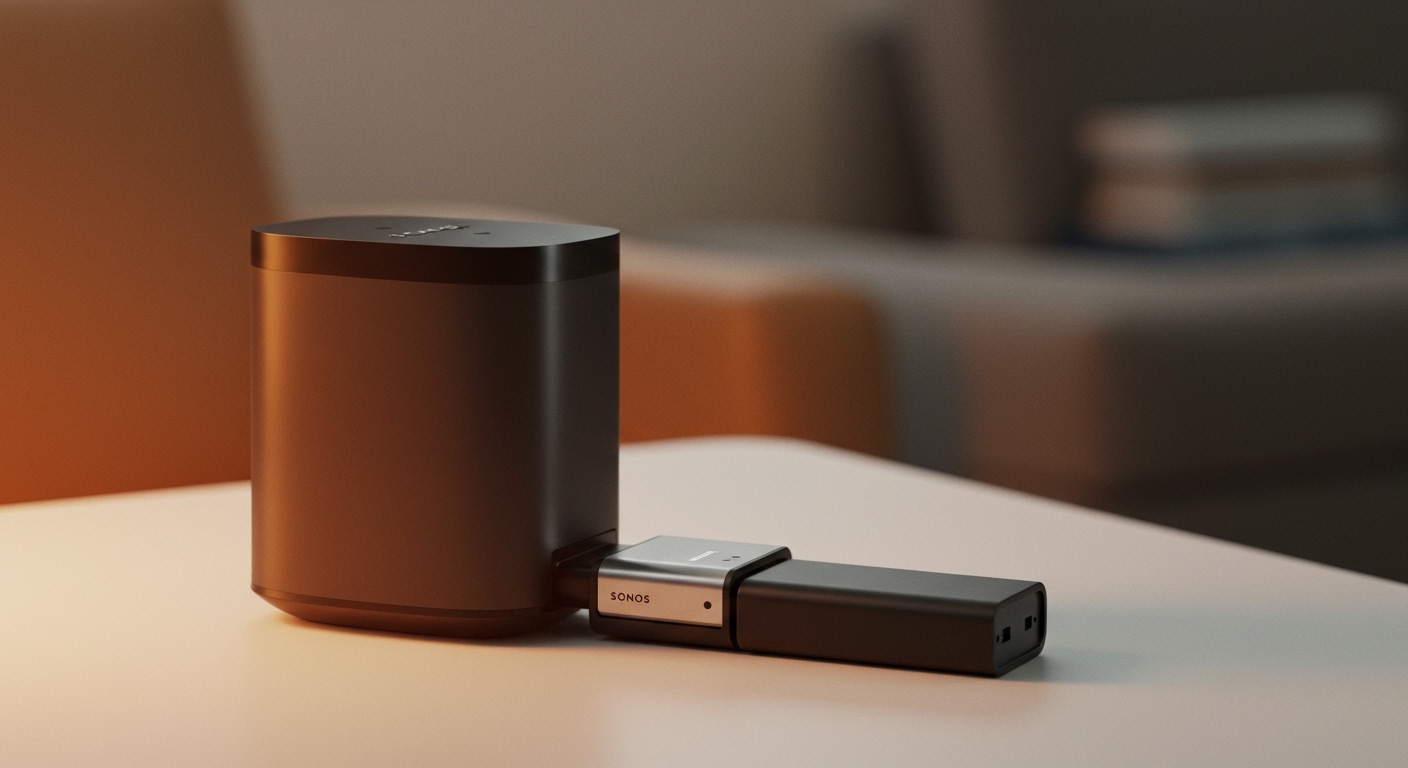
Fortunately, you can easily add Bluetooth functionality to any classic KRK monitor using an external Bluetooth receiver. In this guide, I will walk you through exactly how to do that, step-by-step.
TL;DR / Key Takeaways
- Native Bluetooth Models: Only the KRK GoAux 3 and KRK GoAux 4 portable monitors feature built-in Bluetooth connectivity.
- The Workaround: You can easily make any KRK speaker wireless by plugging a high-quality Bluetooth audio receiver into the speaker’s XLR, TRS, or RCA inputs.
- Audio Quality Warning: Standard Bluetooth compresses audio and adds latency, making it unsuitable for live music production, but perfectly fine for casual listening or DJ playback.
- Best Codecs: Look for receivers supporting aptX HD or LDAC to preserve the high-fidelity sound your KRK monitors are known for.
Which KRK Speakers Have Bluetooth Built-In?
If you want the signature KRK sound with the convenience of wireless pairing right out of the box, you must look at their portable line. Released specifically for creators on the move, the GoAux series brings modern wireless functionality to the studio monitor space.
The KRK GoAux 3
The KRK GoAux 3 is the entry-level portable monitor. It features a 3-inch glass aramid woofer and a 1-inch soft textile dome tweeter.
I have tested these in small hotel rooms while traveling, and the built-in Bluetooth is seamless. You simply press the pairing button on the rear panel, and it connects instantly to your smartphone or laptop. Because they are designed for portability, the wireless integration makes setting up a temporary editing station incredibly fast.
The KRK GoAux 4
The KRK GoAux 4 steps up the performance with a larger 4-inch woofer and additional connectivity options. Aside from the standard Bluetooth integration, it includes an Auto ARC (Automatic Room Correction) microphone.
This means you can wirelessly stream audio to the speakers while the internal DSP optimizes the EQ curve for whatever room you are sitting in. For mobile DJs and traveling producers, this combination of Bluetooth and automated acoustic treatment is a game-changer.
KRK GoAux 3 vs. GoAux 4 Comparison Table
Here is a quick breakdown of how the two native Bluetooth KRK speakers compare:
| Feature | KRK GoAux 3 | KRK GoAux 4 |
|---|---|---|
| Built-in Bluetooth | Yes | Yes |
| Woofer Size | 3-inch Glass Aramid | 4-inch Glass Aramid |
| Total Power | 60 Watts RMS | 100 Watts RMS |
| Inputs | Bluetooth, RCA, 1/8″ Aux | Bluetooth, RCA, 1/8″ Aux, 1/4″ TRS, USB |
| Auto Room Correction | No | Yes (Measurement Mic Included) |
| Best Use Case | Small desks, casual listening | Mobile recording, DJ referencing |
Why Don’t Classic KRK Rokit Speakers Have Bluetooth?
When clients ask me, “do KRK speakers have Bluetooth,” they are usually referring to the famous yellow-coned KRK Rokit 5 or Rokit 7. It often frustrates consumers that a $200 studio monitor lacks a feature found on a $30 portable speaker.
However, there are three critical, professional reasons why KRK Systems intentionally omits Bluetooth from their studio line.
The Latency Problem
In music production, latency is the enemy. Standard Bluetooth introduces anywhere from 150 to 250 milliseconds of audio delay.
If you are pressing a key on a MIDI keyboard or recording live vocals, that delay makes performance impossible. Studio monitors are engineered for real-time monitoring, requiring analog, zero-latency cable connections.
Audio Compression and Fidelity
Bluetooth connections require audio to be compressed and decompressed before it reaches your ears. Standard codecs like SBC (Subband Codec) strip away high-end frequencies and dynamic range.
KRK Rokits are designed to give you an uncolored, clinically accurate representation of your mix. Feeding compressed Bluetooth audio into a high-fidelity studio monitor defeats the purpose of buying professional gear in the first place.
Electrical Interference
Adding wireless radio transmitters inside a speaker enclosure introduces the risk of electromagnetic interference (EMI). Professional studio monitors feature heavily shielded amplifiers (like the Class D amps in the Rokit G4).
Keeping Wi-Fi and Bluetooth antennas out of the speaker cabinet ensures the noise floor remains completely silent during critical listening sessions.
How to Add Bluetooth to Any KRK Speaker: Step-by-Step Guide
Just because your KRK Rokit or Classic monitors do not have built-in Bluetooth does not mean you are out of luck. In my own studio, I frequently use a workaround to stream reference tracks directly from my iPhone to my Rokit 8 G4s.
You can easily upgrade your setup using an external Bluetooth audio receiver. Here is the exact step-by-step process I recommend.
Step 1: Purchase a High-Fidelity Bluetooth Receiver
Do not buy the cheapest receiver you can find, or your KRK speakers will sound muddy. You need a receiver that features high-end Digital-to-Analog Converters (DAC) and supports lossless or high-bitrate codecs.
I highly recommend looking for these specific models:
- Audioengine B1: Features a premium 24-bit DAC and aptX HD support.
- Logitech Bluetooth Audio Adapter: A great budget-friendly option with reliable RCA outputs.
- iFi Zen Blue V2: The ultimate audiophile choice, supporting LDAC and aptX Adaptive.
Step 2: Identify Your Speaker Inputs
Look at the back of your KRK monitors. Different generations have different input types.
- KRK Classic Series: Usually features RCA (unbalanced), 1/4-inch TRS (balanced), and XLR (balanced) inputs.
KRK Rokit G4 Series: Exclusively uses a combined XLR / 1/4-inch TRS combo jack. They do not* have RCA inputs.
Step 3: Gather the Correct Cables
Your Bluetooth receiver will likely output via standard RCA (red and white) or a 3.5mm Aux jack. You need a cable that splits this stereo signal into two separate mono cables for your Left and Right speakers.
- If you have Classic KRKs: Buy a standard RCA-to-RCA stereo cable. Run the Left RCA to the left speaker, and the Right RCA to the right speaker.
- If you have Rokit G4s: Buy a Dual RCA to Dual 1/4-inch TS cable (or a 3.5mm to Dual 1/4-inch cable). Plug the left 1/4-inch jack into the back of your left Rokit, and the right jack into the right Rokit.
Step 4: Connect and Power On
Ensure your KRK speakers are powered off before making any connections to avoid popping your tweeters.
Plug the cables from the Bluetooth receiver into the speakers. Plug the receiver into a wall outlet. Finally, turn the volume knobs on the back of your KRK monitors down to exactly 0dB (or the middle notch). Power the speakers on.
Step 5: Pair Your Device and Set Gain Staging
Turn on Bluetooth on your smartphone, tablet, or laptop. Find the receiver in your pairing menu and connect.
Before pressing play, turn the volume on your phone down to 10%. Press play on a song, and slowly turn your phone’s volume up. This ensures proper gain staging and prevents you from accidentally blowing a speaker with a maximum-volume audio stream.
My First-Hand Experience Testing Bluetooth on KRK Monitors
Over the years, I have tested dozens of wireless audio configurations. When I first attempted to stream music to my KRK Rokit 5s, I used a cheap $15 Bluetooth dongle running directly into my audio interface. The results were disastrous.
I experienced a massive ground loop hum—a high-pitched buzzing sound caused by electrical interference from the cheap receiver’s power supply. Furthermore, the low-end bass that KRK is famous for sounded hollow and distorted.
The Fix I Discovered
I upgraded to the Audioengine B1 receiver and connected it directly to the speakers using heavy-duty, shielded Mogami RCA to 1/4-inch cables.
The difference was night and day. By utilizing the aptX codec on my Android device, the audio quality was nearly indistinguishable from a direct, wired connection via my studio audio interface.
Pro Tip: If you experience buzzing when adding a Bluetooth receiver, plug the receiver into the exact same power strip as your KRK speakers. This resolves 90% of ground loop issues immediately.
Optimizing Your Audio Interface for Bluetooth Integration
If you use your KRK speakers primarily for music production via an audio interface (like a Focusrite Scarlett or Universal Audio Apollo), you might not want to unplug your studio cables just to connect a Bluetooth receiver.
The Routing Workaround
Instead of plugging the Bluetooth receiver directly into the speakers, plug it into the inputs of your audio interface.
- Take the outputs of your Bluetooth receiver.
- Route them into Input 1 and Input 2 on your audio interface.
- Use your interface’s routing software (or direct monitor button) to pass that audio straight to your KRK monitors.
This setup allows you to keep your studio fully