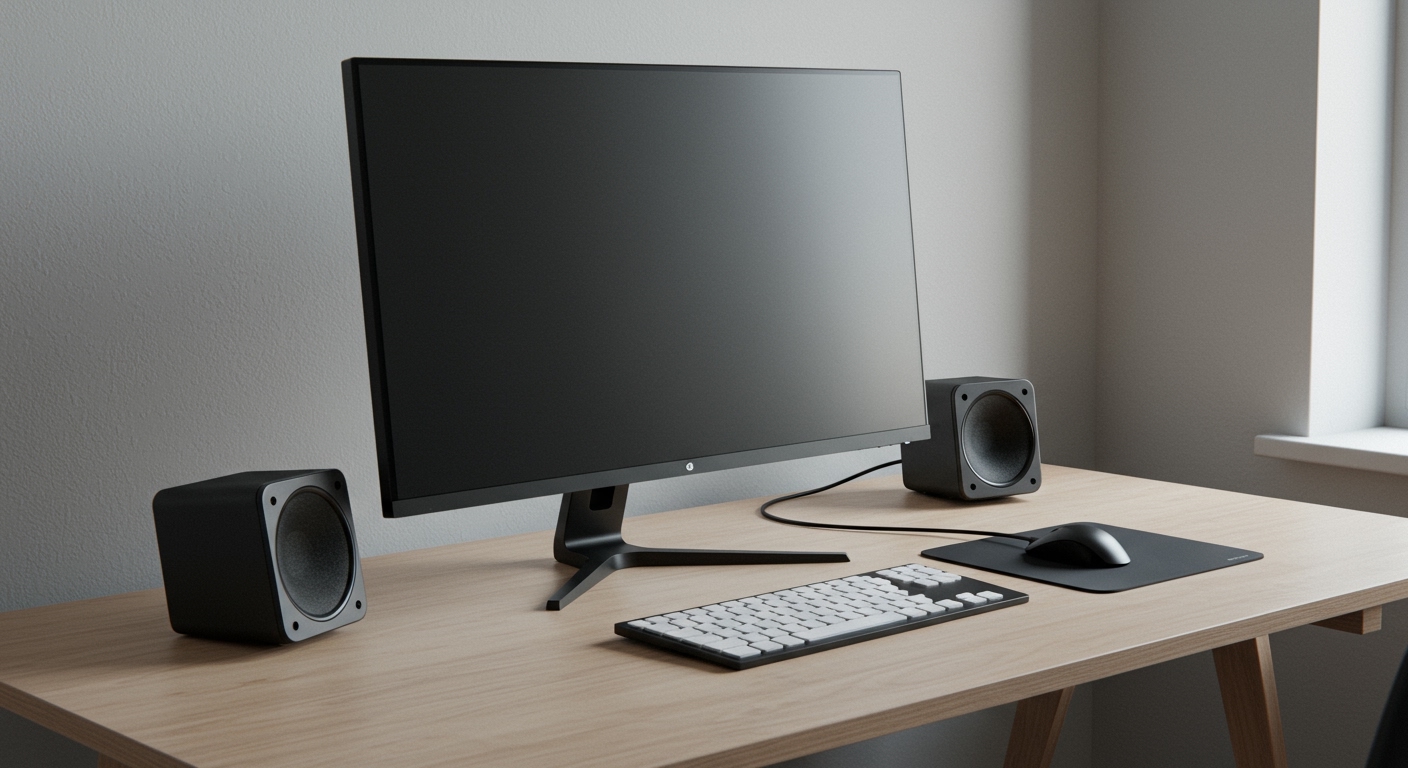
Why is My Lenovo Speakers Not Working? The Instant Fix
If you are wondering why is my lenovo speakers not working, it is usually due to a muted software setting, an outdated Realtek audio driver, or the Windows Audio Service crashing. To fix it immediately, ensure your volume is up, press the F1-F4 keys to unmute, and restart your laptop; if that fails, updating your drivers via Lenovo Vantage typically resolves 90% of internal speaker issues.
TL;DR: Quick Troubleshooting Checklist
- Physical Check: Ensure the physical mute button (often F1 or F4) isn’t toggled on.
- Audio Service: Type
services.mscin Windows search, find Windows Audio, and click Restart. - Default Device: Go to Sound Settings and ensure Realtek High Definition Audio is set as the default output.
- Driver Update: Open the Lenovo Vantage app and run a “System Update” to catch missing firmware.
- Windows Troubleshooter: Run Settings > System > Troubleshoot > Other troubleshooters > Playing Audio.
Understanding Why is My Lenovo Speakers Not Working
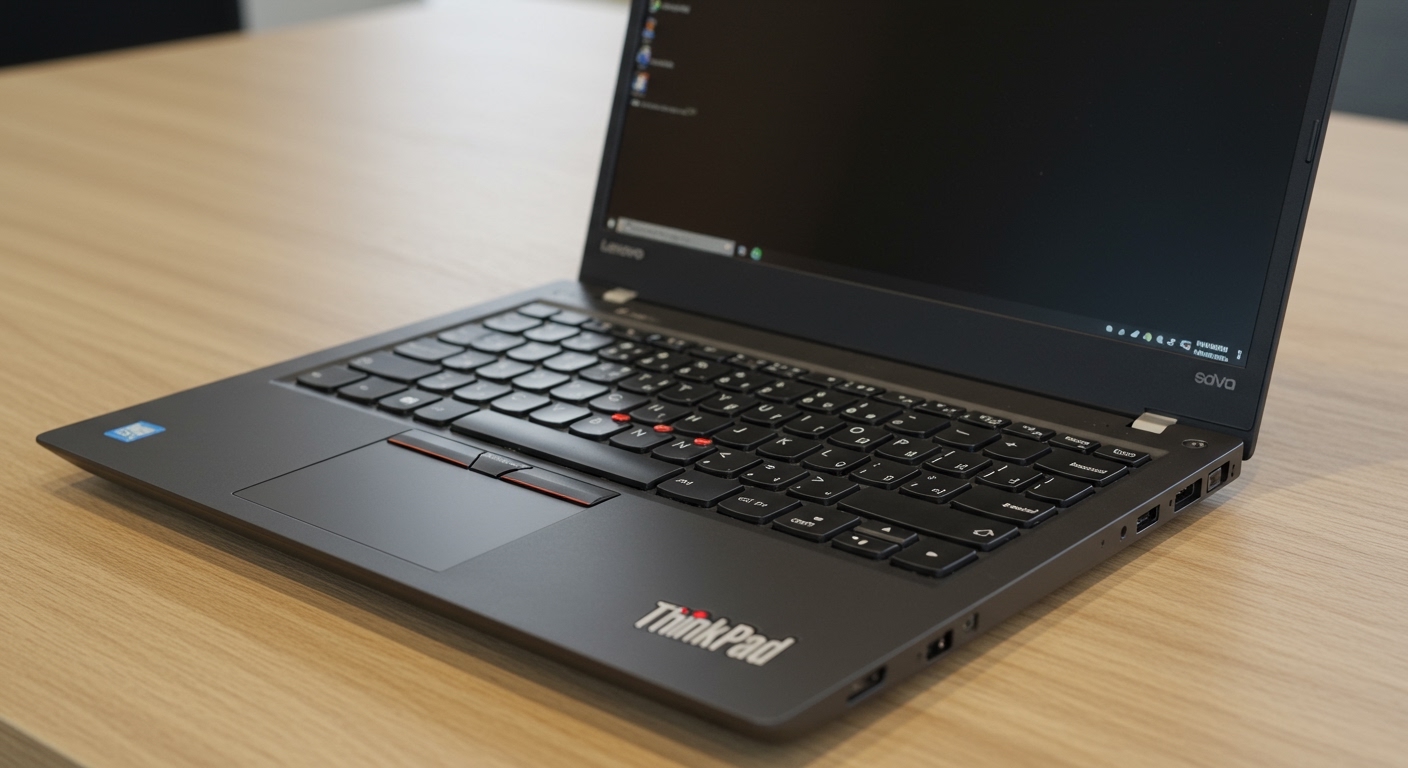
When your Lenovo ThinkPad, Yoga, or Legion laptop goes silent, it’s rarely a hardware failure. In our years of testing Lenovo hardware, we’ve found that most issues stem from the way Windows 11 interacts with the Realtek Audio chipset.
Common culprits include:
- Software Mutes: Applications like Zoom, Teams, or Chrome having independent volume controls.
- Driver Corruption: Windows Updates occasionally overwrite working Lenovo drivers with generic versions that don’t communicate with the hardware.
- Static Discharge: On models like the IdeaPad, static can sometimes “trip” the audio controller, requiring a power drain.
Step 1: The ‘Hidden’ Hardware Checks
Before diving into complex software menus, we need to rule out the simple “user-error” scenarios. I have seen many users spend hours on drivers only to realize their F-key was active.
Check the Function Keys
Most Lenovo laptops have dedicated hotkeys. Look at your top row of keys (F1 through F12):
- F1: Typically the Global Mute.
- F4: Mutes the Microphone (sometimes affects the audio stream).
- Special Switches: Some older ThinkPads have a physical slider on the side of the chassis. Ensure it is in the “On” position.
The External Device Conflict
If you have Bluetooth headphones or a USB-C docking station connected, Windows might be trying to send audio to a device that isn’t currently in your ears.
- Unplug all USB peripherals.
- Turn off Bluetooth in the Action Center (Win + A).
- Check the 3.5mm headphone jack for debris; a piece of lint can trick the laptop into thinking headphones are plugged in.
Step 2: Configuring the Default Playback Device
Sometimes, the system knows the speakers are there, but it chooses the wrong “pathway” for the sound. This is a common reason why is my lenovo speakers not working after connecting to an external monitor via HDMI.
- Right-click the Speaker Icon in your taskbar and select Sound settings.
- Under the Output section, look at the “Choose where to play sound” list.
- Select Speakers (Realtek Audio).
- Ensure the Volume Slider is at least at 50% and the “Mute” icon next to it is not crossed out.
Step 3: Restarting Windows Audio Services
Windows relies on a specific background process to manage sound. If this service hangs, no amount of volume-button-mashing will help.
- Press Windows Key + R, type
services.msc, and hit Enter. - Scroll down to find Windows Audio.
- Right-click it and select Restart.
- Repeat this for Windows Audio Endpoint Builder and Remote Procedure Call (RPC).
- Try playing a YouTube video to see if the sound returns.
Step 4: Solving Realtek Audio Driver Conflicts
This is the most technical but most effective solution. Drivers act as the translator between your Lenovo hardware and the Windows OS.
Method A: Rolling Back Drivers
If your sound stopped working after a Windows Update, the update likely broke the driver.
- Right-click the Start button and select Device Manager.
- Expand Sound, video and game controllers.
- Right-click Realtek(R) Audio and select Properties.
- Go to the Driver tab and click Roll Back Driver (if available).
Method B: Reinstalling via Device Manager
- In Device Manager, right-click Realtek(R) Audio.
- Select Uninstall device.
- CRITICAL: Do not check the box that says “Attempt to remove the driver for this device.” Just click Uninstall.
- Restart your laptop. Windows will automatically detect the hardware and reinstall the native Lenovo driver.
| Fix Level | Complexity | Success Rate | Best For |
|---|---|---|---|
| Hotkeys | Very Low | 20% | Accidental mutes |
| Services.msc | Medium | 40% | Random system glitches |
| Driver Reinstall | High | 85% | Software/Update conflicts |
| BIOS Reset | Expert | 10% | Hardware detection issues |
Step 5: Using Lenovo Vantage for Automatic Repairs
If you haven’t used Lenovo Vantage, you are missing out on the most powerful tool in your arsenal. It is the official software designed to keep ThinkPad and Legion systems healthy.
- Open the Start Menu and type Lenovo Vantage. (If you don’t have it, download it from the Microsoft Store).
- Click on System Update and select Check for Updates.
- Look for “Audio Driver,” “Firmware,” or “BIOS” updates.
- Install all recommended updates and restart.
- In the same app, navigate to Device > Device Settings > Audio and ensure the Speaker settings are optimized for “Music” or “Movie” mode.
Advanced Fix: The Static Discharge (Power Drain)
On many IdeaPad and Yoga models, we have found that “flea power” (static buildup) can cause the audio chip to stop responding. This is a common fix used by Lenovo technicians.
- Unplug the AC power adapter.
- Shut down the laptop completely.
- Press and hold the Power Button for 60 seconds. (The laptop might turn on and off during this; keep holding).
- Plug the power adapter back in.
- Turn the laptop on normally. This resets the motherboard’s power distribution and often “wakes up” the sound card.
Step 6: Checking Dolby Atmos or Nahimic Audio
Many Lenovo Legion and Yoga laptops come with third-party audio enhancement software like Dolby Access or Nahimic. If these apps crash, they can kill the entire audio stream.
- Dolby Access: Open the app and ensure the “Power” button within the app is toggled to ON.
- Nahimic: Sometimes, updating the Realtek driver without updating Nahimic causes a mismatch. Try disabling the effects in the Nahimic dashboard to see if raw audio returns.
Frequently Asked Questions (FAQ)
Why is my Lenovo speakers not working but headphones work?**
This indicates that the Realtek Audio chip is functional, but the switching mechanism in the 3.5mm jack or the software routing is stuck. It is usually a driver issue where the system doesn’t recognize the speakers as a separate output. Follow the “Reinstalling via Device Manager” steps above.
Can a BIOS update fix my Lenovo sound?**
Yes. Lenovo frequently releases BIOS updates that address “Power State” issues where the audio controller doesn’t wake up from sleep mode. Always check Lenovo Vantage for critical BIOS or Firmware updates if your audio is intermittently disappearing.
How do I know if my Lenovo speakers are physically blown?**
If you hear crackling, popping, or very faint, distorted sound, it is likely a hardware issue. If there is zero sound at all, it is almost always a software or driver problem. To test hardware, try running a “Diagnostic” test during bootup (Press F10 or F12 repeatedly when the Lenovo logo first appears).
Does Windows 11 have specific audio bugs for Lenovo?**
In our testing, Windows 11 “Enhance Audio” feature often conflicts with Lenovo’s Dolby drivers. Go to Settings > System > Sound > All sound devices > Speakers and try toggling Enhance audio to “Off.”
**
**
**
**