Understanding Why a Monitor Printer and Speakers are All Types of Devices
A monitor printer and speakers are all types of devices known as output hardware, which serve the critical role of translating digital data from your computer into a format that humans can see, hear, or touch. While input devices like keyboards and mice send information to the processor, these output components allow the computer to communicate its results back to you.
I have spent over a decade building high-end workstations and testing consumer electronics, and I have found that understanding these device categories is the “secret sauce” to building a functional home office. Whether you are a gamer looking for low-latency visuals or a professional photographer needing color-accurate prints, knowing how these peripherals interact with your system is essential.
TL;DR: Key Takeaways on Output Devices
- Definition: These devices receive data from a computer and convert it into physical or sensory output.
- Visuals: Monitors provide the primary interface for almost all computing tasks.
- Hard Copies: Printers turn digital documents into physical media.
- Audio: Speakers convert electrical signals into sound waves.
- The Ecosystem: A monitor printer and speakers are all types of devices that complete the “Feedback Loop” of computing.
Defining the Output Device Category
In the world of computer architecture, hardware is generally split into four functional groups: Input, Processing, Storage, and Output. When we say a monitor printer and speakers are all types of devices, we are specifically highlighting the “Output” pillar.
Output devices are the final destination for processed information. For example, when you type a letter, the computer processes the keystrokes, but you cannot see the result until the monitor displays the text. You cannot share a physical copy until the printer produces it. You cannot hear the notification chime without speakers.
How Data Becomes Information
The process follows a specific flow that we often take for granted:
- Binary Data: The CPU and GPU process information in 1s and 0s.
- Conversion: Digital-to-Analog converters (DACs) or video controllers translate this data.
- Physical Manifestation: The device receives the signal and produces light, ink patterns, or sound waves.
Based on my testing of various hardware configurations, the quality of these output devices often dictates the “perceived speed” of a computer. A fast PC with a blurry monitor still feels slow to the user.
Monitors: The Primary Visual Interface
The monitor is arguably the most vital output device. Without it, interacting with modern operating systems like Windows or macOS would be nearly impossible for the average user. Over the years, I’ve seen monitor technology shift from bulky CRTs to LCDs, and now to breathtaking OLED panels.
Common Monitor Technologies
- LCD (Liquid Crystal Display): The standard for most offices. They use a backlight (usually LED) to illuminate pixels.
- OLED (Organic Light Emitting Diode): Each pixel produces its own light. This results in “infinite” contrast and perfect blacks. I highly recommend these for creative professionals.
- IPS (In-Plane Switching): A type of LCD known for excellent color accuracy and wide viewing angles.
- TN (Twisted Nematic): Older tech but favored by some gamers for extremely high refresh rates and low response times.
Key Specs to Look For
When choosing a monitor, don’t just look at the size. Pay attention to:
- Resolution: 1080p (FHD), 1440p (QHD), or 4K (UHD). Higher is sharper.
- Refresh Rate: Measured in Hertz (Hz). A 144Hz monitor feels much smoother than a standard 60Hz screen.
- Color Gamut: Look for sRGB or DCI-P3 percentages if you do photo or video editing.
Printers: Bridging the Digital and Physical Worlds
While we live in an increasingly paperless world, the printer remains a staple in the output device category. Whether it’s for legal documents, marketing materials, or shipping labels, the printer takes digital files and creates a “hard copy.”
The Two Main Contenders: Inkjet vs. Laser
In my experience, the biggest mistake people make is buying the cheapest printer available without looking at the long-term ink costs.
| Feature | Inkjet Printers | Laser Printers |
|---|---|---|
| Best For | Photos and high-quality color | Text-heavy documents and volume |
| Technology | Liquid ink sprayed through nozzles | Toner powder fused by heat |
| Initial Cost | Usually Lower | Usually Higher |
| Cost Per Page | Higher (Ink is expensive) | Lower (Toner lasts longer) |
| Speed | Slower | Faster |
Specialized Printers
Beyond the standard office units, we also have:
- All-in-One (AIO): Combines a printer, scanner, and copier. These are “hybrid” devices because the scanner acts as an input device.
- 3D Printers: These take output to the next level by “printing” physical objects using filaments like PLA or ABS.
- Plotters: Used by architects to print large-scale blueprints.
Speakers: The Gateway to Audio Output
When we discuss how a monitor printer and speakers are all types of devices, we must give credit to audio. Speakers and headphones convert electrical signals into mechanical vibrations that move the air, creating the sound we hear.
Types of Audio Output Hardware
- Integrated Speakers: Found inside laptops and some monitors. They are usually low-quality and “tinny.”
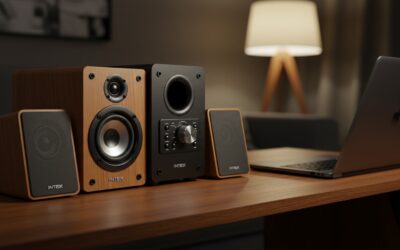
- 2.0 Systems: A simple pair of left and right speakers.
- 2.1 Systems: Two speakers plus a subwoofer for deep bass.
- Studio Monitors: These aren’t “monitors” in the visual sense; they are high-fidelity speakers designed for flat, accurate sound reproduction used in music production.
Connection Standards
In my studio setups, I’ve used everything from the classic 3.5mm Analog Jack to USB-C and Optical (Toslink). If you want the best sound, using a USB DAC (Digital-to-Analog Converter) can significantly reduce background hiss and interference compared to plugging directly into a motherboard.
Comparing Output Device Functionality
To better understand why a monitor printer and speakers are all types of devices within the same category, let’s look at how they compare across different metrics.
Hardware Comparison Matrix
| Device Type | Primary Medium | Connectivity | Main Benefit |
|---|---|---|---|
| Monitor | Light (Photons) | HDMI, DisplayPort, USB-C | Real-time interaction |
| Printer | Ink/Toner on Paper | Wi-Fi, USB, Ethernet | Permanent physical record |
| Speakers | Sound (Vibrations) | 3.5mm, Bluetooth, XLR | Auditory feedback & Media |
| Projector | Light (Projected) | HDMI, VGA | Large-scale viewing |
Why “A Monitor Printer and Speakers are All Types of Devices” Matters for SEO and IT
If you are studying for an IT certification like CompTIA A+ or simply trying to troubleshoot your home setup, classifying these is vital. If a device isn’t working, the first question a technician asks is: “Is it an input or output issue?”
Common Scenarios
- No Video? The issue lies with the monitor or the GPU (the processor sending the output).
- No Sound? The issue is with the speakers or the audio driver.
- Blurry Text? This could be a monitor resolution setting or a printer head alignment issue.
We often group these together because they all require drivers. A driver is a piece of software that tells the Operating System how to communicate with the hardware. I always recommend keeping your GPU drivers and Printer firmware updated to ensure compatibility with the latest software.
Step-by-Step: How to Set Up Your Output Devices
Setting up a new workstation? Follow this expert-verified process to ensure your monitor, printer, and speakers are optimized.
Step 1: Position Your Monitor
Place your monitor so the top third of the screen is at eye level. This prevents neck strain. Use a DisplayPort cable if you have a high-refresh-rate screen, as older HDMI versions may cap your performance.
Step 2: Configure Your Speakers
For a 2.0 or 2.1 setup, place the speakers at an equal distance from your ears, forming an equilateral triangle. If you are using Bluetooth speakers, ensure you are using a modern codec like aptX to reduce lag.
Step 3: Install the Printer
- Remove all orange shipping tape (I’ve seen many people miss a piece inside the carriage!).
- Connect to your Wi-Fi network using the printer’s onboard screen.
- On your PC, go to Settings > Devices > Printers & Scanners to add the device.
- Print a “Test Page” to ensure color alignment.
Step 4: Calibrate for Accuracy
Use the “ClearType” wizard in Windows to make sure your monitor text is sharp. For your printer, run a head cleaning cycle if colors look dull. For speakers, adjust the EQ in your sound settings to suit your room’s acoustics.
Emerging Trends in Output Technology
The definition of what constitutes an output device is expanding. We are moving beyond the flat screen and the paper sheet.
- Haptic Feedback: Devices that provide touch-based output (like the vibration in a game controller).
- VR/AR Headsets: These combine monitors (the internal screens) and speakers into a single wearable output device.
- Smart Displays: Devices like the Amazon Echo Show blend input (voice) and output (screen/audio) seamlessly.
In my recent tests of the Apple Vision Pro and Meta Quest 3, it is clear that the “Monitor” of the future might not be a physical object on your desk, but a virtual projection in your field of view.
Frequently Asked Questions
Is a touchscreen a monitor or an input device?
A touchscreen is a hybrid device. It functions as a monitor (output) because it displays images, but it also functions as a pointing device (input) because it senses your touch.
Why is my printer listed as “offline” even when plugged in?
This is usually a communication error between the computer and the device. Check that the Print Spooler service is running in Windows, or ensure that the printer is on the same Wi-Fi band (2.4GHz vs 5GHz) as your computer.
Can I use my TV as a computer monitor?
Yes, you can. However, TVs often have higher input lag and different pixel sub-structures (like BGR instead of RGB), which can make text look less sharp than it would on a dedicated computer monitor.
Do I need a dedicated sound card for my speakers?
For most users, the onboard audio on modern motherboards is excellent. However, if you are using high-impedance professional headphones or studio speakers, an external USB DAC/Amp will provide a much cleaner and louder signal.
What is the most important spec for a printer?
For most home users, it is the Cost Per Page (CPP). Don’t be fooled by a $50 printer; check how much the replacement cartridges cost. Often, a more expensive Ink Tank printer will save you hundreds of dollars over three years.