Why You Might Need to Make Your Speakers Mono
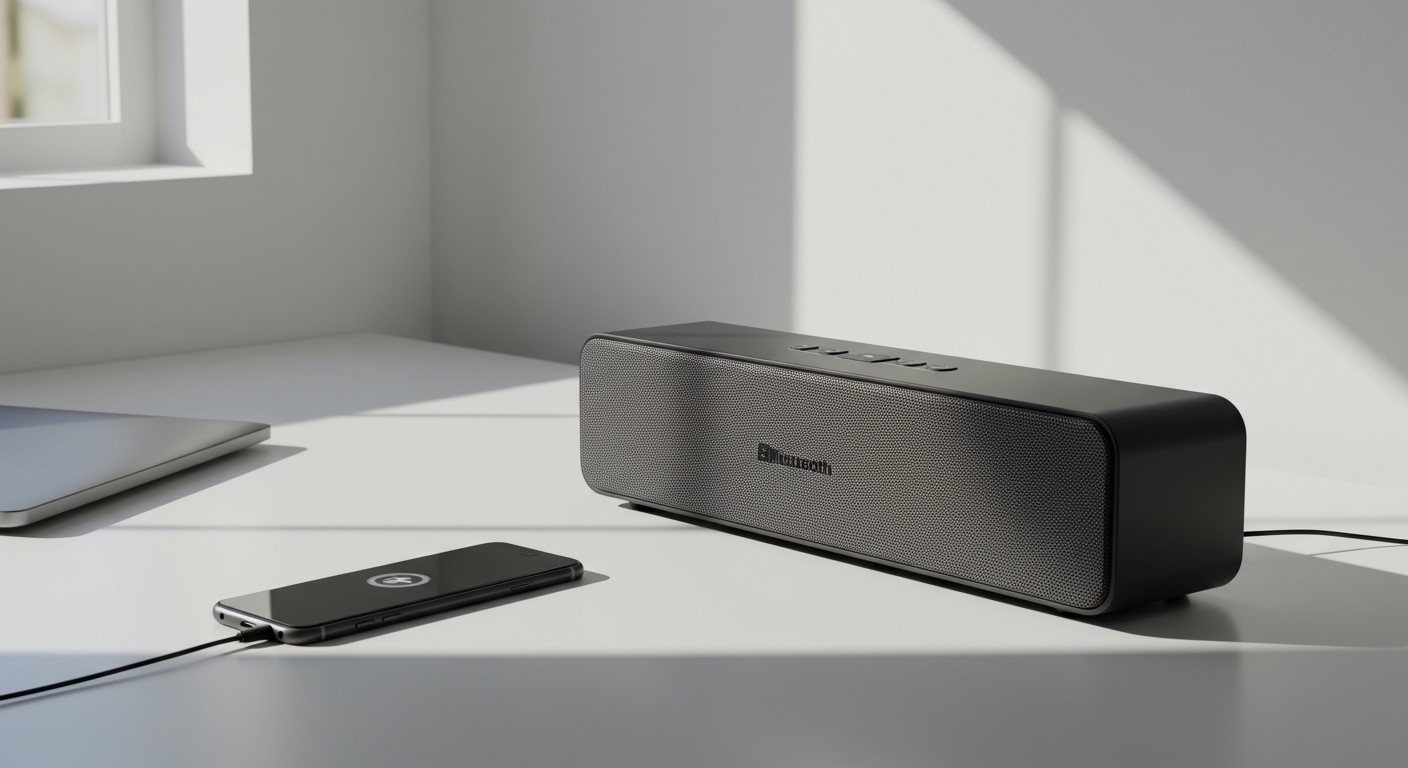
Ever played a classic rock song on a single Bluetooth speaker and noticed the lead guitar solo suddenly vanished? You’re not imagining things. That’s the result of playing a stereo track through a single speaker without properly converting it to mono. Many audio tracks are designed with a left and a right channel, creating a wide, immersive soundstage. But when you only have one speaker, you only hear one of those channels, effectively losing half the audio information.
Learning how to make speakers mono is a crucial skill for many situations. It ensures that 100% of the audio signal is combined into a single channel, so you hear everything as the artist intended, just without the stereo separation. This guide will walk you through the simple software settings and the more robust hardware solutions I use as an audio professional.
Key Takeaways: How to Set Speakers to Mono
- Easiest Method: The fastest way is to use your device’s built-in accessibility settings. Windows, macOS, iOS, and Android all have a simple toggle to output mono audio.
- Best Quality Method: For permanent setups or professional use, a dedicated hardware solution like a mono summing cable or a small audio mixer provides the cleanest signal without any software processing.
- Common Use Cases: Mono is essential for single-speaker systems (like Bluetooth or ceiling speakers), public address (PA) systems, checking audio mixes for compatibility, and for users with hearing impairments in one ear.
- Critical Warning: Never use a standard Y-splitter cable in reverse to combine two stereo outputs into one mono input. This can cause phase cancellation and potentially damage the output stage of your audio device.
How to Make Speakers Mono Using Software (The Easy Way)
For most everyday listening, the most direct solution is built right into your computer or mobile device’s operating system. These accessibility features are designed to combine the left and right channels for you digitally. In my experience, this is perfect for casual listening on a portable speaker or for users who need mono audio for hearing assistance.
How to Set Speakers to Mono in Windows 11 & 10
Microsoft makes this incredibly simple in the main sound settings.
- Open Settings: Right-click the Start button and select Settings, or press Windows Key + I.
- Navigate to Sound: In Windows 11, go to System > Sound. In Windows 10, go to Ease of Access > Audio.
- Enable Mono Audio:
* In Windows 11, scroll down to the “Output” section and find the Mono audio toggle. Turn it on.
* In Windows 10, you’ll see a toggle for Turn on mono audio. Switch it on.