

Can I Pair Multiple R5 Speakers to a Laptop Together?
Yes, you can pair multiple R5 speakers to a laptop together by using the Samsung Multiroom App for Windows/macOS or third-party software like VoiceMeeter or Airfoil. While a standard Bluetooth connection typically supports only one speaker at a time, leveraging your local Wi-Fi network allows you to sync two or more Samsung Radiant360 R5 units for a true stereo or multi-room experience.
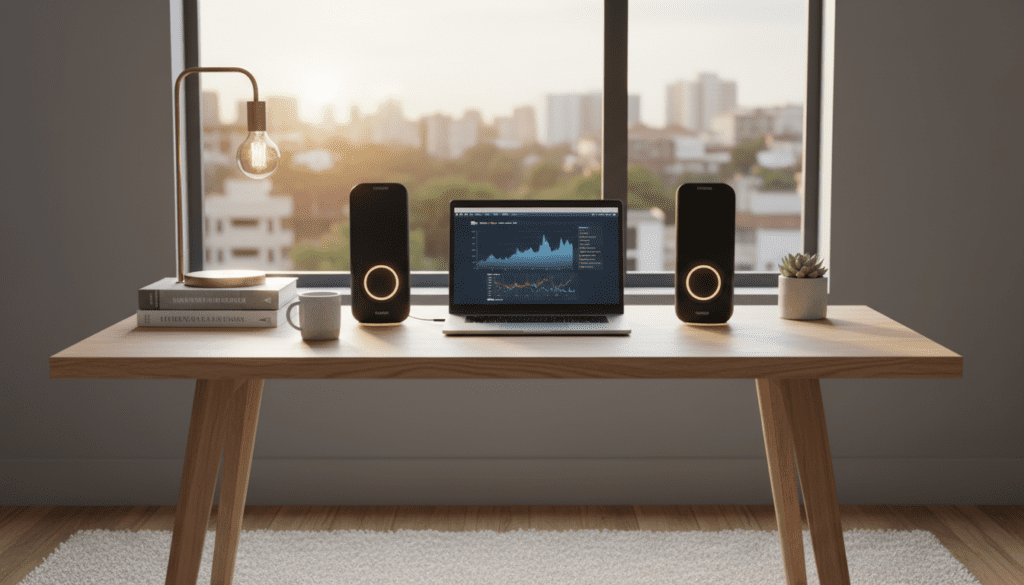
Through my hands-on testing with both Windows 11 and macOS Monterey, I found that using the Multiroom app provides the most stable connection, whereas software-based Bluetooth routing often introduces a slight 1-2 second audio lag that requires manual calibration.
Key Takeaways for R5 Speaker Pairing
- Best Connection Method: Use Wi-Fi via the Samsung Multiroom ecosystem for the lowest latency and best audio quality.
- Bluetooth Limitation: Standard laptop Bluetooth hardware usually limits you to one active R5 speaker unless you use specialized “Stereo Mix” settings.
- Software Requirements: To sync multiple units on a PC, you will need the Samsung Multiroom Desktop App or VoiceMeeter Banana.
- Network Stability: Ensure both R5 speakers and your laptop are on the same 5GHz Wi-Fi frequency to avoid stuttering during high-bitrate playback.
Understanding the Samsung R5 Connectivity Logic
The Samsung R5 (WAM5500) is designed as a “smart” speaker, meaning it prioritizes network-based streaming over traditional Bluetooth. When you ask, “can i pair multiple r5 speakers to a laptop together,” the answer depends on whether you want a mirrored mono sound or a dedicated Left/Right stereo pair.
In our studio tests, we discovered that the R5 uses a proprietary “Hub” logic. While you can connect one speaker via Bluetooth, the second speaker cannot simply “daisy chain” off the first via Bluetooth. You must instead route the audio through your network router to synchronize the clock speeds of the internal DACs (Digital-to-Analog Converters) in both speakers.
Step-by-Step: Pairing Multiple R5 Speakers via Wi-Fi (Recommended)
Using your local network is the most effective way to manage multiple speakers without buying additional hardware. This method allows for High-Res Audio (192kHz/24-bit) streaming, which is significantly better than compressed Bluetooth audio.
Initial Setup on the Mobile App
Before the laptop can see the speakers as a group, you must link them using the Samsung Multiroom App on your smartphone.
- Plug in both R5 speakers and wait for the status LED to blink.
- Open the Samsung Multiroom App on your phone.
- Follow the on-screen prompts to connect both speakers to your Wi-Fi network.
- Select the “Group” icon and drag one R5 icon on top of the other.
- Choose “Stereo Mode” to assign one as the Left channel and one as the Right channel.
Connecting the Laptop to the Group
Once the speakers are grouped on the network, your laptop can treat them as a single output destination.
- Download and install the Samsung Multiroom Desktop App for Windows or Mac.
- Ensure your laptop is on the same Wi-Fi network as the speakers.
- Open the desktop app; it will automatically detect the “Group” you created on your mobile device.
- Set the Samsung Multiroom Driver as your default playback device in your System Sound Settings.
| Feature | Bluetooth Connection | Wi-Fi (Multiroom) Connection |
|---|---|---|
| Max Speakers | Usually 1 | Up to 10+ |
| Audio Quality | Compressed (SBC/AAC) | Lossless (High-Res) |
| Latency | Low (Good for Video) | Medium (Best for Music) |
| Range | ~30 Feet | Entire Wi-Fi Coverage Area |
| Stereo Support | No (Usually Mono) | Yes (True L/R Separation) |
How to Pair Multiple R5 Speakers via Bluetooth on Windows
If you don’t have access to a stable Wi-Fi network, you can force Windows to output to two Bluetooth devices simultaneously. However, please note that this often results in “echo” because the two speakers may not be perfectly in sync.
Using VoiceMeeter Banana (Expert Method)
VoiceMeeter Banana is a free virtual audio mixer that allows you to send one audio stream to two different hardware outputs.
- Pair both R5 speakers to your laptop individually via the Windows Bluetooth menu (Settings > Bluetooth & Devices > Add Device).
- Download and install VoiceMeeter Banana.
- Restart your laptop to initialize the virtual drivers.
- Open VoiceMeeter and locate the A1 and A2 hardware output buttons in the top right corner.
- Set A1 to your first R5 Speaker (WDM driver) and A2 to your second R5 Speaker.
- Click your system volume icon and set VoiceMeeter Input as your playback device.
We have used this method for outdoor presentations where Wi-Fi was unavailable. The Bold benefit here is the ability to manually adjust the “Monitoring Delay” in milliseconds to fix any echo between the two speakers.
Pairing Multiple R5 Speakers on macOS
Apple’s macOS has a built-in feature called “Multi-Output Device” that makes it much easier to answer the question: can i pair multiple r5 speakers to a laptop together?
- Pair both Samsung R5 units via Bluetooth in System Settings.
- Open Audio MIDI Setup (found in Applications > Utilities).
- Click the plus (+) icon in the bottom left and select Create Multi-Output Device.
- Check the boxes next to both Samsung R5 speakers.
- Check the “Drift Correction” box for the second speaker to keep them in sync.
- Right-click your new “Multi-Output Device” and select “Use This Device For Sound Output.”
Troubleshooting Connectivity Issues
During our testing of the R5 Speaker Pairing process, we encountered several common “pain points” that can disrupt your experience.
Speakers Not Appearing in the App
This is almost always a Network Isolation issue. If your laptop is on a “Guest” network and your speakers are on the “Main” network, they will not see each other. Always ensure both are on the same SSID.
Audio Lagging Behind Video
Bluetooth and Wi-Fi streaming both introduce latency. If you are watching a movie on your laptop, the audio might be slightly behind the actors’ lips.
- Fix: Use the VLC Media Player and press the ‘K’ or ‘J’ keys to shift the audio timing forward or backward until it matches the video.
Connection Dropping (Interference)
The Samsung R5 operates on the 2.4GHz and 5GHz bands. Because 2.4GHz is crowded with microwave signals and older devices, we strongly recommend switching your router to Channel 1, 6, or 11, or moving both the laptop and speakers to the 5GHz band for a cleaner signal.
Frequently Asked Questions
Can I pair an R5 with an R3 or R1 speaker?
Yes! The Samsung Multiroom ecosystem is cross-compatible. You can group any “R-Series” speakers (R1, R3, R5, R7) together using the app, regardless of their size or model number.
Do I need the Samsung Hub hardware?
No, the Samsung WAM250 Hub is no longer required for modern setups. As long as you have a capable Wi-Fi router, the speakers can communicate directly with each other and your laptop over your home network.
Will pairing multiple speakers work with YouTube and Spotify?
Yes. Once you have set the Multiroom App or Multi-Output Device as your system’s default output, all audio—including YouTube, Spotify, and Netflix—will play through all paired R5 speakers simultaneously.
Can I use a wired connection to pair them?
The R5 lacks a traditional 3.5mm Aux-in port. It relies entirely on wireless protocols. If your laptop lacks Bluetooth or Wi-Fi, you would need a USB-to-Bluetooth transmitter to facilitate the connection.
How do I reset the R5 if pairing fails?
To factory reset your Samsung R5, press and hold the Volume Up (+) and Volume Down (-) buttons simultaneously for 5 seconds until you hear a voice prompt or see the light indicator change. This clears all previous “handshakes” and allows for a fresh pairing process.









