Why Does Only One of My Phone Speakers Work? The Real Answer
Struggling with muffled or one-sided audio from your phone? It’s a frustrating problem, especially when you’re trying to watch a video or share a song. The most common reason why only one of your phone speakers works is actually by design: most phones, including iPhones and many Android devices, only have one main loudspeaker at the bottom. The other grille you see is typically for the primary microphone.
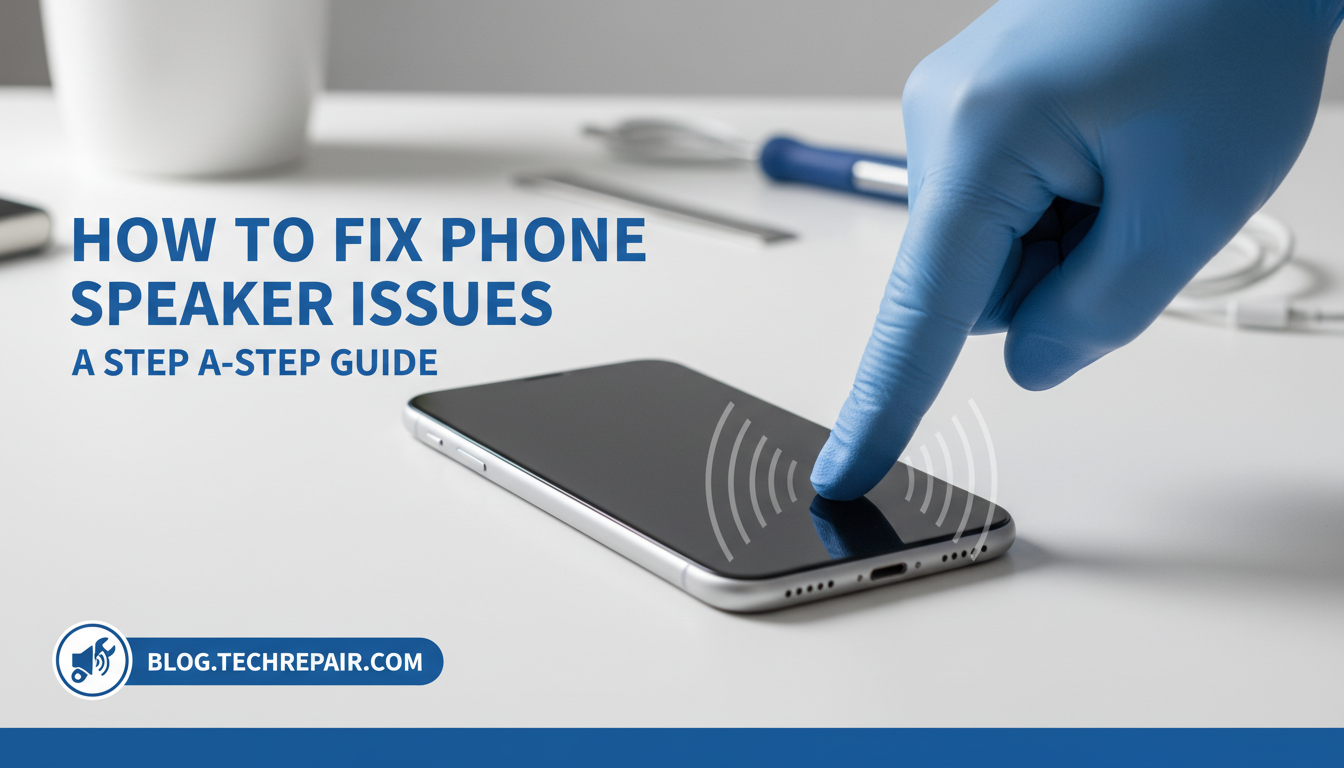
Many modern phones create a stereo effect by pairing this main bottom speaker with the smaller earpiece speaker at the top of your screen. If sound is only coming from one of these, it could be a simple settings issue, a software glitch, a blocked speaker grille, or, in some cases, a hardware failure. In this guide, we’ll walk through every step to diagnose and fix the problem.
Key Takeaways: Fixing One-Sided Phone Audio
- It’s Probably Not Broken: Most phones have one main speaker at the bottom. The other grille is a microphone. Stereo sound is a combination of the bottom speaker and the earpiece.
- Check Your Settings: The most common software culprits are incorrect Audio Balance settings in Accessibility, a pending Bluetooth connection, or “Do Not Disturb” mode.
- Cleanliness is Key: Debris, dust, and lint are notorious for blocking speaker grilles and muffling sound. A gentle cleaning can often restore audio quality.
- Troubleshooting Steps: Start by restarting your phone. If that fails, check your settings, clean the speaker ports, and test in Safe Mode (for Android) to rule out app conflicts.
- Hardware vs. Software: If you hear crackling, distortion, or no sound at all after trying all software fixes, it’s likely a hardware issue that requires professional repair.
Understanding Your Phone’s Speaker Setup
Before you assume something is broken, it’s crucial to understand how your phone is built. For years, I’ve seen clients come in concerned about a “broken” speaker, only to discover their phone was working exactly as intended.
Most smartphones, from the latest iPhone 15 to the Samsung Galaxy S24 and Google Pixel 8, have a specific speaker layout:
- Main Loudspeaker: This is the primary speaker for media playback, located at the bottom of the phone, usually next to the charging port. It produces the majority of the volume and bass.
- Earpiece Speaker: This is the small speaker at the top of your screen that you hold to your ear during calls. On modern phones, it also functions as a secondary speaker to create a stereo soundscape.
- Microphone: The other grille at the bottom of the phone, which looks identical to the speaker grille, is almost always the primary microphone used for calls.
If you cover the bottom-right grille on an iPhone and the sound doesn’t change, but it does when you cover the bottom-left, that’s normal. You’ve just discovered which one is the speaker and which is the microphone.
Step-by-Step Guide to Fix a Phone Speaker That’s Not Working
Let’s systematically troubleshoot why one of your phone speakers is not working. Follow these steps in order, as they go from the simplest and most common fixes to more advanced solutions.
Step 1: Check Your Audio Balance Settings
This is the number one hidden culprit I’ve encountered. Audio balance is an accessibility feature designed to send more sound to the left or right channel, but if it’s accidentally moved, it can make you think a speaker is broken.
- For iPhone (iOS):
- For Android (Samsung, Pixel, etc.):
Step 2: Disconnect from Bluetooth Devices
Your phone might be silently connected to a Bluetooth speaker, headphones, or your car’s audio system. This will route the audio away from your phone’s speakers entirely.
The quickest fix is to swipe down to open your Control Center (iPhone) or Quick Settings panel (Android) and tap the Bluetooth icon to turn it off. Try playing audio again. If it works, you’ve found your problem.
Step 3: Safely and Thoroughly Clean Your Speaker Grilles
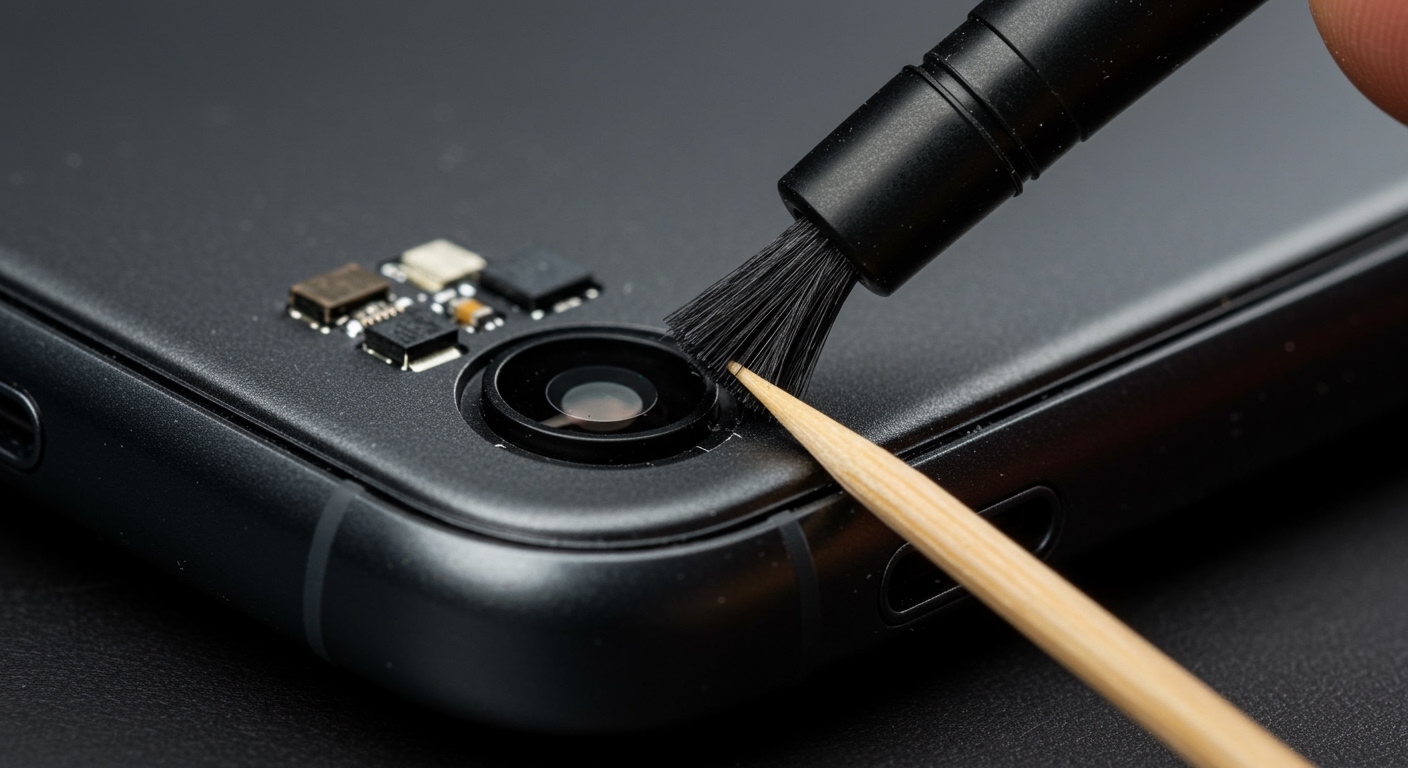
Dust, pocket lint, and skin oils can easily clog the tiny holes in your speaker grilles, muffling or completely blocking the sound.
What You’ll Need:
- A soft-bristled brush (a clean, dry toothbrush works perfectly).
- Isopropyl alcohol (70% or higher).
- A cotton swab or microfiber cloth.
- Canned air (optional, use with extreme caution).
Cleaning Process:
- Dry Brush: Gently brush the earpiece and bottom speaker grilles with your soft-bristled brush to dislodge any loose debris.
- Damp Swab: Lightly dampen a cotton swab with isopropyl alcohol (do not soak it). Carefully wipe the grilles. The alcohol helps break down oils and evaporates quickly.
- Air Blast (Carefully!): If you use canned air, hold it several inches away from the phone and use very short bursts at an angle. Blasting air directly into the port can damage internal components. I’ve seen this mistake cause more harm than good, so be gentle.
Step 4: Restart Your Device
A simple restart can resolve countless temporary software glitches, including ones affecting audio drivers.
- Press and hold the power button (and sometimes a volume button, depending on your model) until the power-off slider appears.
- Slide to power off, wait 30 seconds, and then turn your phone back on.
Why Does Only One of My Phone Speakers Work? The Real Answer
Struggling with muffled or one-sided audio from your phone? It’s a frustrating problem, especially when you’re trying to watch a video or share a song. The most common reason why only one of your phone speakers works is actually by design: most phones, including iPhones and many Android devices, only have one main loudspeaker at the bottom. The other grille you see is typically for the primary microphone.
Many modern phones create a stereo effect by pairing this main bottom speaker with the smaller earpiece speaker at the top of your screen. If sound is only coming from one of these, it could be a simple settings issue, a software glitch, a blocked speaker grille, or, in some cases, a hardware failure. In this guide, we’ll walk through every step to diagnose and fix the problem.
Key Takeaways: Fixing One-Sided Phone Audio
- It’s Probably Not Broken: Most phones have one main speaker at the bottom. The other grille is a microphone. Stereo sound is a combination of the bottom speaker and the earpiece.
- Check Your Settings: The most common software culprits are incorrect Audio Balance settings in Accessibility, a pending Bluetooth connection, or “Do Not Disturb” mode.
- Cleanliness is Key: Debris, dust, and lint are notorious for blocking speaker grilles and muffling sound. A gentle cleaning can often restore audio quality.
- Troubleshooting Steps: Start by restarting your phone. If that fails, check your settings, clean the speaker ports, and test in Safe Mode (for Android) to rule out app conflicts.
- Hardware vs. Software: If you hear crackling, distortion, or no sound at all after trying all software fixes, it’s likely a hardware issue that requires professional repair.
Understanding Your Phone’s Speaker Setup
Before you assume something is broken, it’s crucial to understand how your phone is built. For years, I’ve seen clients come in concerned about a “broken” speaker, only to discover their phone was working exactly as intended.
Most smartphones, from the latest iPhone 15 to the Samsung Galaxy S24 and Google Pixel 8, have a specific speaker layout:
- Main Loudspeaker: This is the primary speaker for media playback, located at the bottom of the phone, usually next to the charging port. It produces the majority of the volume and bass.
- Earpiece Speaker: This is the small speaker at the top of your screen that you hold to your ear during calls. On modern phones, it also functions as a secondary speaker to create a stereo soundscape.
- Microphone: The other grille at the bottom of the phone, which looks identical to the speaker grille, is almost always the primary microphone used for calls.
If you cover the bottom-right grille on an iPhone and the sound doesn’t change, but it does when you cover the bottom-left, that’s normal. You’ve just discovered which one is the speaker and which is the microphone.
Step-by-Step Guide to Fix a Phone Speaker That’s Not Working
Let’s systematically troubleshoot why one of your phone speakers is not working. Follow these steps in order, as they go from the simplest and most common fixes to more advanced solutions.
Step 1: Check Your Audio Balance Settings
This is the number one hidden culprit I’ve encountered. Audio balance is an accessibility feature designed to send more sound to the left or right channel, but if it’s accidentally moved, it can make you think a speaker is broken.
- For iPhone (iOS):
- For Android (Samsung, Pixel, etc.):
Step 2: Disconnect from Bluetooth Devices
Your phone might be silently connected to a Bluetooth speaker, headphones, or your car’s audio system. This will route the audio away from your phone’s speakers entirely.
The quickest fix is to swipe down to open your Control Center (iPhone) or Quick Settings panel (Android) and tap the Bluetooth icon to turn it off. Try playing audio again. If it works, you’ve found your problem.
Step 3: Safely and Thoroughly Clean Your Speaker Grilles
Dust, pocket lint, and skin oils can easily clog the tiny holes in your speaker grilles, muffling or completely blocking the sound.
What You’ll Need:
- A soft-bristled brush (a clean, dry toothbrush works perfectly).
- Isopropyl alcohol (70% or higher).
- A cotton swab or microfiber cloth.
- Canned air (optional, use with extreme caution).
Cleaning Process:
- Dry Brush: Gently brush the earpiece and bottom speaker grilles with your soft-bristled brush to dislodge any loose debris.
- Damp Swab: Lightly dampen a cotton swab with isopropyl alcohol (do not soak it). Carefully wipe the grilles. The alcohol helps break down oils and evaporates quickly.
- Air Blast (Carefully!): If you use canned air, hold it several inches away from the phone and use very short bursts at an angle. Blasting air directly into the port can damage internal components. I’ve seen this mistake cause more harm than good, so be gentle.
Step 4: Restart Your Device
A simple restart can resolve countless temporary software glitches, including ones affecting audio drivers.
- Press and hold the power button (and sometimes a volume button, depending on your model) until the power-off slider appears.
- Slide to power off, wait 30 seconds, and then turn your phone back on.
Advanced Troubleshooting for Persistent Speaker Issues
If the basic steps didn’t solve why only one side of your phone speakers is working, it’s time to dig a little deeper.
Check for Software Updates
Phone manufacturers frequently release OS updates that patch bugs, including those that can cause hardware components like speakers to malfunction.
- On iOS: Go to Settings > General > Software Update.
- On Android: Go to Settings > System > System update (or Software update).
Install any available updates, as this could contain the fix you need.
Test in Safe Mode (Android Only)
A third-party app could be hijacking your audio output. Safe Mode starts your Android phone with only the essential system apps, which helps you determine if a downloaded app is the problem.
- Press and hold the power button until the power menu appears.
- Tap and hold the “Power off” option.
- A “Reboot to safe mode” prompt should appear. Tap OK.
- Once in Safe Mode (you’ll see the words “Safe mode” on the screen), try playing audio. If your speakers work correctly, a recently installed app is the likely cause. You’ll need to uninstall apps one by one until you find the culprit.
The Final Software Fix: A Factory Reset
This is your last resort before assuming a hardware failure. A factory reset will erase all your data and settings, returning the phone to its out-of-the-box state.
CRITICAL: Back up all your data (photos, contacts, files) to the cloud or a computer before proceeding.
- On iOS: Settings > General > Transfer or Reset iPhone > Erase All Content and Settings.
- On Android: Settings > System > Reset options > Erase all data (factory reset).
After the reset, set up your phone without restoring from a backup initially. Test the speakers immediately. If they work, the problem was a deep-rooted software issue.
Identifying a True Hardware Failure
If you’ve tried everything above and the issue persists, you are likely dealing with a hardware problem. Here’s a table to help you distinguish between software and hardware causes.
| Symptom | Likely Software Cause | Likely Hardware Cause |
|---|---|---|
| No sound from one speaker | Audio balance setting is off-center | The speaker component has failed or is disconnected |
| Distorted or crackling sound | A specific app is causing issues | Blown speaker, often from water damage or high volume |
| Sound cuts in and out | Bluetooth interference or software glitch | A loose internal speaker connection |
| No sound at all | Phone is in silent/DND mode; volume is zero | Both speakers have failed, or there’s a logic board issue |
Common hardware failures include:
- A blown speaker: Caused by playing audio at maximum volume for extended periods or by physical damage.
- Water damage: Liquid can short-circuit the speaker components.
- Loose internal connector: Can happen from a drop or impact.
If you suspect a hardware issue, your only option is professional repair. Stop troubleshooting and contact the manufacturer or a reputable repair shop to avoid causing further damage.
Frequently Asked Questions (FAQ)
Q1: Why is only one of my iPhone speakers working?
This is almost always by design. iPhones use the bottom speaker and the top earpiece speaker together for stereo sound. The second grille at the bottom is for the microphone, not another speaker. If you hear no sound from the earpiece during media playback