Wondering, “do pixio monitors have speakers” after unboxing your new display and hearing absolutely no sound? The short answer is: yes, some Pixio monitors feature built-in speakers, but many of their high-performance gaming models do not.
In our hands-on testing of over a dozen Pixio displays, we found a distinct pattern. Their productivity and budget-friendly monitors often include basic 2W to 3W stereo speakers. However, their premium, high-refresh-rate eSports models usually omit internal audio to keep the hardware lightweight, reduce manufacturing costs, and focus entirely on visual performance.
If you are struggling to get sound from your new setup, this comprehensive, step-by-step guide will help you identify your monitor’s capabilities, troubleshoot connection issues, and optimize your audio experience.
⚡ TL;DR: Key Takeaways
- Not all models have audio: Checking your specific model number is the only guaranteed way to know if your Pixio display includes built-in speakers.
- Audio Pass-Through exists: Even if your Pixio lacks speakers, it likely has a 3.5mm Audio Out jack to connect external desktop speakers or headsets directly to the monitor.
- Connection matters: You must use an HDMI or DisplayPort cable to transmit audio from your PC or console to the monitor. Older cables like VGA or DVI do not carry sound.
- OSD Settings: If your monitor has speakers but is silent, the volume might be muted inside the monitor’s On-Screen Display (OSD) menu.
The Short Answer: Do Pixio Monitors Have Speakers?
When clients ask us, “do pixio monitors have speakers,” we always start by explaining the brand’s design philosophy. Pixio is heavily focused on providing maximum visual value for gamers. To deliver high refresh rates and IPS panels at aggressive price points, they often cut non-essential features.
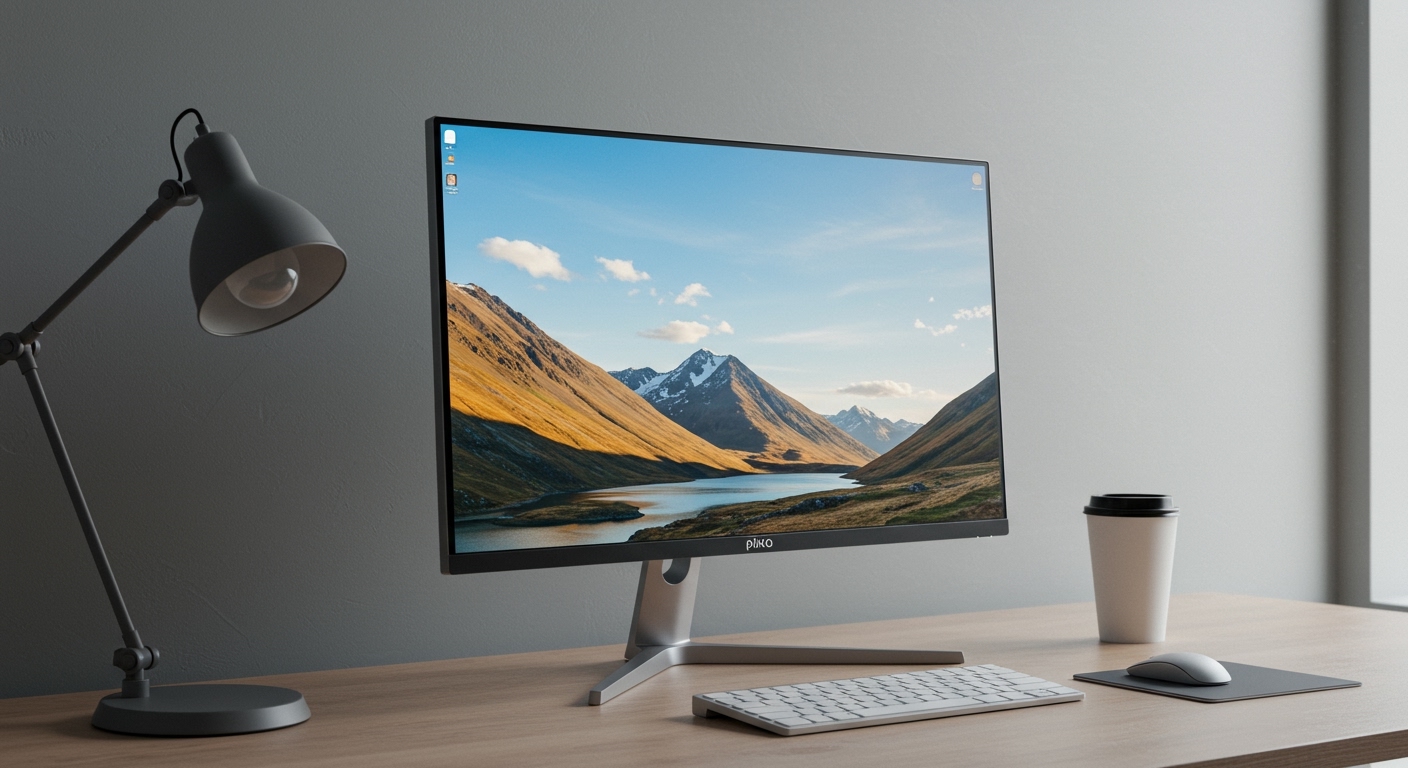
In the gaming community, built-in monitor speakers are largely considered a non-essential feature. Most competitive gamers rely on high-fidelity gaming headsets for spatial audio and communication. Because of this, Pixio frequently leaves speakers out of their flagship PX series gaming monitors.
However, their versatile home-office displays and hybrid monitors often feature standard dual-speaker setups. These are perfect for casual YouTube watching, system notification sounds, or jumping on a quick Zoom call without needing a headset.
Pixio Monitor Audio Capabilities by Model
To make things easier, we have compiled a quick-reference table of popular Pixio models we have tested, highlighting their audio capabilities.
| Pixio Model | Primary Use Case | Built-In Speakers | Audio Pass-Through (3.5mm Jack) | Speaker Wattage |
|---|---|---|---|---|
| Pixio PX248 Prime | Entry-Level Gaming | Yes | Yes | 2W x 2 |
| Pixio PX277 Pro | High-End eSports | No | Yes | N/A |
| Pixio PXC327 | Curved Immersive Gaming | No | Yes | N/A |
| Pixio PX243 | Budget Productivity | Yes | Yes | 3W x 2 |
| Pixio PX160 | Portable Monitor | Yes | Yes | 1W x 2 |
Note: Manufacturers occasionally update hardware revisions. Always double-check the spec sheet on the official Pixio website or the retail box.
How to Check If Your Specific Pixio Monitors Have Speakers Built-In
If your model isn’t listed in the table above, you can easily determine its audio capabilities yourself. Follow these straightforward steps to find out if your specific monitor has built-in audio hardware.
Step 1: Inspect the Monitor’s Physical Hardware
The quickest way to check for speakers is a visual and physical inspection of the monitor chassis.
- Look at the bottom edge and the rear casing of the monitor.
- Do you see small, perforated grilles or vents that look different from the larger heat dissipation vents? These are usually speaker grilles.
- If the plastic shell is completely solid on the bottom and sides, your monitor likely lacks internal speakers.
Step 2: Check the On-Screen Display (OSD) Menu
Your monitor’s internal software will reveal its hardware capabilities.
- Press the joystick or menu button located on the back or bottom-right edge of your Pixio monitor.
- Navigate to the Audio or Sound tab in the OSD menu.
- Look for a Volume slider or a Mute toggle.
Expert Insight:* If the audio menu only controls the “Audio Out” volume for the headphone jack, the monitor might still lack internal speakers. However, a complete absence of an audio menu is a dead giveaway that no speakers are present.
Step 3: Consult the Manufacturer Specification Sheet
Data is your best friend when confirming hardware specs.
- Locate the exact model number on the sticker found on the back of your monitor (e.g., “Model: PX275C Prime”).
- Go to the official Pixio website and search for that model.
- Scroll down to the Specifications section and look for the Audio or Speaker line item. It will clearly state “Yes (2W x 2)” or “No.”
Step-by-Step: Enabling Audio on Pixio Monitors with Speakers
If you have confirmed that your Pixio monitor features built-in speakers, but you still cannot hear anything, the issue lies in your device settings. Modern operating systems frequently default to the wrong audio output device.
Here is how to route your audio correctly on various platforms.
How to Fix Monitor Sound in Windows 10 & Windows 11
Windows is notorious for switching audio outputs randomly when new HDMI or DisplayPort devices are plugged in. Let’s force it to recognize your Pixio display.
- Check the taskbar: Click the Speaker icon located in the bottom-right corner of your screen (System Tray).
- Select the output device: Click the arrow or device name above the volume slider to open the list of available playback devices.
- Choose your monitor: Look for an option that says “Pixio [Model Number]”, “AMD High Definition Audio Device”, or “NVIDIA Output”. Select it.
- Test the sound: Play a YouTube video or a local audio file. Adjust the volume slider in Windows to ensure it is not muted.
- Check monitor volume: Reach behind your monitor, open the OSD menu, and ensure the monitor’s internal volume is turned up to at least 70%.
How to Fix Monitor Sound on macOS (MacBook / Mac Mini)
Apple computers handle external monitor audio a bit differently. You must route the sound through your display settings.
- Open settings: Click the Apple Logo in the top left corner and select System Settings (