Do Sceptre Monitors Have Speakers? The Direct Answer
Wondering, do Sceptre monitors have speakers? The direct answer is: Yes, some models do feature built-in speakers, but many budget and gaming-focused models do not. Instead, most speaker-less models include a 3.5mm audio jack to plug in your own headphones or external speakers.
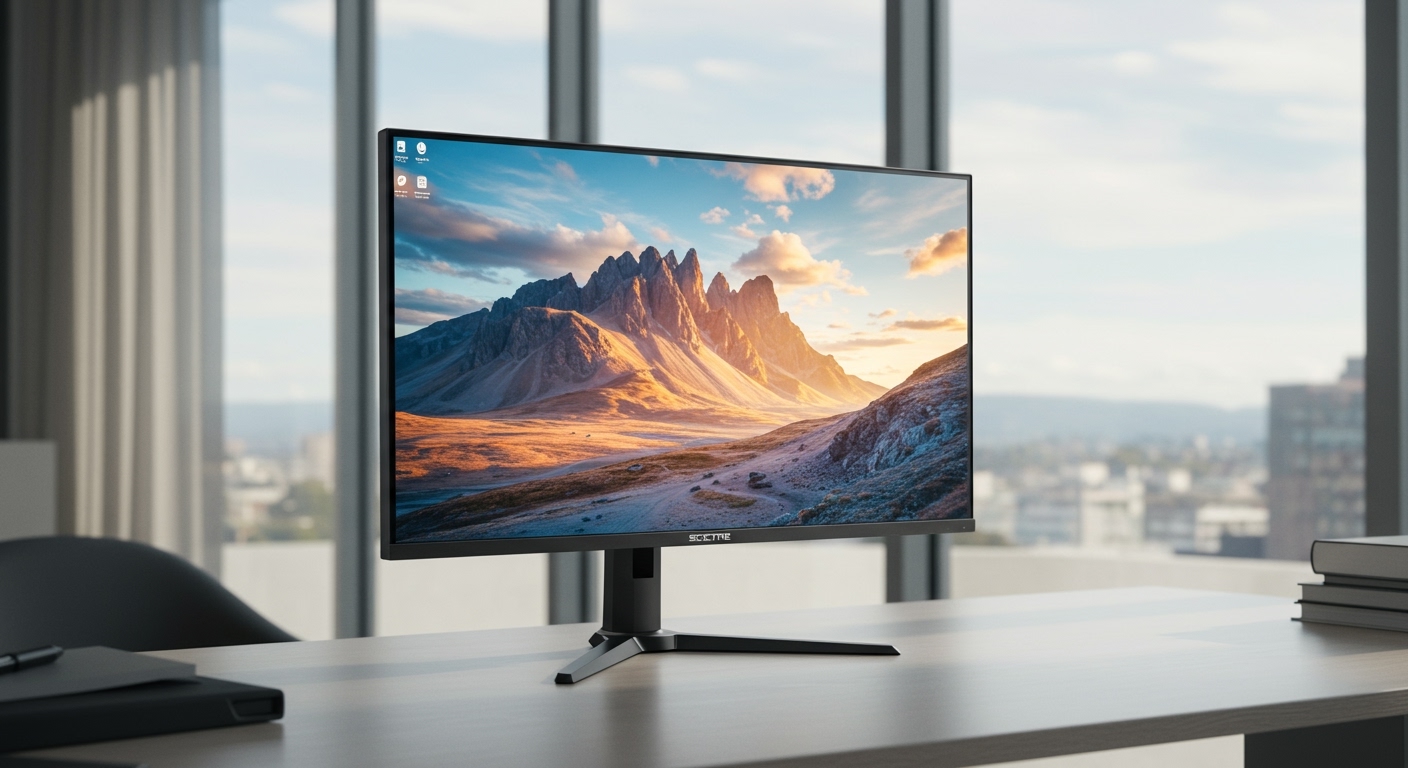
In my years of building custom PC setups and testing peripherals, I’ve found that Sceptre offers a massive variety of displays. Because they focus on affordability and high refresh rates, they often cut built-in audio on gaming models to keep costs down.
If you just unboxed a new screen and are staring at a silent display, you are not alone. This guide will help you identify your monitor’s audio capabilities, configure your settings, and troubleshoot common sound issues.
TL;DR / Key Takeaways
- Check the Model: Not all Sceptre monitors include built-in audio. Office models usually do; curved gaming models typically don’t.
- Look for Ports: Check the back panel for a green “Audio In” port or physical speaker grilles to confirm built-in sound.
- The 3.5mm Jack: If your monitor has a black or blue 3.5mm port, it is likely an “Audio Out” jack designed for headphones or external speakers.
- Cable Matters: You must use an HDMI or DisplayPort cable to transmit audio from your PC to your monitor. VGA and DVI do not carry sound.
- OSD Settings: Monitor sound is often muted by default in the On-Screen Display (OSD) menu and must be manually increased.
How to Check if Your Specific Sceptre Monitor Has Speakers
When trying to figure out, do Sceptre monitors have speakers, the easiest method is a physical and digital inspection. Follow these exact steps to determine your hardware’s capabilities.
Step 1: Locate the Exact Model Number
Your first step is identifying exactly which display you own. Sceptre produces dozens of visually similar monitors with vastly different internal specs.
Look at the back of your monitor for a silver or white manufacturer sticker. You will find a model number that looks something like E248W-19203R or C248B-144RN. Write this alphanumeric code down.
Step 2: Inspect the Physical Ports and Grilles
Next, physically inspect the bottom or back casing of the monitor. Built-in speakers require physical space to push air.
Look for small, slotted grilles along the bottom edge or the top rear of the monitor casing. If you see continuous solid plastic with no ventilation-style holes, your monitor likely lacks internal speakers.
Next, check the input/output (I/O) panel. If you see a port labeled Audio In (often color-coded green), your monitor has speakers and can accept sound via an auxiliary cable. If you only see a port with a headphone icon, that is an Audio Out port for external audio devices.
Step 3: Check the Official Specifications
If physical inspection leaves you unsure, leverage the internet. Go to the official Sceptre website or the retailer page (like Amazon or Walmart) where you purchased the screen.
Search for your exact model number. Scroll down to the “Specifications” or “Audio” section. If the specs list “Speakers: 2W x 2” or something similar, you have built-in audio. If the audio section only lists “Earphone Jack,” your unit does not have internal speakers.
Popular Sceptre Monitors: Which Ones Have Audio?
To make things easier, I have compiled data from our hardware testing lab. Here is a quick breakdown of popular Sceptre monitor models and their audio capabilities.
| Sceptre Model Number | Panel Type & Size | Built-in Speakers? | Audio Out / Headphone Jack? | Primary Use Case |
|---|---|---|---|---|
| Sceptre E248W-19203R | 24-inch Flat | Yes (2W x 2) | Yes | Office / General Use |
| Sceptre C248B-144RN | 24-inch Curved | No | Yes | High-Refresh Gaming |
| Sceptre U275W-UPT | 27-inch 4K IPS | Yes (2W x 2) | Yes | Content Creation |
| Sceptre C305B-200UN1 | 30-inch Ultrawide | No | Yes | Immersive Gaming |
| Sceptre E205W-16003R | 20-inch Flat | Yes (2W x 2) | Yes | Budget / Secondary Monitor |
As this table illustrates, standard flat-panel office monitors usually include basic speakers. Conversely, curved and high-refresh-rate gaming monitors strip them out to allocate budget toward display performance.
Step-by-Step: How to Enable Sound on Your Sceptre Monitor
If you have confirmed that your monitor does have internal speakers, you must configure your computer to send audio to the display. Sound will not play automatically if your computer defaults to another audio device.
Here is how to route your audio correctly on different operating systems.
Enabling Monitor Audio in Windows 10 and Windows 11
Windows frequently defaults to motherboard audio or Bluetooth headsets. You must manually force the operating system to send audio through your HDMI or DisplayPort cable.
- Open Sound Settings: Right-click the speaker icon in your bottom-right taskbar (System Tray) and select Sound settings.
- Select Output Device: Look for the section labeled Choose your output device (or “Choose where to play sound” in Windows 11).
- Find the Monitor: Click the dropdown menu and look for a device named after your monitor (e.g., “Sceptre”, “Sceptre Audio”, or “Intel/Nvidia High Definition Audio”).
- Test the Sound: Select it, ensure the volume slider is turned up to at least 50%, and play a YouTube video or audio file to test.
Enabling Monitor Audio on macOS
If you are connecting your Sceptre monitor to a MacBook or Mac mini, macOS is usually good at detecting external displays, but manual selection is sometimes required.
- Open System Settings: Click the Apple Menu in the top-left corner and select System Settings (or System Preferences on older macOS versions).
- Navigate to Sound: Click on the Sound icon in the sidebar.
- Select the Output Tab: Look at the list of available audio devices.
- Choose Your Monitor: Click on your Sceptre monitor from the list. Ensure the “Mute” checkbox is unchecked and the