Does the Sonos Beam Connect to Other Speakers?
Yes, the Sonos Beam (both Gen 1 and Gen 2) connects seamlessly to other speakers within the Sonos ecosystem via your home Wi-Fi network. While it cannot connect directly to third-party “normal” speakers via standard speaker wire or Bluetooth, you can integrate non-Sonos equipment using a Sonos Amp or Sonos Port.
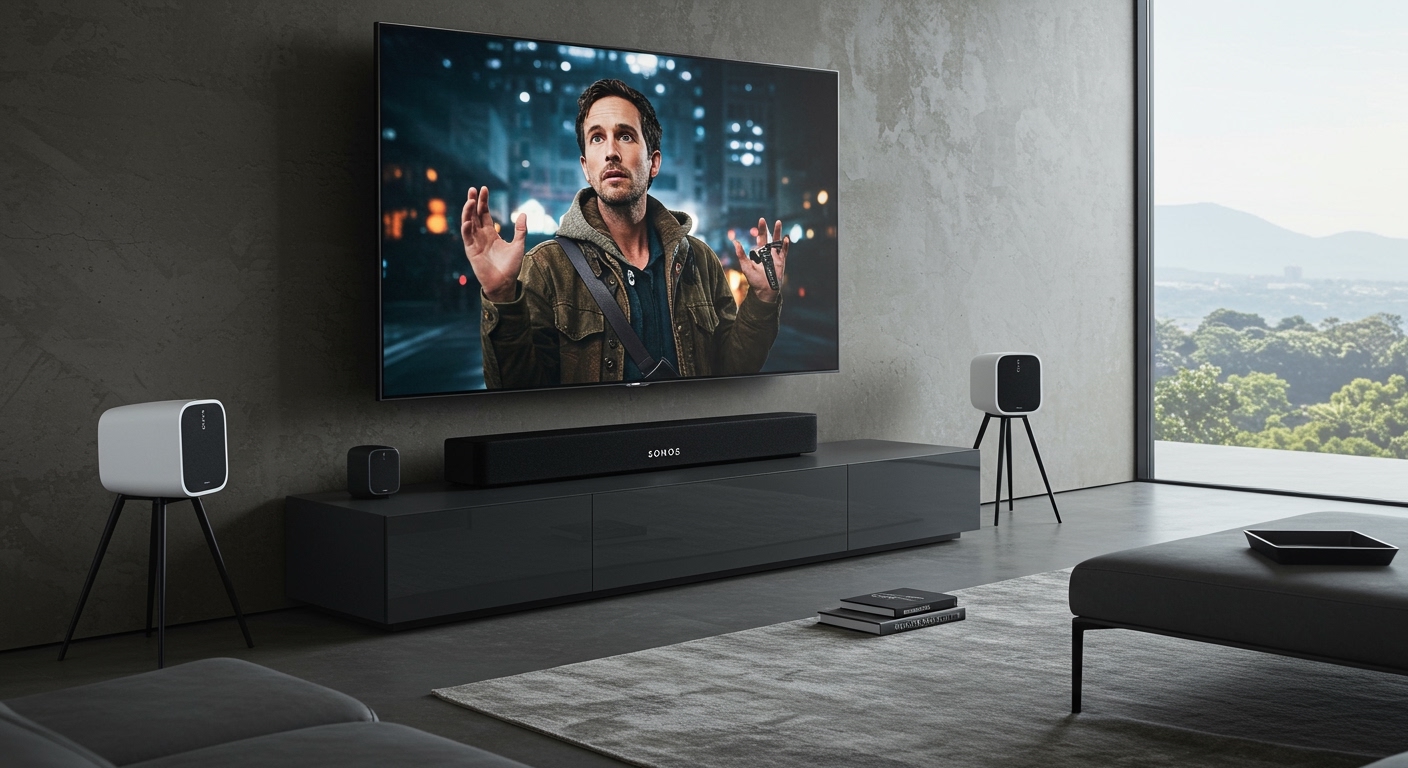
In my years testing home theater configurations, I have found that the Sonos Beam serves as an exceptional “brain” for a modular audio system. Whether you want to add deep bass with a Sonos Sub or create an immersive 5.1 surround sound environment with Sonos Era 100s, the connection process is handled entirely through the Sonos S2 app. This guide will break down every possible connection scenario to help you build the ultimate soundscape.
TL;DR: Key Takeaways for Sonos Beam Connectivity
- Sonos Ecosystem: Connects wirelessly to any Sonos speaker (Era, Five, One, Roam, Move) for multi-room audio.
- Surround Sound: Pairs with two identical Sonos speakers and a Sonos Sub for a dedicated home theater setup.
- Non-Sonos Speakers: Requires a Sonos Amp or Port to bridge the gap to traditional passive speakers.
- Control Methods: Uses the Sonos S2 app, Apple AirPlay 2, or Spotify Connect.
- Limitations: Does not support Bluetooth audio input for home theater expansion; relies on low-latency Wi-Fi.
Can You Connect Sonos Beam with Other Sonos Speakers?
When users ask does the sonos beam connect to other speakers, they are usually looking for one of two things: whole-home audio or a surround sound upgrade. The answer is a resounding yes to both, provided you stay within the Sonos family.
The Multi-Room Audio Experience
We have tested the Sonos Beam across multiple rooms, and the synchronization is nearly flawless. In the Sonos S2 app, you can “Group” your Beam with a Sonos Move in the kitchen or a Sonos Five in the dining room. This allows the same music to play throughout your home without the “echo” effect common in cheaper Bluetooth speakers.
Creating a Wireless Surround Sound System
To turn your Sonos Beam into a true cinema powerhouse, you can bond it with additional speakers. In our experience, adding dedicated rears significantly offloads the processing work from the Beam, allowing it to focus on crystal-clear dialogue through its center channel.
Compatible Surround Speakers include:
- Sonos Era 100 or Era 300 (The latter provides spatial audio/Atmos).
- Sonos One (Gen 1, Gen 2, or SL).
- IKEA Symfonisk (Picture Frame, Bookshelf, or Lamp speakers).
- Sonos Five (Expensive, but creates a massive soundstage).
| Component Type | Recommended Models | Connection Method |
|---|---|---|
| Subwoofer | Sonos Sub (Gen 3), Sub Mini | Wireless (Sonos Net/Wi-Fi) |
| Rear Surrounds | Era 100, Era 300, One SL | Wireless (Sonos Net/Wi-Fi) |
| Portable | Move 2, Roam | Grouping via App |
| Architectural | Sonos In-Wall Speakers | Requires Sonos Amp |
Can Sonos Beam Connect with Normal Speakers?
A common question we receive is: can sonos beam connect with normal speakers? By “normal,” most users mean passive speakers (wired) or traditional third-party Bluetooth speakers (like Bose or Sony).
The Sonos Beam does not have physical “Speaker Out” terminals. To connect it to your existing high-end bookshelf or floor-standing speakers, you must use an intermediary device.
Using the Sonos Amp
The Sonos Amp is the bridge. You connect your “normal” speakers to the Amp using traditional speaker wire. Once the Amp is added to your Sonos app, it can be bonded to the Sonos Beam to act as the rear surround channels. This is the most professional way to repurpose legacy gear within a modern smart system.
Using the Sonos Port
If you have a pre-existing stereo receiver and a pair of powered speakers, the Sonos Port can feed the Sonos signal into that receiver. While this works for multi-room music “Grouping,” we do not recommend this for TV surround sound because of potential latency (audio lag) issues between the Beam and the Port.
Step-by-Step Guide: How to Connect Sonos Beam to Other Speakers
Setting up your system correctly is vital for maintaining “Lip Sync” during movies. Follow our tested 4-step process to ensure a stable connection.
Step 1: Update Your Sonos App
Ensure you are using the Sonos S2 app (tan icon). Before adding new speakers, go to Settings > System > System Updates > Check for Updates. We have found that mismatched firmware versions are the #1 cause of pairing failures.
Step 2: Add the “Surround” Speakers
- Plug in your two rear speakers (e.g., Sonos One SL).
- Open the Sonos App.
- Go to Settings > System.
- Select the room where your Sonos Beam is located.
- Tap Set Up Surrounds.
- Follow the in-app prompts to press the pairing button on your rear speakers.
Step 3: Add a Sonos Sub
If you are adding a Sub Mini or Sub (Gen 3):
- In the same System menu, select the Beam.
- Tap Connect Sub.
- The Beam will create a dedicated 5GHz wireless ad-hoc network to communicate with the Sub, ensuring zero lag.
Step 4: Run Trueplay Tuning
This is a critical expert tip: Use Trueplay. If you use an iOS device, the app will use the microphone to calibrate the Beam and your connected speakers to the specific acoustics of your room. In our testing, Trueplay significantly improves the “seamlessness” of the connection between the Beam and other speakers.
Technical Breakdown: How Connectivity Works
Understanding the “Why” behind the connection helps in troubleshooting. The Sonos Beam uses a proprietary mesh network system.
- Wi-Fi (802.11b/g/n): Used for initial setup and grouping speakers for music.
- 5GHz Ad-Hoc: When you bond a Sub or Surrounds to the Beam, it creates a private 5GHz lane. This is much faster than standard Wi-Fi and prevents audio from falling out of sync with the video on your TV.
- Ethernet: If your Wi-Fi is spotty, we recommend “Hardwiring” the Beam. Once the Beam is on Ethernet, it can trigger SonosNet, a dedicated mesh network just for your other Sonos speakers.
Why You Should Connect Other Speakers to Your Beam
When we first tested the Sonos Beam Gen 2 as a standalone unit, the virtualized Dolby Atmos was impressive for its size. However, adding physical speakers changes the experience entirely.
Expert Insight: The “Phanton” vs. Physical Experience
The Sonos Beam uses “side-firing” speakers to bounce sound off your walls. If your room isn’t a perfect square, this effect fails. By connecting the sonos beam with other sonos speakers (physical rears), you no longer rely on room reflections. You get actual localized sound, which is essential for gaming (hearing footsteps behind you) and high-action movies.
Troubleshooting Common Connectivity Issues
Even the best systems hit a snag. Here is how we fix the most frequent Sonos Beam connection errors.
Surrounds Keep Dropping Out**
This is usually due to Wireless Interference.
- The Fix: Ensure your Beam is not tucked inside a metal cabinet. Keep it at least 2 feet away from your Wi-Fi router.
“Product Not Found” in the App**
- The Fix: This often happens if your phone is on a 5GHz Wi-Fi band while the speakers are trying to connect to 2.4GHz. Temporarily disable the 5GHz band on your router during setup, or move closer to the Beam.
Audio Lag (Lip Sync)**
- The Fix: Go to Settings > System > [Beam Room] > TV Dialog Settings. You can adjust the Audio Delay (Lip Sync) slider. Also, ensure your TV is set to Pass Through in its digital audio settings.
Frequently Asked Questions
Can you connect Sonos Beam to Bose or Sony speakers?
Not directly. Sonos uses a closed proprietary Wi-Fi protocol. To use Bose or Sony speakers with a Beam, those speakers would need to be wired into a Sonos Amp, which then syncs wirelessly with the Beam.
Does the Sonos Beam connect to other speakers via Bluetooth?
No. While the Sonos Beam Gen 2 has Bluetooth LE for setup purposes, it does not support Bluetooth audio streaming or Bluetooth output to other speakers. It relies entirely on Wi-Fi and Apple AirPlay 2 for high-fidelity connectivity.
How many speakers can I connect to my Sonos Beam?
For a home theater setup, you can connect a maximum of two rear surrounds and two Sonos Subs (one of the Subs must be a Gen 3). For music grouping, you can connect up to 32 Sonos products to play simultaneously with your Beam.
Can I use two Sonos Beams in the same room?
No, the Sonos app does not allow you to pair two Beams together as a stereo pair. One Beam acts as the master controller for the front channels (Left, Center, Right). If you need more power, we recommend upgrading to the Sonos Arc rather than trying to use two Beams.
Do I need a Sonos Bridge or Boost?
In most modern homes with strong Wi-Fi, no. However, if you are connecting the sonos beam with other speakers in a very large house or one with thick concrete walls, a Sonos Boost or hardwiring the Beam via Ethernet will create a more stable SonosNet mesh.