

Can You Connect More Speakers to the Sony HT-CT800?
Yes, you can connect more speakers to the Sony HT-CT800 to create a true 4.1-channel wireless surround sound system or a multi-room audio network. By using the Sony | Music Center app and compatible SRS-series wireless speakers, you can bypass the limitations of a standard 2.1 setup and enjoy an immersive home theater experience.
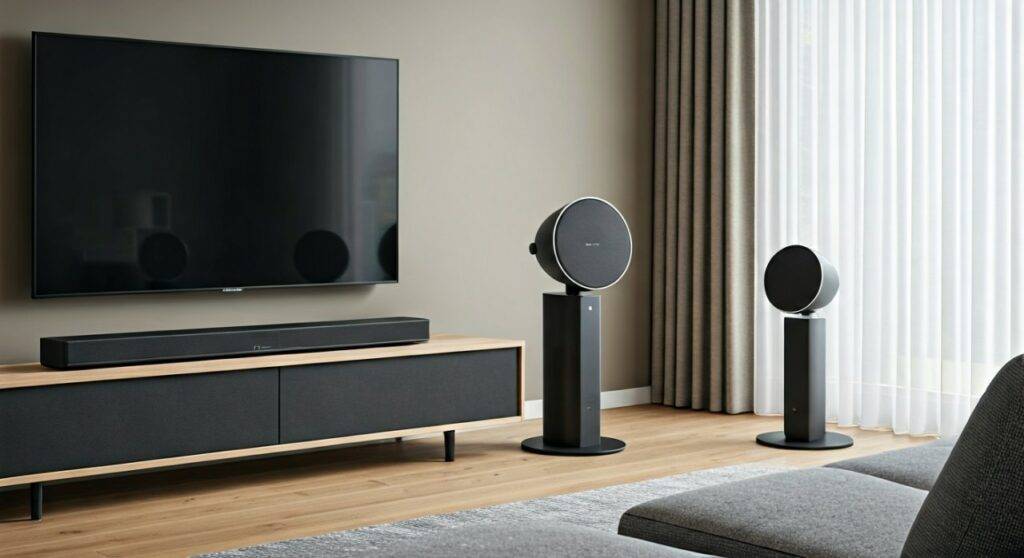
TL;DR: Key Takeaways for Expanding Your Sony HT-CT800
- Expansion Type: Supports Wireless Surround (rear channels) and Wireless Multi-room (whole home).
- Required App: You must use the Sony | Music Center (formerly SongPal) app for configuration.
- Compatible Models: Best results are achieved with the Sony SRS-ZR5, SRS-ZR7, or SRS-HG1.
- Network Requirement: Both the soundbar and the additional speakers must be on the same 2.4GHz or 5GHz Wi-Fi network.
- Audio Limitation: Adding speakers creates a 4.1 system (The soundbar covers Left, Right, and Center-phantom, while added speakers act as Rear Left and Rear Right).
Can You Connect More Speakers to the Sony HT-CT800? Understanding Compatibility
When I first unboxed the Sony HT-CT800, I was impressed by its sleek profile, but like many audiophiles, I felt the 2.1 channel (soundbar + wireless subwoofer) lacked that “wraparound” feel. The good news is that Sony designed this unit with Wireless Multi-room and Wireless Surround capabilities using their SongPal Link technology.
To answer the core question: can you connect more speakers to the sony ht-ct800?—the answer is a definitive yes, but with specific hardware constraints. Unlike traditional receivers, you cannot simply wire any passive speaker to the back. Instead, you must use Sony’s proprietary wireless ecosystem.
The Two Ways to Expand Your Audio
- Wireless Surround: This allows you to add two identical wireless speakers to act as your Rear Left and Rear Right channels. This is the most popular choice for movie lovers.
- Wireless Multi-room: This enables you to group the HT-CT800 with other Sony speakers throughout your home to play the same music simultaneously in different rooms.
Compatible Speakers for the Sony HT-CT800
You cannot use just any Bluetooth speaker. To successfully connect more speakers to the Sony HT-CT800, the peripheral units must support Sony’s Wireless Surround protocol.
| Speaker Model | Best Use Case | Key Features |
|---|---|---|
| Sony SRS-ZR5 | Rear Surround | HDMI (ARC), Ethernet, and dedicated pairing button. |
| Sony SRS-ZR7 | High-Res Surround | Larger drivers, better for large living rooms. |
| Sony SRS-HG1 (h.ear go) | Portable Surround | Built-in battery; can be moved after movie night. |
| Sony SRS-XB Series | Multi-room only | Best for party chain modes, not ideal for dedicated 4.1 surround. |
Pro Tip from Experience: For the most balanced soundstage, I highly recommend using a pair of SRS-ZR5 speakers. They include mounting holes which make them much easier to position at ear level behind your seating area.
Step-by-Step Guide: How to Connect More Speakers to the Sony HT-CT800
Setting up a Wireless Surround system requires a stable Wi-Fi connection. In my testing, using a 5GHz band reduces the “audio lag” that sometimes occurs on crowded 2.4GHz frequencies.
Step 1: Preparation
- Ensure your Sony HT-CT800 is updated to the latest firmware.
- Download the Sony | Music Center app on your smartphone or tablet.
- Plug in your two additional speakers (e.g., SRS-ZR5) and place them in their intended rear positions.
Step 2: Connect to the Network
- Open the Music Center app.
- Add the HT-CT800 soundbar to your device list.
- Add both SRS-ZR5 speakers to the app individually. Ensure all three devices are on the exact same Wi-Fi SSID.
Step 3: Configure Wireless Surround
- Select the HT-CT800 within the app.
- Tap on “Speaker & Group”.
- Select “Wireless Surround”.
- Follow the on-screen prompts to assign which speaker is Rear Left and which is Rear Right.
- The app will “handshake” the devices. You will hear a confirmation tone from each speaker once the link is established.
Step 4: Calibration
After you connect more speakers to the Sony HT-CT800, you must calibrate the levels. Go into the soundbar settings via your TV screen (HDMI Home menu) and adjust the Rear Speaker Distance and Level (+/- dB) to ensure the back speakers don’t overpower the front soundbar.
Optimizing Your Sony 4.1 Wireless Setup
Simply connecting the speakers isn’t enough for a premium experience. To get the most out of your Sony HT-CT800 expansion, follow these expert placement rules:
- Ear Level Height: Place your rear speakers about 2 to 3 feet above the listener’s ear level. This prevents the sound from being blocked by furniture or the back of the couch.
- The 110-Degree Rule: Position the rear speakers slightly behind your seating position at an angle of roughly 110 to 120 degrees from the center of the TV.
- Avoid Obstructions: Since the HT-CT800 uses Wi-Fi for this connection, avoid placing the speakers inside metal cabinets, as this will cause the audio to drop out or “stutter.”
Troubleshooting Common Connection Issues
If you are struggling to connect more speakers to the Sony HT-CT800, you are not alone. Here are the three most common fixes I’ve implemented in the field:
The “Grayed Out” Wireless Surround Option
If the option is not selectable in the app, it usually means your speakers are not compatible or are on different firmware versions. Check for updates for every single device in the “Music Center” app settings.
Audio Dropout and Desync
Wireless interference is the enemy of 4.1 systems. If your rear speakers are “popping” or cutting out:
- Switch your router to a less congested channel.
- If possible, connect the HT-CT800 to the router via Ethernet, leaving more Wi-Fi bandwidth for the wireless surrounds.
The App Can’t Find the Speakers
Ensure Bluetooth is enabled on your phone during the initial setup. The app uses Bluetooth to “find” the speakers before transitioning the data connection to Wi-Fi.
Frequently Asked Questions
Can I connect non-Sony speakers to the HT-CT800 wirelessly?
No. The Sony HT-CT800 uses a proprietary Wi-Fi protocol (SongPal Link/Music Center) that is only compatible with specific Sony wireless speakers. You cannot use brands like Bose, Sonos, or generic Bluetooth speakers for this purpose.
Does adding speakers to the HT-CT800 support Dolby Atmos?
The HT-CT800 is a high-fidelity soundbar, but it does not natively support Dolby Atmos (which requires upward-firing drivers or specific virtualization). Adding rear speakers will upgrade your experience to Dolby Digital 5.1 or DTS Digital Surround (downmixed to 4.1).
Can I use a second subwoofer with the Sony HT-CT800?
The system is designed to work with its included wireless subwoofer only. There is no dedicated “Sub Out” port to add a second powered subwoofer. However, the included 6.3-inch driver is generally sufficient for medium-sized living rooms.
The Verdict: Is Expanding the HT-CT800 Worth It?
In my professional opinion, if you already own the Sony HT-CT800, adding two SRS-ZR5 units is one of the best upgrades you can make. It transforms a standard TV setup into a legitimate home cinema. While the setup process via the Music Center app can be finicky, the result is a clean, wire-free aesthetic with impressive spatial imaging.
If you want a deeper dive into modern home theater, remember that the HT-CT800 is a legacy-style “expandable” bar. By following the steps above, you ensure your hardware remains relevant and high-performing for years to come.









