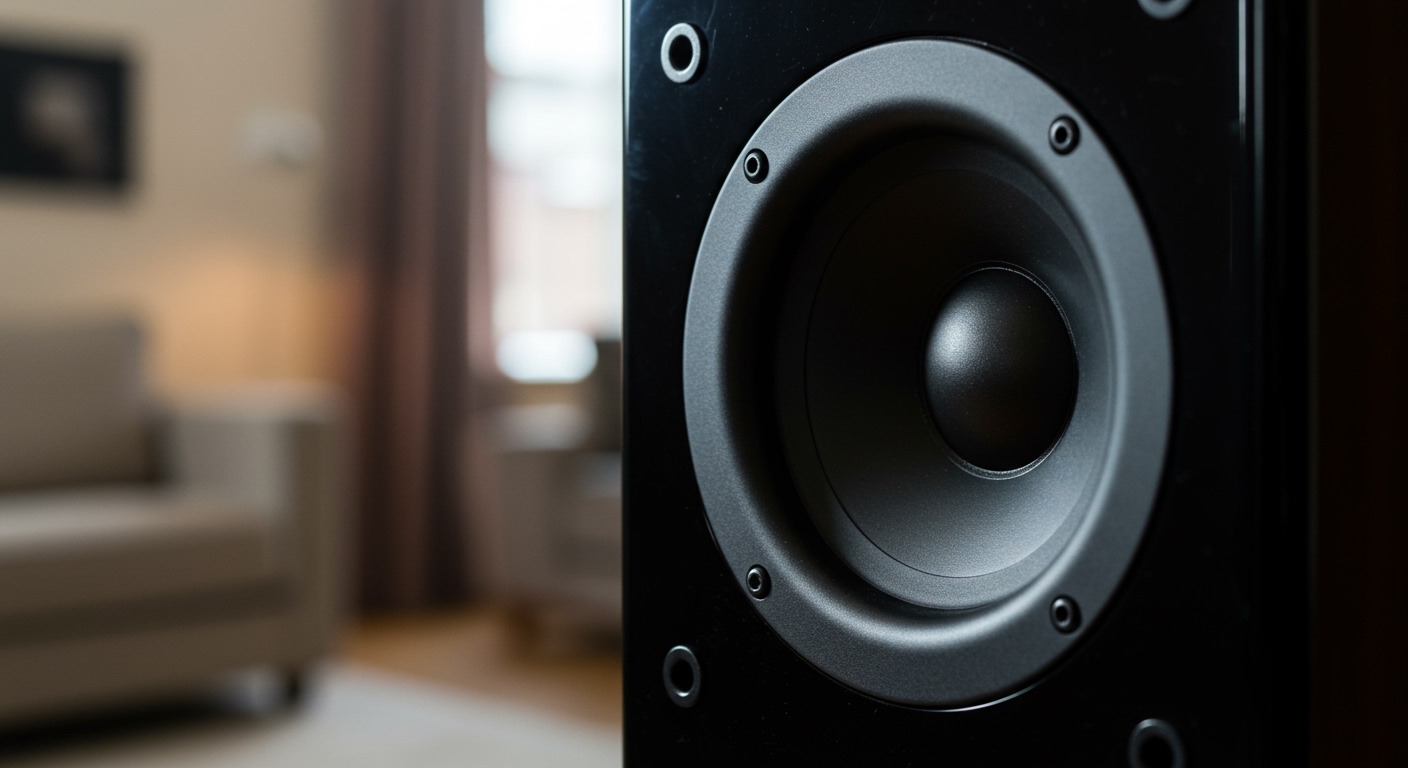
Why Your Speakers Are Only Playing Bass: The Quick Diagnosis
Experiencing sound that’s all thump and no sparkle is incredibly frustrating. If you’re wondering, “why are my speakers only playing bass,” the most common causes are a failed high-frequency driver (tweeter), an issue with the internal crossover, incorrect amplifier settings, or improper wiring. The crossover network inside your speaker is designed to direct frequencies to the correct driver—bass to the woofer and treble to the tweeter. When the part of the circuit sending power to the tweeter fails, you’re left with only the low-end frequencies from the woofer. This guide will walk you through a step-by-step process, from simple software checks to hardware diagnostics, to find and fix the problem.
Key Takeaways (TL;DR)
- Most Likely Cause: The most common reason for speakers only playing bass is a faulty crossover or a blown/disconnected tweeter (the small speaker driver that handles high frequencies).
- Easy Software Fixes: Always check your Equalizer (EQ) settings first. A misconfigured EQ can accidentally cut out all high and mid-range frequencies.
- Check Your Connections: Loose or incorrectly wired speaker cables can cause a range of audio problems, including frequency loss. Ensure the positive (+) and negative (-) terminals match on both the speaker and the amplifier.
- Amplifier/Receiver Settings: Your AV receiver’s crossover or speaker configuration settings might be incorrectly routing sound, sending a low-pass signal to speakers that need a full range.
- Hardware Failure: If software and wiring are correct, the problem is likely internal to the speaker. This requires testing the individual drivers and the crossover circuit board.
Step 1: Check Your Software and Source Settings (The Easiest Fixes)
Before you start unplugging cables or taking speakers apart, let’s rule out the simplest culprits. In my experience helping friends and clients set up their systems, a surprising number of audio issues originate from a simple software setting.
Review Your Equalizer (EQ) Settings
An equalizer, or EQ, allows you to adjust the volume of specific frequency bands. It’s possible that the settings have been accidentally or intentionally changed to filter out everything but the bass.
- Find the EQ: Look for the equalizer in your music player app (Spotify, Apple Music), your computer’s sound settings (Windows Sound Control Panel or macOS Audio MIDI Setup), or on your physical amplifier/receiver.
- Reset to “Flat”: Look for a “Reset,” “Default,” or “Flat” preset. A flat setting means no frequencies are being boosted or cut.
- Check the Sliders: If you’re looking at a graphic EQ (a series of vertical sliders), ensure the sliders for the mid-range (approx. 250 Hz to 4 kHz) and high-range (4 kHz and up) frequencies are not pulled all the way down. They should be at or near the 0 dB line.
A classic mistake I’ve seen is someone applying a “Bass Boost” preset that not only boosts the low end but also aggressively cuts the high end, leading to a muffled, bass-only sound.
Investigate Your Audio Source
Is the problem happening with all audio, or just one source?
- Test Multiple Sources: Play music from a different app (e.g., switch from Spotify to YouTube). Try a different type of media, like a movie file versus a music track.
- Check the File Itself: The audio file you’re playing could be the problem. It might be a special “bass track” used for testing subwoofers or a corrupted file.
- Bypass Any Audio Enhancement Software: Third-party software like Dolby Atmos for PC, DTS Sound Unbound, or manufacturer-specific audio control panels (Realtek Audio Console) can have their own EQs and effects. Try disabling them temporarily to see if the sound returns to normal.
Step 2: Inspecting Speaker Wiring and Connections
If the software settings are correct, the next logical step is to check the physical pathway the audio signal travels: the speaker wires and connections. Faulty wiring is a primary cause of countless audio headaches.
Verify Correct Polarity
Speakers have two terminals: a positive (+), usually colored red, and a negative (-), usually colored black. It’s critical that the positive terminal on your amplifier connects to the positive terminal on your speaker, and the same for the negative terminals.
- Out-of-Phase Sound: When one speaker is wired backward (a condition called “out of phase”), it can cause frequency cancellation, often affecting the bass and stereo imaging. While this typically causes a “no bass” issue, in rare cases with complex crossovers, it can lead to other strange audio artifacts.
- How to Check: Power everything down. Look at the back of your speaker and your amplifier. Most speaker wire is marked with a stripe, text, or a ribbed texture on one of the two conductors. Just be consistent: if the striped side is connected to red on the amp, make sure the striped side is connected to red on the speaker.
Ensure a Secure Connection
A loose connection can prevent a clean signal from reaching the speaker drivers.
- Power Down: Always turn off your amplifier or receiver before touching speaker wires.
- Check Both Ends: Inspect the connection at the back of the speaker and the back of the amplifier.
- For Banana Plugs: Make sure they are pushed in all the way.
- For Bare Wire Connections: Unscrew the binding post, check that there are no stray wire strands touching the opposite terminal (this can cause a short circuit and shut down your amp), and ensure the wire is securely clamped down. Over time, these can work themselves loose.
A Note on Bi-Wiring and Bi-Amping
Some high-end speakers have four binding posts on the back instead of two. This allows for bi-wiring (running two sets of wires from the same amp channel) or bi-amping (powering the woofer and tweeter with separate amplifier channels).
If your speakers have four terminals, they should have a small metal plate or wire called a “jumper bar” connecting the top pair and bottom pair.
- Missing Jumper Bars: If you are using a single speaker wire and these jumper bars are missing, you are only powering half of the speaker! If the wire is connected to the bottom terminals (usually for the woofer), you will get only bass.
- The Fix: If you’re not bi-wiring, ensure those jumper bars are firmly in place, connecting the positive to the positive and negative to the negative.
Step 3: Diving into Your Amplifier or Receiver Settings
Modern AV receivers are complex computers. A single incorrect setting in a forgotten menu can completely alter your sound. This is where we investigate how the receiver is processing and directing the audio signal before it even gets to your speakers.
Check the Speaker Crossover Settings
Your AV receiver has its own electronic crossover. Its job is to direct low-frequency sound (the LFE or “.1” channel in a surround sound mix) to the subwoofer and the rest of the signal to your main speakers.
- Access the Speaker Setup Menu: On your receiver’s remote, find a button labeled “Setup,” “Menu,” or “Settings.” Navigate to the “Speaker Setup” or “Audio” section.
- Find the Crossover Frequency: Look for a setting that lets you set the crossover point for your Front Left/Right, Center, and Surround speakers. This is typically set to 80 Hz as a THX standard.
- The Problem: If this crossover is accidentally set to a very low value (e.g., 40 Hz) or if a low-pass filter (LPF) is incorrectly applied to your main speakers, it could be filtering out all the mid and high frequencies. An LPF allows low frequencies to pass while blocking high ones. Your main speakers should be getting a high-pass filter (HPF) signal, or a full-range signal.
- The Fix: Reset the speaker settings to their default, or manually ensure the crossover for your main speakers is set appropriately (e.g., 80 Hz) and that there isn’t a low-pass filter enabled on them.
Speaker Size: “Large” vs. “Small”
In your receiver’s menu, you’ll find an option to set your speakers to “Large” or “Small.” This setting can be misleading.
- “Large”: This tells the receiver that the speaker is “full-range” and can handle deep bass. The receiver will send the full audio signal (including low bass) to it.
- “Small”: This tells the receiver the speaker has limited bass capability. The receiver will then use its crossover to redirect all bass below a set point (e.g., 80 Hz) to the subwoofer.
How this can cause a problem: If you have your speaker set to “Large” but also have a subwoofer enabled with a conflicting crossover setting, it can sometimes cause strange filtering behavior. As a diagnostic step, try setting your speakers to “Small” and the crossover to 80 Hz. This forces the receiver into a standard configuration and can often resolve bass management issues.
Step 4: Diagnosing the Speaker Itself – The Crossover and Drivers
If you’ve exhausted all the external factors (software, wiring, amp settings), the problem is almost certainly inside the speaker cabinet. This is where we need to determine if a component has failed.
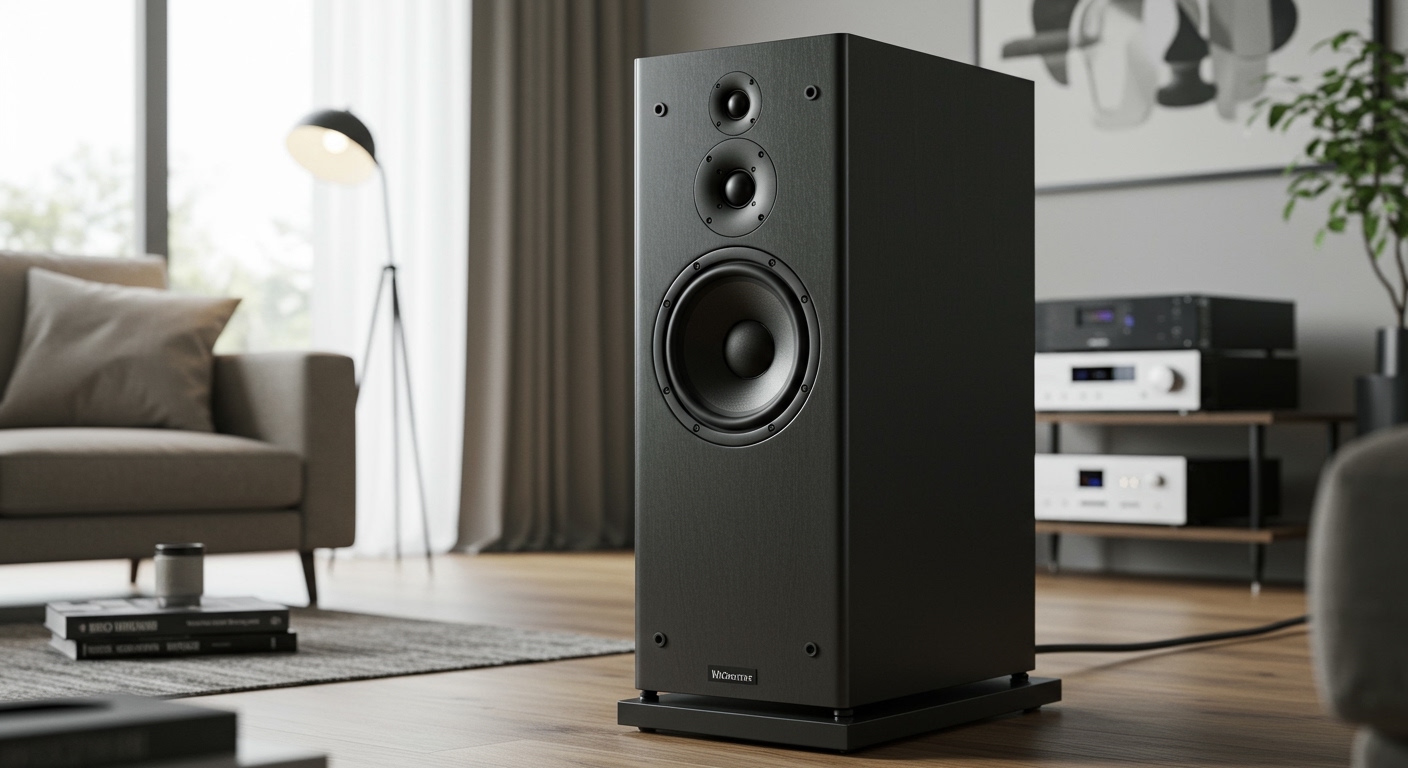
Your speaker is made of three key parts:
- Drivers: The actual “speakers” you see. The large one is the woofer (for bass), and the small one is the tweeter (for treble/highs). Some speakers also have a mid-range driver.
- Crossover: A small circuit board inside the cabinet that acts like a traffic cop for audio frequencies. It sends low frequencies to the woofer and high frequencies to the tweeter.
- Cabinet: The box that holds everything together.
The “Listen Closely” Test
This is the first and easiest internal diagnostic.
- Play a piece of music you know well, one with a good mix of bass, vocals, and high-hats or cymbals.
- Put your ear right up to the tweeter (the small driver, usually at the top). You should hear the crisp, clear high-frequency sounds.
- Now, move your ear to the woofer (the large driver at the bottom). You should hear the bass and lower-mid frequencies.
If you hear absolutely nothing coming from the tweeter, it’s either blown (burned out) or disconnected. This is a very common reason why your speakers are only playing bass.
Understanding the Crossover’s Role
The crossover is the most likely culprit. It is made up of components