Struggling with a distracting echo coming from your computer speakers? That ghostly repetition of your audio can ruin a gaming session, complicate a video call, and make listening to music unbearable. The good news is, you can usually fix it in minutes. The answer to why are my computer speakers echoing is almost always related to a microphone feedback loop, incorrect software settings, or outdated audio drivers. This guide will walk you through a series of proven, step-by-step fixes I’ve used countless times to solve this exact problem.
Key Takeaways: How to Fix Speaker Echo Fast
- The #1 Cause: The most common reason for speaker echo is a microphone feedback loop. This happens when your microphone picks up the sound coming from your speakers and plays it back.
- Quickest Fix: Move your microphone further away from your speakers or lower the speaker volume. Using headphones is the most reliable way to instantly eliminate this type of echo.
- Check Windows Settings: A common culprit is the “Listen to this device” setting in your microphone properties. Make sure this is turned off.
- Disable Enhancements: Software-based audio enhancements like “Virtual Surround” can sometimes create an artificial, echoey sound. Disabling them often resolves the issue.
- Update Drivers: Corrupted or outdated audio drivers can cause a wide range of sound problems, including echo. Keeping them updated is crucial for system stability.
Understanding Why Your Computer Speakers are Echoing
Before we jump into the solutions, it’s helpful to understand the root causes. When clients ask me, “why do my speakers echo?” it almost always boils down to one of these four issues. Identifying the cause makes the solution much easier to pinpoint.
The Microphone Feedback Loop
This is the classic cause of echo, especially during calls or recordings. Here’s the cycle:
- Your speakers play audio (e.g., someone’s voice on a call).
- Your microphone, being too close or too sensitive, picks up that audio.
- The system feeds that microphone input back to the speakers.
- This creates a delayed, repeating sound—the echo.
Incorrect Software Settings
Your operating system has numerous audio settings that can go wrong. A feature designed to let you monitor your microphone input, called “Listen to this device,” is a frequent offender. If enabled, it intentionally routes all microphone input directly to your speakers.
Software-Based Audio “Enhancements”
Many audio drivers, like those from Realtek, and operating systems like Windows 11, include software enhancements. These can be features like:
- Virtual Surround Sound
- Bass Boost
- Room Correction
- Loudness Equalization
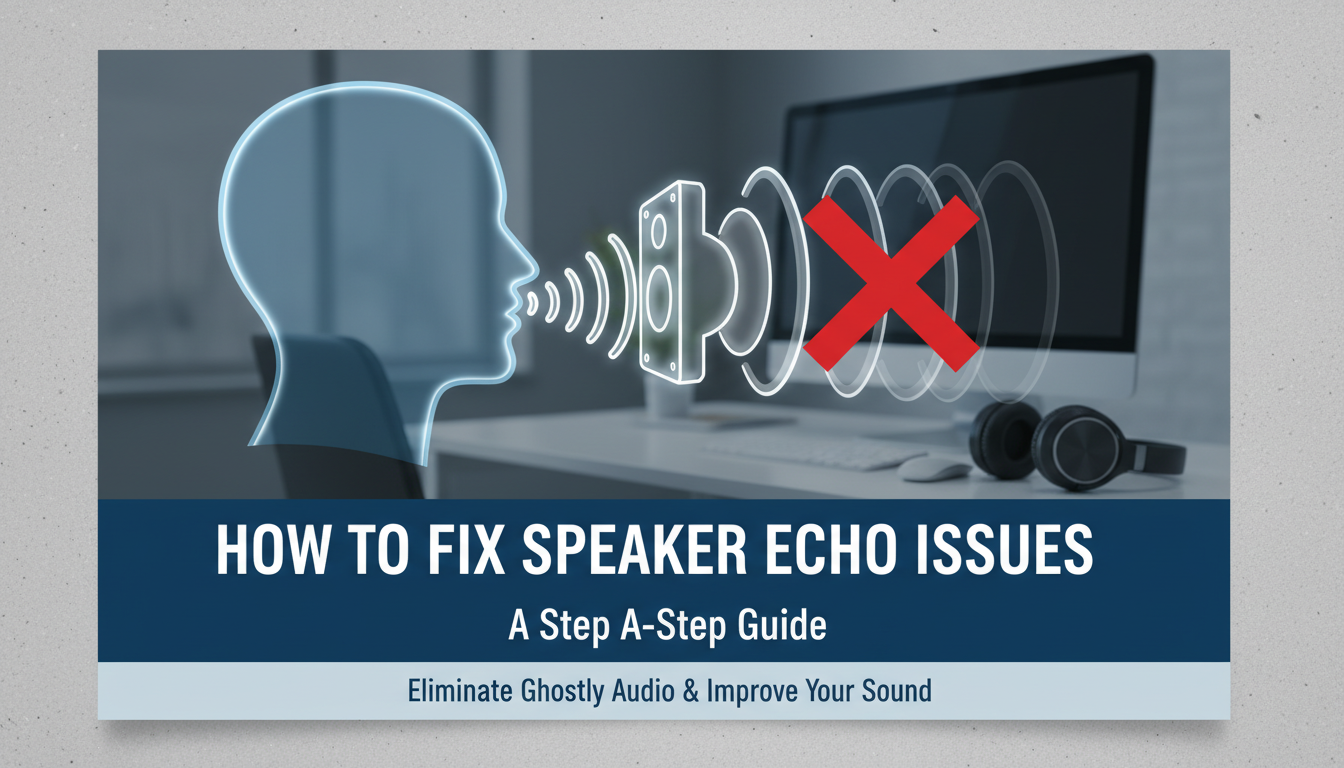
While intended to improve the listening experience, these processing effects can sometimes create an artificial reverb or echo, making your audio sound like it’s in a large, empty hall.
Outdated or Corrupt Audio Drivers
Audio drivers are the essential software that allows your operating system to communicate with your audio hardware (your speakers and motherboard’s sound card). If these drivers are outdated, buggy, or corrupt, they can cause unpredictable audio artifacts, including a persistent echo.
Quick Fixes: Your First Steps to Stop Speaker Echo
Always start with the simplest solutions first. In my experience troubleshooting audio for my team, these three steps resolve the echo over 50% of the time without ever opening a settings menu.
- Move Your Microphone: If you’re using an external microphone, move it further away from your desktop speakers. Try placing it on the opposite side of your monitor.
- Lower Your Speaker Volume: Turn your speaker volume down and incrementally increase your microphone’s input gain to compensate. Finding a balance is key.
- Use Headphones (The Ultimate Test): Plug in a pair of headphones. If the echo disappears completely, you have 100% confirmed the issue is a microphone feedback loop. This isolates the problem to the interaction between your mic and speakers.
Diving into Windows Settings to Fix Why Speakers Echo
If the quick fixes didn’t work, it’s time to check your system settings. These methods target the most common software-related causes of echo on Windows 10 and Windows 11.
Method 1: Disable “Listen to This Device”
This is the most critical setting to check. It’s often enabled by accident and is a primary reason why your computer speakers echo.
- Right-click the speaker icon in your taskbar and select “Sounds”.
- In the window that appears, click on the “Recording” tab.
- Find your active microphone (it will have a green checkmark). Double-click it to open its Properties.
- Go to the “Listen” tab.
- Ensure the box for “Listen to this device” is UNCHECKED.
- Click “Apply” and then “OK”. The echo should stop immediately.