Understanding Treble: What It Is and Why It Matters
Before you can learn how to increase treble on speakers, it’s crucial to understand what you’re adjusting. Treble refers to the range of high-frequency sounds, typically from 4,000 Hz to 20,000 Hz. Think of these as the sounds that add detail, clarity, and a sense of “air” to your music.
Properly balanced treble brings out the crisp snap of a snare drum, the shimmer of cymbals, the subtle breath of a vocalist, and the delicate notes of a violin. When treble is too low, music can sound muffled, distant, or “muddy.” Conversely, when it’s too high, the sound becomes harsh, tinny, and can cause listening fatigue, especially with sharp “S” sounds (a phenomenon called sibilance).
The Goal of Treble Adjustment
The ultimate goal is to achieve a balanced, natural sound that feels detailed without being aggressive. In my years of setting up audio systems, I’ve found that the “perfect” setting is subjective and depends on three key factors:
- Your Speakers: Different speakers have unique sound signatures.
- Your Room: The acoustics of your space dramatically affect how you perceive high frequencies.
- Your Ears: Your personal hearing and preference play the final role.
Method 1: The Easiest Way to Increase Treble on Speakers (Using an EQ)
The most direct and common way to adjust treble is by using an Equalizer (EQ). An EQ allows you to boost or cut specific frequency bands. Nearly every modern audio device, from amplifiers and receivers to smartphones and streaming apps, has a built-in EQ.
Step-by-Step Guide to Using an Equalizer
Adjusting the EQ is a process of small, careful changes. I always recommend using a few high-quality, familiar songs as your reference point to judge the impact of your adjustments.
- Locate Your EQ Settings: Find the equalizer controls on your device. This could be a physical knob labeled “Treble” on an amplifier, a digital slider in your Spotify settings, or a multi-band graphic EQ in your PC’s sound control panel.
- Identify the Treble Bands: On a simple two-knob system, you’ll just have “Treble” and “Bass”. On a graphic EQ, look for the sliders controlling frequencies from 4 kHz upwards. The sliders labeled 8 kHz and 16 kHz will have the most noticeable effect on “sparkle” and “air.”
- Start with Small Adjustments: Increase the treble knob or the relevant EQ sliders by a small amount, such as +1 or +2 decibels (dB). A little goes a long way with high frequencies.
- Listen Critically: Play your reference track and listen for changes. Does the sound have more detail? Are the cymbals clearer? Or is it starting to sound harsh and sibilant?
- Fine-Tune as Needed: Continue making small, incremental adjustments until you find a balance that sounds clear and pleasant to you. Avoid making drastic boosts, as this can introduce distortion.
Common EQ Locations and How to Find Them
Finding the EQ can sometimes be tricky. Here’s a breakdown of the most common places you’ll find it:
- Stereo Amplifiers & AV Receivers: Look for physical knobs on the front panel, often labeled “Tone Control” with separate dials for “Treble” and “Bass”.
- Music Streaming Apps (Spotify, Apple Music):
* Spotify: Go to Settings > Playback > Equalizer.
* Apple Music: On iOS, go to Settings > Music > EQ.
- Operating Systems:
* Windows 11: Right-click the speaker icon > Sound settings > Select your speakers > Audio enhancements > Equalizer.
* macOS: macOS doesn’t have a system-wide EQ, but apps like Music have a built-in one under Window > Equalizer.
- Smart Speakers (Sonos, Google Home, Amazon Echo): EQ settings are found within their respective mobile apps. For example, in the Sonos app, you go to
Settings > System > [Select Your Speaker] > EQ.
Method 2: Optimizing Speaker Placement and Room Acoustics
Often, a perceived lack of treble isn’t the fault of the speaker’s settings but its environment. Before you make drastic EQ changes, I strongly recommend auditing your speaker placement and room acoustics. High-frequency sound waves are highly directional and easily absorbed or reflected.
The Importance of Tweeter Positioning
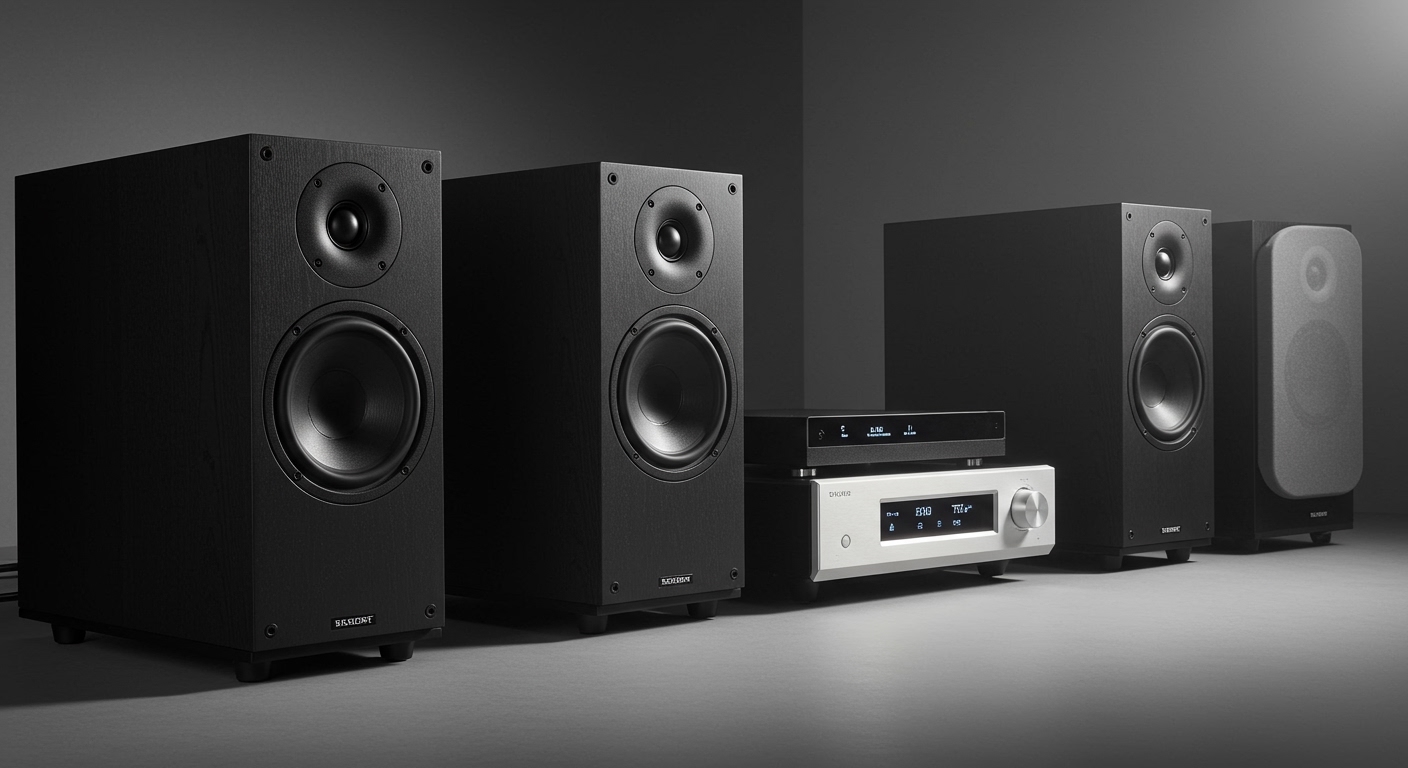
The small driver in your speaker responsible for producing treble is called the tweeter. Because high frequencies travel in a narrow beam (like a spotlight), the tweeter’s position is critical.
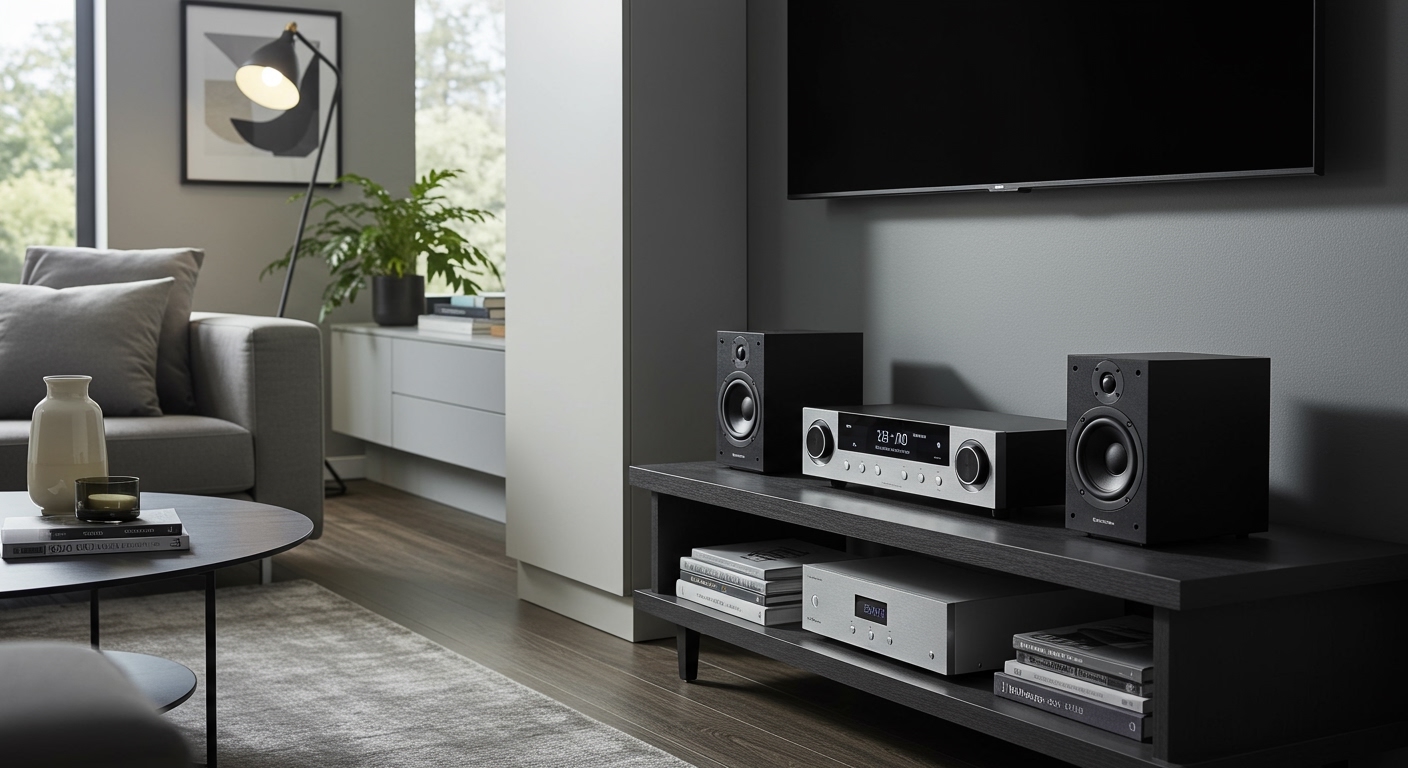
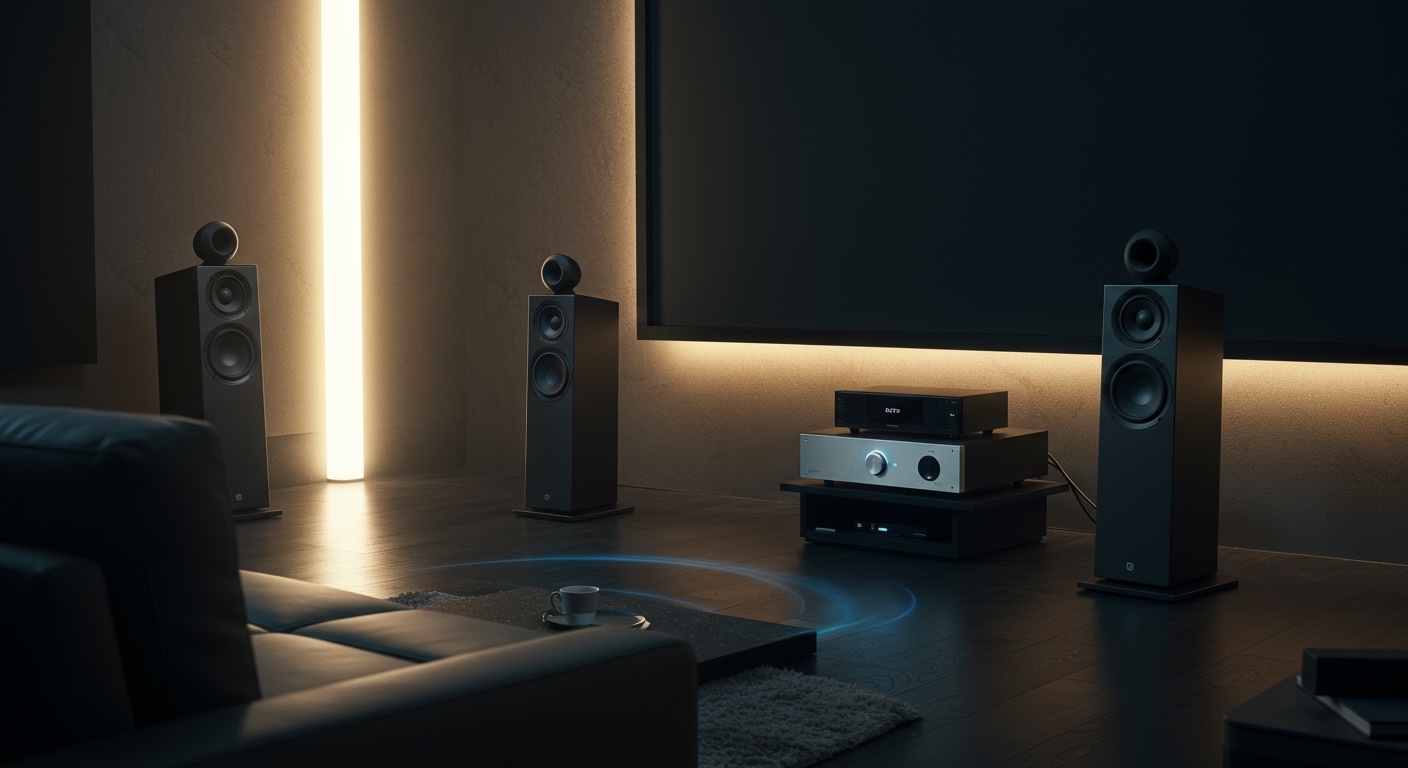
- Aim for Ear Level: For the best clarity, the tweeters should be positioned at the same height as your ears when you’re in your primary listening spot. If your speakers are too low, the treble will be firing at your legs, and the sound will be muffled. Use speaker stands or isolation pads to achieve the correct height.
- The Listening Triangle: For a proper stereo image, your two front speakers and your listening position should form an equilateral triangle. This ensures the sound from both speakers reaches your ears at the same time, improving detail and clarity.
How Room Surfaces Affect Treble
Your room is an active component of your sound system. Different surfaces interact with treble frequencies in predictable ways.
- Reflective Surfaces: Hard surfaces like glass windows, bare walls, hardwood floors, and large coffee tables will reflect high frequencies. Too much reflection makes the sound harsh, bright, and fatiguing.
- Absorptive Surfaces: Soft surfaces like thick rugs, heavy curtains, upholstered furniture, and bookshelves will absorb high frequencies. Too much absorption can make the sound dull and lifeless.
Actionable Advice: If your sound is too dull, check for excessive soft materials between you and the speakers. If it’s too harsh, add a rug or curtains to tame reflections. I once fixed a client’s “harsh treble” problem simply by placing a thick rug on their hardwood floor.
Fine-Tuning with “Toe-In”
“Toe-in” refers to angling your speakers inward to point more directly at the listening position. This is a powerful tool for focusing the treble energy.
- Start with the speakers firing straight ahead, parallel to the side walls.
- Listen from your sweet spot.
- Slowly angle (toe-in) both speakers inward by a few degrees.
- Listen again. You should notice the treble and overall image become more focused and clear.
- Continue experimenting with the angle until you find the perfect balance between a wide soundstage and sharp detail.
Method 3: Checking Your Source and Connections
If EQ and placement changes don’t fully solve your problem, the issue might be further up the signal chain. A low-quality source or a poor connection can be the bottleneck preventing you from hearing crisp treble.
Is Your Audio Source High-Quality?
You can’t create detail that isn’t there in the first place. The quality of your audio files or streaming service has a massive impact on high-frequency information.
- Low-Quality: Heavily compressed MP3s (128kbps) or low-quality YouTube audio often have the high-frequency data removed to save space. This results in a sound that lacks sparkle and detail, no matter how much you boost the treble.
- High-Quality: Use sources like Spotify Premium (Very High setting), Tidal, Apple Music Lossless, or audio files in formats like FLAC, ALAC, or WAV. These formats preserve the high-frequency detail from the original recording.
Inspecting Your Speaker Wires and Connections
A weak link in the physical connection can also degrade sound quality. Over time, speaker wire connections can become loose or corroded.
As a safety precaution, always turn off your amplifier or receiver before checking connections.
- Check the Terminals: Ensure the speaker wire is securely fastened to the terminals on both the amplifier and the back of the speaker. A loose connection can cause signal loss.
- Look for Corrosion: If the copper wire looks dull or greenish, it might be oxidized. Snip off the corroded end and strip a fresh section of wire to ensure a clean