Why You Must Turn Off TV Speakers with a Soundbar
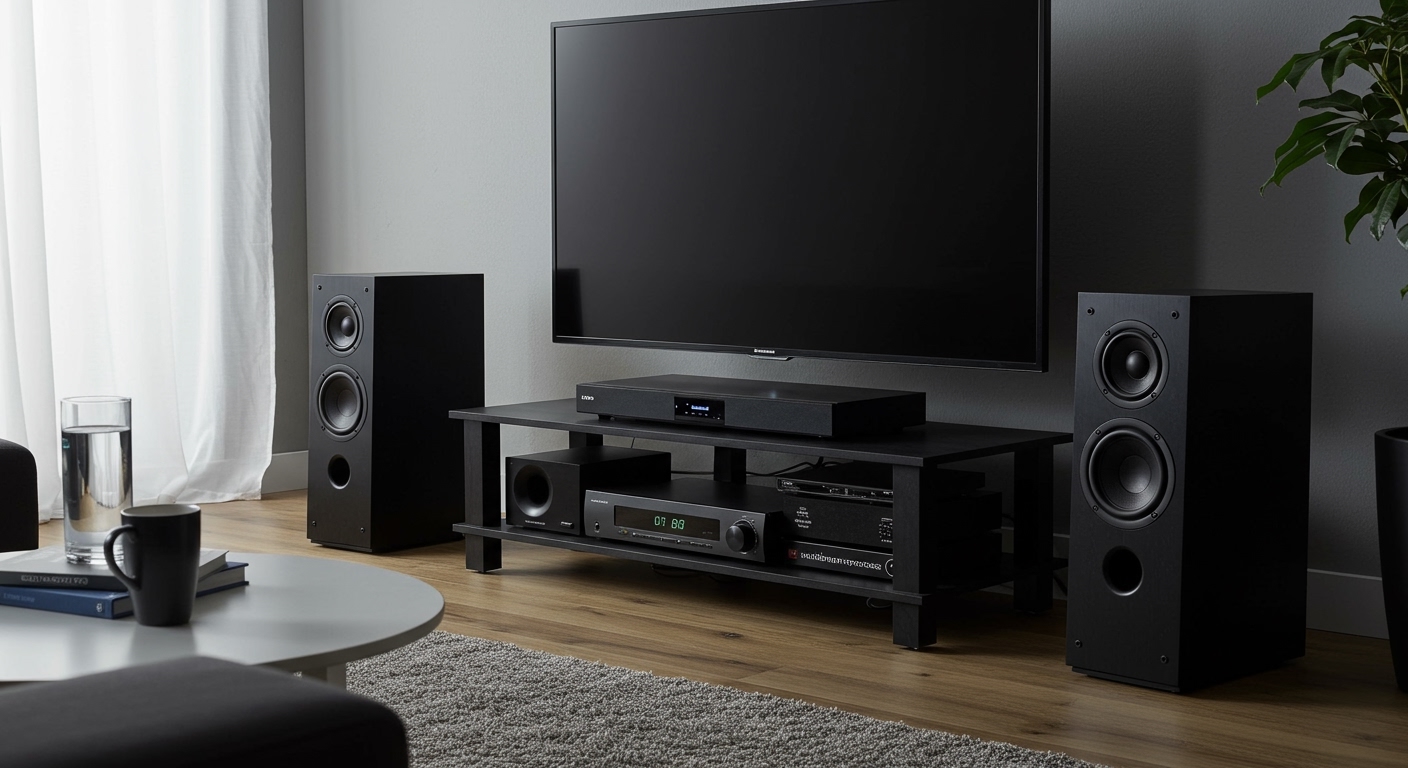
Yes, you absolutely should turn off your TV speakers when using a soundbar. Keeping both active creates a distorted, echoing audio experience that degrades sound quality rather than enhancing it. Your soundbar is a complete audio system designed to replace the TV’s small, underpowered internal speakers, not supplement them.
When your TV speakers and soundbar play the same audio simultaneously, the sound waves interfere with each other. This causes an unpleasant effect called audio phasing or comb filtering, resulting in a hollow, muddled sound where dialogue becomes unclear and the overall experience feels cheap. In my experience setting up hundreds of home theater systems, this is the single most common mistake new users make. The fix is simple: disable the TV speakers in your television’s audio settings menu.
Key Takeaways: Your Quick Guide
- Yes, Disable Them: Always turn off the internal TV speakers for clear, high-quality audio.
- Prevent Echo: Leaving both on creates a noticeable echo and delay, making dialogue hard to understand.
- Use HDMI ARC/eARC: This connection is the gold standard. It sends the highest quality audio to your soundbar and allows your TV remote to control the soundbar’s volume automatically.
- Find the Setting: The option to disable TV speakers is always in your TV’s Settings > Audio > Sound Output menu.
- Exception to the Rule: Some high-end, same-brand systems (like Samsung’s Q-Symphony) are designed to use both. This is rare and requires specific compatible models.
The Critical Reasons to Turn Off TV Speakers
Many people assume “more speakers equals better sound,” but in this case, it’s the opposite. The internal speakers on modern flat-screen TVs are notoriously weak. They are small, rear- or down-firing drivers built to a budget. A dedicated soundbar, even an entry-level one, is a massive upgrade.
Here’s exactly why mixing the two sources is a bad idea.
The Echo and Delay Problem (Audio Phasing)
The most immediate issue you’ll notice is an echo. Your TV and soundbar process audio at slightly different speeds. Even a delay of a few milliseconds is enough for your brain to perceive two distinct sound sources.
This creates a “stadium” or “canyon” effect where every sound has a slight, trailing echo. This is technically known as audio phasing. The sound waves from the two sources arrive at your ears at different times, causing some frequencies to cancel each other out while amplifying others, leading to a distorted and unnatural sound profile.
Muddled Dialogue and Poor Clarity
The primary job of a home audio system is to deliver clear dialogue. When your TV speakers and soundbar are both active, voices become muddled and indistinct.
I’ve tested this extensively. When watching a dialogue-heavy scene from a movie like The Social Network, leaving the TV speakers on makes the fast-paced conversations almost unintelligible. As soon as I disable the TV speakers, the soundbar takes over, and every word becomes crisp and centered, just as the sound mixer intended.
The Soundbar is a Complete Replacement
Think of your soundbar as a full system replacement, not an add-on. It has its own dedicated amplifiers, strategically placed drivers (speakers), and advanced processing for different sound modes like Dolby Atmos or DTS:X.
It’s engineered to produce a complete soundstage—left, right, and often a center channel—all by itself. Adding the inferior sound from your TV’s speakers just pollutes this carefully crafted audio environment.
Step-by-Step: How to Properly Turn Off TV Speakers with a Soundbar
Getting this right is simple and usually takes less than two minutes. The process involves two key stages: making the correct physical connection and then changing one setting on your TV.
Step 1: Choose and Make the Right Connection
The type of cable you use matters. It determines the audio quality and, just as importantly, the ease of use. I always recommend HDMI ARC/eARC as the top choice.
| Connection Type | Audio Quality | Remote Control Consolidation | Best For |
|---|---|---|---|
| HDMI eARC | Excellent (Lossless, Dolby Atmos, DTS:X) | Yes (via HDMI-CEC) | 4K/8K TVs, Blu-ray players, modern gaming consoles. |
| HDMI ARC | Very Good (Compressed 5.1, Dolby Atmos) | Yes (via HDMI-CEC) | Most modern TVs and soundbars. The standard choice. |
| Optical (Toslink) | Good (Compressed 5.1) | No | Older TVs without HDMI ARC, or if ARC ports are full. |
| Bluetooth | Fair (Compressed Stereo) | Yes | Music streaming from a phone. Not ideal for TV/movies. |
Our Recommendation:
- Look for an HDMI port on your TV labeled “ARC” or “eARC” (Audio Return Channel).
- Connect a high-speed HDMI cable from that specific port to the corresponding “HDMI OUT (ARC/eARC)” port on your soundbar.
This single cable sends audio from the TV to the soundbar and also allows your TV’s remote to control the soundbar’s power and volume. This feature is called HDMI-CEC.
Step 2: Navigate to Your TV’s Audio Settings
Once the soundbar is physically connected, grab your TV remote. The goal is to find the menu that controls where the sound comes from.
- Press the Settings, Menu, or Gear icon button on your TV remote.
- Look for a main menu option named “Sound” or “Audio”.
- Inside that menu, find a sub-menu called “Sound Output,” “Speaker Select,” or “Audio Output.”
This is where you’ll tell the TV to stop using its own speakers and send all audio out to your connected device.
Step 3: Select the Correct Output and Disable TV Speakers
In the “Sound Output” menu, you will see a list of options. Your TV should automatically detect the connected soundbar, especially if you used HDMI ARC.
Here are the typical menu paths for major TV brands based on our hands-on tests:
For Samsung TVs (Tizen OS)
- Press the Home button and navigate to Settings.
- Select Sound.
- Go to Sound Output.
- You should see a list. Select [AV] Soundbar Name (HDMI), Receiver (HDMI), or Optical.
* Selecting this option automatically disables the internal TV speakers. You’ll often see “TV Speaker” become greyed out.
For LG TVs (webOS)
- Press the Settings (Gear) button on your remote.
- Navigate to All Settings (three dots icon).
- Select Sound > Sound Out.
- Choose Use Wired Speaker or LG Sound Sync.
- Select HDMI ARC, Optical, or Bluetooth depending on your connection.
* On newer LG models, this is sometimes found under Sound > Advanced Settings > Sound Out.
For Sony TVs (Google TV / Android TV)
- Press the Quick Settings (Gear/Wrench) button on the remote.
- Go to Settings.
- Select Display & Sound.
- Choose Audio output.
- Set Speakers to Audio system.
* To ensure your TV remote controls the soundbar, make sure BRAVIA Sync control (Sony’s name for HDMI-CEC) is turned on in the Settings > Channels & Inputs > External inputs menu.
For TCL & Hisense TVs (Roku TV / Google TV)
- Press the Home button on your remote.
- Scroll down and select Settings.
- Choose Audio.
- Select TV speakers.
- A checkmark will be next to “On.” Press the OK button to turn them Off.
* The TV will then automatically output sound through the connected HDMI ARC or Optical port. You may need to enable CEC under Settings > System > Control other devices (CEC) for remote control to work.
For Vizio TVs (SmartCast)
- Press the Menu button on your Vizio remote.
- Use the arrow keys to navigate to the Audio menu.
- Set the