What Is Optical Input on Speakers? A Simple Guide
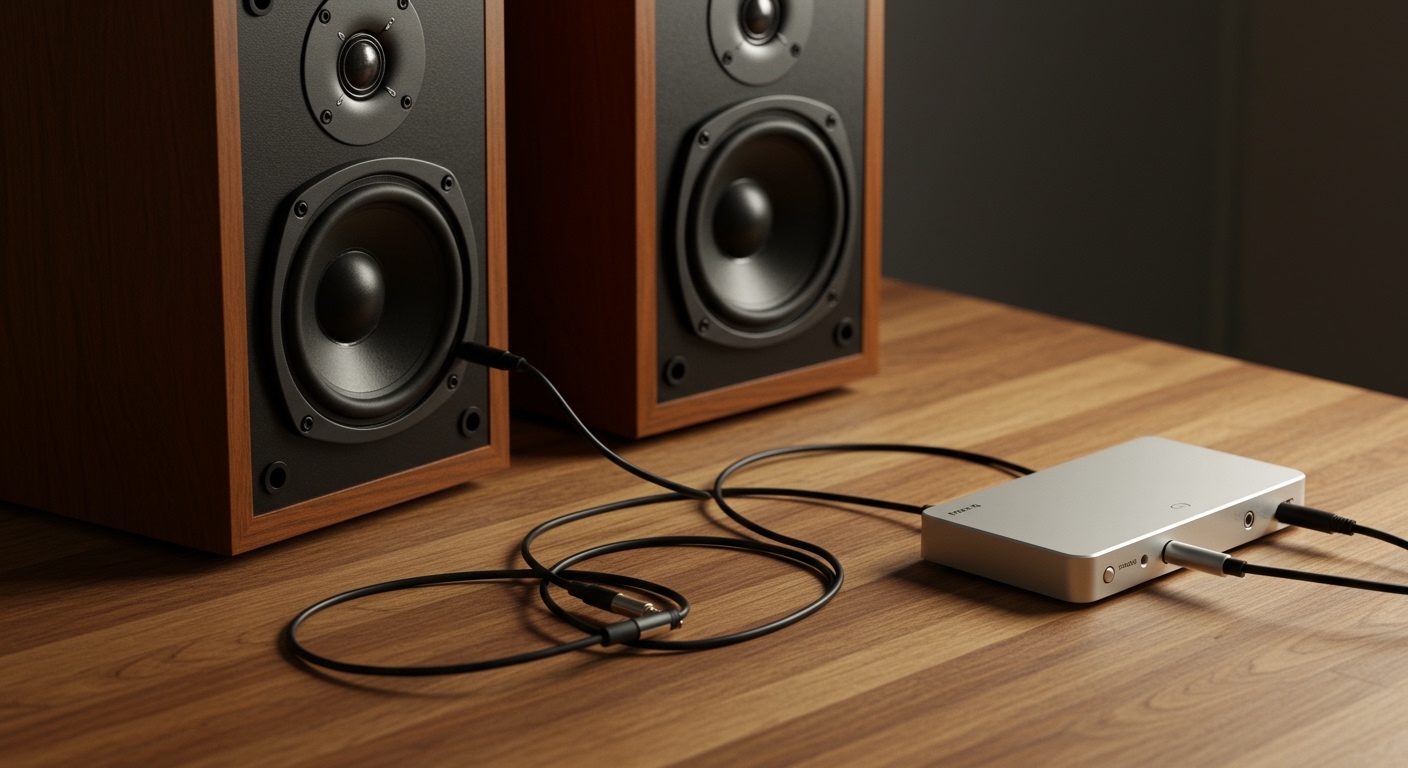
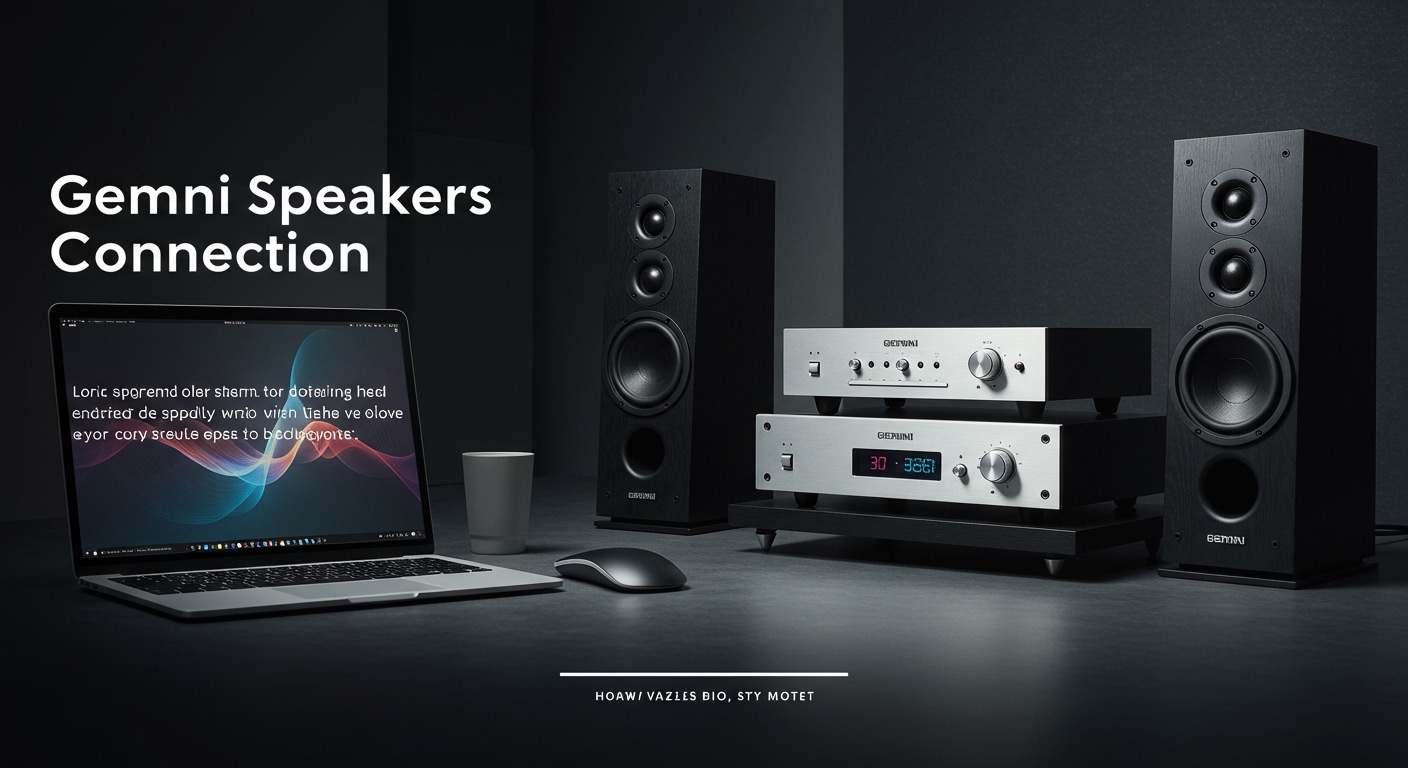
Tired of the thin, tinny sound coming from your TV’s built-in speakers? You’ve probably noticed that movies and games lack the punch they have in a theater. The good news is there’s a simple, high-quality solution often hiding in plain sight on the back of your gear. Understanding what is optical input speakers is your first step to unlocking a dramatically better audio experience with minimal fuss. This guide will demystify the technology and show you exactly how to use it.
Key Takeaways
- What It Is: An optical input is a connection port on speakers, soundbars, or AV receivers that accepts a digital audio signal using a fiber optic cable (TOSLINK).
- How It Works: It transmits audio data as pulses of light, which makes it immune to the electrical interference that can plague analog cables, resulting in a cleaner sound.
- Why Use It: It provides a significant audio quality upgrade over older analog (RCA) cables and supports both stereo and compressed 5.1 surround sound formats like Dolby Digital and DTS.
- Best For: Connecting TVs, gaming consoles (PlayStation, Xbox), and Blu-ray players directly to a soundbar or powered speaker system for a simple, high-fidelity setup.
What is an Optical Input on Speakers? The Simple Explanation
An optical input on a speaker is a specific type of digital connection that receives audio information through a fiber optic cable. Instead of using electricity to transmit the signal like traditional copper wires (such as RCA or speaker wire), it uses pulses of light.
This method of transmission is what makes it so effective. Because the signal is light, it’s completely immune to electrical or radio frequency interference (RFI/EMI) from nearby power cords or other components. This ensures the digital audio signal that leaves your TV or gaming console arrives at your speakers completely pure and unaltered.
You’ll hear this connection referred to by several names, but they all mean the same thing:
- Optical Audio
- TOSLINK (short for Toshiba Link, as Toshiba invented it)
S/PDIF (Sony/Philips Digital Interface Format) – Note: S/PDIF can also refer to a coaxial connection, but it’s most commonly associated with optical.*
In my experience setting up dozens of home audio systems, the optical connection is the most reliable and straightforward way to get high-quality digital sound from a TV to a soundbar.
How Does an Optical Audio Input Actually Work?
The process behind optical audio might sound complex, but it’s quite elegant. When I explain it to clients, I break it down into a few simple steps.
- Conversion to Light: Your source device, like a Samsung TV or PlayStation 5, takes the digital audio signal and converts it into a series of rapid light pulses using an LED.
- Transmission: These light pulses travel down a special fiber optic cable. This cable is essentially a very thin, flexible strand of glass or plastic designed to guide light along its path.
- Reception: The light reaches the optical input port on your soundbar or speaker system.
- Conversion to Sound: Inside the speaker, a sensor called a Digital-to-Analog Converter (DAC) detects the light pulses. The DAC translates this light-based code back into an electrical digital audio signal, which is then amplified and sent to the speaker drivers to create the sound you hear.
Think of it like sending Morse code with a flashlight down a long tube—it’s a highly efficient and interference-proof way to send a message.
The Key Benefits of Using Speakers with Optical Input
So, why should you care about this little square port? Using an optical connection offers several distinct advantages that I consistently rely on for clean, simple audio setups.
Superior Audio Fidelity
The number one benefit is sound quality. Because the signal is digital and transmitted via light, there is virtually no signal loss or degradation. You avoid the analog “hum” or “buzz” that can sometimes be picked up by older RCA cables, especially when they are run near power cords. The sound is crisp, clear, and exactly as the source intended.
Support for Surround Sound
An optical connection has enough bandwidth to carry multi-channel audio. It can easily handle:
- Uncompressed Stereo PCM Audio: Perfect for high-quality music playback.
- Compressed 5.1 Surround Sound: This includes popular formats like Dolby Digital and DTS, which are used on most streaming services (Netflix, Disney+) and Blu-rays. This is what gives you that immersive, cinematic sound experience.
Universal Compatibility
The optical port is a long-standing industry standard. You will find it on an enormous range of devices, including:
- Virtually all modern and older flat-screen TVs
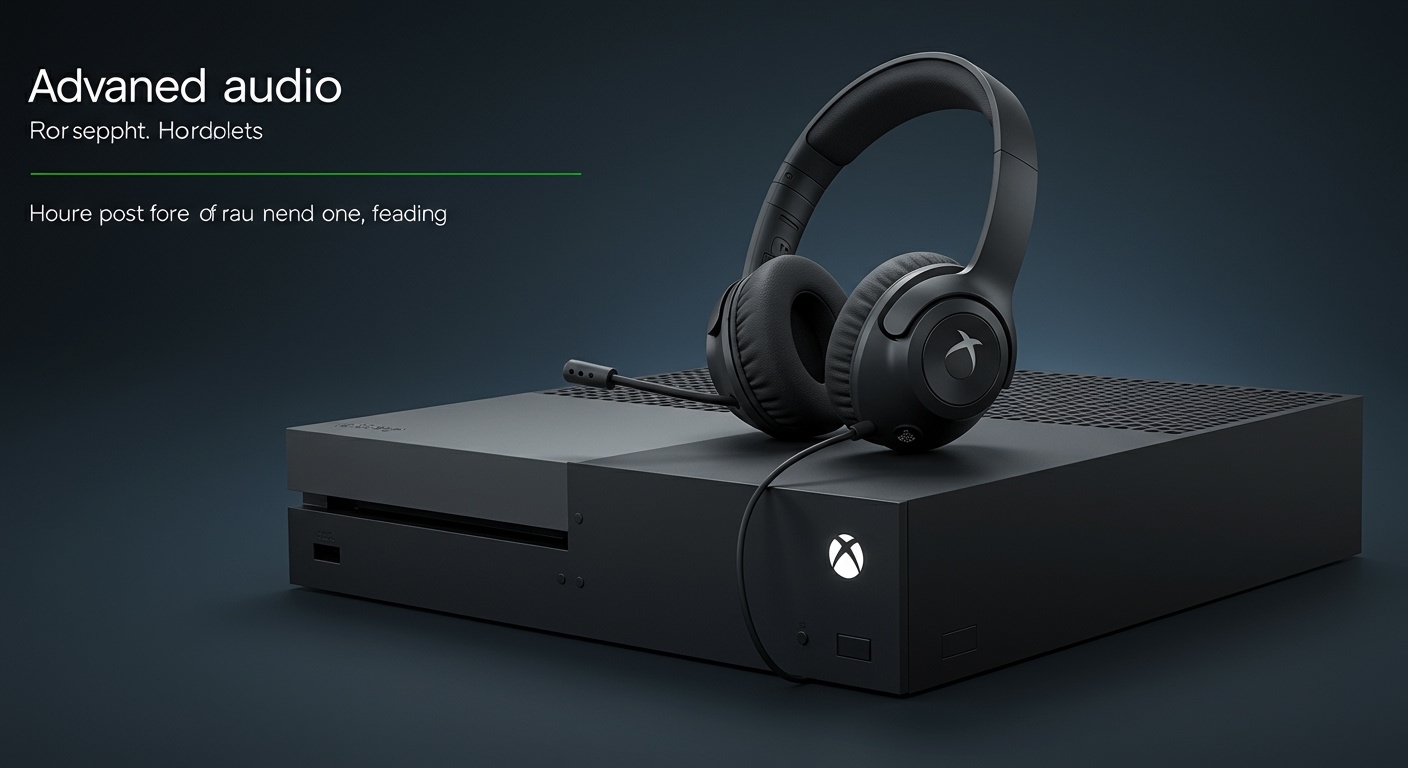
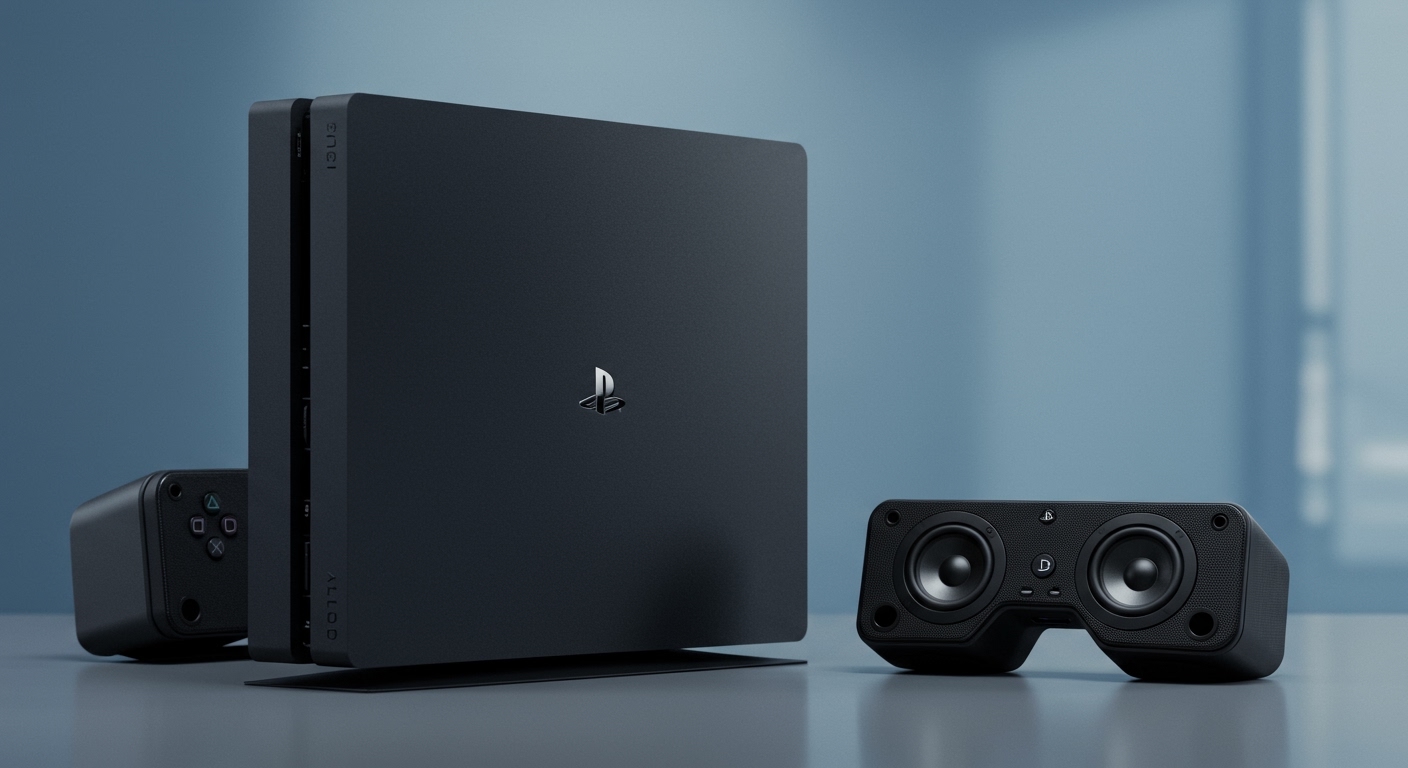
- Gaming consoles like the Sony PlayStation and Microsoft Xbox
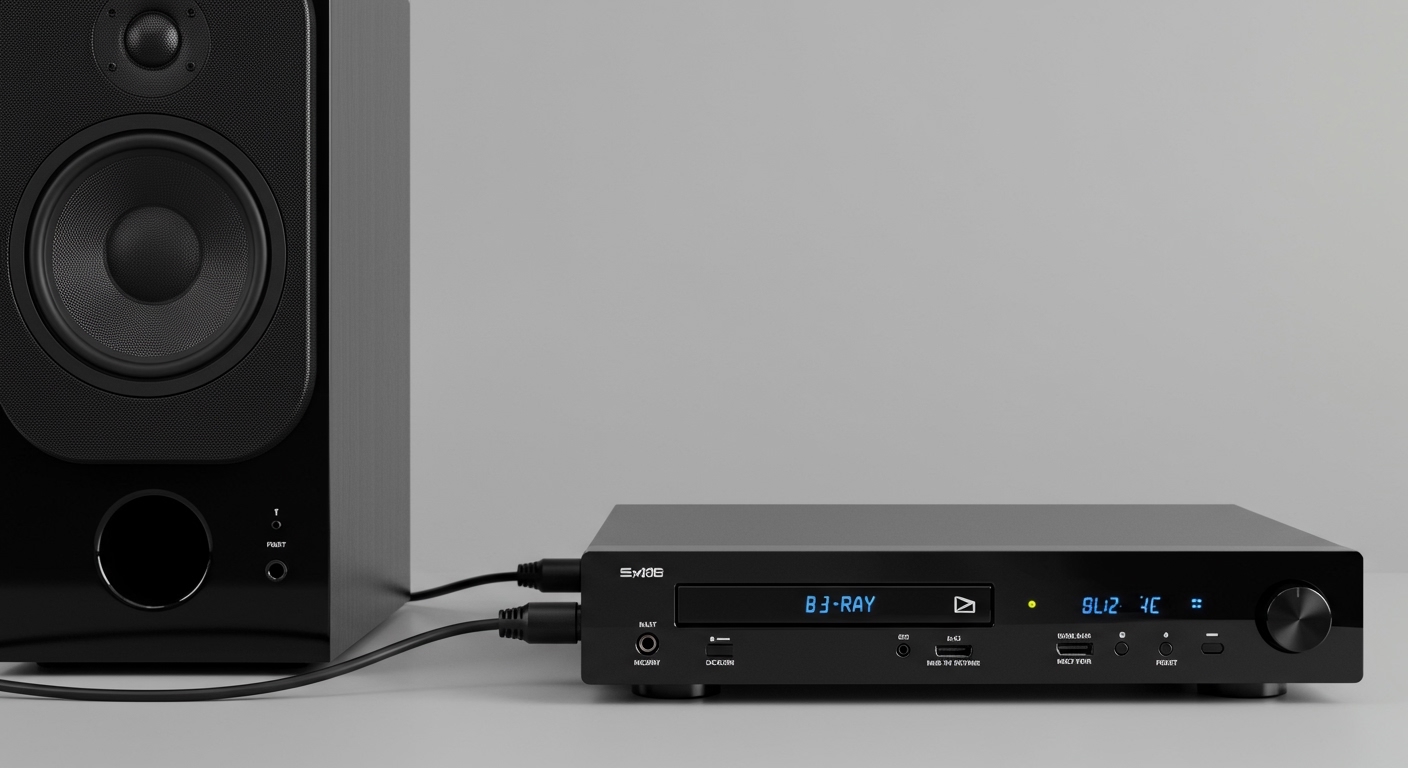
- Blu-ray and DVD players
- Cable and satellite boxes
- Many PC motherboards and sound cards
This makes it an incredibly versatile and reliable connection option.
Simplicity and Ease of Use
Forget wrestling with multiple red, white, and yellow cables. An optical connection consolidates your entire audio signal into one single, thin cable. It’s clean, simple, and declutters the back of your entertainment center.
A Step-by-Step Guide: How to Connect Speakers Using Optical Input
Connecting your speakers with an optical cable is one of the easiest AV tasks you can do. I’ve guided countless people through this process, and it takes just a few minutes.
Step 1: Gather Your Equipment
First, make sure you have everything you need:
- Your source device (e.g., your TV)
- Your audio device (e.g., a Sonos Beam soundbar or Klipsch powered speakers)
- An optical audio cable (TOSLINK). Most soundbars include one in the box.
Step 2: Locate the Optical Ports
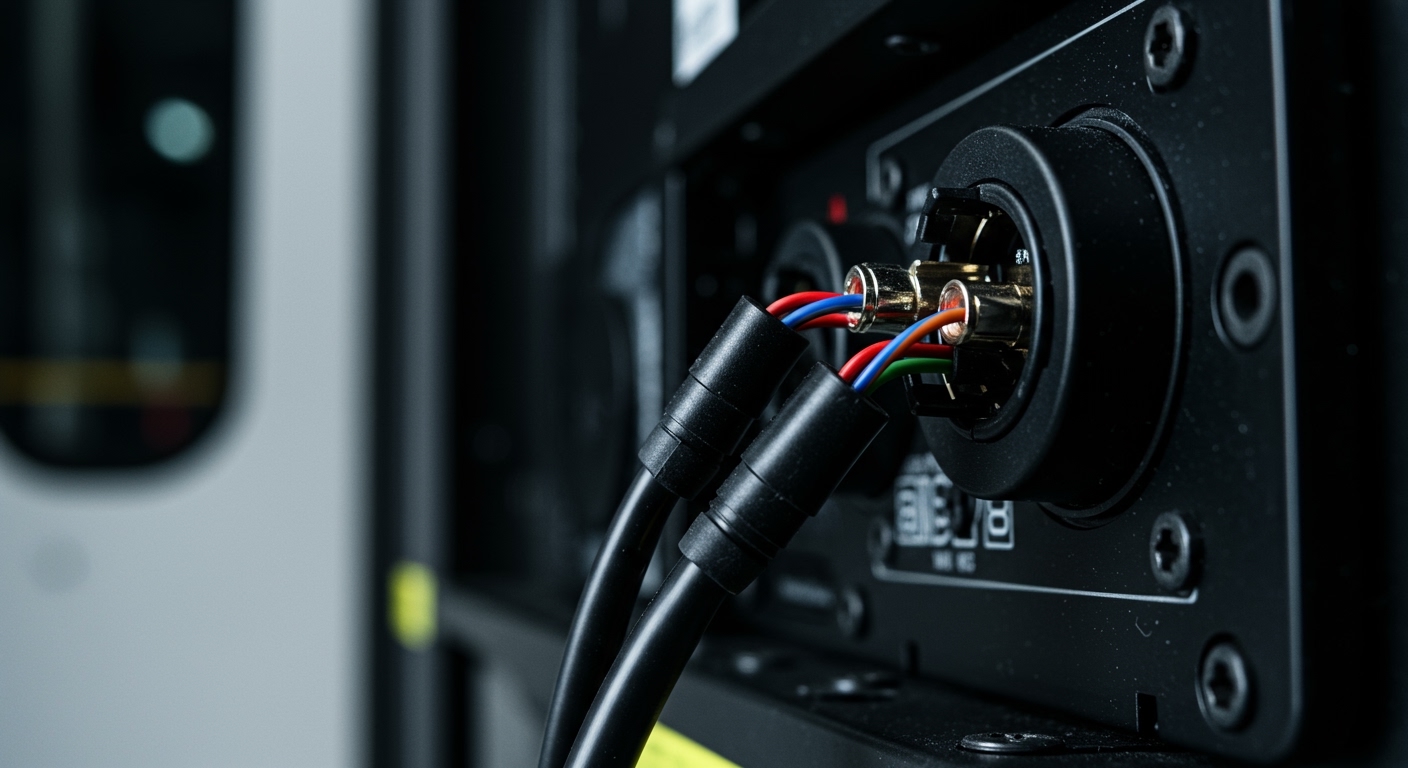
Look at the back of your TV and your speakers. The optical port is a distinct square-ish shape, often protected by a small, spring-loaded flap. It will be labeled with terms like:
- DIGITAL AUDIO OUT (OPTICAL)
- OPTICAL OUT
- TOSLINK
When you open the flap or look inside, you’ll often see a faint red glow, which is the LED transmitter. The port on your speaker will be labeled OPTICAL IN.
Step 3: Connect the Cable
This is the most important part.
- Remove the protective plastic caps from both ends of the optical cable. This is the most common mistake people make! The cable won’t work with them on.
- Line up the D-shaped plug with the port on your TV’s OPTICAL OUT and gently push it in until you hear and feel a distinct “click.”
- Connect the other end to your speaker’s OPTICAL IN port, again waiting for the “click.”
Step 4: Configure Your TV’s Audio Settings
Your TV won’t automatically switch the audio over. You need to tell it where to send the sound. This process is slightly different for every brand, but the basics are the same.
- Using your TV remote, go to the Settings menu.
- Find the Sound or Audio section.
- Look for an option called Audio Output, Sound Out, or Speaker.
- Change this setting from “TV Speaker” to “Optical” or “External Audio System.”
While you’re in the audio menu, look for a setting called Digital Audio Format or S/PDIF Output Format.
- For stereo sound (music, most TV shows), PCM