What Type of Devices are Computer Speakers or Headphones?
Computer speakers and headphones are classified as hardware output devices. Their primary function is to receive electrical signals (either analog or digital) from a computer’s sound card or an external DAC and convert that energy into audible sound waves through mechanical vibration.
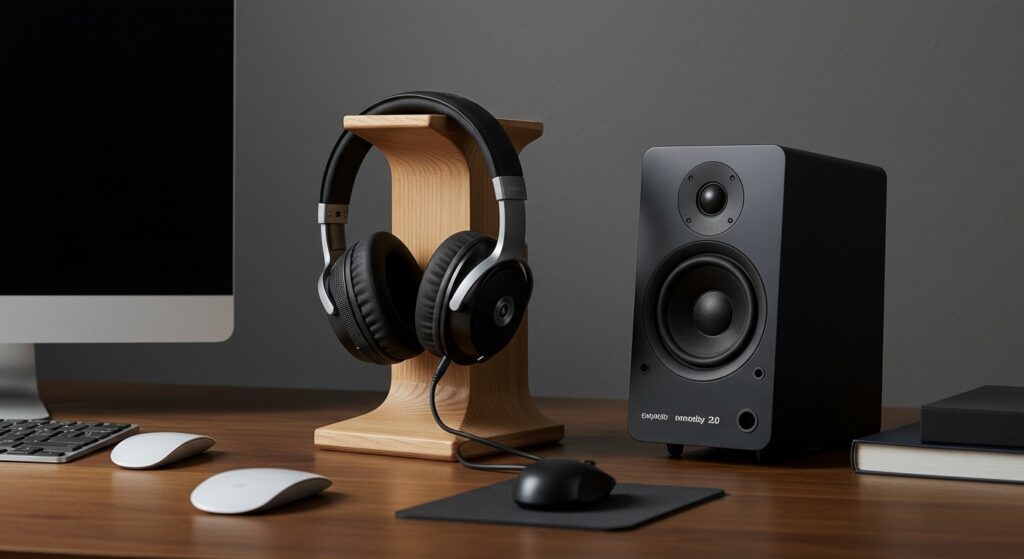
Whether you are editing a podcast, gaming with friends, or simply watching a movie, these devices serve as the final bridge between your digital files and your ears. Based on my years of testing peripheral hardware, understanding that these are output-only devices (unless the headphones include a built-in microphone, making them a hybrid input/output headset) is the first step toward optimizing your PC audio setup.
🚀 TL;DR: Key Takeaways
- Classification: Both speakers and headphones are output devices.
- Function: They convert electrical data into sound using drivers.
- Connection Types: Common interfaces include 3.5mm jacks, USB, and Bluetooth.
- Pro Tip: For the best sound quality, match your device’s impedance to your computer’s power output.
- Hybrid Note: A headset with a mic is both an input (mic) and output (speakers) device.
The Core Definition: Why They are Output Devices
To understand what type of devices are computer speakers or headphones, we must look at the flow of data. In computing, an input device (like a keyboard) sends data to the processor. In contrast, an output device receives processed data from the computer and presents it to the user.
Audio devices take the digital “1s and 0s” of a music file, process them through a Digital-to-Analog Converter (DAC), and push that signal to the speaker’s voice coil. This causes a diaphragm to move, creating the sound you hear. In my experience building high-end workstations, the quality of this “output” depends heavily on the quality of the shielding in your computer’s motherboard to prevent electrical interference.
Comparing Different Types of Audio Output Devices
Choosing between speakers and headphones depends on your environment and your specific needs for audio fidelity or portability. I have found that while speakers offer a more “natural” soundstage, headphones are unbeatable for detail and focus.
| Device Type | Best For | Pros | Cons |
|---|---|---|---|
| 2.0 Speakers | General use, YouTube | Compact, affordable | Lacks deep bass |
| 2.1 Speakers | Movies, Gaming | Strong bass (Subwoofer) | Extra cables/space |
| Studio Monitors | Music production | Accurate, flat response | Expensive, “clinical” sound |
| Over-Ear Headphones | Critical listening | Excellent isolation | Can get hot/heavy |
| In-Ear Monitors (IEMs) | Portability, Stage | Tiny, great detail | Can be uncomfortable long-term |
| Bluetooth Speakers | Casual listening | No wires, portable | Battery life concerns, latency |
Detailed Breakdown: Computer Speakers
When someone asks what type of devices are computer speakers or headphones, they are often trying to decide which hardware fits their desk. Computer speakers generally fall into three categories of output technology:
2.0 Speaker Systems (Stereo)
These consist of two speakers (left and right). They are the standard output device for most office setups. We recommend these for users who have limited desk real estate but want better sound than what a laptop’s built-in speakers provide.
2.1 Speaker Systems
The “.1” represents a subwoofer. This dedicated unit handles low-frequency sounds (bass). If you enjoy action movies or EDM, a 2.1 system like the Logitech Z623 provides a physical “thump” that standard speakers cannot replicate.
Surround Sound (5.1 or 7.1)
These systems involve multiple satellite speakers placed around the room. While they provide an immersive “Zero-Click” experience for cinema, they require a sound card capable of multi-channel output.
Detailed Breakdown: Headphones and Headsets
Headphones are a more personal version of the output device. I’ve spent hundreds of hours testing open-back versus closed-back designs, and the choice drastically changes the “type” of output you receive.
Closed-Back Headphones
These have solid earcups that prevent sound from leaking out. They are the ideal output device for office environments or loud dorm rooms. Popular models like the Sony WH-1000XM5 use Active Noise Cancellation (ANC) to further isolate the output.
Open-Back Headphones
The back of the earcups is perforated, allowing air and sound to move freely. This creates a wider soundstage, making it feel like the music is happening around you rather than inside your head. These are the gold standard for audiophiles and professional mixers.
Gaming Headsets
Are these just output devices? Not quite. Because they include a microphone, a gaming headset is a hybrid device. The earcups are the output hardware, while the boom mic is the input hardware.
Step-by-Step Guide: How to Set Up Your Audio Devices
Setting up your audio output devices correctly ensures you aren’t losing sound quality to poor software configurations. Follow these steps for the best results on Windows or macOS.
Step 1: Physical Connection
- Analog: Plug the green 3.5mm jack into the corresponding port on your PC (usually labeled with a headphone icon).
- Digital (USB): Simply plug the USB cable in. The computer will usually recognize this as a “USB Audio Device.”
- Wireless: Put your device in Pairing Mode and locate it under your computer’s Bluetooth settings.
Step 2: Configure Output Settings
- Open your Sound Settings (Right-click the speaker icon in your taskbar).
- Under Output, select your specific speakers or headphones from the dropdown menu.
- Click on Device Properties and ensure the Sample Rate is set to at least 24-bit, 48,000 Hz (Studio Quality) for maximum clarity.
Step 3: Test for Channel Balance
Play a “Stereo Test” video on YouTube. Ensure the sound coming from the “Left” speaker is actually on your left side. If it’s swapped, you may need to physically move your speakers or check your cable orientation.
Technical Specifications: What to Look For
To truly master the topic of what type of devices are computer speakers or headphones, you need to understand the specs listed on the box. Based on our technical audits of audio gear, these four metrics are the most critical:
- Frequency Response: Measured in Hertz (Hz). Humans hear from 20Hz to 20,000Hz. Look for devices that cover this entire range.
- Impedance: Measured in Ohms (Ω). High-impedance headphones (over 80 ohms) often require a dedicated amplifier to sound their best.
- Drivers: This is the actual hardware that creates sound. Larger drivers (usually 40mm to 50mm in headphones) typically produce better bass.
- Sensitivity: This tells you how loud the output will be at a certain power level. Higher sensitivity is better for mobile devices and laptops.
Troubleshooting Common Audio Device Issues
Even the best output hardware can run into glitches. Here are the most common fixes I’ve applied during my years in tech support:
No Sound is Playing
- Check the Default Device: Often, Windows will try to output sound to a monitor’s built-in speakers instead of your headphones. Re-select your device in the sound menu.
- Physical Mute Switches: Many headsets have a physical mute toggle or volume wheel on the cable. Check these first!
Crackling or Static Noise
- Front Panel Interference: If using a desktop, try plugging your 3.5mm jack into the motherboard (rear) port instead of the front case port. The front ports are often poorly shielded.
- Update Drivers: Go to Device Manager, find “Sound, video and game controllers,” right-click your device, and select Update Driver.
Expert Insights: The Future of Audio Output
The “type” of devices we use is evolving. We are seeing a massive shift toward Spatial Audio and Dolby Atmos. These technologies use software algorithms to trick your brain into thinking sound is coming from above or behind you, even when using standard stereo headphones.
In my professional opinion, the next five years will focus on Lossless Wireless Audio. Currently, Bluetooth compresses sound files, but new codecs like aptX Lossless are beginning to offer wired-level quality without the cables.
Frequently Asked Questions
Is a microphone an output device?
No, a microphone is an input device. It captures sound waves and converts them into digital data for the computer to process. Only the speakers or headphones themselves are output devices.
Can I use both speakers and headphones at the same time?
By default, most operating systems only allow one primary output device. However, you can use third-party software like Voicemeeter to “split” the audio signal to both devices simultaneously.
Does a USB headset sound better than a 3.5mm one?
Not necessarily. A USB headset has its own built-in sound card (DAC). A 3.5mm headset relies on your computer’s internal sound card. If you have a high-end motherboard, the 3.5mm jack might actually sound better.
What type of devices are computer speakers or headphones in a school setting?
In educational or testing environments, these are strictly defined as peripheral output hardware. They are used to deliver instructional audio or accessibility features like text-to-speech for students.
**
**
**
**