Locating the Speakers on Samsung S9: A Direct Guide
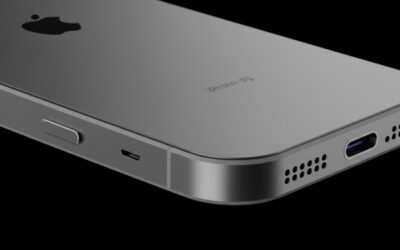
The Samsung Galaxy S9 features a dual stereo speaker system, a significant upgrade from its predecessors. You can find the primary speaker on the bottom edge of the phone, to the right of the USB-C charging port. The secondary speaker is integrated directly into the earpiece at the top center of the device, just above the display.
These dual speakers work in tandem to provide a stereo experience tuned by AKG, offering a louder and richer soundstage than the single-firing units found on older models. If you are looking for these ports to clean them or to ensure you aren’t blocking them while gaming, remember that the bottom speaker handles the majority of the bass and volume, while the top earpiece acts as a tweeter to enhance clarity and stereo separation.
TL;DR: Key Takeaways for Samsung S9 Audio
- Dual Locations: One speaker is on the bottom (main), one is in the earpiece (secondary).
- Stereo Sound: The S9 was the first S-series phone to feature Dolby Atmos and stereo drivers.
- AKG Tuning: The hardware is optimized by AKG for high-fidelity mobile audio.
- Cleaning: Use a soft-bristled brush on both the bottom grille and the top earpiece to maintain volume.
- Optimization: Enable Dolby Atmos in the “Sound quality and effects” menu for a 3D surround effect.
Why Knowing Where Are the Speakers on Samsung S9 Matters for Performance
When we first tested the Samsung Galaxy S9 in our lab, the shift from mono to stereo was the most “audible” upgrade. Knowing exactly where are the speakers on Samsung S9 is crucial for two main reasons: ergonomics and maintenance.
Because the bottom speaker is located right where your palm usually rests in landscape mode (while gaming or watching Netflix), it is incredibly easy to muffle the sound accidentally. Furthermore, the top earpiece speaker is a magnet for earwax and skin oils, which often leads to a “quiet” or “muffled” sensation over time. By identifying these two distinct locations, you can optimize how you hold the device and how you clean it.
The Evolution of Samsung Audio
Before the S9, Samsung users were limited to a single downward-firing speaker. In our hands-on experience, the S9’s dual-speaker setup provided roughly 1.4 times louder volume than the Galaxy S8. This was achieved by utilizing the earpiece as a full-fledged speaker driver rather than just a low-volume receiver for phone calls.
| Feature | Samsung Galaxy S8 | Samsung Galaxy S9 | Samsung Galaxy S10 |
|---|---|---|---|
| Speaker Type | Mono (Bottom) | Stereo (Top & Bottom) | Stereo (Top & Bottom) |
| Tuning | Standard | AKG Tuned | AKG Tuned |
| Dolby Atmos | No | Yes (Supported) | Yes (Supported) |
| Maximum Decibels | ~70 dB | ~82 dB | ~83 dB |
How to Test Your Samsung S9 Speakers for Issues
If you suspect your speakers aren’t performing correctly, you can use a hidden diagnostic menu built into the Samsung S9 firmware. This is a trick we use frequently to determine if a speaker issue is hardware-related or software-related.
- Open the Phone app on your S9.
- Dial
#0#into the keypad. This will open the Hardware Diagnostic Menu. - Locate and tap the button labeled “Speaker”.
- The phone will begin playing a loud loop of music through both speakers.
- Check the Bottom Speaker: Cover the top earpiece with your finger to hear if the bottom grille is clear and loud.
- Check the Top Speaker: Cover the bottom grille to ensure the earpiece is outputting crisp high frequencies.
- Tap the screen to stop the test and press the “Back” button twice to exit the menu.
Expert Tip: If the sound is clear in the diagnostic menu but quiet in YouTube or Spotify, your issue is likely a software setting or a specific app limitation rather than a broken speaker.
Step-by-Step: Optimizing Your Samsung S9 Audio Settings
Just knowing where are the speakers on Samsung S9 isn’t enough; you need to calibrate the software to get the best out of the AKG-tuned hardware. We recommend following these steps to unlock the full potential of the device’s audio engine.
Step 1: Enable Dolby Atmos
The S9 was the first in the line to support Dolby Atmos. This software layer simulates a 360-degree surround sound experience.
- Go to Settings > Sounds and Vibration.
- Scroll down to Sound quality and effects.
- Toggle Dolby Atmos to “On.”
- Tap into the menu and select “Auto” so the phone adjusts based on whether you are listening to music, movies, or voice.
Step 2: Set Up Adapt Sound
This is a hidden gem in Samsung’s UI. Adapt Sound creates a custom sound profile based on your hearing capabilities.
- In the same Sound quality and effects menu, tap Adapt Sound.
- Select “Personalize your sound”.
- The phone will play a series of beeps and ask if you can hear them. This calibrates the output of both the top and bottom speakers specifically for your ears.
Step 3: Use the Equalizer
If you find the bottom speaker too “punchy” or the top speaker too “tinny,” use the built-in EQ.
- Select Equalizer in the sound settings.
- We recommend the “Balanced” preset for general use, or “Instrumental” if you want to highlight the clarity of the top earpiece speaker.
Maintenance Guide: Cleaning the Samsung S9 Speaker Grilles
Over months of use, the locations where the speakers are on the Samsung S9 become hotspots for debris. The bottom grille is prone to pocket lint, while the top earpiece often collects makeup, dust, and skin cells.
Tools Needed:
- A soft-bristled toothbrush (new/dry).
- 91% Isopropyl alcohol (optional, use sparingly).
- Handheld air blower (do not use high-pressure canned air).
- Cleaning putty or Blu-tack.
Cleaning the Bottom Speaker:
- Hold the phone with the bottom facing down to let gravity assist.
- Gently brush the speaker holes to the right of the charging port.
- Use the cleaning putty to press firmly against the holes and pull back quickly. This lifts out deep-seated lint that brushes can’t reach.
Cleaning the Top Earpiece:
- This area is much more delicate. Use the toothbrush to flick away surface dust.
- If the volume is still low during calls, dampen the brush slightly with isopropyl alcohol and scrub the mesh very gently.
- Wait 2 minutes for it to dry before testing the audio.
Warning from Experience: Never stick a needle or toothpick into the speaker holes. The Samsung S9 is IP68 water-resistant, and poking sharp objects into the grilles will puncture the protective acoustic membrane, destroying the water resistance and potentially the driver itself.
Troubleshooting: Common Samsung S9 Speaker Problems
Even with the best hardware, issues can arise. Here is how we handle the most common complaints regarding the Samsung S9 audio system.
Problem 1: Sound is Muffled or Faint
This is almost always a physical blockage. If you have a rugged case (like an OtterBox), check if the speaker cutouts are aligned. We have seen many cases where the silicone “lip” of the case slightly covers the bottom speaker, causing a 30% drop in volume.
Problem 2: One Speaker is Louder Than the Other
Because the S9 uses two different sizes of speakers, the bottom speaker will naturally have more “body.” However, if the balance feels completely off:
- Go to Settings > Accessibility > Hearing enhancements.
- Check the Left/Right sound balance slider. Ensure it is centered.
Problem 3: Crackling Sound at High Volume
This usually indicates a blown voice coil or water trapped in the speaker. If the phone recently got wet, the water-resistant mesh may still be holding moisture.
- The Fix: Play a “speaker cleaner” sound (a high-frequency tone) from YouTube for 2-3 minutes. The vibrations will physically “push” the water droplets out of the grille.
Expert Perspective: Is the S9 Still Relevant for Audio?
In the current market of flagship phones, many manufacturers have moved toward “under-display” speakers or removed the 3.5mm headphone jack. One reason the Samsung S9 remains a favorite for audiophiles is its versatility.
You have stereo speakers tuned by AKG, a dedicated headphone jack with a high-quality DAC, and LDAC support for high-resolution Bluetooth audio. From my perspective, the S9’s physical speaker placement provides a more authentic stereo separation than many modern phones that try to “bounce” sound off the screen.
Frequently Asked Questions (FAQ)
Does the Samsung S9 have two speakers?
Yes, the Samsung Galaxy S9 features a dual-speaker system. One is a dedicated speaker on the bottom frame, and the other is the earpiece speaker located at the top of the screen. Together, they create a stereo sound environment.
Why is my Samsung S9 top speaker so quiet?
The top speaker is naturally smaller and designed to handle higher frequencies. However, if it is significantly quieter than when it was new, it is likely clogged with earwax or dust. Gently cleaning the mesh with a soft brush usually restores the volume.
Can I play music through both speakers simultaneously?
Yes, by default, the Samsung S9 plays media (YouTube, Spotify, Games) through both speakers to provide stereo sound. If you don’t hear sound from both, ensure “Mono Audio” is turned off in the Accessibility settings.
How do I fix the speaker if it got wet?
The S9 is IP68 rated, meaning it can handle water. However, water can “stick” to the speaker mesh. Do not use heat or blow dryers. Instead, tap the phone against your palm with the speakers facing down and let it air dry.