Unraveling the Silence: Why Your Speakers Aren’t Working After a Windows 11 Update
You’ve just installed the latest Windows 11 update, eager for new features and security patches, only to be met with frustrating silence. This is an incredibly common issue, and from my experience troubleshooting hundreds of Windows PCs, the problem almost always stems from a disconnect between the new operating system files and your computer’s audio hardware drivers. The update process can overwrite, corrupt, or create an incompatibility with your existing audio driver, reset your sound settings, or even disable critical audio services that need to be running in the background.
The good news is that this is almost always fixable. This guide will walk you through the exact same steps I use, from the simplest checks to more advanced techniques, to diagnose and resolve the issue of speakers not working after a Windows 11 update and get your sound back for good.
Key Takeaways: Your Quick-Fix Checklist
- Check the Basics First: Ensure your speakers are powered on, cables are secure, and the correct playback device is selected in the Windows 11 Sound settings.
- Run the Troubleshooter: Windows has a built-in “Playing Audio” troubleshooter that can automatically find and fix many common sound problems. It’s your first line of defense.
- Driver Management is Key: The most frequent cause is a faulty audio driver. You will likely need to update, roll back, or reinstall your audio driver through the Device Manager.
- Verify Audio Services: Critical services like Windows Audio and Windows Audio Endpoint Builder must be running. A quick check in the Services app can solve the problem instantly.
- Disable Audio Enhancements: Sometimes, special audio processing effects can conflict with new updates. Disabling them is a common and effective fix.
First Steps: The Simple Checks Everyone Forgets
Before diving into complex driver reinstalls, let’s cover the basics. In my years of IT support, I’ve seen these simple oversights cause hours of unnecessary frustration. Take 60 seconds to run through this checklist.
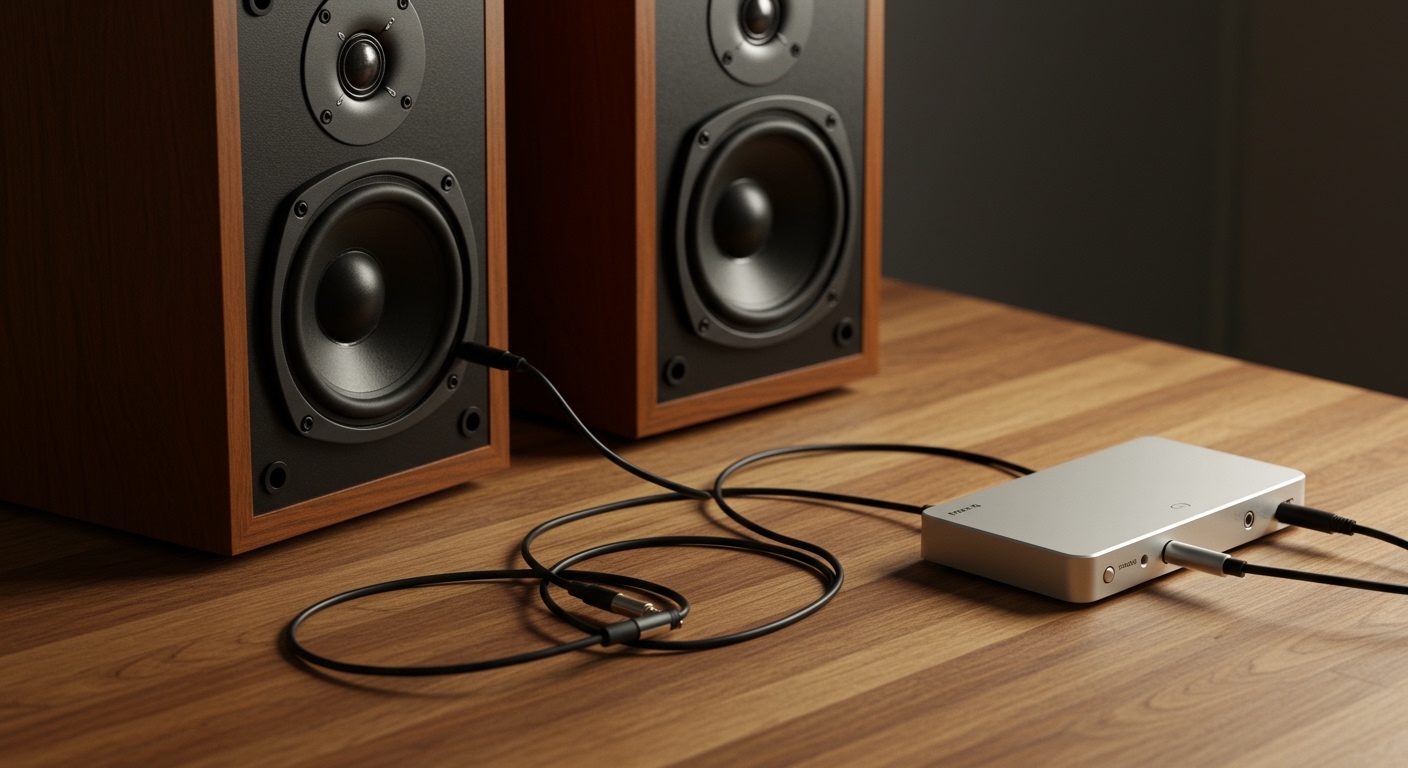
- Check Physical Connections: Is everything plugged in correctly? Ensure the speaker’s power cable is in a working outlet and the audio cable (usually a 3.5mm jack or USB) is firmly connected to the correct port on your PC. For desktop PCs, this is typically the green audio-out port.
- Verify Volume Levels: This sounds obvious, but it happens. Check the volume knob on your physical speakers. Then, click the speaker icon in the Windows 11 taskbar and make sure the volume slider isn’t at zero or muted.
- Select the Correct Playback Device: Windows 11 can get confused about where to send audio, especially if you have multiple devices like headphones, a monitor with speakers, and your external speakers.
* Click the speaker icon in the taskbar.
* Click the > arrow to the right of the volume slider.
* A list of available audio devices will appear. Make sure your primary speakers are selected. If you’re not sure which one it is, try each one in the list.
If you’ve checked these three things and still have no sound, it’s time to move on to software-based troubleshooting.
Why Are My Speakers Not Working After a Windows 11 Update? The Core Reasons
Understanding why your audio failed helps you fix it more effectively. A Windows 11 update is a massive, complex operation that changes core system files. This process is the root cause of the problem.
Here’s a breakdown of what typically goes wrong:
- Driver Incompatibility: Your existing audio driver, which worked perfectly before, may not be compatible with the new code in the Windows update. Microsoft might even push a new, generic driver that doesn’t work well with your specific hardware.
- Corrupted Driver Installation: The update process itself can go wrong, leaving you with partially installed or corrupted audio driver files. The driver is there, but it can’t function correctly.
- Settings Reset: Major updates can sometimes reset your personalized settings to their default state. This can cause Windows to “forget” your preferred speaker setup and default to another output, like a monitor or a disconnected Bluetooth device.
- Disabled Audio Services: Windows relies on background services to manage audio. If the Windows Audio service is stopped or disabled during the update, your entire sound system will fail.
The most common culprit I see is driver incompatibility. The fix almost always involves interacting with the Device Manager to get your hardware and software talking again.
A Step-by-Step Guide to Fixing Your Windows 11 Audio
Let’s work through the solutions methodically, from easiest to most advanced. Follow these steps in order.
Method 1: Use the Built-in Windows Audio Troubleshooter
Before you manually change any settings, let Windows try to fix itself. The built-in troubleshooter is surprisingly effective at diagnosing and resolving common audio issues.
- Open Windows Settings by pressing
Win + I. - In the System tab, scroll down and click on Troubleshoot.
- Click on Other troubleshooters.
- Find Playing Audio in the list and click the Run button next to it.
- Follow the on-screen prompts. The troubleshooter will ask you which device you’re having problems with. Be sure to select your speakers. It will then check for common issues like disabled services, incorrect volume levels, and driver problems.
If the troubleshooter finds a problem, it will often apply a fix automatically. If it reports that it couldn’t find an issue, move on to the next method.
Method 2: The Driver Deep Dive (Update, Roll Back, Reinstall)
This is the most critical section. Managing your audio driver correctly will solve the problem for over 90% of users. We’ll do this using the Device Manager.
- Right-click the Start button and select Device Manager from the menu.
- Expand the Sound, video and game controllers category by clicking the arrow next to it.
- You should see your audio device listed here. It might be named Realtek High Definition Audio, NVIDIA High Definition Audio, AMD High Definition Audio, or something similar.
Now, let’s try three different approaches to fixing the driver.
Approach A: Update the Audio Driver
Your first instinct should be to check for a newer, more compatible driver.
- In Device Manager, right-click your audio device and select Update driver.
- Choose Search automatically for drivers. Windows will scan its own database and the internet for a new driver.
- If it finds one, follow the instructions to install it and then restart your PC.
Approach B: Roll Back the Driver
If the problem started immediately after the update, it’s likely that a new, faulty driver was installed. Rolling back to the previous version is often the perfect solution.
- In Device Manager, right-click your audio device and select Properties.
- Go to the Driver tab.
- Click the Roll Back Driver button.
- Windows will ask why you are rolling back. Choose a reason and click Yes.
- If the button is grayed out, it means there is no previous driver version to roll back to. In that case, proceed to the next approach.
- After rolling back, restart your PC and test your speakers.
Approach C: Reinstall the Driver (The Clean Slate)
This method involves completely removing the driver and letting Windows perform a fresh installation. This is a powerful technique I often use to resolve stubborn conflicts.
- In Device Manager, right-click your audio device and select Uninstall device.
- CRITICAL STEP: A confirmation box will appear. Make sure to check the box that says “Attempt to remove the driver for this device.” This ensures a clean removal.
- Click Uninstall. Your sound device will disappear from the list.
- Now, click Action in the top menu bar of Device Manager and select Scan for hardware changes.
- Windows will automatically detect the “new” audio hardware and reinstall a default driver for it.
- Once the device reappears in the list, restart your PC to finalize the installation.
Driver Management Strategy Comparison
To help you decide which approach is best, I’ve created this table summarizing the methods.
| Method | Best For… | How It Works | My Pro-Tip |
|---|---|---|---|
| Update Driver | General issues or when you haven’t updated in a while. | Searches for the newest official driver from Microsoft’s servers. | Best first step, but sometimes Microsoft’s driver isn’t the best. Your PC manufacturer’s website is a better source. |
| Roll Back Driver | Problems that started immediately after an update. | Reverts to the exact driver version you were using before the problem began. | This is the most effective fix if a new, buggy driver was pushed by the Windows Update. |
| Reinstall Driver | Stubborn issues, suspected corruption, or when other methods fail. | Completely removes the driver software and forces a fresh installation. | Always check the “Attempt to remove the driver” box for a truly clean slate. This is my go-to for persistent issues. |
Method 3: Restart Critical Windows Audio Services
Your audio drivers can be perfect, but if the underlying Windows services that manage them aren’t running, you’ll still have silence. Let’s check on them.
- Press
Win + Rto open the Run dialog. - Type
services.mscand press Enter. - In the Services window, scroll down and find Windows Audio.
- Double-click on it to open its Properties.
- Ensure the Startup type is set to Automatic.
- If the Service status is “Stopped,” click the Start button.
- Click Apply and then OK.
- Next, find the Windows Audio Endpoint Builder service in the list and repeat steps 4-7.
- Finally, locate Remote Procedure Call (RPC) and ensure it is also set to Automatic and is Running. The other two services depend on this one.
- Restart your PC and test the audio.
Method 4: Disable All Audio Enhancements
Audio enhancements are software add-ons meant to improve sound quality (e.g