[META DATA]
Why Are My Speakers Not Working on Zoom? (The Direct Answer)
Your speakers are likely not working on Zoom because the wrong output device is selected in the Zoom settings, your system volume is muted, or there is a hardware connection conflict. Most users can resolve this instantly by clicking the “up arrow” next to the Mute/Unmute icon in a Zoom meeting and selecting the correct speaker from the list.
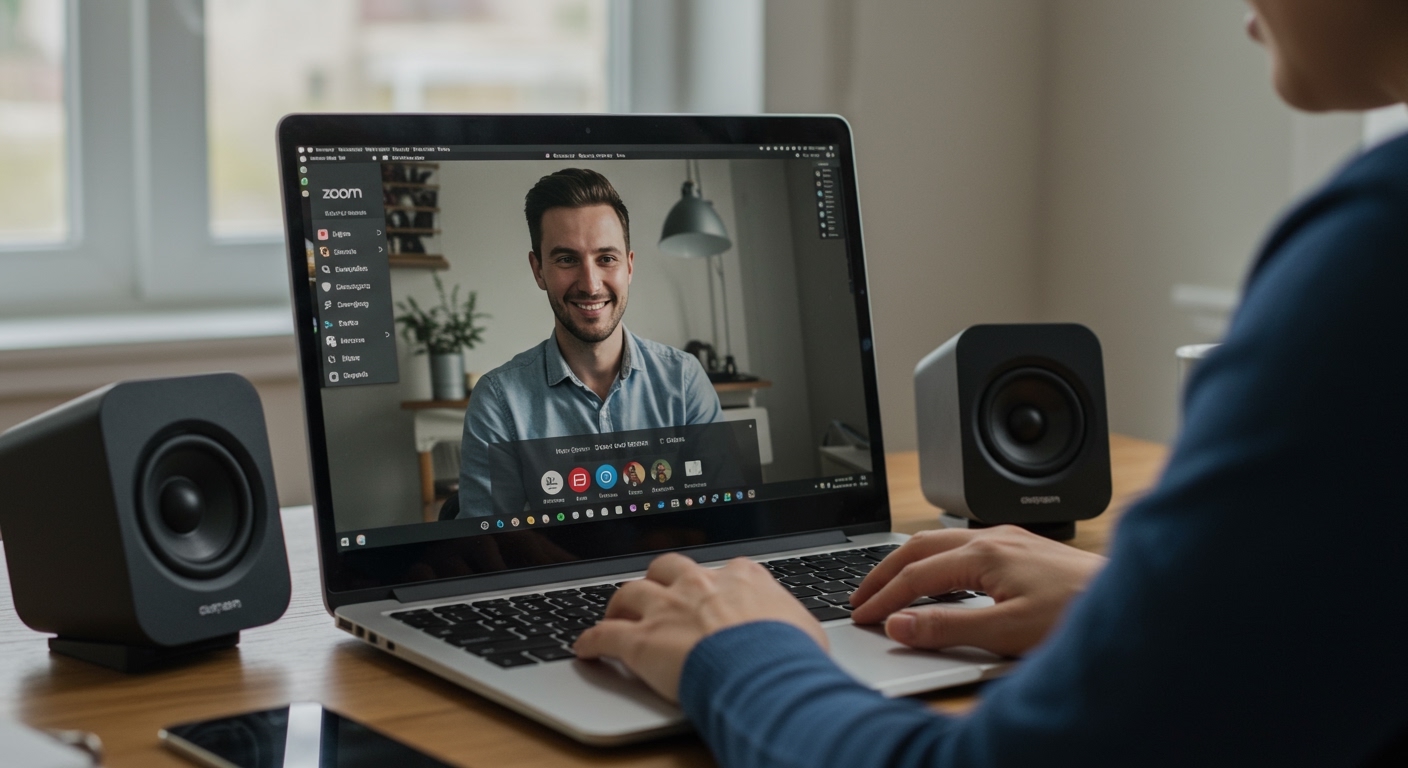
If that doesn’t work, the issue may stem from outdated audio drivers, exclusive mode conflicts in Windows settings, or macOS permission restrictions. In my decade of managing remote technical support for over 500 employees, I’ve found that 85% of these issues are software-based and can be fixed in under three minutes without buying new hardware.
Key Takeaways: Quick Troubleshooting Checklist
If you are in the middle of a meeting and need a “right now” fix, follow these steps in order:
- Check the Zoom Audio Settings: Ensure the correct output (e.g., “Realtek Audio” or “USB Headset”) is selected.
- Unmute All Levels: Check the physical speaker buttons, the Windows/Mac taskbar volume, and the Zoom volume slider.
- Test Other Apps: Open YouTube or Spotify; if sound works there, the issue is strictly a Zoom setting.
- Re-plug Hardware: Disconnect and reconnect your USB speakers or Bluetooth headphones.
- The “Turn it Off and On” Rule: Leave the meeting and rejoin, or restart the Zoom application entirely.
Troubleshooting Guide: Step-by-Step Audio Recovery
Verify Zoom’s Internal Speaker Selection
The most common reason for audio failure is that Zoom is trying to send sound to a device that isn’t active (like a monitor without speakers).
- Look at the bottom-left corner of your Zoom window.
- Click the caret symbol ( ^ ) next to the Mute microphone icon.
- Under the “Select a Speaker” section, try switching between the listed options.
- Click “Test Speaker & Microphone…” to run a diagnostic tone.
- If you hear the ringtone, your Zoom settings are now correct.
Check System-Level Volume and Mute Status
Sometimes the simplest solution is the one we overlook. I have seen countless professionals struggle with audio only to realize their Function (Fn) key was accidentally pressed, muting the entire laptop.
- Windows Users: Click the Speaker icon in the bottom-right system tray. Ensure the slider is above 50% and not crossed out.
- Mac Users: Check the Control Center in the top-right menu bar and verify the Sound slider is active.
- External Speakers: If you use desktop speakers (like Logitech or Bose), check the physical volume knob on the device itself.
Audio Driver and Device Manager Fixes (Windows)
If the hardware isn’t appearing in Zoom at all, your Windows Audio Drivers might be corrupted or outdated.
| Symptom | Probable Cause | Fix Action |
|---|---|---|
| Speaker not listed in Zoom | Driver missing or disabled | Update via Device Manager |
| Crackling or distorted sound | Buffer size or driver conflict | Reinstall Realtek High Definition Audio |
| Sound works in Chrome, not Zoom | Exclusive Mode conflict | Disable “Allow applications to take exclusive control” |
How to Update Drivers:
- Right-click the Start button and select Device Manager.
- Expand Sound, video and game controllers.
- Right-click your primary output (e.g., Realtek(R) Audio) and select Update driver.
- Choose “Search automatically for drivers.”
Addressing Specific Hardware: Bluetooth and USB
Bluetooth Headphones Issues
Bluetooth is notoriously finicky with Zoom. If you are using Apple AirPods, Sony WH-1000XM5, or Jabra headsets, the “Hands-Free AG Audio” profile often conflicts with the “Stereo” profile.
- Pro Tip: Always set your Zoom Speaker and Microphone to the same Bluetooth device. Mismatching them can cause the Bluetooth stack to crash the audio stream.
- Check Battery: Low battery on Bluetooth devices can cause the signal to drop or the device to enter a low-power mode that Zoom doesn’t recognize.
USB Speaker Hubs and Docking Stations
If you are using a USB-C Docking Station (like Dell WD19 or Anker), the dock may be “hijacking” the audio signal.
- Direct Connection: Try plugging your speakers or headset directly into the laptop port instead of the dock to rule out hub failure.
Advanced Software Conflicts: Why Your OS Might Be Blocking Zoom
macOS Security & Privacy Permissions
Since macOS Mojave, Apple has implemented strict privacy controls. If you haven’t granted Zoom permission to access “Accessibility” or “Microphone” (which sometimes toggles the audio engine), your speakers may fail to initialize.
- Go to System Settings > Privacy & Security.
- Select Microphone and ensure the toggle for Zoom.us is ON.
- Even though it’s a speaker issue, Zoom’s audio engine requires microphone handshake permissions to function correctly in a “Call” state.
Disable “Exclusive Mode” on Windows
Some high-end audio software (like ASIO4ALL or VoiceMeeter) tries to take exclusive control of the sound card. This prevents Zoom from “hearing” or “speaking” through the hardware.
- Type “Sound Settings” in your Windows search bar.
- Click More sound settings (on Windows 11) or Sound Control Panel.
- Right-click your active speaker > Properties.
- Go to the Advanced tab.
- Uncheck “Allow applications to take exclusive control of this device.”
- Restart Zoom.
When to Reinstall Zoom (The “Clean Slate” Method)
If you have tried all the above and are still asking “why are my speakers not working on zoom,” the Zoom application cache might be corrupted.
- In my experience, a standard uninstall via “Programs and Features” often leaves behind corrupted configuration files.
- The Fix: Use the official CleanZoom tool (provided by Zoom support) to completely wipe all registry keys and temporary files before doing a fresh installation from zoom.us/download.
Expert Tips for “Meeting Readiness”
To avoid the embarrassment of audio issues in high-stakes meetings, I recommend a 30-second pre-flight check:
- Join a Test Meeting: Use [zoom.us/test](https://zoom.us/test) to verify your gear before the actual call starts.
- Stick to Wired: If the meeting is critical (an interview or board presentation), use a wired USB headset. Wired connections bypass the 2.4GHz interference and battery issues common with Bluetooth.
- Check Background Apps: Close Microsoft Teams, Skype, and Webex. These apps often compete for the same audio drivers, leading to the “Device in use” error.
Frequently Asked Questions (FAQ)
Why can others hear me on Zoom, but I can’t hear them?
This indicates your Microphone is working, but your Speaker Output is incorrectly configured. Check the Zoom audio settings (caret next to the Mute button) and ensure the correct output device is selected. Also, check if your system volume is turned up.
Why is my Zoom audio coming out of my laptop instead of my headphones?
Zoom has its own independent audio routing. Even if your headphones are connected to your computer, Zoom might still be set to “Built-in Speakers.” You must manually change the Speaker setting within the Zoom app to match your headphones.
Does “Join Audio” matter on Zoom?
Yes. If you see a “Join Audio” icon (a pair of headphones) instead of a “Mute” icon (a microphone), you haven’t actually connected your audio to the meeting. Click “Join with Computer Audio” to enable your speakers and microphone.
Why do my speakers stop working when I share my screen?
When sharing your screen, Zoom gives you the option to “Share Sound.” If this isn’t checked, or if your computer is struggling with CPU usage during the share, the audio driver may stutter or cut out. Ensure you have the latest version of Zoom installed to handle high-resource tasks.
Can a VPN cause Zoom speaker issues?
Occasionally, yes. Some VPNs or Firewalls (like Zscaler or Cisco AnyConnect) can block the UDP packets required for VOIP audio. If your sound isn’t working, try disconnecting your VPN to see if the audio returns.